# 8apps – full documentation and articles
Generated 2026-11-04 from https://www.8apps.co. Index: https://www.8apps.co/llms.txt
---
# Install Contact Extractor for Gmail and Sheets
Product: Contact Extractor
URL: https://www.8apps.co/docs/contact-extractor/getting-started/install-and-authorize
Summary: Install and authorise Contact Extractor by 8apps from the Google Workspace Marketplace, then approve the permissions it needs to read Gmail and write to Sheets.
# Install and Authorise Contact Extractor
The Contact Extractor add-on for Gmail works with Google Sheets, and installing and authorising Contact Extractor takes just a few simple steps.
- Open the marketplace listing [Contact Extractor on Google Workspace Marketplace.](https://workspace.google.com/marketplace/app/contact_extractor_by_8apps/325340994780).
- You can also open Google Sheet, Go To **Extensions > Add-ons > Get add-ons –> Search for "Contact Extractor by 8apps.”**.
- Click Install and choose your Google Account.
- Review and approve the requested permissions.
:::info
Contact Extractor strictly uses permissions only for processing rules and saving your contacts. Our app is CASA 2 certified!
:::
---
# Launch Contact Extractor in Google Sheets
Product: Contact Extractor
URL: https://www.8apps.co/docs/contact-extractor/getting-started/launch
Summary: Open Contact Extractor from Extensions > Contact Extractor > Open App in any Google Sheet, and learn what the add-on dialog lets you configure.
# Launch Contact Extractor
After installation and authorisation, you can start using Contact Extractor.
## How to Launch the App
- Open an existing **Google Sheet** (or) type [sheets.new ](https://sheets.new) to create a new file
- Go to **Extensions > Contact Extractor > Open App**.
The Contact Extractor dialog box will open inside Sheets, allowing you to:
- Create new tasks.
- Manage existing tasks.
- Access logs and saved settings.
---
:::warning
Use the same Google account for installation and access. Avoid multiple accounts in the same browser session.
:::
---
# Contact Extractor for Gmail: Overview
Product: Contact Extractor
URL: https://www.8apps.co/docs/contact-extractor/getting-started/overview
Summary: Contact Extractor pulls email addresses out of Gmail into a Google Sheet. See its key capabilities, supported fields, and who the add-on is built for.
# Contact Extractor Overview
Contact Extractor by 8apps is a convenient solution to extract email addresses from your Gmail account and save them in a Google Sheet.
## Key Capabilities
- Extracts emails from multiple fields- To, from, cc, bcc, reply-to, subject line and even message body
- Pulls email addresses from any label in your Gmail account
- Exclude a specific domain name.
- Saves email addresses into a Google Sheet for better access and organisation
- Fully secure! Works entirely within your Google account.
- Data is processed securely with no third-party access.
Ideal for teams and professionals who need to build a database of customers/ vendors, lead generation tracking, curating a list for sending newsletters, etc.
---
# Gmail Advanced Search in Contact Extractor
Product: Contact Extractor
URL: https://www.8apps.co/docs/contact-extractor/power-user-tip/advanced-search-options
Summary: Use Gmail search operators like larger:1M, newer_than:6m, and has:attachment inside Contact Extractor to narrow which emails get scanned for addresses.
# Advanced Search Options
The Contact Extractor add-on supports Gmail's advanced options for more precise email search and refining results.
Click on the (+) icon in the ‘Advanced Options’ to see these options:
---
| Gmail Search Query | Description |
|--------------------|-------------|
|
is:unread
is:read
is:starred
| Search emails that are read, unread, or starred |
|
larger:1M
larger:100k
smaller:10k
| Search emails based on size |
|
cc:me
bcc:me
bcc:xyz@gmail.com
| Search emails where the email is in cc or bcc |
|
category:promotions
category:Social
category:updates
category:forums
category:primary
| Search emails in a particular folder or label |
|
older_than:2y
newer_than:4m
older_than:5d
| Search emails older or newer than a defined period |
|
has:attachment
filename:pdf
filename:resume_doc
| Search emails based on attachments |
## Detailed Examples
- **from:client@example.com larger:1M** Use this to locate large emails from a particular sender, such as detailed proposals or contracts.
- **newer_than:6m category:promotions** Use this for extracting recent marketing emails or newsletters.
- **cc:me OR bcc:me has:attachment filename:resume** This helps recruiters quickly find all resumes sent where they were copied on the email.
---
# Exclude Domains when Extracting Gmail Contacts
Product: Contact Extractor
URL: https://www.8apps.co/docs/contact-extractor/power-user-tip/exclude-emails
Summary: Stop email addresses from chosen domains being pulled into your sheet. How the Exclude Domains field works in Contact Extractor, with formatting rules.
# Exclude Emails from Specific Domains
While extracting email addresses, you can exclude certain specific domains from getting pulled.
## Example
While creating a task in Contact Extractor, you may want to exclude email addresses belonging to some specific domains from getting pulled.
Specify those domain names that should not be extracted in the ‘Exclude domains’ field.
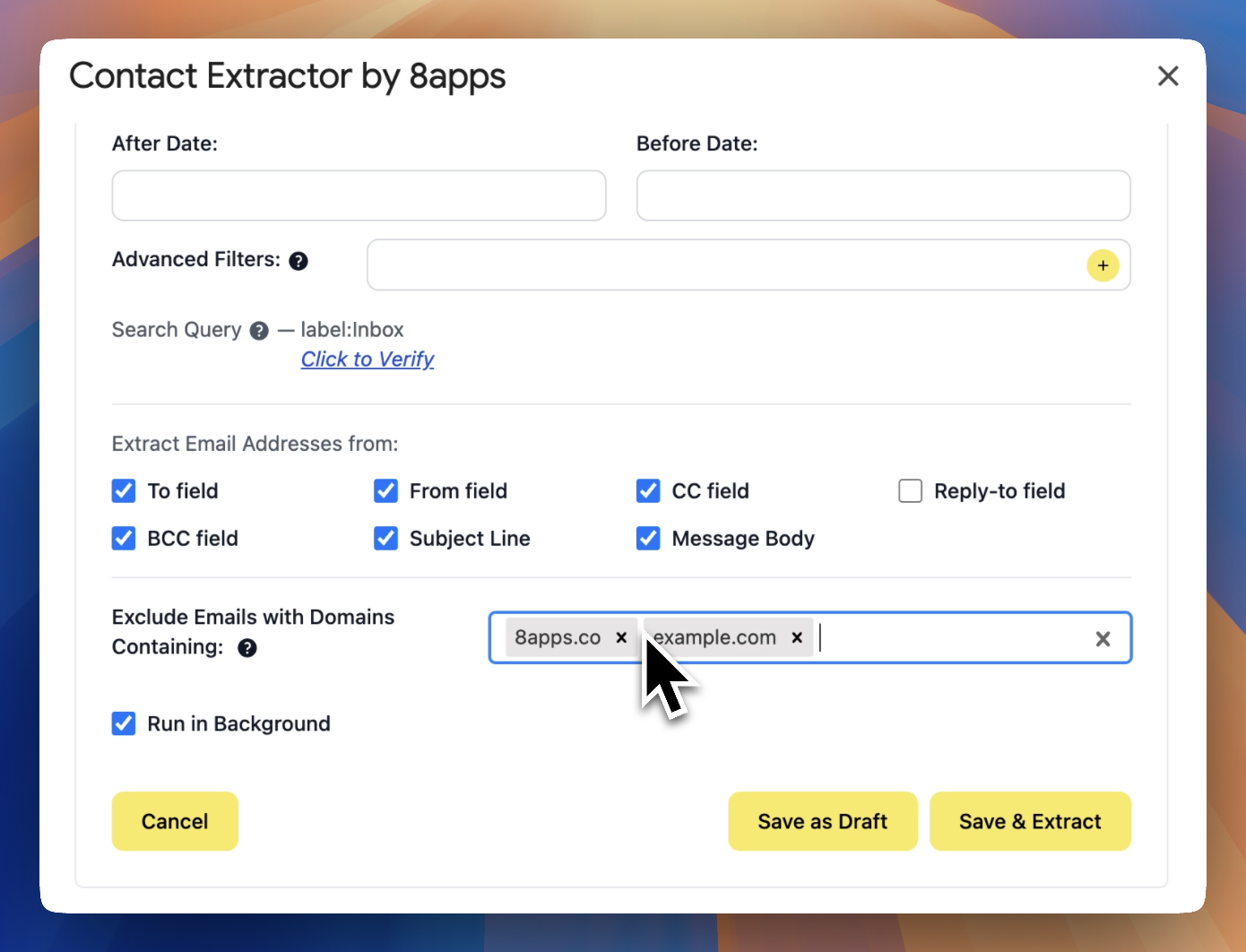
:::warning
In the email address `xyz@example.com`, example.com is the domain name.
Specify just the domain name (example.com) in the Excluded Domain field and not the email address (`xyz@example.com`)
:::
---
# Extract Email Addresses from Gmail Labels
Product: Contact Extractor
URL: https://www.8apps.co/docs/contact-extractor/power-user-tip/extract-email-address
Summary: Pull email addresses from any Gmail label, default or custom, using Contact Extractor. Select one label, several, or All Mail when creating a task.
# Extract Email Addresses from Different Labels in Gmail
The Contact Extractor add-on allows you to pull email addresses from emails under a particular Gmail label. It supports:
- Default Gmail labels include inbox, updates, important, spam, trash, etc.
- Labels created by the user
While creating a task, select a specific Gmail label from the dropdown or choose the ‘All Mail’ option.
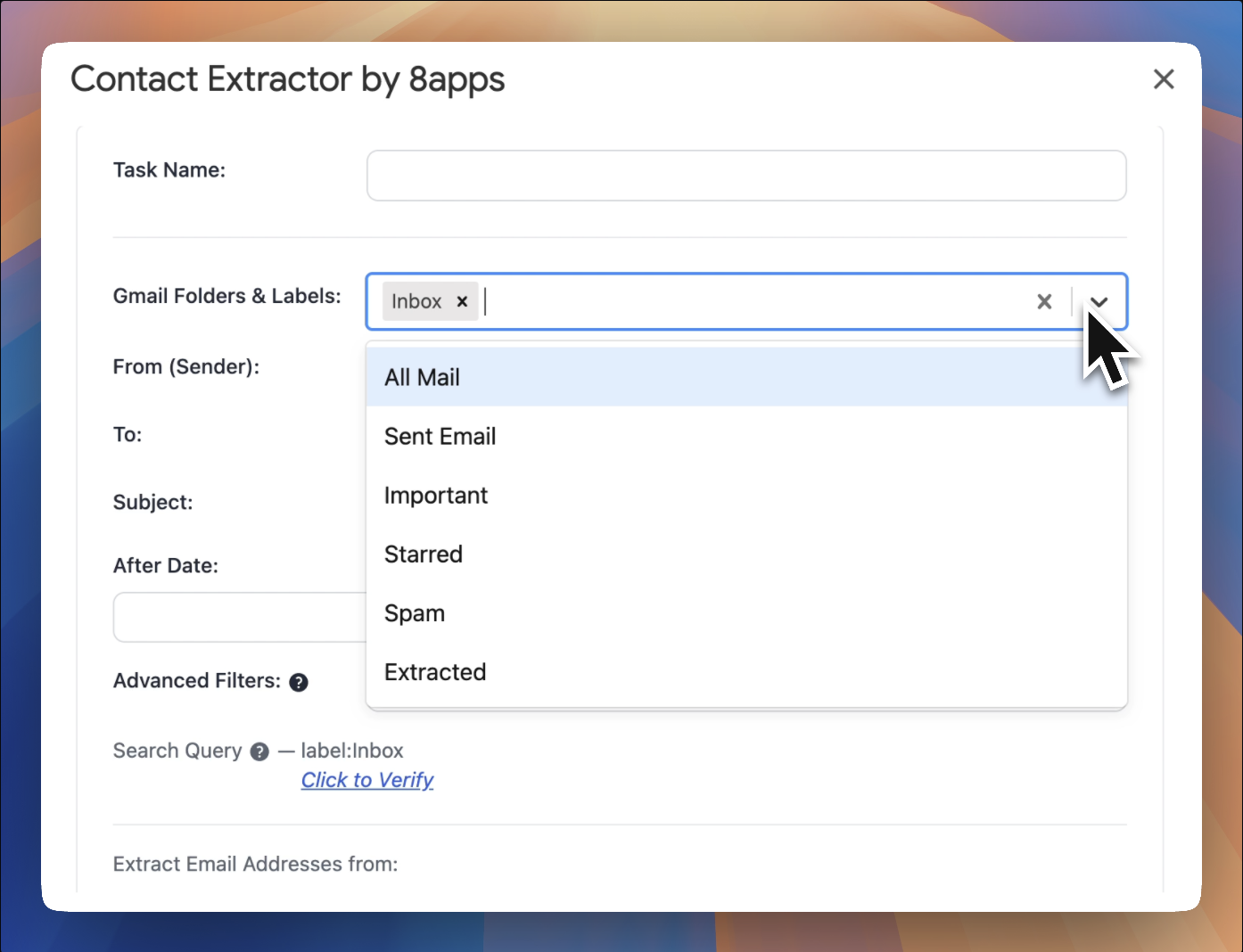
:::tip
You can select multiple labels in this field, and all the email addresses will be extracted from those labels.
:::
---
# Contact Extractor Premium: Limits and Features
Product: Contact Extractor
URL: https://www.8apps.co/docs/contact-extractor/power-user-tip/upgrade-to-premium
Summary: Contact Extractor Premium removes extraction caps, processes up to 4000 emails daily, adds hourly sync, and includes priority email support.
# Why Go Premium with Contact Extractor
Premium helps you work faster, more accurately, and without limits. With the Premium plan, you can extract unlimited contacts, run high-speed scans, and access priority email support when you need it.
## Unlimited Contacts
With the Premium plan, you can extract and export as many contacts as you need, with no daily limits, no restrictions. Ideal for teams managing large datasets or professionals running bulk outreach.
## Process Up to 4000 Emails Daily
Handle high-volume email scanning with ease. The Premium plan lets you process up to 4000 emails every day, making it perfect for users who manage large inboxes, run frequent extractions, or work with high-traffic accounts.
## Reliable Hourly Sync
Stay current with hourly scans and automatic scans, and download email addresses automatically without lifting a finger.
## Priority Email Support
Get faster responses, early fixes, and personalised help whenever you need it. Premium support means less downtime and more peace of mind.
## Create unlimited rules / Tasks
Set up separate tasks for different clients, projects, teams, or contact types, each with its own filters and rules. This allows you to stay organised, automate intelligently, and extract exactly what you need, without compromise.
## Who is Premium for?
- Sales and marketing pros managing large lead lists
- Recruiters organising candidate contacts
- Business development teams scaling outreach
- Anyone needing faster processing and unlimited exports
## Upgrade Now
Upgrade today to explore Premium benefits instantly!
---
# Create a Contact Extractor Task in Sheets
Product: Contact Extractor
URL: https://www.8apps.co/docs/contact-extractor/using-contact-extractor/create-and-manage-tasks
Summary: A task defines which Gmail messages Contact Extractor scans and where the addresses land. Step through creating one and setting its configuration options.
# Create and Manage Tasks
In Contact Extractor, a **Task** defines a set of rules that control which email addresses are extracted from your Gmail account and exported into a Google Sheet.
---
## Creating a New Task
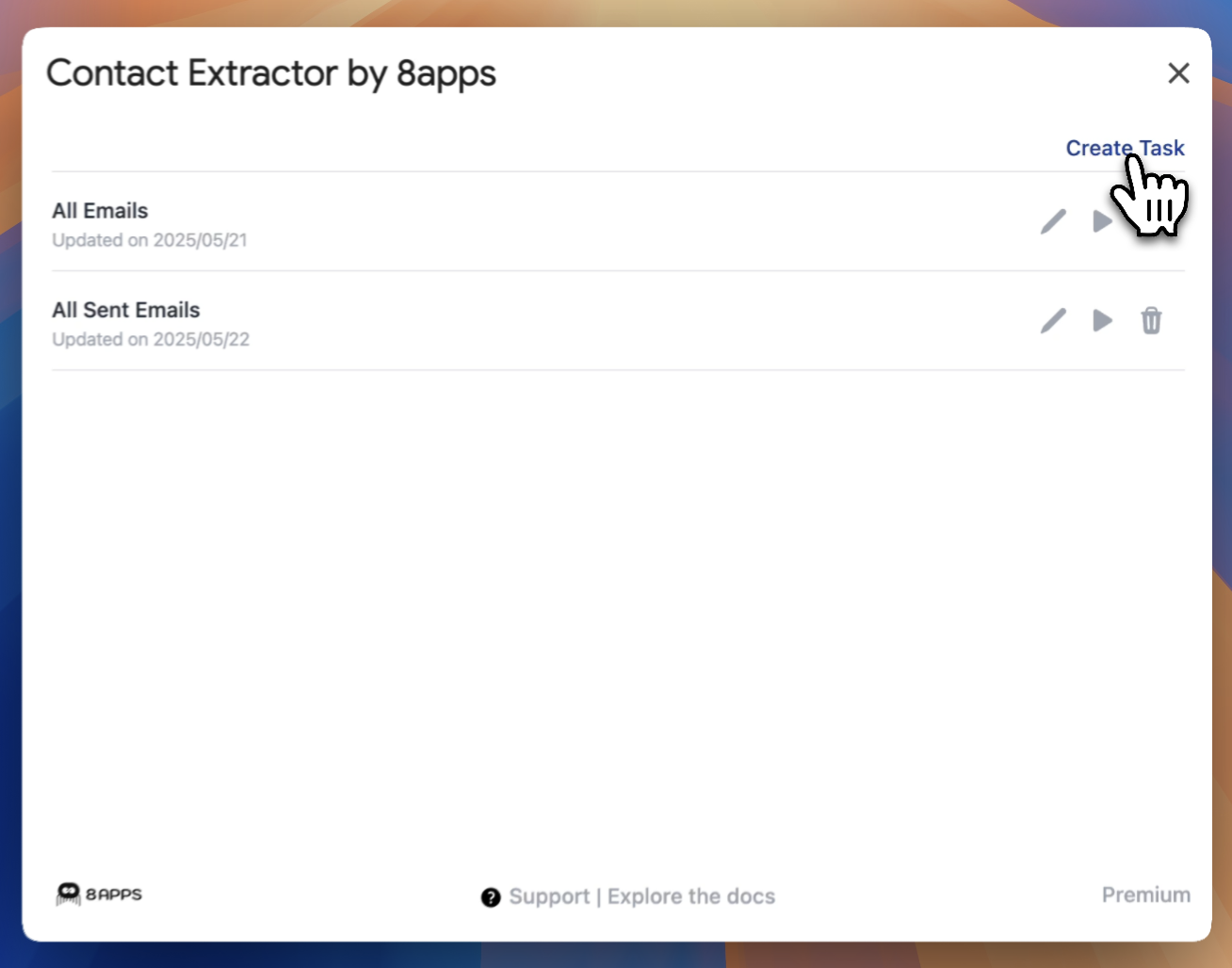
1. Open **Google Sheets**.
2. Go to **Extensions > Contact Extractor > Open App**.
3. The Contact Extractor dialog box will open.
4. Click **Create New Task**.
---
## Task Configuration Options
- **Task Name:** Enter a descriptive label for easy identification.
- **Filter Criteria:** Define the search criteria for extracting email addresses. (see [Filter Criteria](/docs/contact-extractor/using-contact-extractor/filter-criteria)).
- **Extract Source:** Choose which fields you want to extract email addresses from. (see [Extract Source](/docs/contact-extractor/using-contact-extractor/extract-source)).
- **Exclude Domain:** Enter the domain you want to exclude from the search criteria.
---
## Managing Existing Tasks
- View all saved tasks from the main screen.
- Edit a task to update filters or other fields.
- Delete tasks that are no longer needed.
---
# Choose Which Gmail Fields to Extract From
Product: Contact Extractor
URL: https://www.8apps.co/docs/contact-extractor/using-contact-extractor/extract-source
Summary: Contact Extractor can read addresses from To, From, Cc, Bcc, Reply-To, the subject line, and the message body. Pick the fields your task should scan.
# Extract Source
Contact Extractor extracts email addresses from different fields within your Gmail for precise extraction.
---
## Available Field Options:
| Extract Source | Description |
|-------------------|------------------------------------------------------------------------------------------|
| To field | Email address of recipients. |
| From field | Email address of the sender. |
| CC field | Email addresses of recipients copied in the Email. |
| Reply-to field | Email address used for replies. |
| BCC field | Email addresses of the hidden recipients. |
| Subject Line | Email address mentioned in the subject of the Email. |
| Message Body | Email address mentioned in the main content of the Email. |
---
# Filter Criteria for Contact Extractor Tasks
Product: Contact Extractor
URL: https://www.8apps.co/docs/contact-extractor/using-contact-extractor/filter-criteria
Summary: Narrow a Contact Extractor task by label, subject, sender, and date range so you only extract the email addresses you actually need.
# Filter Criteria
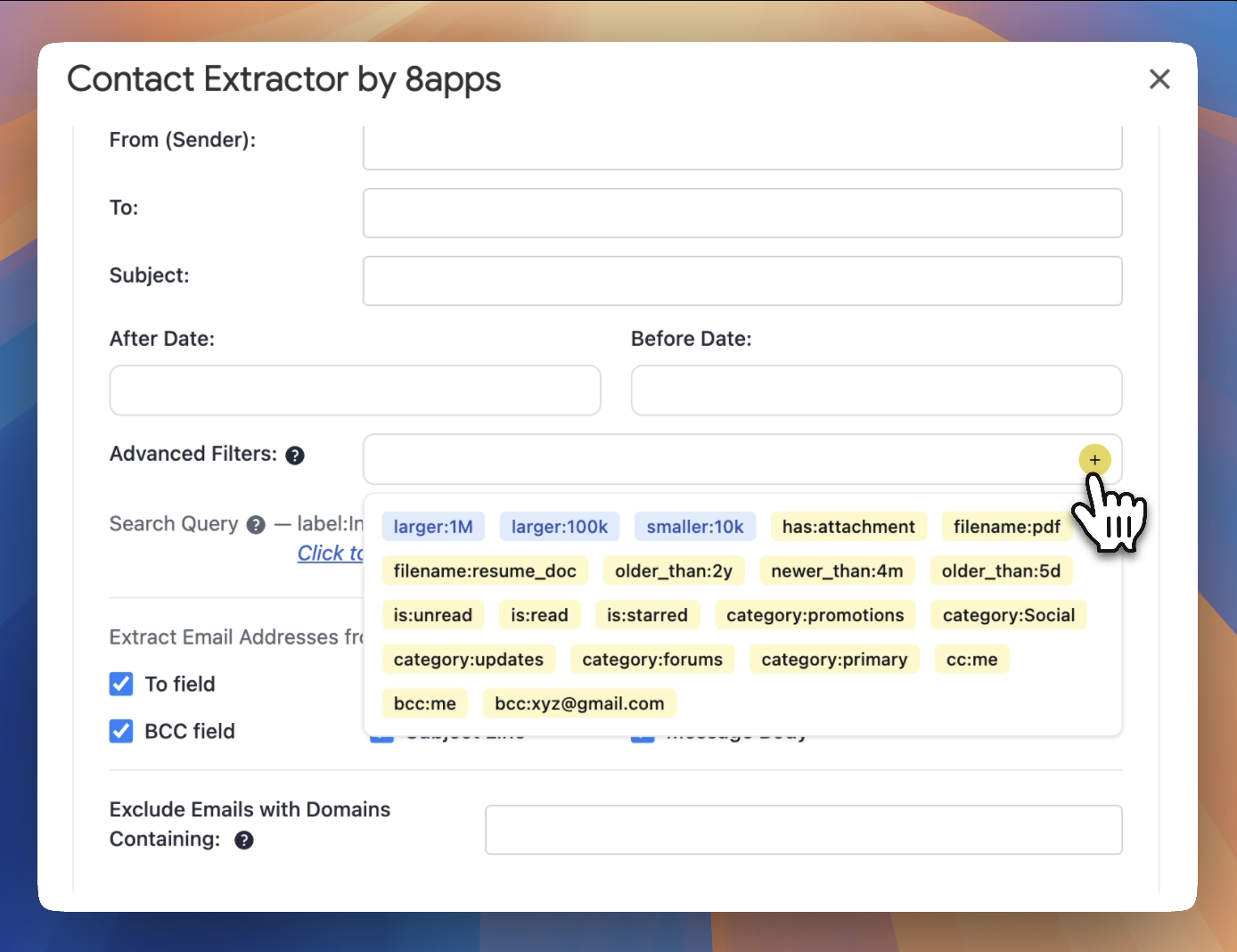
Contact Extractor uses certain search operators to narrow down the search and locate specific emails:
---
## Available Filter Options
| Filter Options | Description |
| ---------------- | ----------------------------------------------------------------------------------------------------------------------- |
| Gmail Folder(s) | Select a specific Gmail label from the dropdown or choose the ‘All Mail’ option. |
| From | Search for emails sent by a particular sender(s). |
| To | Search for emails sent to a particular receiver(s). |
| Subject | Search for emails containing specific words in the subject line. |
| After Date | Search for emails received after a particular date |
| Before Date | Search for emails received before a particular date. |
| Advanced Options | Use advanced search options to filter out emails. See [Advanced Options](/docs/contact-extractor/power-user-tip/advanced-search-options). |
| Extract Source | Specify the message fields you want to extract email addresses from. See [Extract Source](/docs/contact-extractor/using-contact-extractor/extract-source). |
| Exclude Domain | Specify the domain you want to exclude from the search criteria |
---
## Example Filters
- Extract email addresses from the label `Contracts`.
- Extract email addresses from emails with a subject containing "Monthly Report".
- Only extract email addresses from emails received after January 1st, 2025.
---
:::tip
Use precise filters to avoid downloading unnecessary email addresses.
You can verify the entered details using the search query.
:::
---
# Edit, Pause and Delete Extractor Tasks
Product: Contact Extractor
URL: https://www.8apps.co/docs/contact-extractor/using-contact-extractor/manage-tasks
Summary: Update a Contact Extractor task as your needs change. How to edit its rules, pause a scheduled hourly run, and remove a task you no longer use.
# Manage Contact Extractor Tasks
As your requirements change, you can update tasks to ensure the automation works as per your requirements.
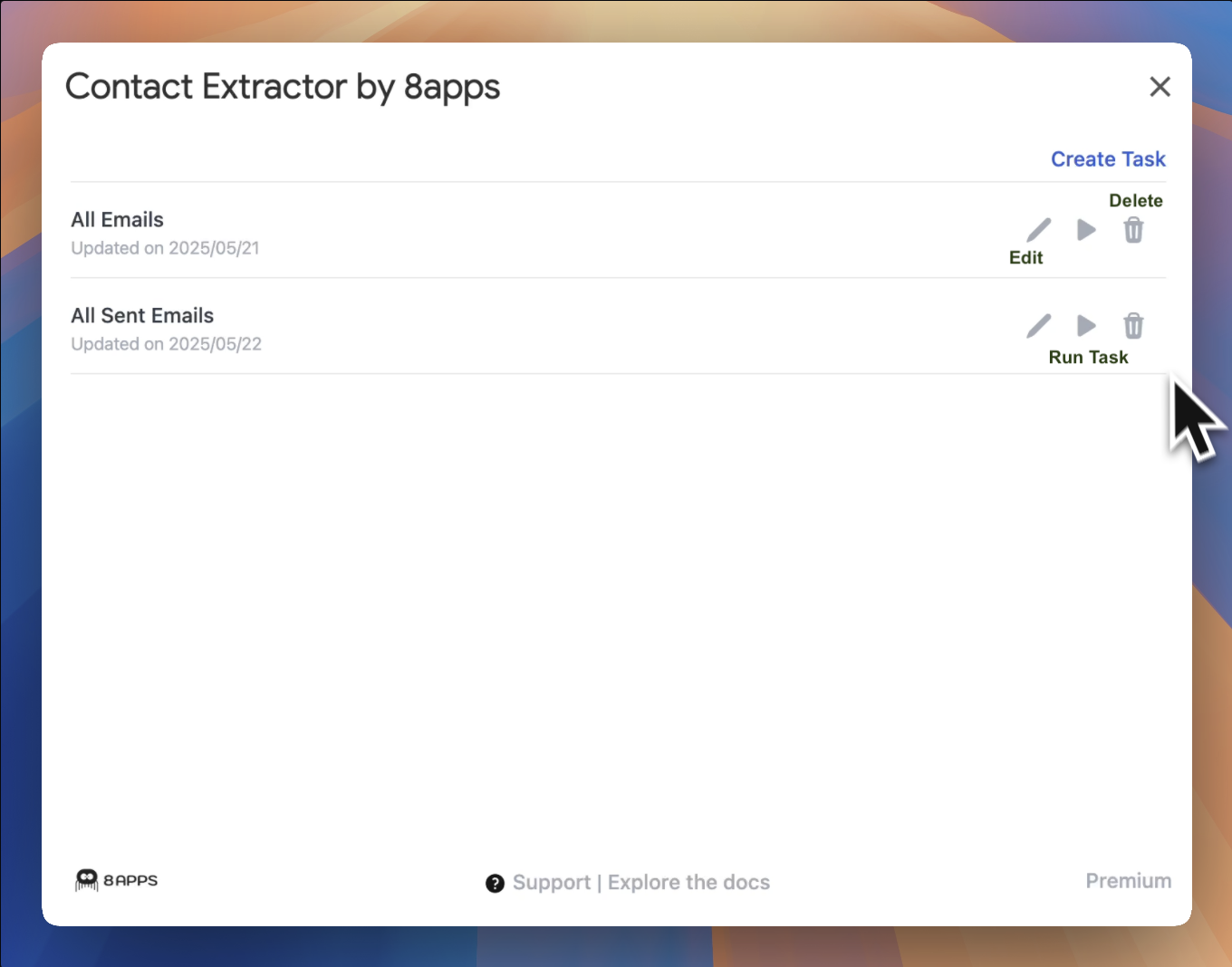
- When you open the app, it shows you all the tasks you have.
- The task Name helps you easily identify the automation.
---
## Edit Task
- Click on Edit option if you want to edit any task
- The details in the Edit Task are identical to those in your Create New Task.
- Proceed to modify and save the details.
## Pause Task
- There may be a scenario where you want to stop tasks from running automatically every hour.
- Open a task and click on Edit
- Uncheck the Run in Background, and save the task.
## Delete Task
- If you no longer need a task, you may delete a task.
- Click on the delete icon next to the task, and delete it.
:::warning
Once you delete a task, you cannot retrieve it.
:::
## Run Task
- There is an option to run a task as required.
- If you wish to manually initiate a run, click on the run button next to the task.
- Based on the defined rules, it will run the task.
:::info
Your automation if enabled by (Run in background), will continue to run as is.
:::
---
# Run a Contact Extractor Task in Google Sheets
Product: Contact Extractor
URL: https://www.8apps.co/docs/contact-extractor/using-contact-extractor/run-task
Summary: Run a task once with Save and Extract, or schedule hourly background runs. Learn what the two output sheets contain once extraction finishes.
# Run Task
The last step in the task is to ‘Save and Extract, and the Contact Extractor add-on will automatically extract the matching email addresses and attachments from Gmail to your Google sheet.
There are two options for running the tasks- manual or automatic.
- **For One time Run:** Click on the ‘Save and Extract’ option, and the add-on will run once.
- **For Scheduled Run:** Click on ‘Run in Background’ and the add-on will function like a scheduled task at hourly intervals. Matching emails are processed, and addresses are automatically extracted without any manual triggers.
Congratulations! Your Contact Extractor is now fully active!
---
Once the emails are processed, close the add-on dialog box. You will notice two sheets:
- The first sheet contains the list of all the unique email addresses that have been extracted.
- The other sheet contains the complete details of the emails, including the date, direct link to the mail, and the message fields from which email addresses have been pulled.
---
# Convert Currency in Google Docs and Gmail
Product: Currency Converter
URL: https://www.8apps.co/docs/currency-converter/currency-converter-addon/convert-currency
Summary: Use the Currency Converter sidebar in Google Docs, Slides, Calendar, and Gmail: pick your from and to currencies, enter an amount, and read the result.
# Convert Currency using the Sidebar
## Select Currencies
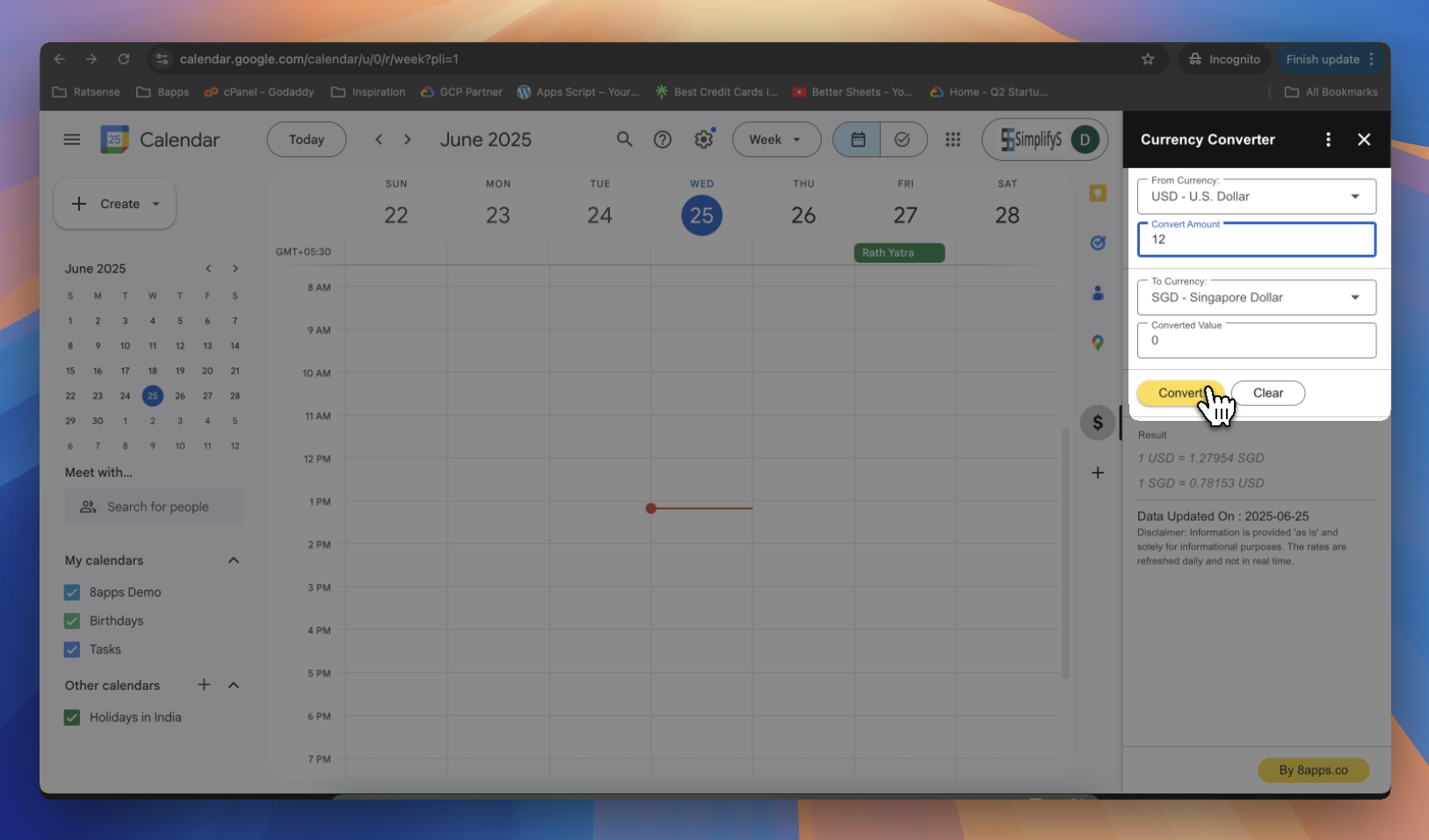
To begin your conversion, open the currency converter sidebar by clicking the icon **$** in the right-hand sidebar and:
1. **Choose the "From Currency"** - Use the dropdown to select the currency you're converting from (e.g., USD, EUR, INR).
2. **Choose the "To Currency"** - Select the currency you want to convert to from the second dropdown.
The converter supports 180+ global currencies, updated daily to reflect accurate exchange rates. See the [supported currencies](/docs/currency-converter/power-user-tips/supported-currencies).
## Enter Amount
Once you've selected your currencies:
1. Navigate to the **"Convert Amount"** field.
2. Enter the numeric value you want to convert (e.g., 100).
3. Click the **"Convert"** button.
The add-on will instantly calculate and display the result under the **"Converted Value"** section.
## Understanding Results
In addition to the converted amount, you'll also see helpful reference rates such as:
- 1 USD = 1.29 SGD
- 1 USD = 1.29148 SGD
- 1 SGD = 0.7743 USD
These details give you quick visibility into the latest exchange rates and conversion accuracy.
:::tip
When entering the amount, ensure you use only numeric values. Do not include currency symbols (e.g., $) or commas.
:::
---
# Set Preferred Currencies in Currency Converter
Product: Currency Converter
URL: https://www.8apps.co/docs/currency-converter/currency-converter-addon/preferred-currency
Summary: Pin up to three commonly used currencies to the top of the Currency Converter sidebar so your usual conversions are always one click away.
# Set Your Preferred Currencies
## Set Currency
You can set your preferred currency for quick access from the settings page.
- Go to Settings page by clicking on the three dots
Here you can select upto 3 commonly used currency, and they will show on the top. This ensures you have easy access to the currency from the sidebar.
---
# CURRENCYCONVERT Formula for Google Sheets
Product: Currency Converter
URL: https://www.8apps.co/docs/currency-converter/currency-custom-formula/custom-formula
Summary: Syntax and parameters for =CURRENCYCONVERT(fromcurrency, tocurrency, amount, date), the Currency Converter custom function for Google Sheets, with examples.
# The CURRENCYCONVERT Formula
## Formula Syntax
```
=CURRENCYCONVERT(fromcurrency, tocurrency, amount, date)
```
## Parameters
| Parameter | Type | Description |
| ---------------- | -------- | --------------------------------------------------------------------------------------------------------------------------------------------------- |
| **fromCurrency** | Required | The 3-letter code of the currency you're converting from (e.g., "USD") |
| **toCurrency** | Required | The 3-letter code of the currency you're converting to (e.g., "INR") |
| **amount** | Optional | The value you want to convert. Defaults to 1 if not provided. |
| **date** | Optional | The date for which you want the exchange rate. Defaults to the current date if left blank. [Click here for more information.](/docs/currency-converter/currency-custom-formula/selecting-dates) |
## Examples
| Formula | Description |
| --------------------------------------------------- | --------------------------------------------------------------------------- |
| `=CURRENCYCONVERT("USD", "EUR")` | Converts 1 USD to EUR using today's rate. |
| `=CURRENCYCONVERT("GBP", "INR", 250)` | Converts 250 British Pounds to Indian Rupees using the current date's rate. |
| `=CURRENCYCONVERT("EUR", "JPY", , "2023-01-01")` | Converts 1 Euro to Japanese Yen using the rate from January 1, 2023. |
| `=CURRENCYCONVERT("USD", "CAD", 100, "2022-11-15")` | Converts 100 USD to Canadian Dollars using the rate on November 15, 2022. |
:::info
If the formula isn't auto-suggested while typing, open the add-on via **Extensions > Currency Converter by 8apps > Open App**.
:::
---
# Historical Exchange Rates in Google Sheets
Product: Currency Converter
URL: https://www.8apps.co/docs/currency-converter/currency-custom-formula/selecting-dates
Summary: Pass a date to =CURRENCYCONVERT to convert at a past rate. How to reference a date cell or type a date directly, and the formats Google Sheets accepts.
# Fetch Rates for a Specific Date
The date parameter in the formula allows you to convert currencies using both today's rates and historical exchange rates.
You can provide the date in two ways:
## Referencing a Cell
If you're referencing a date from another cell, the format can be any date format supported by Google Sheets.
This will correctly use the date value from that cell, regardless of how it's formatted (e.g., 5/10/2023, 10-May-2023, or 2023-05-10), as long as it's a valid Google Sheets date.
Refer to [Google's date formatting guide](https://support.google.com/docs/answer/3094139) here.
:::tip
Make sure the referenced cell contains a proper date, not a text string. If Sheets doesn't recognise it as a date, the conversion may fail.
:::
## Manually Entering a Date
If you're entering the date directly into the formula, it must follow the strict **YYYY-MM-DD** format.
**Example:** `=CURRENCYCONVERT("EUR", "JPY", 50, "2023-05-10")`
:::caution
Incorrect formats (like "10/05/2023" or "May 10, 2023") will result in errors when entered as strings.
:::
---
# Install Currency Converter for Google Workspace
Product: Currency Converter
URL: https://www.8apps.co/docs/currency-converter/getting-started/install-and-authorize
Summary: Install and authorise Currency Converter by 8apps from the Google Workspace Marketplace, or add it directly from the Extensions menu in Google Sheets.
# Install and Authorise Currency Converter
Installing and authorising Currency Converter takes just a few simple steps.
1. Open the marketplace listing [Currency Converter by 8apps](https://workspace.google.com/marketplace/app/currency_converter_by_8apps/404359277794) on Google Workspace Marketplace.
2. Click **Install** and choose your Google Account.
3. Review and approve the requested permissions.
Alternatively, you can install it directly from Google Sheets:
Go to Extensions > Add-ons > Get add-ons, then search for "Currency Converter by 8apps"
:::caution
- When opening the add-on in Google Sheets for the first time, you may be prompted to grant necessary permissions for using the custom formula.
- Make sure you are not logged into multiple Gmail accounts while installing Currency Converter.
:::
:::note
Currency Converter runs entirely within your Google Workspace, with no external access.
:::
---
# Launch Currency Converter in Sheets or Gmail
Product: Currency Converter
URL: https://www.8apps.co/docs/currency-converter/getting-started/launch
Summary: Open Currency Converter from the right-hand sidebar in Gmail, Docs, Slides, and Calendar, or from the Extensions menu in Google Sheets.
# Launch Currency Converter
Once installed, it is very easy and convenient to launch the Currency Converter add-on.
## To Launch in Gmail, Docs, Slides, Calendar
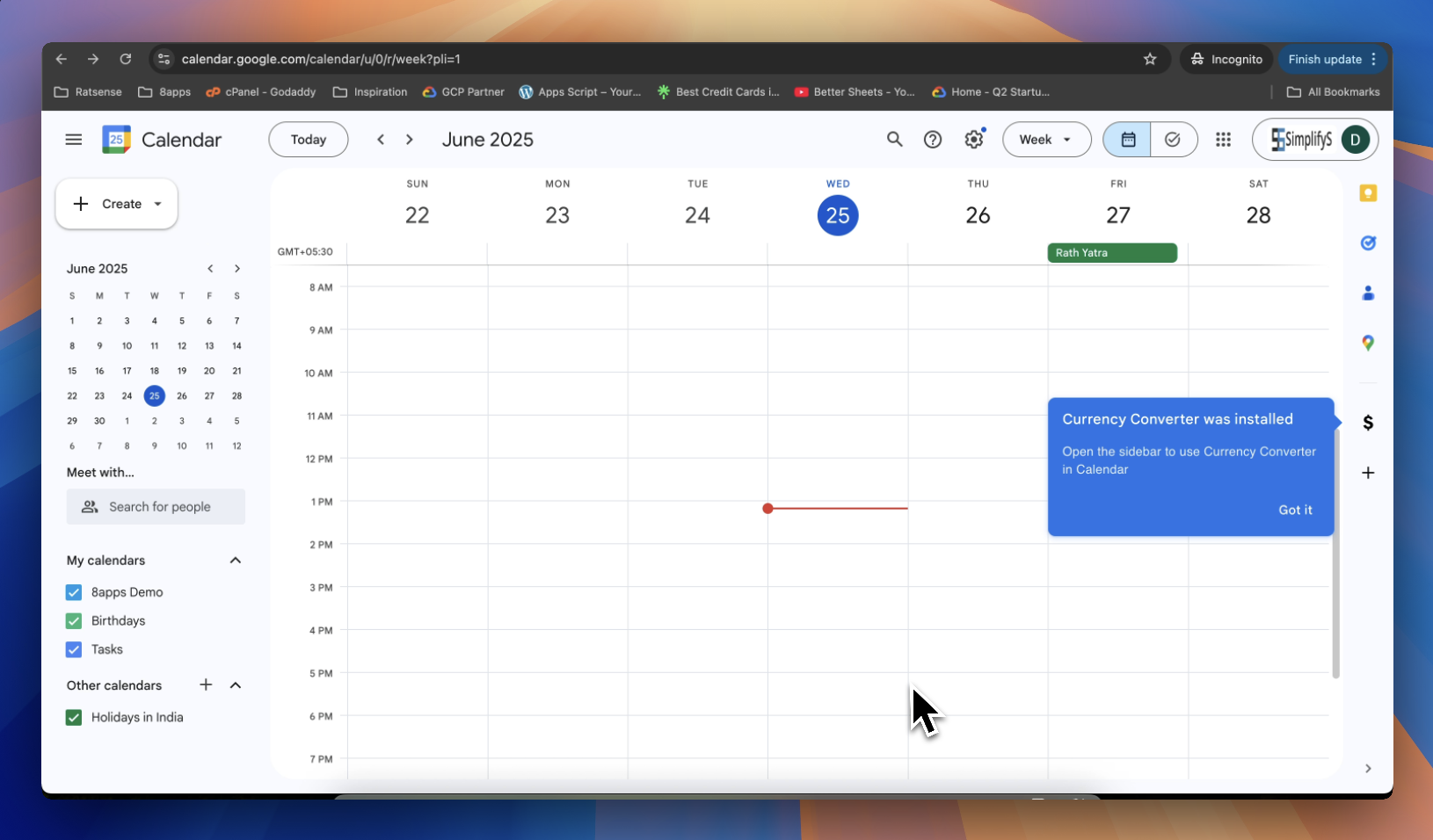
1. Open Docs, Slides, Calendar, or Gmail
2. Click the Currency Converter (**$**) icon in the right-hand sidebar
3. Approve the requested permissions
## To Launch in Google Sheets
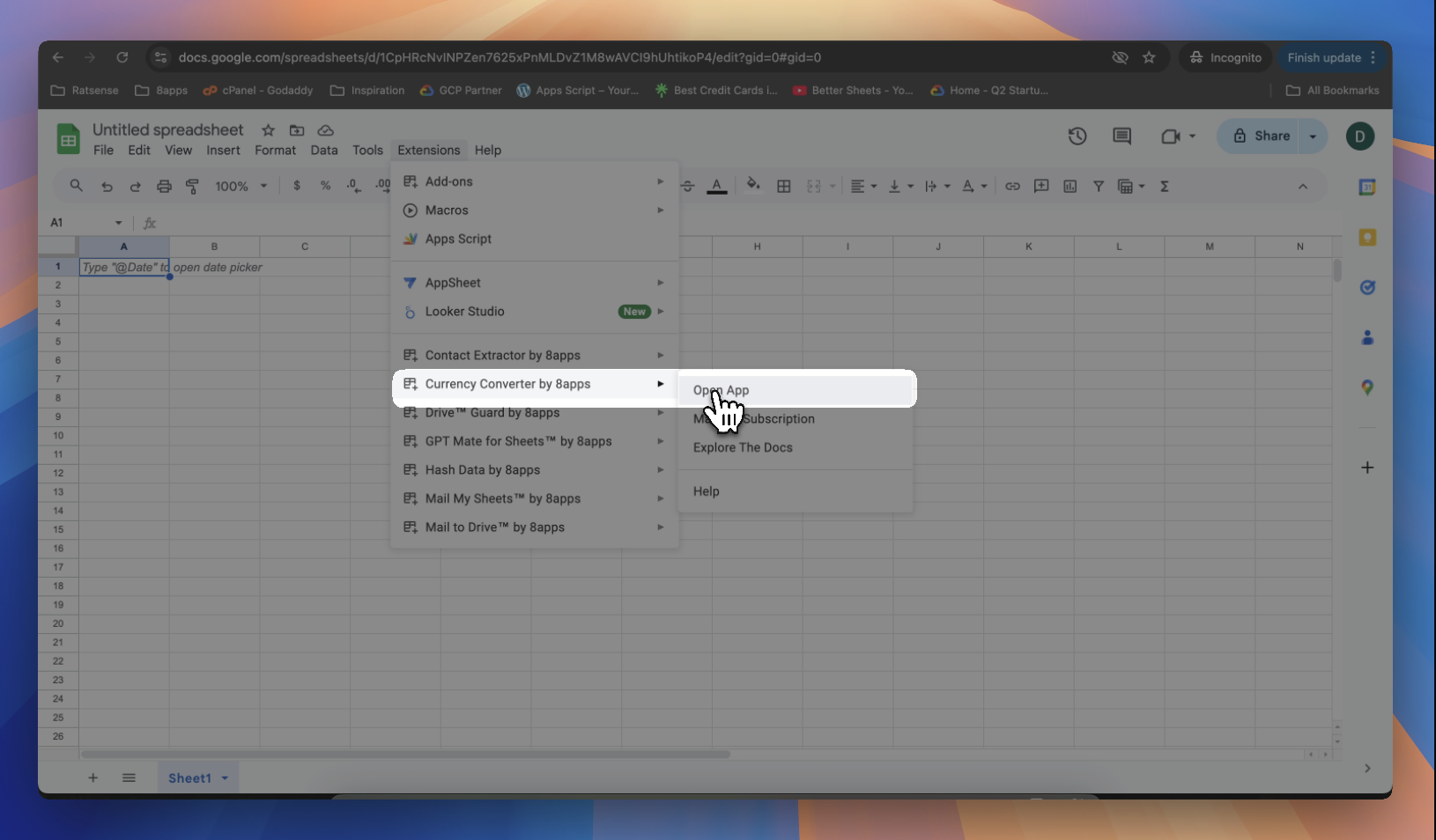
1. Open a Sheet (or go to [sheets.new](https://sheets.new) to create one)
2. Go to **Extensions > Currency Converter by 8apps > Open App**
You're now ready to convert currencies, without switching tabs or leaving your document.
:::warning
Make sure you're using the same Google account you installed the add-on with. Avoid being logged into multiple accounts in the same browser to prevent access issues.
:::
:::info
Currency Converter runs entirely within your Google Workspace, with no external access.
:::
---
# Currency Converter for Google Workspace
Product: Currency Converter
URL: https://www.8apps.co/docs/currency-converter/getting-started/overview
Summary: Currency Converter brings live and historical exchange rates into Google Sheets, Docs, Slides, Calendar, and Gmail. See what it does and who it suits.
# Currency Converter Overview
Currency Converter by 8apps makes working with global currencies fast, accurate, and effortless, right inside your Google Workspace tools, including Google Docs, Google Slides, Google Calendar, Gmail, and Google Sheets.
No sign-ups. No switching tools. Just smooth, secure, and built-in currency conversion, right where you work.
## Ideal for:
- **Business users** quoting or invoicing in multiple currencies
- **Finance teams** handling international budgets and reports
- **Project managers** tracking global expenses
- **Analysts** working with historic currency data
- **Anyone** needing reliable conversions across Workspace apps
## Key Capabilities:
- **Convert over 180 currencies** using daily exchange rates
- **Seamless integration** with your Google Workspace apps
- **Supports past date conversions** in Google Sheets
- **No copy-paste needed!** Input, convert, and use instantly
- **Secure and private!** No account linking
- **No sign-ups, subscriptions, or external data storage**
Learn how to get started below!
---
# Currency Converter Best Practices
Product: Currency Converter
URL: https://www.8apps.co/docs/currency-converter/power-user-tips/best-practises
Summary: Practical tips for accurate, efficient currency conversion across Google Workspace, so your rates, dates, and cell references behave as you expect.
# Currency Converter Best Practices
Follow these tips to ensure accurate, efficient, and hassle-free currency conversions across your Google Workspace apps.
| Tip | Description |
|-----|-------------|
| **Use valid currency codes** | Always use 3-letter currency codes like USD, EUR, INR, etc. |
| **Use Sheets for historical conversions** | Only the Google Sheets formula supports past date conversions. |
| **Enter numbers only in the sidebar** | Avoid using currency symbols (e.g., $) or commas in the input field. |
| **Refresh the sidebar if needed** | If the add-on becomes unresponsive, click the menu (⁝) > Refresh. |
| **Use the correct date format** | When typing a date manually in the formula, always use YYYY-MM-DD format. |
| **Avoid multiple Google accounts** | Stay logged in with one Google account to prevent access or permission issues. |
| **Keep the add-on updated** | Regular updates ensure the latest features and bug fixes. |
---
# Clear a Conversion in Currency Converter
Product: Currency Converter
URL: https://www.8apps.co/docs/currency-converter/power-user-tips/clear-selection
Summary: Reset the Currency Converter sidebar with the Clear button to wipe selected currencies, entered amounts, and previous results before a fresh conversion.
# Clear a Conversion
If you want to perform a new conversion with different currencies or values:
Simply click the **"Clear"** button.
This will reset all previously entered information, including selected currencies, input amounts, and converted results.
You can now enter new values and start a fresh conversion without any leftover data from previous entries.
---
# Supported Currencies in Currency Converter
Product: Currency Converter
URL: https://www.8apps.co/docs/currency-converter/power-user-tips/supported-currencies
Summary: The full list of currencies Currency Converter supports: 80 in the sidebar for Docs, Slides, Calendar, and Gmail, and 180+ in the Google Sheets formula.
# Supported Currencies
Currently, the currency conversion using the sidebar in Google Docs, Slides, Calendar and Gmail supports these 80 currencies:
| Currency Code | Currency Name |
|---------------|---------------|
| USD | U.S. Dollar |
| EUR | Euro |
| GBP | U.K. Pound Sterling |
| CAD | Canadian Dollar |
| JPY | Japanese Yen |
| AUD | Australian Dollar |
| CHF | Swiss Franc |
| OMR | Omani Rial |
| ILS | Israeli New Sheqel |
| PEN | Peruvian Nuevo Sol |
| TJS | Tajikistan Ruble |
| SGD | Singapore Dollar |
| HUF | Hungarian Forint |
| UAH | Ukrainian Hryvnia |
| CLP | Chilean Peso |
| SEK | Swedish Krona |
| CNY | Chinese Yuan |
| ISK | Icelandic Krona |
| AZN | Azerbaijan Manat |
| HTG | Haitian gourde |
| DOP | Dominican Peso |
| LBP | Lebanese Pound |
| MYR | Malaysian Ringgit |
| IRR | Iranian rial |
| UYU | Uruguayan Peso |
| ANG | Neth. Antillean Guilder |
| PHP | Philippine Peso |
| XOF | West African CFA Franc |
| LYD | Libyan Dinar |
| JOD | Jordanian Dinar |
| NZD | New Zealand Dollar |
| TRY | Turkish Lira |
| NGN | Nigerian Naira |
| RSD | Serbian Dinar |
| QAR | Qatari Rial |
| CZK | Czech Koruna |
| BYN | Belarussian Ruble |
| ARS | Argentine Peso |
| NOK | Norwegian Krone |
| BDT | Bangladeshi taka |
| RON | Romanian New Leu |
| MDL | Moldova Lei |
| CRC | Costa Rican Colón |
| VES | Venezuelan Bolivar |
| IDR | Indonesian Rupiah |
| MXN | Mexican Peso |
| AMD | Armenia Dram |
| PYG | Paraguayan Guaraní |
| AED | U.A.E Dirham |
| NPR | Nepalese Rupee |
| XAF | Central African CFA Franc |
| KGS | Kyrgyzstan Som |
| BRL | Brazilian Real |
| INR | Indian Rupee |
| LKR | Sri Lanka Rupee |
| TND | Tunisian Dinar |
| VND | Vietnamese Dong |
| TMT | New Turkmenistan Manat |
| DKK | Danish Krone |
| PKR | Pakistani Rupee |
| BGN | Bulgarian Lev |
| RUB | Russian Rouble |
| GEL | Georgian lari |
| SAR | Saudi Riyal |
| PLN | Polish Zloty |
| KZT | Kazakhstani Tenge |
| COP | Colombian Peso |
| EGP | Egyptian Pound |
| KRW | South Korean Won |
| DZD | Algerian Dinar |
| PAB | Panamanian Balboa |
| BHD | Bahrain Dinar |
| MAD | Moroccan Dirham |
| ZAR | South African Rand |
| IQD | Iraqi dinar |
| BOB | Bolivian Boliviano |
| HKD | Hong Kong Dollar |
| KWD | Kuwaiti Dinar |
| THB | Thai Baht |
| TWD | New Taiwan Dollar |
| UZS | Uzbekistan Sum |
:::info
The currency conversion formula in Sheets supports 180+ currencies. The currencies available on the plugin may change over time.
:::
---
# Currency Converter Premium: Limits and Pricing
Product: Currency Converter
URL: https://www.8apps.co/docs/currency-converter/power-user-tips/upgrade-to-premium
Summary: The free plan caps you at 10 conversions a day. Premium removes that limit entirely and adds priority email support. See who Premium is built for.
# Why Go Premium with Currency Converter
Take your workflow to the next level with features designed for professionals who rely on accurate, high-volume currency conversions. No limits, no interruptions, just smooth, powerful performance built into your everyday tools.
## Unlimited Conversions
Never hit a limit again. With the free version, you're limited to 10 conversions per day.
Premium removes all usage limits, perfect for teams, analysts, and frequent users who need full access without disruption.
## Priority Email Support
Get faster responses, early fixes, and personalised help whenever you need it. Premium support means less downtime and more peace of mind.
## Who is Premium for?
- Teams managing international finances, payroll, or invoicing
- Professionals working with historical exchange data regularly
- Analysts and researchers needing large-volume currency lookups
- Anyone tired of daily limits or waiting on support queues
## Upgrade Now
Upgrade today to unlock premium features instantly and work with data securely, without limits.
---
# Drive Downloader: Export or Copy Your Google Drive
Product: Drive Downloader
URL: https://www.8apps.co/docs/drive-downloader/getting-started/overview
Summary: Drive Downloader exports My Drive, Shared with me or a shared drive as zip files, or copies it into another Google account or Dropbox. See what it does.
# Drive Downloader Overview
Drive Downloader is a web app at [drive-tools.8apps.co](https://drive-tools.8apps.co) that takes the files you choose from your Google Drive and either downloads them as zip files or copies them into another account.
**Key Capabilities:**
- Export everything in **My Drive**, everything **Shared with me**, a whole **shared drive**, or only the folders and files you pick
- Filter by file type, by the date files were last modified, or by owner
- Convert Google Docs, Sheets, Slides and Drawings to the format you choose, from the same list as Google's own Download menu
- Exports under 2 GB download straight to your computer; larger ones are prepared in the background as 2 GB zip files
- Copy files into **another Google account** or into **Dropbox**, with their folders recreated
- Every zip includes a `manifest.csv` listing each file and whether it was exported
- Read-only: nothing in your own Drive is moved, edited or deleted
## Where to start
1. [Sign in](/docs/drive-downloader/getting-started/sign-in) with the Google account whose files you want to export.
2. [Export your Drive](/docs/drive-downloader/using-drive-downloader/export-your-drive) as zip files, or [copy it into another account](/docs/drive-downloader/using-drive-downloader/copy-to-google-drive).
3. Check what the [Free and Premium plans](/docs/drive-downloader/power-user-tips/upgrade-to-premium) include.
---
# Sign In to Drive Downloader with Google
Product: Drive Downloader
URL: https://www.8apps.co/docs/drive-downloader/getting-started/sign-in
Summary: Open drive-tools.8apps.co and sign in with Google. Drive Downloader asks for read-only access to your Drive so it can export the files you choose.
# Sign In
Drive Downloader runs in your browser. There is nothing to install.
## How to sign in
1. Open [drive-tools.8apps.co](https://drive-tools.8apps.co).
2. Click **Sign in with Google** and choose the account whose files you want to export.
3. Review the permissions Google shows and click **Allow**.
You land on **New export**, ready to choose what to export.
## What Drive Downloader can access
Drive Downloader asks for **read-only** access to your Google Drive. It reads only the files you choose to export and never moves, edits or deletes anything in your Drive.
:::note
The account you sign in with is always the one files are exported **from**. To copy files **into** a different account, link it on the [Integrations](/docs/drive-downloader/using-drive-downloader/integrations) page.
:::
## Signing out or disconnecting
- **Sign out** from the menu ends your session.
- **Settings › Disconnect** revokes Drive Downloader's access at Google and signs you out. Running exports fail. You can sign in again at any time.
---
# What Drive Downloader Stores and for How Long
Product: Drive Downloader
URL: https://www.8apps.co/docs/drive-downloader/power-user-tips/privacy-and-data
Summary: Drive Downloader reads only the files you export, never changes your Drive, deletes download files and file lists after 24 hours, and keeps only counts.
# Privacy and Your Data
## What Drive Downloader reads
- Drive Downloader has **read-only** access to the Google account you sign in with. It reads only the files you choose to export and never moves, edits or deletes anything in your Drive.
- In a linked Google account, it can only add files to the folder you choose and see the files it creates there.
- In a linked Dropbox, it can only use its own folder, **Apps › Drive Tools**.
## What is stored, and for how long
| Data | Kept |
|---|---|
| Files of a large export (download page) | deleted 24 hours after the export finishes |
| File names and paths of an export | deleted with the download, 24 hours after it finishes |
| Exports under 2 GB | never stored; they stream straight to your browser |
| Copies into another account or Dropbox | stored nowhere on the way; they stream from Google Drive to the destination |
| Export history (counts and sizes only) | until you clear it or delete your account |
| Access to your accounts | encrypted; removed when you disconnect or unlink |
## Disconnect or delete your account
- **Settings › Disconnect** revokes Drive Downloader's access at Google and signs you out.
- **Integrations › Unlink** removes access to a linked account.
- To delete your account and export history, email [support@8apps.co](mailto:support@8apps.co).
See the [8apps privacy policy](https://www.8apps.co/privacy-policy) for the full terms.
---
# Drive Downloader Premium: Plans and Export Limits
Product: Drive Downloader
URL: https://www.8apps.co/docs/drive-downloader/power-user-tips/upgrade-to-premium
Summary: The free plan exports 50 files and 2 GB a day. Drive Downloader Premium removes the daily file limit and allows 200 GB of exports a month.
# Upgrade to Premium
## Plan limits
| | Free | Premium |
|---|---|---|
| Files per day | 50 | no limit |
| Size | 2 GB per day | 200 GB per month |
| Copy to another Google account or Dropbox | yes | yes |
- Days reset at midnight UTC; the monthly allowance resets on the 1st (UTC).
- What counts is the files Drive Downloader produces: each exported or copied file, including converted Google files.
- Downloads and copies count the same way.
- An export that would go over a limit does not start, and you see every limit it would break.
## Prices
Choose a plan on **Settings › Plans & billing**:
- **Premium, monthly** – $18 a month.
- **Premium, yearly** – $48 a year.
- **Pay Once** – $188, lifetime: no renewals.
- **Teams and bulk licences** – email [support@8apps.co](mailto:support@8apps.co).
## How buying works
1. Choose a plan and click **Buy Plan**. Payment is handled by Stripe in a new tab.
2. After paying, your **licence key** is emailed to you.
3. Paste it under **Already have a licence key?** to activate Premium.
The key can also be given to someone else, for example when you buy for a colleague. They redeem it in their own Drive Downloader account.
## Manage or cancel your plan
**Settings** shows your plan, billing, renewal date, what it includes and today's usage. If you pay by card, click **Manage billing in Stripe** to see invoices, change the payment method or cancel.
---
# Copy Google Drive Files to Dropbox
Product: Drive Downloader
URL: https://www.8apps.co/docs/drive-downloader/using-drive-downloader/copy-to-dropbox
Summary: Copy Google Drive files into Dropbox with Drive Downloader. Files land in Apps › Drive Tools with their folders recreated; Google Docs are converted.
# Copy to Dropbox
Drive Downloader can copy your selection straight into your **Dropbox**, without downloading anything to your computer.
## Before you start
Link your Dropbox once on the [Integrations](/docs/drive-downloader/using-drive-downloader/integrations) page. Personal Dropbox accounts are supported; team folders are not.
## How to copy
1. Start a **New export** and complete **What to export** and **File formats** as usual.
2. In **Save to**, choose **Dropbox**. The linked account is shown with its free space.
3. Click **Start copy**.
Files are copied into **Dropbox › Apps › Drive Tools**, with their folders recreated. The copy runs in the background, so you can close the tab. We email you when it is done.
## Google Docs, Sheets and Slides
Dropbox cannot hold Google files, so they arrive in the formats chosen in step 2. See [Google File Formats](/docs/drive-downloader/using-drive-downloader/file-formats).
## Files with the same name
A file whose name is already taken in the folder is saved with a number added, for example `report (1).pdf`. Existing files are never replaced.
## Not enough space
Before the copy starts, Drive Downloader compares its size with your free Dropbox space. If it may not fit, you see **This copy may not fit** with **Start anyway** or **Back to options**. If Dropbox fills up during the copy, it stops; files already copied stay.
## What Drive Downloader can access
In Dropbox, Drive Downloader can only use its own folder, **Apps › Drive Tools**. It cannot see anything else.
Copied files count toward your plan the same way as downloads.
---
# Copy Google Drive Files to Another Google Account
Product: Drive Downloader
URL: https://www.8apps.co/docs/drive-downloader/using-drive-downloader/copy-to-google-drive
Summary: Move files between Google accounts with Drive Downloader: link the other account, pick a folder in it, and copy with folders recreated. Keep Docs as Google files.
# Copy to Another Google Account
Drive Downloader can copy your selection straight into a folder of a **different Google account**, for example from a work account to a personal one. Nothing is downloaded to your computer.
## Before you start
Link the other account once on the [Integrations](/docs/drive-downloader/using-drive-downloader/integrations) page. It must be a different account from the one you signed in with.
## How to copy
1. Start a **New export** and complete **What to export** and **File formats** as usual.
2. In **Save to**, choose **Google Drive**. The linked account is shown with its free space.
3. Click **Choose folder in** *(the other account)* and pick the folder to copy into. It can be in its My Drive or in a shared drive.
4. Choose how Google Docs, Sheets and Slides arrive:
- **Keep as Google files** – they arrive as editable Google files. Most formatting carries over; comments and some advanced features may not. Drawings arrive as images.
- **Convert** – they arrive in the formats chosen in step 2.
5. Click **Start copy**.
Files go directly into the folder you chose, with their folders recreated. The copy runs in the background, so you can close the tab. We email you when it is done.
## Not enough space
Before the copy starts, Drive Downloader compares its size with the free space in the other account. If it may not fit, you see **This copy may not fit** with the shortfall:
- **Start anyway** – copy as much as fits. The copy stops if the account runs out of space.
- **Back to options** – change the selection or free up space first.
Shared drive folders are not checked, because shared drives have no per-drive quota.
## What Drive Downloader can access
In the other account, Drive Downloader can only add files to the folder you choose and see the files it creates there. Nothing in your own Drive changes.
## Cancelling and copying again
- **Cancel** stops the copy. Files already copied stay in the destination folder and count toward your plan.
- Copying again adds the files again, so remove earlier copies first if you want to avoid duplicates.
Copied files count toward your plan the same way as downloads.
---
# Download Your Drive Export as Zip Files
Product: Drive Downloader
URL: https://www.8apps.co/docs/drive-downloader/using-drive-downloader/download-your-files
Summary: Exports under 2 GB download straight to your browser. Larger ones become 2 GB zip parts on a download page for 24 hours, with a manifest.csv.
# Download Your Files
When **Save to** is **Download**, how you get the files depends on the size of the export.
## Under 2 GB: straight to your computer
The zip downloads to your computer as soon as it is ready.
1. When the export page says it is ready, click **Download zip**.
2. **Keep the tab open** until your browser finishes the download. Closing the tab stops it.
The zip goes to your browser's download folder. Drive Downloader keeps no copy of it.
## 2 GB or more: download page
Large exports are prepared in the background as **2 GB zip files**, so you can close the tab.
1. We email you when the export is ready, with a link to its download page. You can also open it from **History**.
2. Click **Download** next to each file. Each link is created when you click, so it always works while the export is kept.
3. A single file larger than 2 GB is added as it is, not zipped.
:::caution
The files on the download page are **permanently deleted 24 hours** after the export finishes. Download them before then.
:::
## The manifest
Every export includes `manifest.csv`. It lists each file with its path, type, size, owner and the format it was exported to, whether it was exported, and the reason if it was not.
## Progress and cancelling
The export page shows the size read from Google Drive as it moves. Large files can take a while, so the file count may pause on them.
**Cancel** stops the export and deletes any partial files. Files already exported still count toward your plan.
---
# Export Google Drive as Zip Files with Drive Downloader
Product: Drive Downloader
URL: https://www.8apps.co/docs/drive-downloader/using-drive-downloader/export-your-drive
Summary: Choose My Drive, Shared with me, a shared drive or specific folders, filter by file type, date or owner, and export it all as zip files.
# Export Your Drive
A new export has three steps: **What to export**, **File formats** and **Save to**. Open **New export** in the menu to start.
## Step 1: What to export
1. Pick the area to export from with the tabs at the top:
- **My Drive** – everything in your own Drive.
- **Shared with me** – files and folders other people shared with you.
- **Shared drives** – one shared drive you are a member of. Choose it from the list.
2. Choose **Export everything** in that area, or **Export specific folders or files** and click **Choose folders or files** to pick them in the Google picker. Click **Add more** to pick from another place.
3. Under **File types**, leave **All files** ticked to export everything, or tick only the types you want (documents, spreadsheets, presentations, PDFs, photos, videos, audio, drawings, archives, other files).
4. Open **More options** to narrow the export by the date files were last modified, or by owner (**Anyone**, **Owned by me**, **Owned by others**).
5. Click **Next**.
## Step 2: File formats
Google Docs, Sheets, Slides and Drawings are not ordinary files, so they are converted when exported. Choose one format per type. See [Google File Formats](/docs/drive-downloader/using-drive-downloader/file-formats) for the full list.
Only the types your step 1 selection can include are shown. Click **Next**.
## Step 3: Save to
Choose where the files go:
- **Download** – zip files with a `manifest.csv`. See [Download Your Files](/docs/drive-downloader/using-drive-downloader/download-your-files).
- **Google Drive** – copy into another Google account. See [Copy to Another Google Account](/docs/drive-downloader/using-drive-downloader/copy-to-google-drive).
- **Dropbox** – copy into your Dropbox. See [Copy to Dropbox](/docs/drive-downloader/using-drive-downloader/copy-to-dropbox).
Click **Start export** (or **Start copy**).
## Reading your Drive
Drive Downloader first lists the files and checks them against your plan. You see the file count and size grow while it reads. The export starts as soon as this finishes.
:::note
An export over your plan limits does not start at all, because Drive Downloader cannot choose which files to leave out. You see every limit it would break. Narrow the selection, or [upgrade to Premium](/docs/drive-downloader/power-user-tips/upgrade-to-premium).
:::
## One export at a time
Each account runs one export at a time. You can start a new one as soon as the current one finishes, or after you cancel it.
## Your Drive is not changed
Drive Downloader only reads the files you export. Nothing in your Drive is moved, edited or deleted.
---
# Convert Google Docs, Sheets and Slides on Export
Product: Drive Downloader
URL: https://www.8apps.co/docs/drive-downloader/using-drive-downloader/file-formats
Summary: Pick one format per Google file type when exporting with Drive Downloader: Word, Excel, PowerPoint, PDF, OpenDocument, CSV, Markdown, images and more.
# Google File Formats
Google Docs, Sheets, Slides and Drawings only exist inside Google, so Drive Downloader converts them when it exports. In step 2 of a new export you choose **one format per type**, from the same list as Google's own **File › Download** menu.
| Google type | Formats | Default |
|---|---|---|
| Google Docs | Microsoft Word (.docx), PDF, OpenDocument (.odt), Plain text (.txt), Rich Text Format (.rtf), Web page (.html, zipped), EPUB (.epub), Markdown (.md) | .docx |
| Google Sheets | Microsoft Excel (.xlsx), PDF, OpenDocument (.ods), CSV (first sheet), TSV (first sheet), Web page (.html, zipped) | .xlsx |
| Google Slides | Microsoft PowerPoint (.pptx), PDF, OpenDocument (.odp), Plain text (.txt), PNG, JPEG or SVG image (first slide) | .pptx |
| Google Drawings | PNG, PDF, JPEG, SVG | .png |
:::warning
CSV and TSV hold only the **first sheet** of a spreadsheet, and the image formats only the **first slide** of a presentation. Choose another format to keep everything.
:::
## Files that cannot be exported
Google Forms and Google Sites cannot be exported. Shortcuts are skipped, and so are files whose owner disabled downloads. Each one is listed in the `manifest.csv` with the reason.
## Copying into another Google account
When you copy into another Google account, you can choose **Keep as Google files** instead. Docs, Sheets and Slides then arrive as editable Google files. Most formatting carries over; comments and some advanced features may not. Drawings arrive as images.
---
# Drive Downloader Export History
Product: Drive Downloader
URL: https://www.8apps.co/docs/drive-downloader/using-drive-downloader/history
Summary: See past Drive Downloader exports and copies with their status, file count and size. Reopen a download page or clear the history.
# History
**History** lists your exports and copies with their status, number of files, size and date. Click one to open its page, for example to download the files of a large export again within 24 hours.
## What is kept
Each export keeps only counts and sizes. File names and paths are deleted when its download expires, 24 hours after it finishes.
## Clear history
- Click the bin icon on a row to remove that export from the list.
- Click **Clear history** to remove all finished exports. Running exports are kept.
---
# Link Another Google Account or Dropbox to Drive Downloader
Product: Drive Downloader
URL: https://www.8apps.co/docs/drive-downloader/using-drive-downloader/integrations
Summary: Link one other Google account and one Dropbox on the Drive Downloader Integrations page to copy files into them. See free space, reconnect or unlink.
# Integrations
Instead of downloading zip files, an export can copy your files straight into another account. The accounts you copy into are linked on the **Integrations** page.
| Service | Where files go |
|---|---|
| **Google Drive** (another Google account) | a folder you choose in that account |
| **Dropbox** | Dropbox › Apps › Drive Tools |
## Link an account
1. Open **Integrations** in the menu.
2. Click **Link** next to the service.
3. Sign in to that account in the window that opens and allow access.
The account then shows as **Linked**, with its free space.
:::note
The Google account you sign in to Drive Downloader with is where files are copied **from**. It cannot also be a destination.
:::
## One account per service
You can link one account for each service. To use a different account, unlink the current one first, then link the new one.
## Reconnect
If an account shows **Needs reconnect**, its access has expired or was removed. Click **Link** again and sign in to the same account.
## Unlink
Click **Unlink** and confirm. This removes Drive Downloader's access to that account. Files already copied there stay where they are. An account cannot be unlinked while a copy into it is running.
---
# Install Drive Guard for Google Drive Audits
Product: Drive Guard
URL: https://www.8apps.co/docs/drive-guard/getting-started/install-and-authorize
Summary: Install and authorise Drive Guard by 8apps from the Google Workspace Marketplace, or from the Extensions menu inside Google Sheets.
# Install & Authorize Drive Guard
Follow these steps to install and authorise Drive Guard:
1. Install from the marketplace listing [Google Workspace Marketplace](https://workspace.google.com/marketplace/app/drive_guard_by_8apps/102617626163).
2. Click Install and choose your Google Account.
3. Review and approve the requested permissions.
Alternatively, you can also open Google Sheet™, Go To Extensions > Add-ons > Get add-ons – Search for "Drive Guard by 8apps”
:::note
Drive Guard only requires permissions to read file metadata and permissions. We never share, access, or upload your file contents anywhere. Our app is CASA 2 certified!
:::
---
# Launch Drive Guard in Google Sheets
Product: Drive Guard
URL: https://www.8apps.co/docs/drive-guard/getting-started/launch
Summary: Open Drive Guard from Extensions > Drive Guard > Open App in any Google Sheet to start scanning Drive file and folder permissions.
# Launch Drive Guard
After installation and authorisation, you can start using Drive Guard.
**How to Launch the App**
- Open an existing Google Sheet™ (or) type [sheets.new](https://sheets.new/) to create a new file
- Go to Extensions > Drive Guard > Open App.
- The Drive Guard dialog box will appear on your screen.
:::warning
Use the same Google account for installation and access. Avoid using multiple accounts in the same browser.
:::
---
# Drive Guard: Audit Google Drive Permissions
Product: Drive Guard
URL: https://www.8apps.co/docs/drive-guard/getting-started/overview
Summary: Drive Guard scans My Drive and Shared Drives from inside Google Sheets to surface public links, external shares, and risky access. See its capabilities.
# Drive Guard Overview
Welcome to Drive Guard, your tool to scan, analyse and monitor Google Drive file Permissions across both My Drive and Shared Drives - directly within Google Sheets.
**Key Capabilities:**
- Scan and review all files and folders in your drive for permission issues
- Scan Google Shared Drives with access
- Private and Secure- Run directly in your Google Sheets
- Identify public links, external users, and risky shares.
- Filter reports to view files that are shared with external users
- Export reports for audits or compliance reviews.
- Different plans to suit your needs.
Drive Guard ensures you always know who has access to your Drive contents, keeping your organisation secure.
---
# Drive Guard Best Practices for Drive Audits
Product: Drive Guard
URL: https://www.8apps.co/docs/drive-guard/power-user-tip/best-practices
Summary: Run regular scans, lead with high-risk filters, review both report sheets, and archive exports. Practical habits for keeping Google Drive sharing under control.
# Best Practices for Using Drive Guard
Maximise the impact of your scans and maintain a secure Google Drive environment with these best practices:
- **Run scans regularly:** Perform weekly or monthly scans to catch new external or public shares early.
- **Use meaningful task names:** Name your tasks based on purpose or folder scanned (e.g., "Marketing Shared Drive - Q2 Audit") for easy tracking.
- **Start with high-risk filters:** Use the "External Shares Only" or "Public Links" filters first to quickly identify and address the most vulnerable files.
- **Review both sheets:** Use the "By Files" sheet to see what’s shared, and the "By Users" sheet to understand who has access across your drive.
- **Export and archive reports:** Keep exported reports as part of your audit trail or compliance documentation.
- **Limit editor access:** Wherever possible, downgrade sharing from “Editor” to “Viewer” to reduce risk.
---
# Drive Guard Premium: Plans and Scan Limits
Product: Drive Guard
URL: https://www.8apps.co/docs/drive-guard/power-user-tip/upgrade-to-premium
Summary: The free plan allows 50 scans a day. Drive Guard Premium adds unlimited tasks and scans, Shared Drive support, and priority email support.
# Upgrade to Premium
## Why Go Premium with Drive Guard
Drive Guard offers a range of pricing plans designed to meet the needs of individuals, teams, and organisations of all sizes. Each plan includes a tailored set of features. From unlimited daily scans and reporting to shared drive support, and upcoming automation tools.
## Unlimited Task Creation
With Premium, you can create and run unlimited tasks, allowing you to scan different drives, folders or files without restriction.
## Process Unlimited Scans Daily
With the free version, you're limited to 50 scans per day. Upgrade to Premium to remove this cap and run unlimited scans, perfect for teams, audits, or high-volume Drive monitoring.
## Priority Email Support
Get faster responses, early fixes, and personalised help whenever you need it. Premium support means less downtime and more peace of mind.
## Who is Premium for?
- IT teams managing org-wide Drive security
- Compliance and data privacy officers
- Team leads sharing sensitive internal files
- Anyone who needs to monitor Drive access regularly
## Upgrade Now
Upgrade today to explore Premium benefits instantly!
---
# Filter Drive Permissions by Risk in Drive Guard
Product: Drive Guard
URL: https://www.8apps.co/docs/drive-guard/power-user-tip/view-permissions
Summary: Use the external, public, and internal share filters to read Drive Guard scan results by risk profile, and see which columns matter for each one.
# View Permissions
Each type of file and permission level comes with its own risk profile. Review them carefully.
Customise your scan results using permission filters:
- **External Shares:** Show only files shared outside your organisation.
- Columns to review: User Email, Domain, Access Type
- Use this to spot unintentional or expired collaborations
- **Publicly Shared Files:** Focus on publicly accessible files.
- Columns to review: Access Type = Editor, Viewer
- High Risk: Anyone can view or edit without authentication
- **Internal Shares:** Restrict results to internal (domain) shares.
- Safer, but still review for overly broad access (e.g., “Anyone in the org can edit”)
:::tip
Use filters to quickly find risky files that need attention.
:::
:::note
Stay tuned for this feature in upcoming updates!
:::
---
# Create a Drive Guard Permission Scan Task
Product: Drive Guard
URL: https://www.8apps.co/docs/drive-guard/using-driveguard/create-a-task
Summary: A task defines the rules for a Drive Guard scan. Create one in Google Sheets and configure which drive, folders, and file types it analyses.
# Create a Task
In Drive Guard, a ‘Task’ defines a set of rules for scanning to analyse file and folder permissions in your Google Drive or Shared Drive. Each task generates a detailed report to help you identify public links, external shares, and potential risks.
:::note
You can create multiple tasks for the same sheet with different rules or configurations.
:::
**Creating a New Task**
- Open Google Sheets™.
- Go to Extensions > Drive Guard > Open App.
- The Drive Guard dialog box will open.
- Click Create New Task.
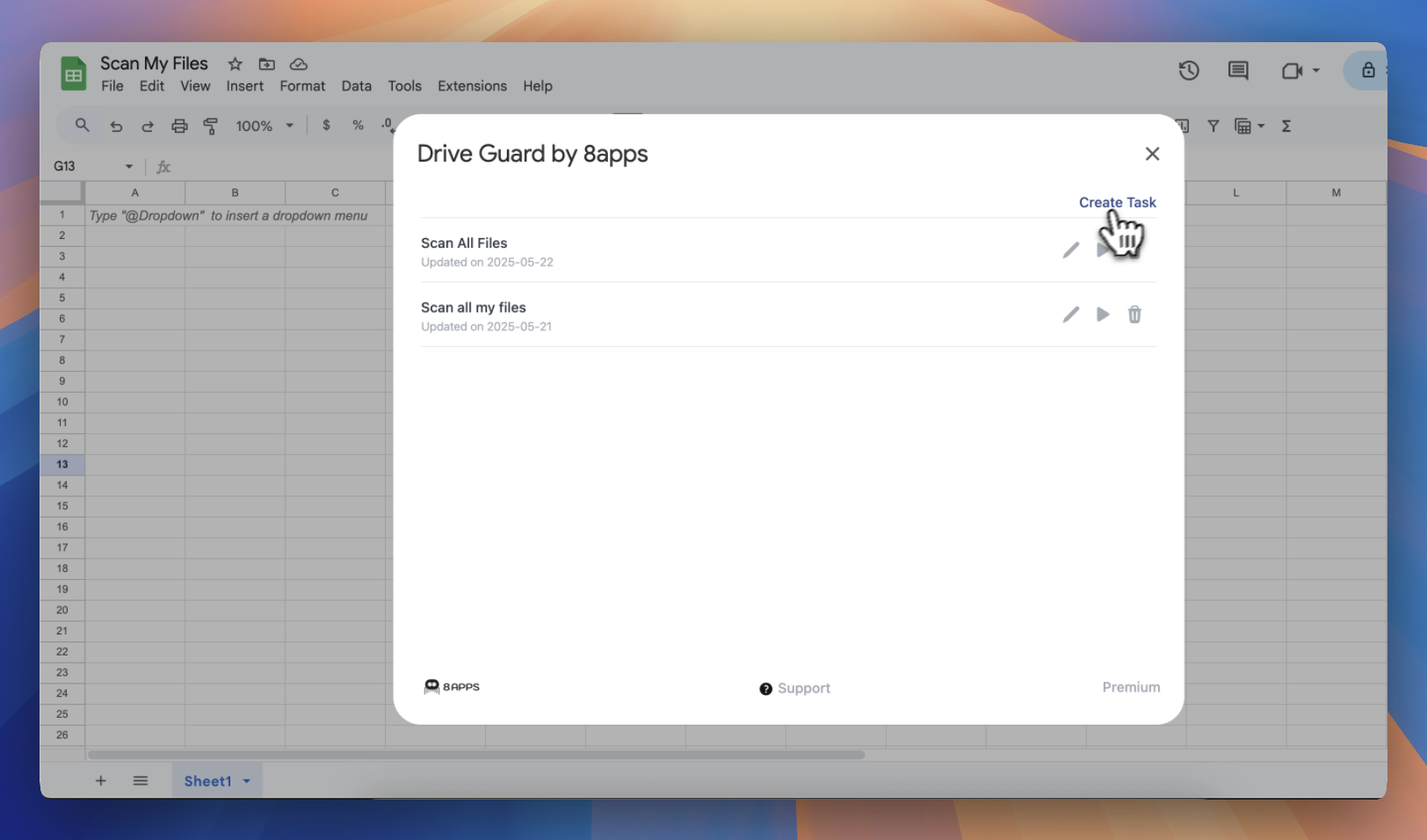
**Task Configuration Options:**
When setting up a new task in Drive Guard, you’ll be prompted to configure the following:
| **Field** | **Description** |
|-----------------------|-----------------------------------------------------------------------------------------------------------------------------------------------------|
| **Task Name** | Enter a descriptive label to identify your scan. (E.g., _Marketing Drive Audit - April_). Helps you organize and differentiate scans. |
| **Google Sheet Name** | Enter the name of the Google Sheet that will store the scan results. Sheet names make it easy to reference and revisit results later. |
| **My Drive** | Select this option to scan your personal Google Drive. [Learn more about scanning My Drive](/docs/drive-guard/using-driveguard/scanning-my-drive) |
| **Shared Drive** | Choose this if you want to scan the Shared Drives that you have access to. [Learn more about scanning Shared Drives](/docs/drive-guard/using-driveguard/scanning-shared-drive) |
| **Select File Types** | Filter the scan to include only specific file types such as Docs, Sheets, PDFs, etc. This helps narrow down your results to the files that matter most. [Learn more here](/docs/drive-guard/using-driveguard/selecting-file-type).
|
---
# Export Drive Guard Scan Results for Audits
Product: Drive Guard
URL: https://www.8apps.co/docs/drive-guard/using-driveguard/export-scan-results
Summary: Download Drive Guard permission reports as Excel, PDF, or CSV from the Google Sheets File menu for audits, internal reviews, or compliance records.
# Exporting Scan Results
Drive Guard makes it simple to export your scan results for further analysis or compliance needs.
After a scan, easily export your scan results:
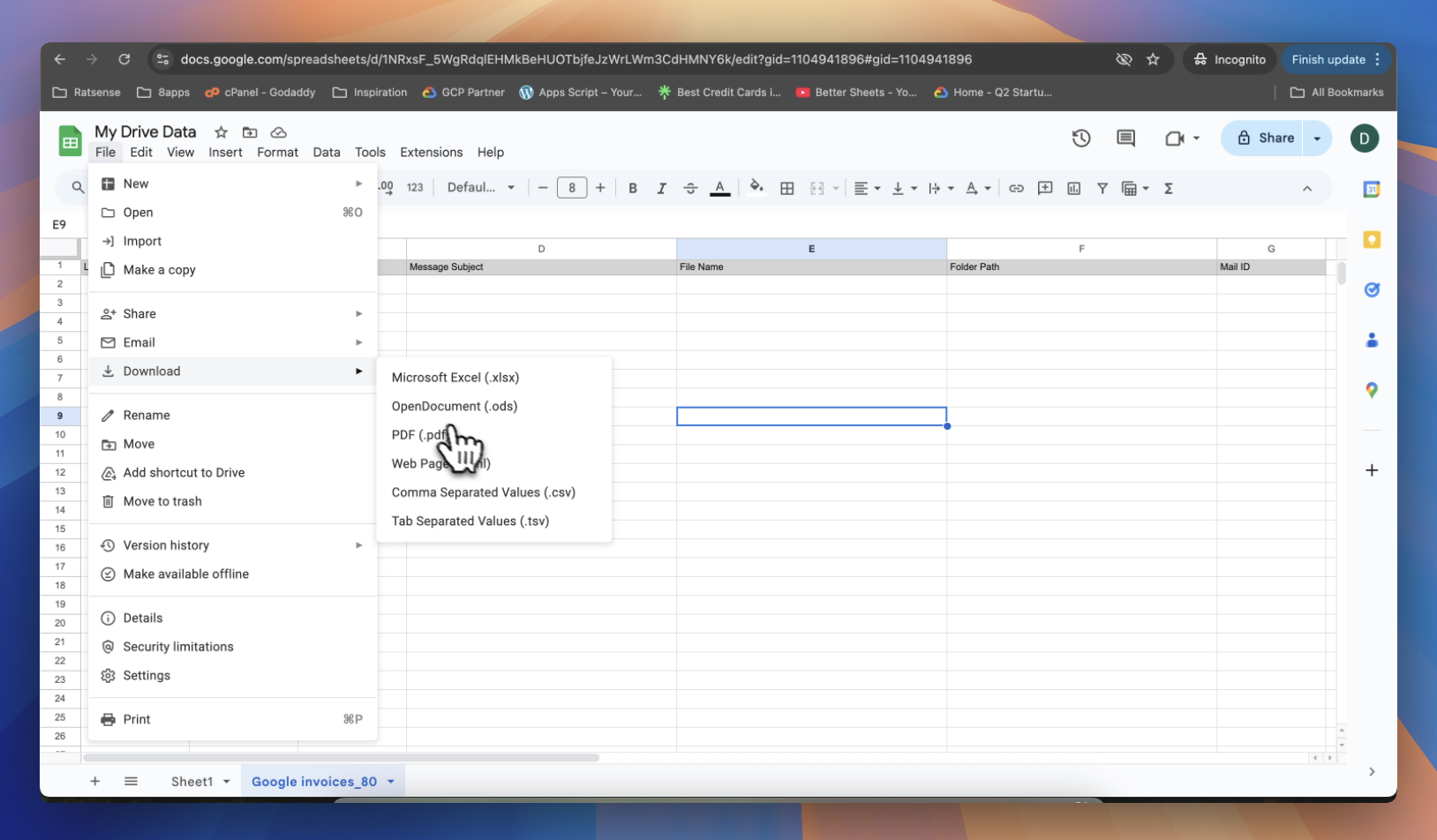
- In the Google Sheet, go to File > Download
- Choose your preferred format (e.g., Excel, PDF, CSV)
- Save, share and use the report for audits, internal reviews, or documentation..
---
# Edit, Run and Delete Drive Guard Tasks
Product: Drive Guard
URL: https://www.8apps.co/docs/drive-guard/using-driveguard/managa-tasks
Summary: Update a Drive Guard scan task as requirements change. How to edit its configuration, re-run it on demand, and remove tasks you no longer need.
# Manage Tasks
As your requirements change, you can update tasks to ensure Drive Guard works as per your requirements.
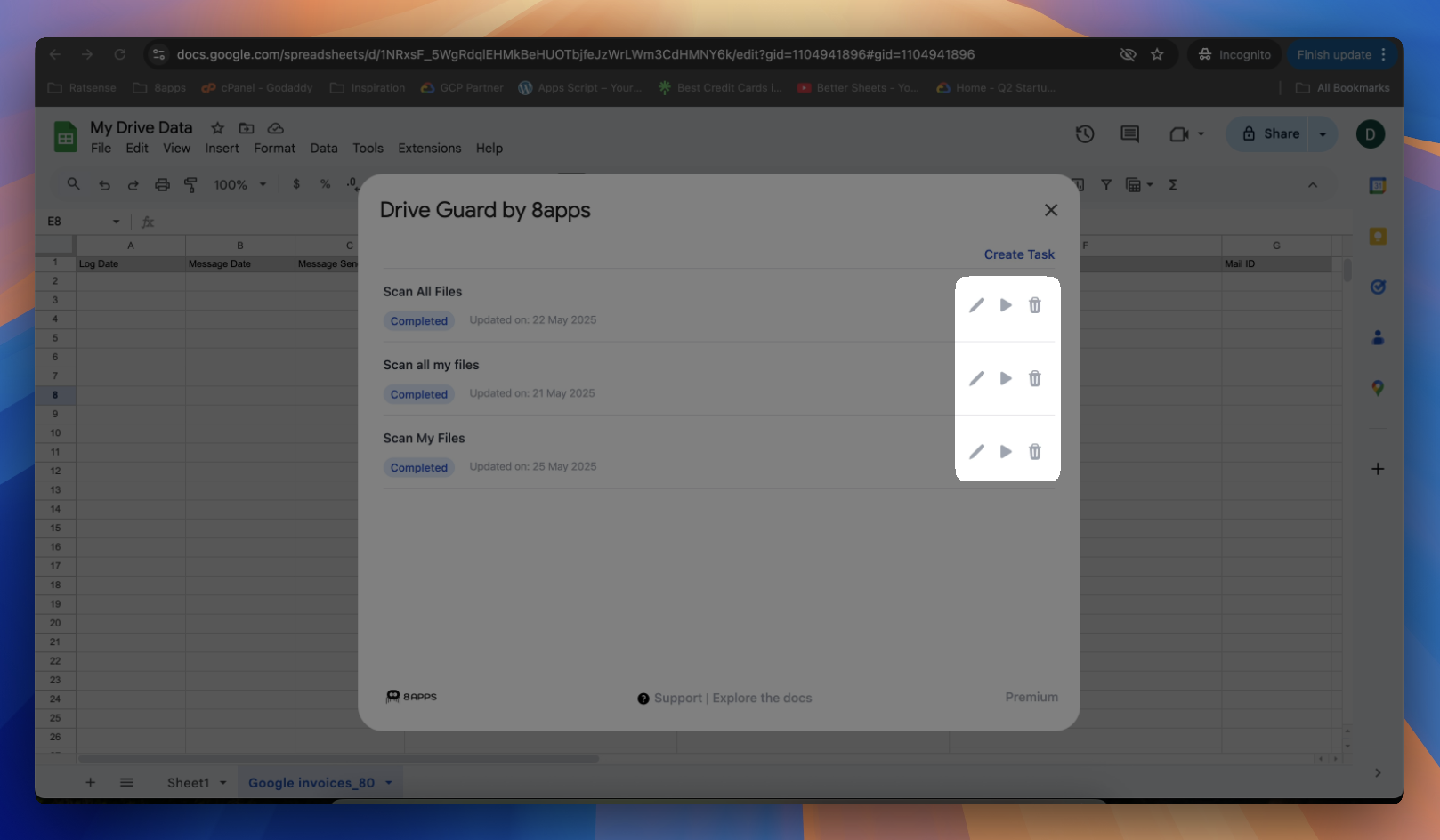
- When you open the app, it shows you all the tasks you have.
- The Task Name helps you easily identify your scan.
## Edit Task
- Click on the Edit option if you want to edit any task
- The details in the Edit Task are identical to those in your Create New Task.
- Proceed to modify and save the details.
## Run Task
- There is an option to run the task directly.
- Based on the defined rules, it will scan your Google Drive or Shared Drive.
## Delete Task
- If you no longer need a task, you may delete the task.
- Click on the delete icon next to the task, and delete it.
:::Warning
Once you delete a task, you cannot retrieve it.
:::
---
# Scan My Drive Permissions with Drive Guard
Product: Drive Guard
URL: https://www.8apps.co/docs/drive-guard/using-driveguard/scanning-my-drive
Summary: Configure a Drive Guard task against My Drive: choose a parent folder or the whole drive, filter by file type, then run the permission analysis.
# Scanning My Drive
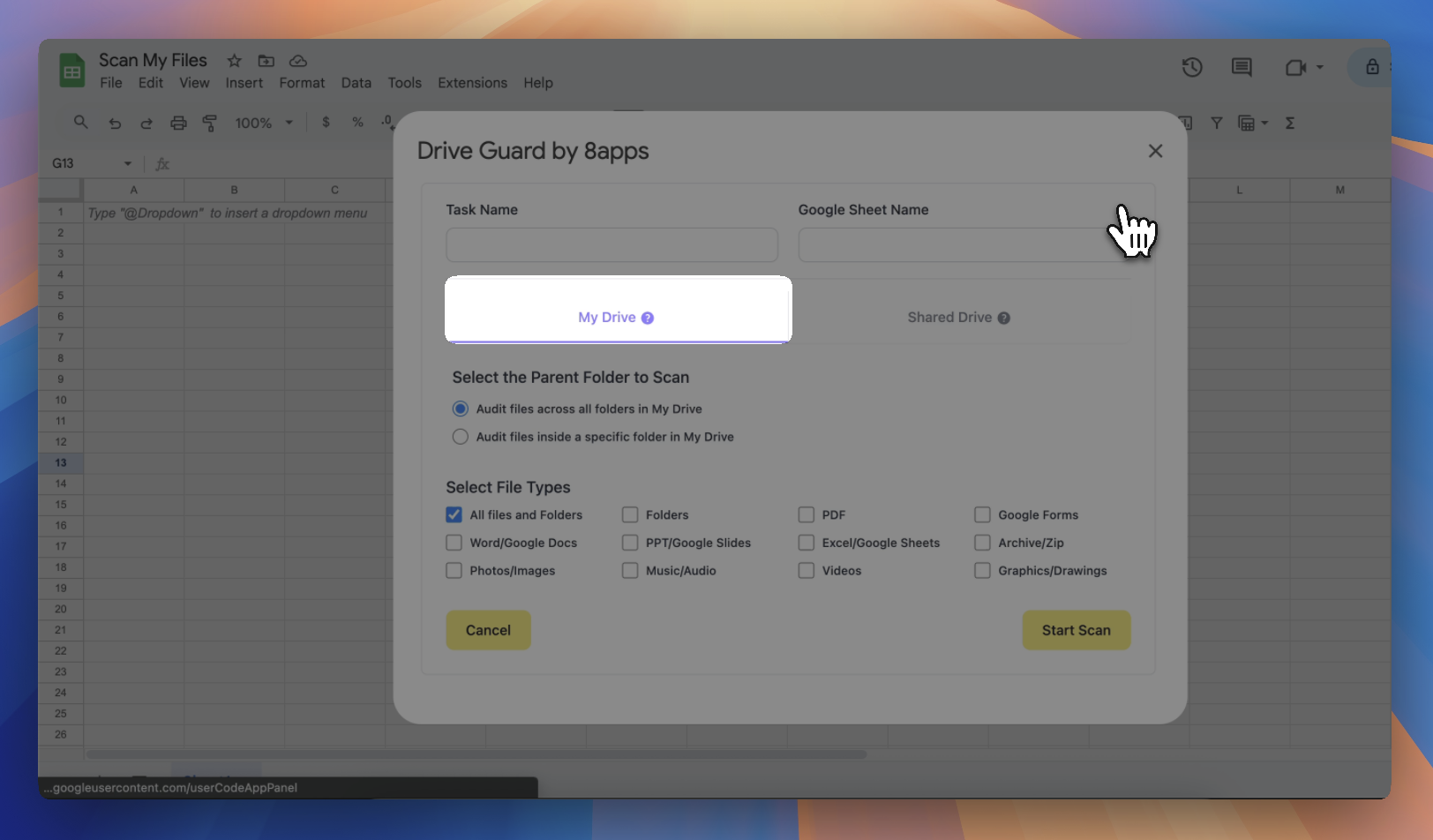
After selecting ‘My Drive’ during task configuration, continue with:
- Choose the parent folder to scan - A specific folder(s) or the entire drive.
- Select the specific file types (optional) or all files and folders. [Learn more here](/docs/drive-guard/using-driveguard/selecting-file-type).
- Click ‘Save & Run’ to save the task and begin permission analysis.
Results will appear in the connected Google Sheet once the scan completes. [Learn more about the results format](/docs/drive-guard/using-driveguard/understanding-scan-results).
:::tip
You can also click "Save as Draft" if you'd like to configure your task now and run it later.
:::
---
# Scan Shared Drive Permissions with Drive Guard
Product: Drive Guard
URL: https://www.8apps.co/docs/drive-guard/using-driveguard/scanning-shared-drive
Summary: Configure a Drive Guard task against a Google Shared Drive, including the Content Manager access you need and how to narrow the scan by folder and file type.
# Scanning a Shared Drive
After selecting ‘Shared Drive’ during task configuration, continue with:
- Choose the Shared Drive(s) you have access to or choose specific folders in the shared Google Drive.
- Select the specific file types (optional) or all files and folders. [Learn more here](/docs/drive-guard/using-driveguard/selecting-file-type).
- Click ‘Save & Run’ to save the task and begin permission analysis.
Results will appear in the connected Google Sheet once the scan completes. [Learn more about the results format](/docs/drive-guard/using-driveguard/understanding-scan-results).
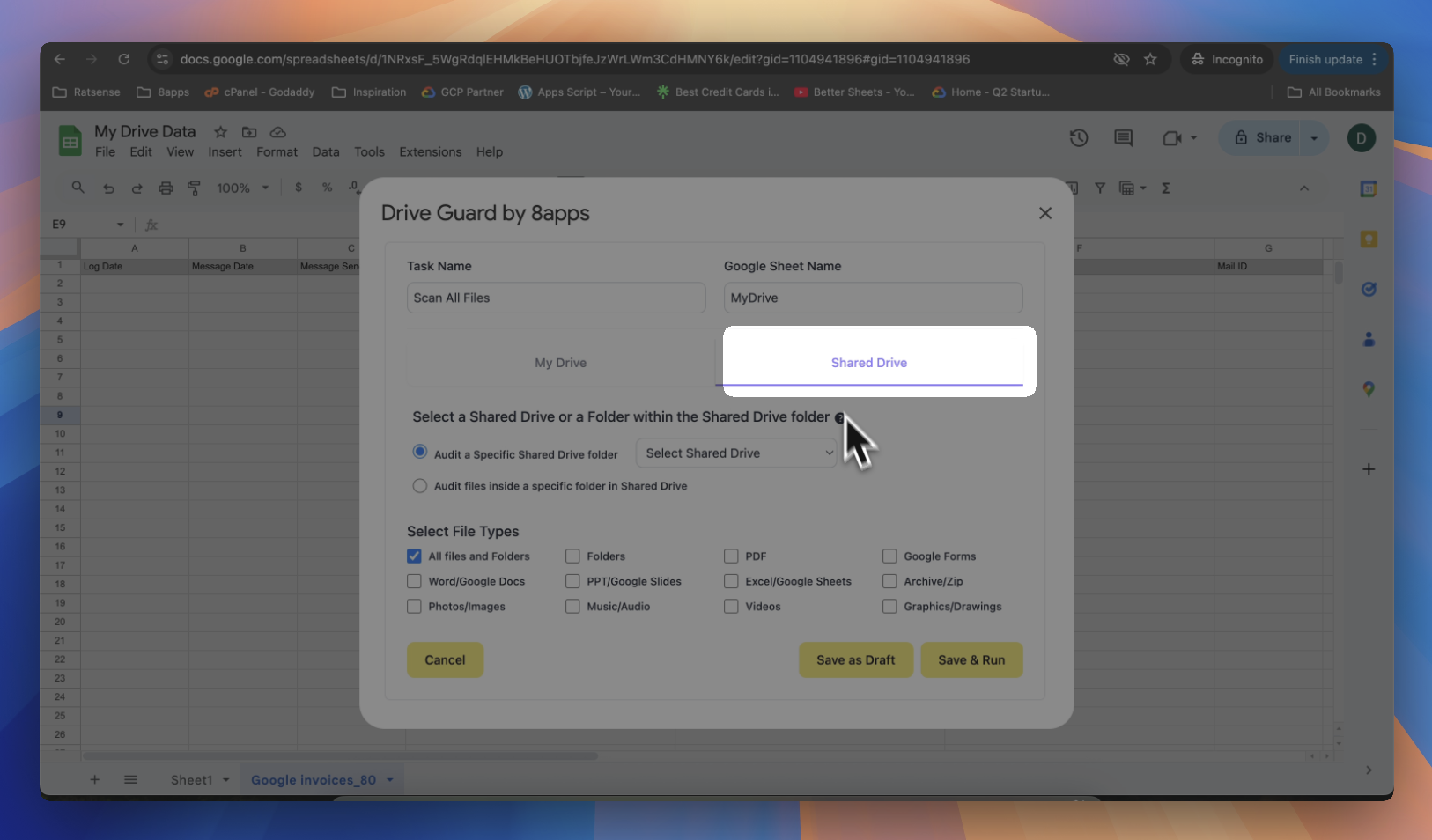
:::info
You must have at least Content Manager access or above to scan a Shared Drive.
:::
:::tip
You can also click "Save as Draft" if you'd like to configure your task now and run it later.
:::
---
# Filter a Drive Guard Scan by File Type
Product: Drive Guard
URL: https://www.8apps.co/docs/drive-guard/using-driveguard/selecting-file-type
Summary: Narrow a Drive Guard permission scan to the file formats that matter for your audit, rather than scanning every file in the drive.
# Selecting File Type
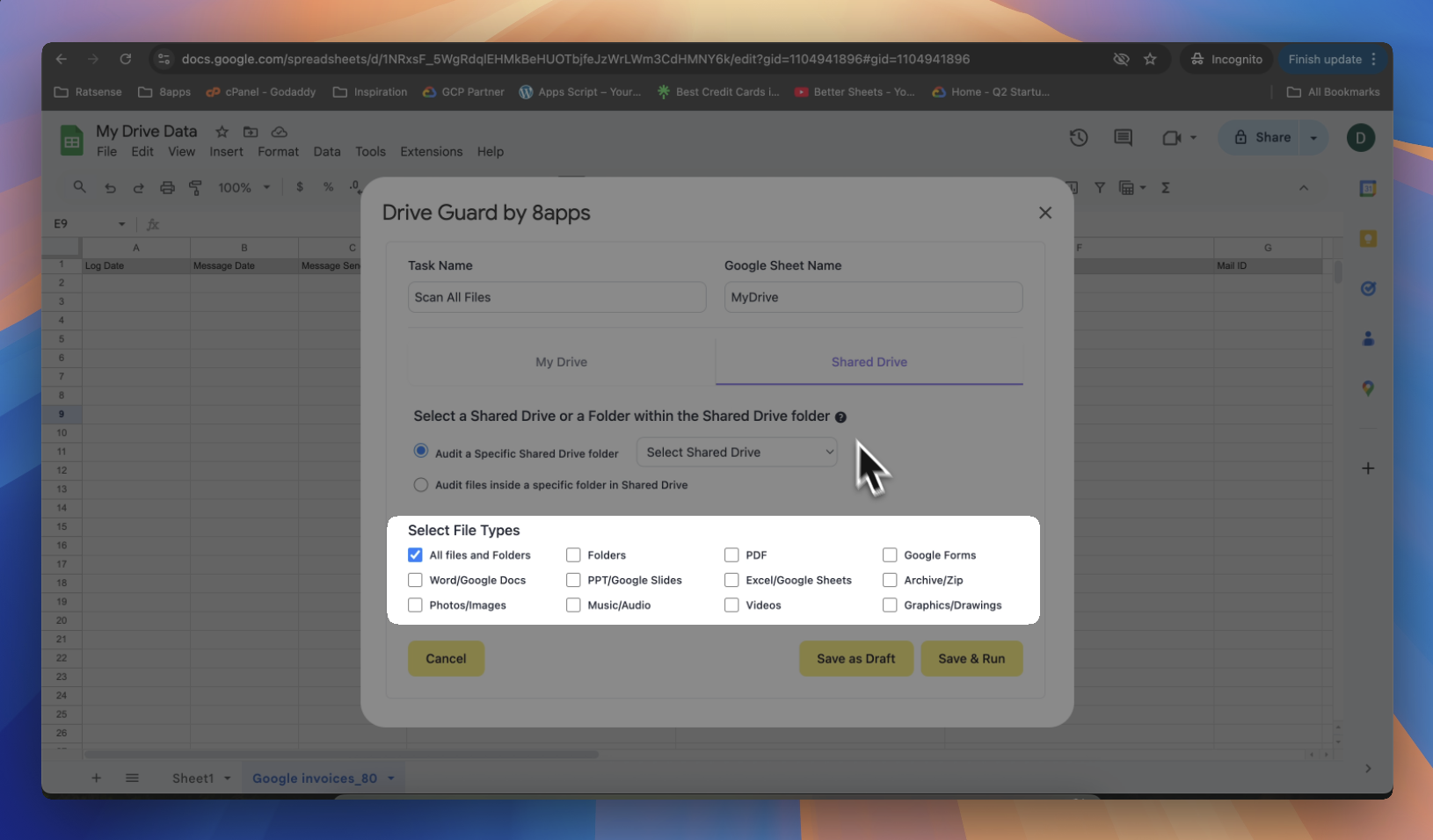
Drive Guard allows you to refine your scan by selecting specific file types. This helps focus your analysis on the formats most relevant to your audit or use case.
When creating a task, you can choose from the following options:
| **Option** | **Description** |
| ------------------------- | ---------------------------------------------------------------------------------------------- |
| **All Files and Folders** | Scans everything within the selected Drive or folder, including subfolders and all file types. |
| **Folders** | Scans and reports only folder-level permissions (without analysing individual files inside). |
| **PDF** | Scans documents in `.pdf` format. |
| **Google Forms** | Includes any Google Forms in the scan. |
| **Word/Google Docs** | Covers Microsoft Word documents and Google Docs. |
| **PPT/Google Slides** | Includes PowerPoint files and Google Slides. |
| **Excel/Google Sheets** | Targets Excel spreadsheets and Google Sheets. |
| **Archive/Zip** | Includes `.zip`, `.rar`, and other compressed file types. |
| **Photos/Images** | Scans files like `.jpg`, `.png`, `.gif`, and other common image formats. |
| **Music/Audio** | Includes audio files such as `.mp3`, `.wav`, etc. |
| **Videos** | Covers video files like `.mp4`, `.mov`, and similar formats. |
| **Graphics/Drawings** | Includes Google Drawings and other vector/graphic formats. |
---
# Read Drive Guard Scan Results in Sheets
Product: Drive Guard
URL: https://www.8apps.co/docs/drive-guard/using-driveguard/understanding-scan-results
Summary: Drive Guard writes two sheets: By Files and By Users. Learn what each column means so you can analyse Drive permissions from both angles.
# Understanding Scan Results
After scanning, Drive Guard presents a permissions dashboard.
You’ll get two sheets automatically:
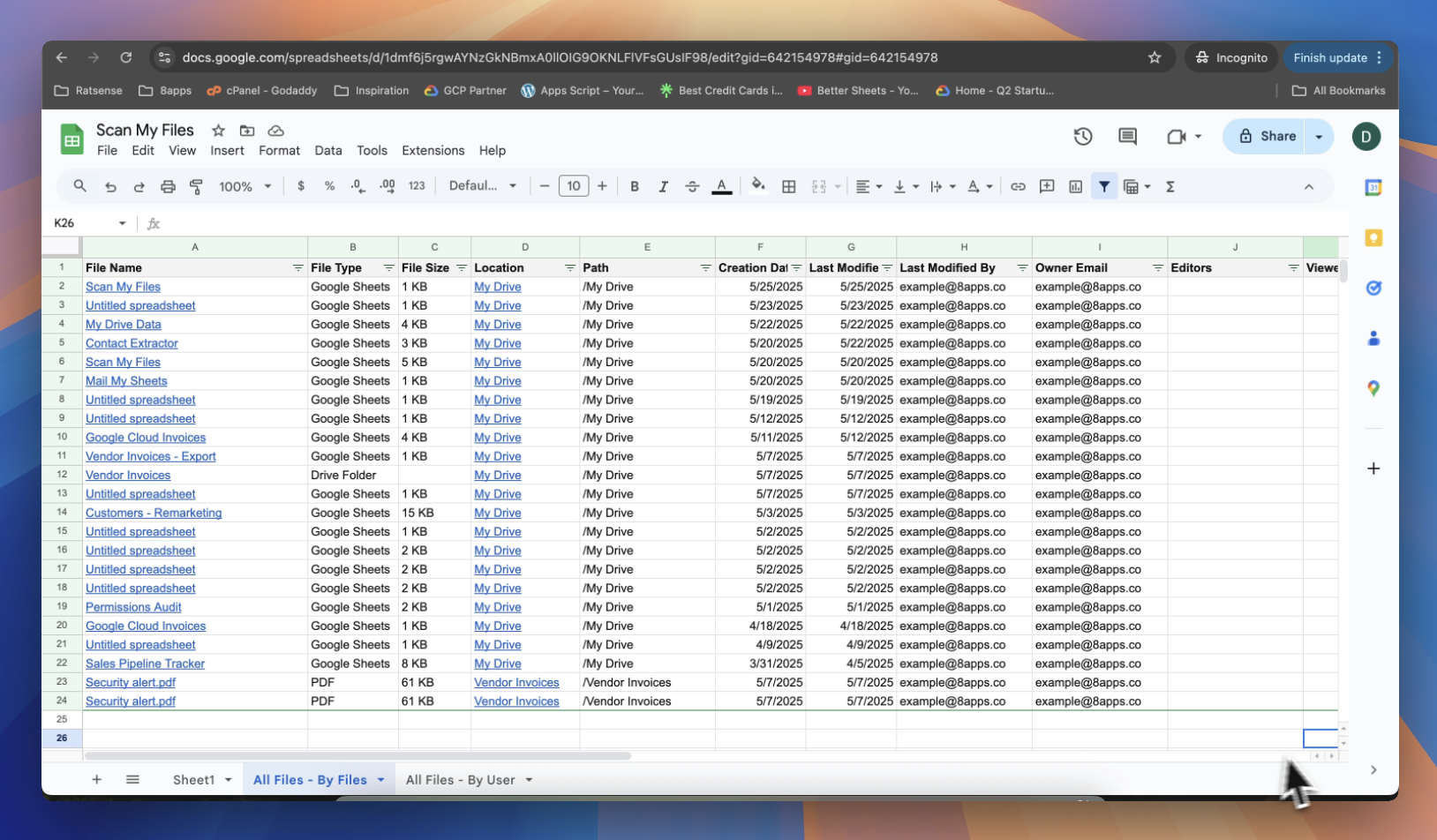
- **By Files:** Lists each file along with its sharing details
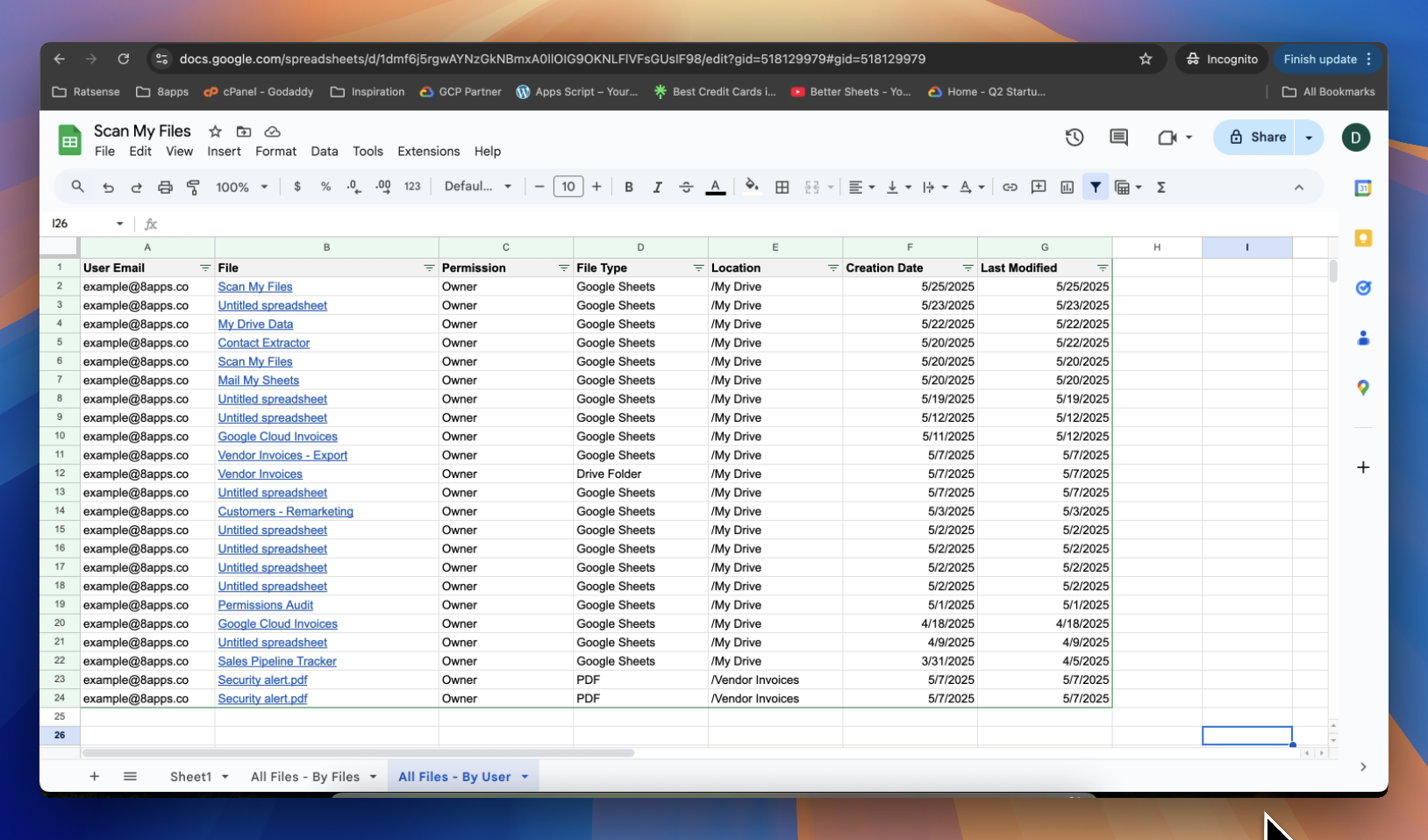
- **By Users:** Lists each user and the files they have access to
This makes it easy to analyse permissions from both file-level and user-level perspectives.
## By Files Sheet
This sheet shows each file and its permission settings. Key columns include:
| **Field** | **Description** |
|----------------------------------|----------------------------------------------------------------------------------------------------------|
| **File Name** | The title of the scanned file in Google Drive (with a direct access link). |
| **File Type** | The format of the file (e.g., _Google Doc_, _PDF_, _Sheet_). |
| **File Size** | The size of the file (in KB, MB, etc.). |
| **Location** | The Drive (_My Drive_ or _Shared Drive_) where the file is stored, with direct access to the folder. |
| **Path** | The full folder path showing where the file is stored. |
| **Creation Date** | The date the file was created. |
| **Last Modified** | The most recent date the file was edited. |
| **Last Modified By** | The user who last made changes to the file. |
| **Owner Email** | The email address of the file’s owner. |
| **Editors** | A list of users with editing access to the file. |
| **Viewers** | A list of users with view-only access. |
| **Commenters** | A list of users who can comment but not edit. |
| **Permissions** | A summary of all share types and access levels. |
| **Copy Requires Writer Permission** | Indicates whether users must have edit access to make a copy. |
| **Shared Outside Domain** | Shows whether the file is shared with users outside your organisation. |
## By Users Sheet
This sheet lists users and the files they have access to. Key columns include:
| **Field** | **Description** |
|-------------------|---------------------------------------------------------------------------------------------------|
| **User Email** | The email address of the person who has access to the file. |
| **File** | The name or title of the file being shared with a direct access link. |
| **Permission** | The level of access granted (e.g., _Owner_, _Editor_, _Viewer_). |
| **File Type** | The format of the file (e.g., _Google Doc_, _Sheet_, _PDF_). |
| **Location** | The folder path where the file is stored in the Drive. |
| **Creation Date** | The date the file was created. |
| **Last Modified** | The most recent date the file was edited or updated. |
You can quickly see which files are shared with:
Public internet (anyone with the link).
External users outside your domain.
Internal users (domain-only).
:::Caution
Be cautious of files listed as Anyone with Link - Editor. They are the highest risk.
:::
---
# Get an Anthropic Claude API Key for Sheets
Product: GPT Mate for Sheets
URL: https://www.8apps.co/docs/gpt-mate/generate-keys/get-claude-api-key
Summary: Create an Anthropic account, generate a Claude API key in the console, and set up billing so GPT Mate can call Claude models from Google Sheets.
# Get Your Claude API Key
## Create an Anthropic account
If you don't already have an Anthropic account, create one on the [Anthropic Console](https://console.anthropic.com/). Verify your email address, then log in to the console.
## Generate the Claude API key
- Log in to the [Anthropic Console](https://console.anthropic.com/).
- Go to the [API keys page](https://console.anthropic.com/settings/keys).
- Click **Create Key**, give it a name, and confirm.
- Copy the generated key as soon as it's shown. **You won't be able to see the full key again once the dialog closes.**
- Claude API usage is billed per token, so make sure your account has credits or billing set up.
:::caution
Do not share your API key with anyone! Treat it like a password.
:::
---
# Get a Google Gemini API Key for Sheets
Product: GPT Mate for Sheets
URL: https://www.8apps.co/docs/gpt-mate/generate-keys/get-gemini-api-key
Summary: Generate a Gemini API key in Google AI Studio with your personal or company Google account, ready to paste into GPT Mate for Sheets.
# Get Your Gemini API Key
## Login to your Google account
You can use your personal Google account or your company google account to get your API Key.
## Generate the Key
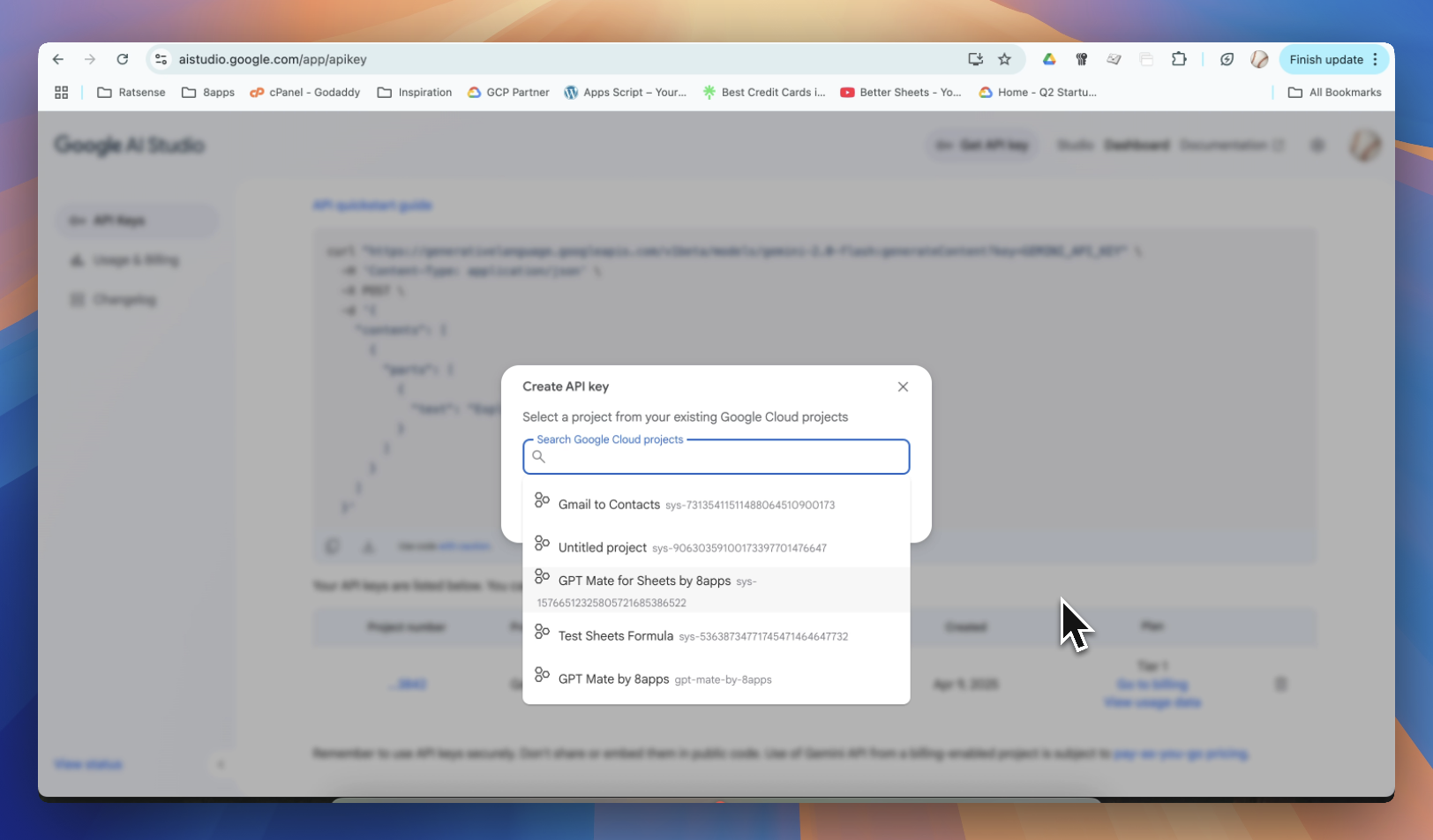
- Go to [Google Studio]. (https://aistudio.google.com/app/apikey)
- Review and approve the terms of service (if prompted).
- Click on “Get API key" or "Create API Key".
- Select the Project or create a new one.
- Once you’ve chosen one of these options, your API key should be auto-generated!
:::caution
Do not share you API key with anyone! Treat it like a password.
:::
---
# Get an OpenAI API Key for Google Sheets
Product: GPT Mate for Sheets
URL: https://www.8apps.co/docs/gpt-mate/generate-keys/get-openai-api-key
Summary: Create an OpenAI account and generate a secret API key on the platform API keys page, then save it for use with GPT Mate for Sheets.
# Get your OpenAI API Key
## Create an OpenAI account
If you don’t already have an OpenAI account, you need to create one by following the steps on the OpenAI website. Once you’ve created an OpenAI account, you will receive a verification link in your email inbox. Proceed to click the link to verify your email address. After that, enter your email address and the password linked to your OpenAI account to log in to your OpenAI account dashboard.
## Generate the OpenAI API key
- Once you’ve created your OpenAI account or logged into an existing one.
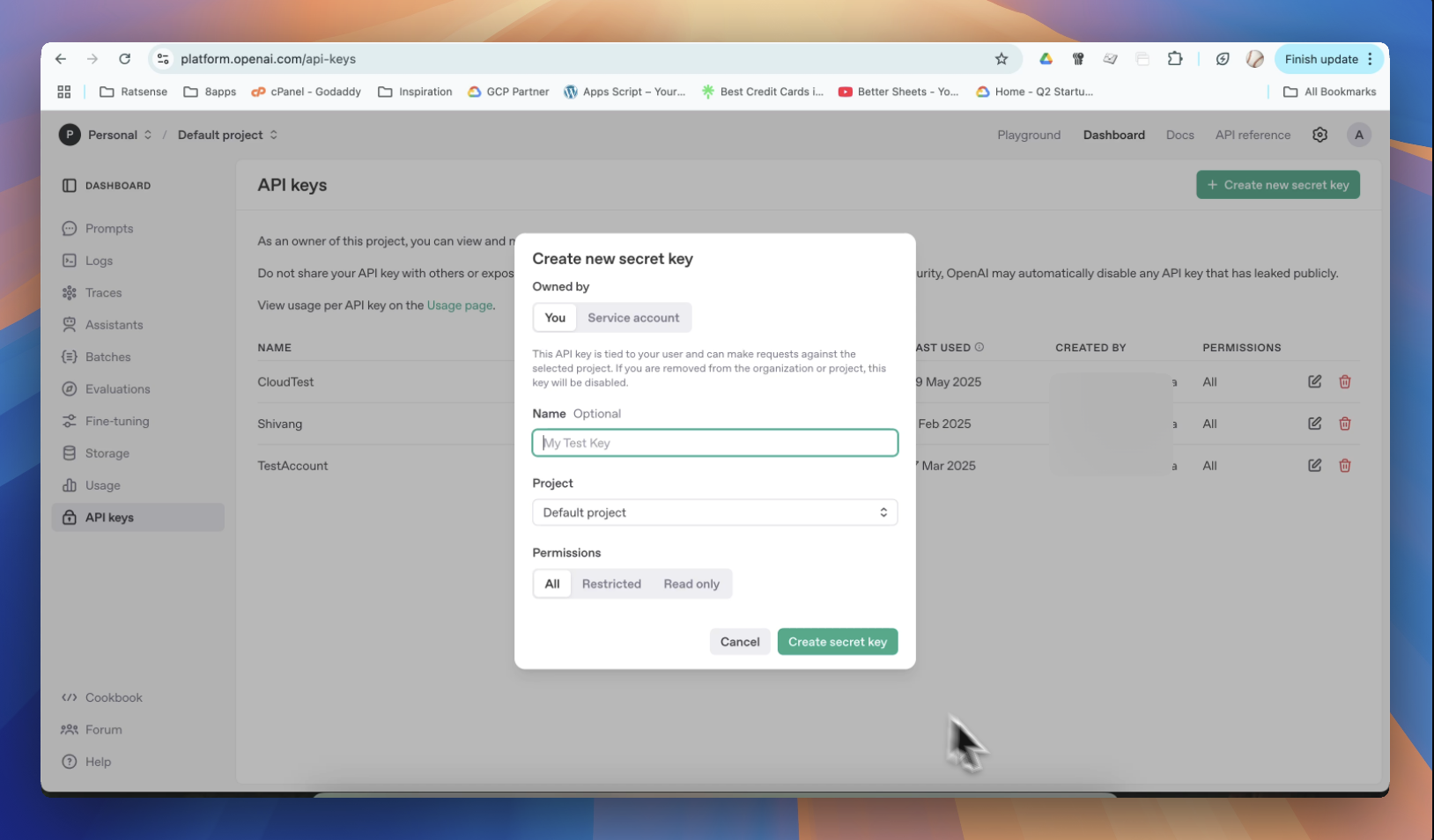
- Go to Secret API key on the [API key page](https://platform.openai.com/api-keys).
- Here you’ll see a window with the option ‘Create new secret key’. If you don’t have an Open API key, proceed to click this option to get one. Ensure you save this newly generated API key as soon as possible. **This is because you won’t be able to see the full OpenAI API key again once the window closes.**
- Based on current on going offers, there may be free credits.
:::caution
Do not share you API key with anyone! Treat it like a password.
:::
---
# Create API Keys for GPT Mate for Sheets
Product: GPT Mate for Sheets
URL: https://www.8apps.co/docs/gpt-mate/getting-started/generate-keys
Summary: Where to generate API keys for OpenAI, Anthropic, DeepSeek, Gemini, Mistral, OpenRouter, Perplexity, and xAI so GPT Mate can call those models.
# Create API Keys
To create your own API key, go to the AI provider's platform and follow their instructions:
- [OpenAI Platform](https://platform.openai.com/api-keys) for GPT models, fine-tuned models, and OpenAI Assistants
- [Anthropic Console](https://console.anthropic.com/settings/keys) for Claude models
- [DeepSeek Platform](https://platform.deepseek.com/api_keys) for DeepSeek models
- [Google AI Studio](https://aistudio.google.com/app/apikey) for Gemini models
- [Mistral AI](https://admin.mistral.ai/organization/api-keys) for Mistral models
- [OpenRouter](https://openrouter.ai/settings/keys) for access to various models from different AI providers using a single API key
- [Perplexity](https://www.perplexity.ai/account/api/keys) for Perplexity models
- [xAI Cloud Console](https://console.x.ai/) for xAI models
For step by step instructions you can also refer to the [Generate API Keys Section](/docs/gpt-mate/generate-keys/get-openai-api-key).
---
# Install GPT Mate for Google Sheets
Product: GPT Mate for Sheets
URL: https://www.8apps.co/docs/gpt-mate/getting-started/install-and-authorise
Summary: Install and authorise GPT Mate for Sheets by 8apps from the Google Workspace Marketplace, or from the Extensions menu inside Google Sheets.
# Install & Authorise GPT Mate
Follow these steps to install GPT Mate for Sheets:
- Open the marketplace listing [GPT Mate for Sheets](https://workspace.google.com/marketplace/app/gpt_mate_for_sheets_by_8apps/366655067965) on Google Workspace Marketplace.
- Click Install and choose your Google Account.
- Review and approve the requested permissions
Alternatively, you can also open Google Sheet, Go To **Extensions > Add-ons > Get add-ons – Search for "GPT Mate for Sheets by 8apps”**
:::caution
Make sure you are logged into the Google Account you used to install GPT Mate.
:::
---
# Launch GPT Mate in Google Sheets
Product: GPT Mate for Sheets
URL: https://www.8apps.co/docs/gpt-mate/getting-started/launch
Summary: Open GPT Mate from Extensions > GPT Mate > Open App to start using the =GPT(), =GPTLIST(), and =GPTTABLE() custom formulas in your spreadsheet.
# Launch GPT Mate
After installation and authorisation, you can start using GPT Mate.
## How to Launch the App
- Open an existing **Google Sheet** (or) type [sheets.new](https://sheets.new) to create a new file
- Go to **Extensions > GPT Mate > Open App**.
You are now ready to start using the custom GPT formulas like `=GPT()`, `=GPTLIST()`, and `=GPTTABLE()`.
The GPT Mate sidebar box will open inside Sheets, allowing you to:
- Create new tasks and workflows.
- Manage existing tasks and workflows.
- Access logs and saved automation settings.
:::warning
Use the same Google account for installation and access. Avoid using multiple accounts in the same browser session.
:::
---
# GPT Mate: AI Formulas for Google Sheets
Product: GPT Mate for Sheets
URL: https://www.8apps.co/docs/gpt-mate/getting-started/overview
Summary: GPT Mate brings OpenAI, Gemini, and Claude models into Google Sheets through the =GPT(), =GPTLIST(), and =GPTTABLE() formulas. See what it supports.
# GPT Mate Overview
**GPT Mate for Sheets** brings the power of OpenAI, Google Gemini, and Anthropic Claude models directly into Google Sheets.
You can generate AI-powered text, lists, and tables right inside your spreadsheet using simple custom formulas:
- `=GPT(prompt, [input], [model])`
- `=GPTLIST(prompt, [input], [model])`
- `=GPTTABLE(prompt, [input], [model])`
**Ideal for:** summaries, content creation, task lists, brainstorming, scheduling, and more.
✅ **Supported Models:**
- OpenAI: GPT-5, GPT-4.1, GPT-4o, and more
- Google: Gemini 2.5 Pro, Flash, and Flash-Lite
- Anthropic: Claude Opus 4.8, Sonnet 4.6, and Haiku 4.5
✅ **Quick Highlights:**
- No complex setups
- Results are directly in the cells
- Bring your own OpenAI, Gemini, or Claude API key
- Supports dynamic ranges and cell referencing
- Highly customisable prompts and outputs
- Reliable even at very high volume
- Private and fully secure
:::info
We take privacy seriously! GPT Mate add-on does not store any of your inputs and outputs.
:::
---
# Override the AI Model per GPT Mate Formula
Product: GPT Mate for Sheets
URL: https://www.8apps.co/docs/gpt-mate/power-user-tip/ai-model-overrides
Summary: Pass a model name as the third argument to =GPT() to trade speed, cost, and quality per formula, or switch providers without changing your sheet default.
# Use AI Model Overrides Strategically
While GPT Mate uses a default model for each sheet, you can override it on a per-formula basis using the optional model parameter.
This is useful when you want to balance speed, cost, and quality for different use cases within the same sheet. [See supported AI models](/docs/gpt-mate/power-user-tip/supported-ai-models)
## Examples:
- Use `=GPT`(prompt, [input], "gpt-5") for complex, high-quality content
- Use `=GPT`(prompt, [input], "gpt-5-nano") for quick replies, short form content
- Use `=GPT`(prompt, [input], "claude-sonnet-4-6") or `=GPT`(prompt, [input], "gemini-2.5-flash") to switch providers
:::tip
Use higher-tier models for quality. Use faster ones when speed matters.
:::
---
# Prompt Engineering Tips for Google Sheets
Product: GPT Mate for Sheets
URL: https://www.8apps.co/docs/gpt-mate/power-user-tip/best-practices-for-prompt-engenneering
Summary: Write better GPT Mate prompts: be specific, give format instructions, include examples, avoid ambiguity, and iterate for consistent spreadsheet output.
# Best Practices for Prompt Engineering
The quality of your prompt directly affects the quality of GPT’s output. Well-crafted prompts are specific, focused, and formatted in a way that guides the AI to respond clearly and consistently.
## Tips for Writing Better Prompts:
- **Be Specific:** Instead of “Write a summary,” try “Summarise the pros and cons of the product listed in A2.”
- **Provide Format Instructions:** Add structure to your prompt, like “Return the result in bullet points” or “Respond in one sentence.”
- **Use Examples:** If possible, include sample content in your input range to set a tone or pattern.
- **Avoid Ambiguity:** Use clear instructions, especially when asking for structured responses like tables or lists.
- **Test and Iterate:** Try the same prompt with small variations to see what yields the most useful result.
:::tip
Consistent prompts produce consistent outputs, great for scalable workflows!
:::
---
# GPT Mate Output Options (Coming Soon)
Product: GPT Mate for Sheets
URL: https://www.8apps.co/docs/gpt-mate/power-user-tip/customising-output-options
Summary: Planned GPT Mate controls for maximum response length, creativity and temperature, and output formatting such as numbered lists and bullets.
# Customising Output Options (Coming Soon)
In future versions of GPT Mate, you will be able to customise:
## How to Add or Update API Keys
- Maximum response length
- Creativity / Temperature settings
- Output formatting (e.g., numbered lists, bullets)
Stay tuned for updates!
---
# Disable GPT Mate for a Shared Google Sheet
Product: GPT Mate for Sheets
URL: https://www.8apps.co/docs/gpt-mate/power-user-tip/disable-sheets-setup
Summary: Turn GPT Mate off for a spreadsheet so collaborators cannot trigger GPT formulas or consume your API quota. Useful before sharing with clients or students.
# Disable Sheet Setup
If you're sharing a Google Sheet but don't want others to trigger GPT functions or if you're looking to conserve API usage and avoid unnecessary costs, you can disable GPT Mate for that sheet at any time.
## Why Disable Sheet Setup?
- **Prevent Unexpected Costs:** Collaborators won’t accidentally use GPT formulas and consume your API quota.
- **Control Access:** Once disabled, no one (including you) can run GPT functions in the sheet until it’s re-enabled.
- **Safe for Sharing:** Ideal when sharing with clients, students, or external stakeholders who don’t need GPT features.
## How to Disable:
- Go to **Extensions > GPT Mate for Sheets > Open App**
- In the GPT Mate sidebar, click the home icon and go to the **Sheet Setup** section
- Click the **Disable** button to deactivate GPT functionality for that sheet
Alternatively, you can directly disable it by **Extensions > GPT Mate for Sheets > Disable.**
:::tip
You can re-enable it at any time. This setting is specific to the sheet, not your account.
:::
---
# Use Cell References in GPT Mate Prompts
Product: GPT Mate for Sheets
URL: https://www.8apps.co/docs/gpt-mate/power-user-tip/dynamic-tags
Summary: Concatenate cell values into GPT Mate prompts to generate personalised output per row, from thank-you emails to formatted dates and dynamic idea lists.
# Use Dynamic Tags in Prompts
You can make GPT formulas more flexible and data-driven by using cell references inside your prompts.
This technique allows your AI responses to adapt dynamically based on the content in your spreadsheet, ideal for generating personalised outputs at scale.
## Examples:
- **Write custom emails based on customer feedback in each row**
- `=GPT`("Write a thank-you email for this review: " & B2)
- **Generate responses with formatted dates**
- `=GPT`("Prepare a meeting summary for " & TEXT(C2, "MMMM d, yyyy"))
- **Create dynamic prompt lists**
- `=GPTLIST`("List 5 marketing ideas for the product: " & D2)
:::tip
This method is especially useful when working with large datasets; one formula can adapt to hundreds of rows without manual edits.
:::
---
# Freeze GPT Formulas to Static Text in Sheets
Product: GPT Mate for Sheets
URL: https://www.8apps.co/docs/gpt-mate/power-user-tip/freeze-results
Summary: GPT formulas re-run on every refresh and cost API calls. Convert them to static values for selected cells or the whole sheet to lock results and cut spend.
# Freeze Results
By default, GPT formulas like `=GPT()`, `=GPTLIST()`, and `=GPTTABLE()` are live functions. They re-run every time the sheet is opened or refreshed.
This can lead to unnecessary API usage and increased costs, especially if the results don’t need to change.
## When to Freeze:
If you’re happy with the AI-generated content and no longer need it to update, you can freeze the result by converting the formula to static text. This stops further API calls and locks in the current output.
## How to Freeze?
- Go to **Extensions > GPT Mate for Sheets > Open App**
- In the GPT Mate sidebar, click the home icon and go to the **Optimising GPT Mate** section
- Choose to convert GPT formulas to static values for Selected Cells or All Cells
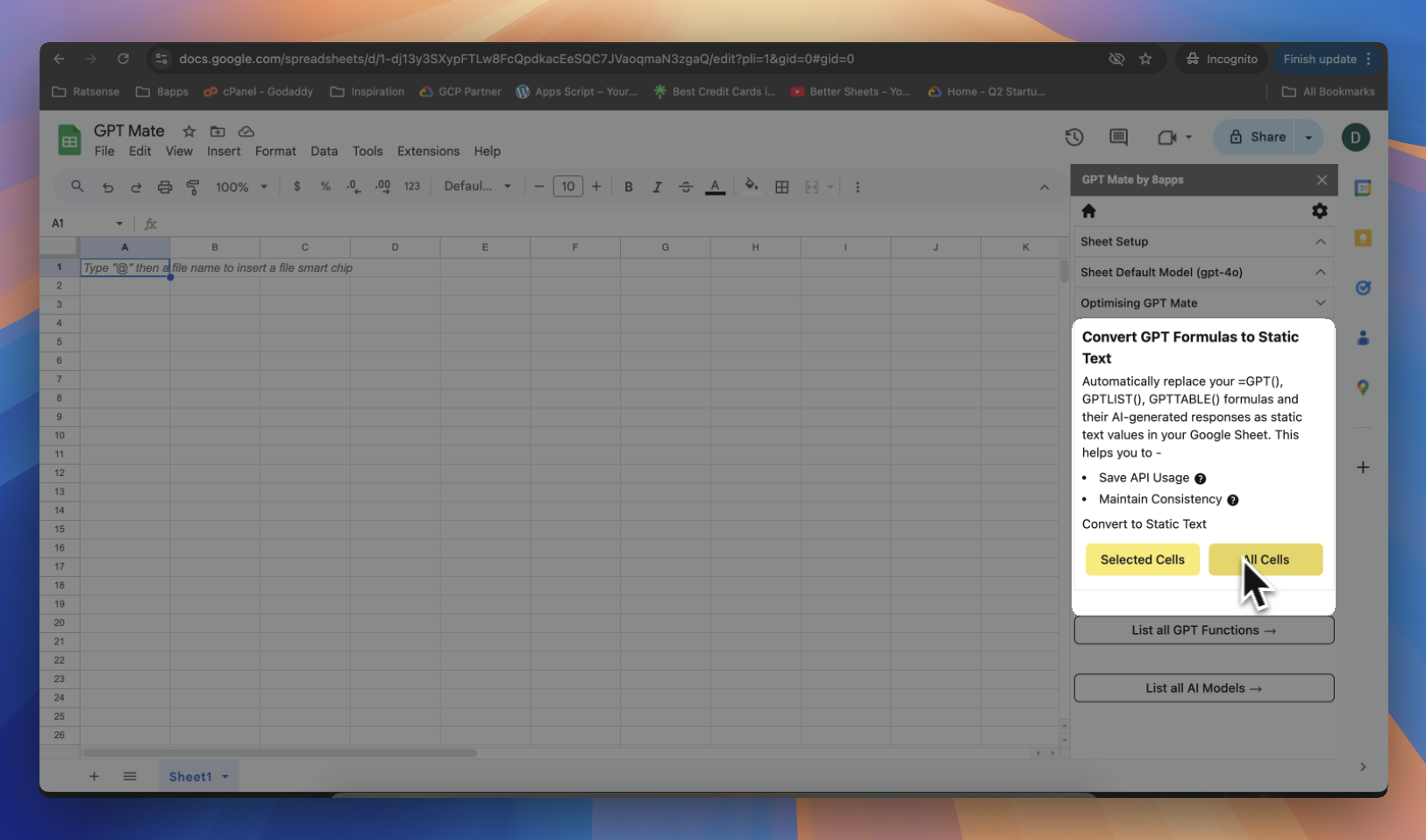
## Replace formulas manually
- Select the cells that contain the formulas.
- Press `Ctrl+C` and copy them
- Paste the copied results by pressing `Ctrl+Shift+V`
- Formulas within the manually selected cells are now replaced by their respective results.
:::info
Freezing results is highly recommended for finalised summaries, reports, or content shared with others, saving both performance and cost.
:::
:::warning
This action is permanent. Once converted, the original formula is removed. If you want to regenerate or modify the content later, you will need to re-enter the GPT formula manually.
:::
---
# Add and Update API Keys in GPT Mate
Product: GPT Mate for Sheets
URL: https://www.8apps.co/docs/gpt-mate/power-user-tip/managing-api-keys
Summary: Store your own OpenAI, Gemini, or Claude API keys in GPT Mate settings for private, scalable access to AI models from Google Sheets.
# Managing API Keys
GPT Mate allows you to use your own OpenAI, Google Gemini, or Anthropic Claude API keys for private and scalable access.
## How to Add or Update API Keys
- Open a Google Sheet.
- Go to Extensions > GPT Mate for Sheets > Settings.
- Under the API Keys section:
- Enter your OpenAI API key if using OpenAI models. [See how to get your OpenAI API key](/docs/gpt-mate/generate-keys/get-openai-api-key).
- Enter your Gemini API key if using Gemini models. [See how to get your Gemini API key](/docs/gpt-mate/generate-keys/get-gemini-api-key).
- Click Save after adding your keys.
:::note
- Make sure your API keys are active and have quota available.
- GPT Mate will automatically detect which key to use based on the model you select.
- You can update your keys anytime if you generate a new key.
:::
---
# AI Models Supported by GPT Mate for Sheets
Product: GPT Mate for Sheets
URL: https://www.8apps.co/docs/gpt-mate/power-user-tip/supported-ai-models
Summary: The OpenAI, Google Gemini, and Anthropic Claude models GPT Mate supports, and how to pick one as your sheet default or override it per formula.
# Supported AI Models
GPT Mate for Sheets supports models from **OpenAI**, **Google Gemini**, and **Anthropic Claude**, giving you flexibility to choose the right balance of speed, cost, and output quality based on your use case. Add the matching API key in Settings, then pick a model as your sheet default or override it per formula.
## OpenAI Models
| Model | Description |
| -------------- | -------------------------------------------------------- |
| gpt-5 | Most capable GPT model for complex tasks |
| gpt-5-mini | Balanced intelligence, speed, and cost |
| gpt-5-nano | Fastest and most cost-effective GPT-5 model |
| gpt-4.1 | Flagship GPT-4.1 model for complex tasks |
| gpt-4.1-mini | Balanced GPT-4.1 model for speed and cost |
| gpt-4.1-nano | Fastest, most cost-effective GPT-4.1 model |
| gpt-4o | Fast, intelligent, and flexible |
| gpt-4o-mini | Fast and affordable for focused tasks |
| gpt-3.5-turbo | Cheap and good for basic tasks |
| o1 | Reasoning model with a large context window |
| o3-mini | Small reasoning model |
| o4-mini | Compact reasoning model |
## Google Gemini Models
| Model | Description |
| ---------------------- | --------------------------------------------------- |
| gemini-2.5-pro | Most capable Gemini model for complex reasoning |
| gemini-2.5-flash | Balanced for speed, quality, and cost |
| gemini-2.5-flash-lite | Fastest and most cost-effective, for high volume |
## Anthropic Claude Models
| Model | Description |
| ------------------ | -------------------------------------------------------- |
| claude-opus-4-8 | Most capable Claude model for complex reasoning & coding |
| claude-sonnet-4-6 | Balanced for quality, speed, and cost |
| claude-haiku-4-5 | Fastest and most cost-effective, for everyday tasks |
:::tip
If you don't specify a model, GPT Mate uses your sheet's default model, or the most cost-effective model for whichever API key you've configured.
:::
---
# GPT Mate Premium: Call Limits and Features
Product: GPT Mate for Sheets
URL: https://www.8apps.co/docs/gpt-mate/power-user-tip/upgrade-to-premium
Summary: The free plan allows 10 AI calls a day. GPT Mate Premium removes that cap for high-volume Sheets workflows and adds priority email support.
# Why Go Premium with GPT Mate
Premium gives you unlimited usage, faster performance, advanced capabilities and priority support, designed for users who need reliable, high-volume AI assistance directly within Google Sheets.
## Unlimited Calls
With the free version, you’re limited to just 10 AI calls per day. Upgrading to Premium removes this cap, allowing you to run as many GPT functions as you need, perfect for daily workflows, larger datasets, or frequent team usage.
## Priority Email Support
Get faster responses, early fixes, and personalised help whenever you need it. Premium support means less downtime and more peace of mind.
## Who is Premium for?
- Professionals generating high volumes of AI content in Sheets
- Teams automating reports, summaries, or client communications
- Analysts and ops users building scalable, AI-powered workflows
- Anyone who needs more power, flexibility, and speed from GPT in Sheets
## Upgrade Now
Upgrade today to explore Premium benefits instantly!
---
# =GPT() Formula Reference for Google Sheets
Product: GPT Mate for Sheets
URL: https://www.8apps.co/docs/gpt-mate/using-gptmate/gpt
Summary: Syntax, parameters, and examples for the GPT Mate =GPT(prompt, input, model) formula, which returns a single AI response in one spreadsheet cell.
# GPT
The `GPT()` function generates a single AI-powered response in a single cell.
It’s ideal for summaries, messages, explanations, short answers, or any quick one-off prompt.
## Formula Syntax
=GPT(prompt, [input], [model])
- **prompt(required)** : The instruction or question you want the AI to respond to. (e.g., "Create a weekly workout schedule" or "Summarise the benefits of meditation.")
- **input(optional)**: A cell or range used to provide extra context.
- **model(optional)** : AI model like `gpt-5`, `gemini-2.5-flash`, or `claude-sonnet-4-6`. Defaults to your settings if not provided.
## Example(s)
### Summarise a concept
```plaintext
=GPT("Summarise the benefits of meditation.")
```
### Personalised email using input cell
```plaintext
=GPT("Write a thank you note for the customer below.", A2)
```
### Custom model with dynamic input
```plaintext
=GPT("Suggest a motivational quote based on the theme below.", B2, "gpt-4o")
```
:::tip
Perfect for short-form generation tasks like emails, answers, and summaries. For lists or tables, use GPTLIST() or GPTTABLE() instead.
:::
---
# =GPTLIST() Formula Reference for Sheets
Product: GPT Mate for Sheets
URL: https://www.8apps.co/docs/gpt-mate/using-gptmate/gptlist
Summary: Syntax, parameters, and examples for =GPTLIST(prompt, input, model), the GPT Mate formula that returns a vertical AI-generated list, one item per row.
# GPTLIST
The `GPTLIST()` function generates a vertical list, placing one AI-generated item per row.
It's ideal for brainstorming, creating checklists, generating suggestions, or expanding ideas based on context.
## Formula Syntax
=GPTLIST(prompt, [input], [model])
- **prompt** (required): Instruction for generating a list. (e.g., "List 5 productivity tips" or "Suggest blog ideas for a new product.")
- **input** (optional): Cell or range providing context for the list generation.
- **model** (optional): Override the default model (e.g., `gemini-2.5-flash`, `gpt-5`, `claude-haiku-4-5`). Defaults to your sheet settings if not provided.
## Example(s)
### List productivity tips
```plaintext
=GPTLIST("List 5 quick productivity tips.")
```
### Suggest gift ideas based on input
```plaintext
=GPTLIST("Suggest 5 gift ideas based on the interests listed below.", A2:C2)
```
### Create blog title ideas using a specific model
```plaintext
=GPTLIST("Generate 7 blog title ideas based on these topics.", A2:A5, "gemini-2.5-flash")
```
---
# =GPTTABLE() Formula Reference for Sheets
Product: GPT Mate for Sheets
URL: https://www.8apps.co/docs/gpt-mate/using-gptmate/gpttable
Summary: Syntax, parameters, and examples for =GPTTABLE(prompt, input, model), the GPT Mate formula that generates a structured table across rows and columns.
# GPTTABLE
The `=GPTTABLE()`formula generates a structured table across multiple rows and columns.
It’s ideal for creating schedules, comparisons, planning grids, or any tabular content.
## Formula Syntax
=GPTTABLE(prompt, [input], [model])
- **prompt** (required): Instruction for generating the table. (e.g., "Create a weekly workout schedule" or "Build a product feature comparison.")
- **input** (optional): Cell or range providing additional context or supporting data.
- **model** (optional): AI model like `gpt-5`, `gemini-2.5-flash`, or `claude-sonnet-4-6`. Defaults to your settings if not provided.
## Example(s)
### Create a 3-day meal plan
```plaintext
=GPTTABLE("Create a 3-day meal plan including breakfast, lunch, and dinner.")
```
### Build a project timeline using input
```plaintext
=GPTTABLE("Build a project timeline based on the tasks listed below.", A2:A10)
```
### Generate a product comparison table with a specific model
```plaintext
=GPTTABLE("Generate a comparison table for these products.", B2:B6, "gpt-4o-mini")
```
:::tip
Results are automatically arranged across rows and columns starting from the formula cell. Make sure the area is clear to prevent overwriting.
:::
---
# Optimise GPT Mate API Usage in Google Sheets
Product: GPT Mate for Sheets
URL: https://www.8apps.co/docs/gpt-mate/using-gptmate/optimising-gpt-mate
Summary: Convert GPT formulas to static text to cut API spend, keep outputs consistent across refreshes, and speed up heavy spreadsheets.
# Optimising GPT Mate
Once your GPT formulas have generated the content you need, you can convert them to static text to lock in results and improve sheet performance.
This feature replaces active formulas like `=GPT()`, `=GPTLIST()`, and `=GPTTABLE()` with their current outputs.
## Why Optimise?
- **Save API Usage & Reduce Costs:** Avoid repeated API calls that can quickly consume your usage limits or incur extra charges.
- **Ensure Output Consistency:** Freeze GPT responses to prevent unintended changes during sheet refreshes.
- **Improve Sheet Performance:** Reduce the load on your spreadsheet by removing real-time formula calculations.
## Available Options:
- **Selected Cells** - Only convert GPT formulas in the currently selected range
- **All Cells** - Convert every GPT formula in the entire sheet

:::warning
This action is permanent. Make sure you review all outputs before converting, as formulas cannot be restored once replaced.
:::
---
# Set a Default AI Model for a Google Sheet
Product: GPT Mate for Sheets
URL: https://www.8apps.co/docs/gpt-mate/using-gptmate/set-sheet
Summary: Choose the GPT Mate model that every formula in a spreadsheet uses by default, balancing response speed, capability, and cost.
# Set Sheet Default Model
GPT Mate allows you to choose a default AI model for your Sheets formulas. This model determines the performance, response speed, and capabilities of the AI outputs in your sheet.
## How to Set Your Default Model:
- Open a Google Sheet
- Go to **Extensions > GPT Mate for Sheets > Open App**
- Click the home icon in the sidebar and go to the **Sheet Default Model** section
- Select your preferred model from the dropdown. [See supported AI models](/docs/gpt-mate/power-user-tip/supported-ai-models).
- Click **Save** to confirm.
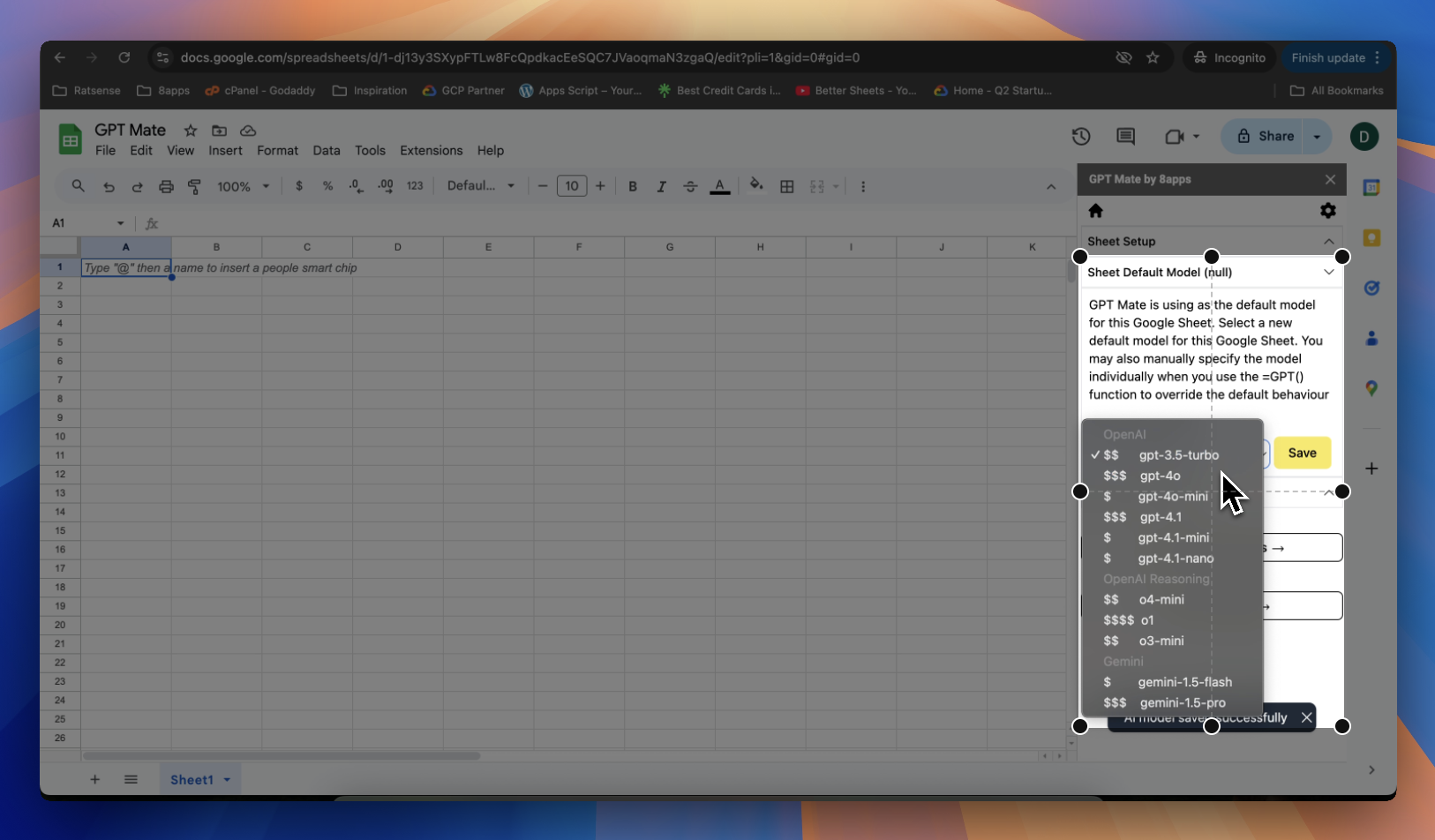
:::note
- This model will be used automatically if you don't specify a model in your formulas.
- You can change your default model anytime in Settings.
:::
:::tip
Use different models for different sheets as per your requirement.
:::
---
# Enable GPT Mate for a Google Sheet
Product: GPT Mate for Sheets
URL: https://www.8apps.co/docs/gpt-mate/using-gptmate/sheet-setup
Summary: Enable GPT Mate on a spreadsheet so its formulas run and every editor can use them without reconfiguring the add-on themselves.
# Sheet Setup
Before you start using GPT Mate in your Google Sheet, you'll need to enable GPT Mate for the current spreadsheet. This setup ensures that:
- GPT functions can be used within the sheet
- All collaborators (editors) can access GPT features without needing to reconfigure anything
## How to Set it up?
- Open your Google Sheet
- Go to **Extensions > GPT Mate for Sheets > Open App**
- In the GPT Mate sidebar, click the home icon and go to the **Sheet Setup** section
- Click the **Enable** button
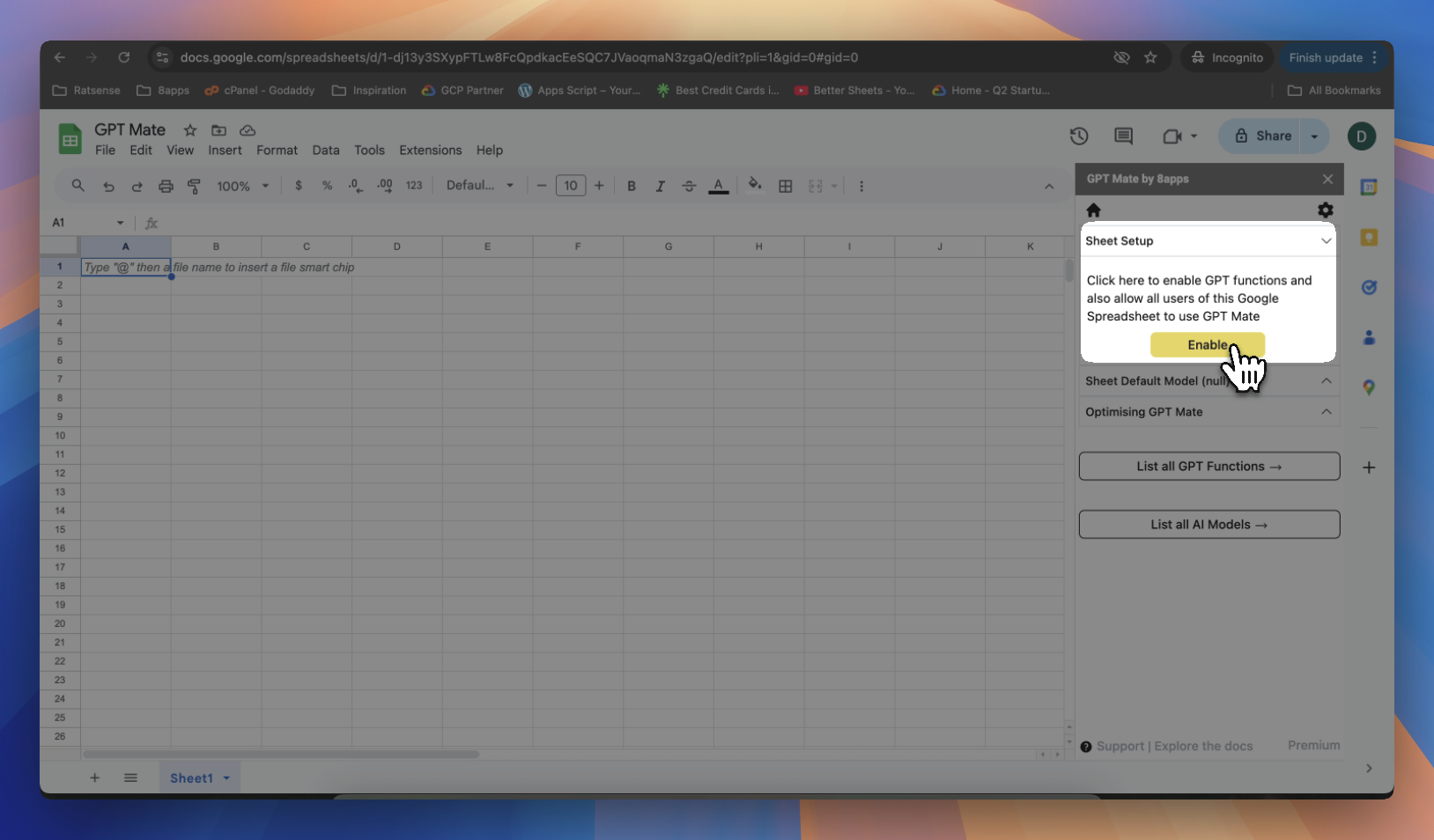
Once enabled, GPT Mate is activated for the spreadsheet, and you’re ready to start using GPT-powered formulas, prompts, and tools across your data.
:::info
Once you enable the add-on in the sheet, all other users with access to the sheet will be able to use GPT Mate.
Please note that all users will use the credits from the owner’s account.
:::
---
# Install Hash Data for Google Sheets
Product: Hash Data
URL: https://www.8apps.co/docs/hash-data/getting-started/install-and-authorize
Summary: Install and authorise Hash Data by 8apps from the Google Workspace Marketplace, or from the Extensions menu inside Google Sheets.
# Install and Authorise Hash Data
### Installing and authorising Hash Data takes just a few simple steps.
- Open the marketplace listing [Hash Data by 8apps](https://workspace.google.com/marketplace/app/hash_data_by_8apps/476613022290?flow_type=2) on Google Workspace Marketplace.
- Click Install and choose your Google Account.
- Review and approve the requested permissions.
- Alternatively, you can also open Google Sheets, Go To Extensions > Add-ons > Get add-ons - Search for "Hash Data by 8apps”.
:::caution
Make sure you are not logged into multiple Gmail accounts while installing Hash Data.
:::
:::info
Hash Data runs entirely within Google Sheets, with no external calls or file access.
It uses 100% client-side processing.
:::
---
# Launch Hash Data in Google Sheets
Product: Hash Data
URL: https://www.8apps.co/docs/hash-data/getting-started/launch
Summary: Open Hash Data from Extensions > Hash Data > Open App to start using the =HASH(), =HASHEMAIL(), and =HASHPHONE() formulas in your spreadsheet.
# Launch Hash Data
After installation and authorisation, you can start using Hash Data.
## How to Launch the App
- Open an existing **Google Sheet** (or) type [sheets.new ](https://sheets.new) to create a new file
- Go to **Extensions > Hash Data > Open App.**
## You are now ready to start using formulas like
- =HASH ( )
- =HASHEMAIL( ) and
- =HASHPHONE( )
:::warning
Use the same Google account for installation and access. Avoid using multiple accounts in the same browser session.
:::
---
# Hash Data: Anonymise PII in Google Sheets
Product: Hash Data
URL: https://www.8apps.co/docs/hash-data/getting-started/overview
Summary: Hash Data hashes emails, phone numbers, and other PII inside Google Sheets for Google Ads and Meta custom audiences. See its capabilities and use cases.
# Hash Data Overview
Hash Data by 8apps helps you anonymise sensitive data like email addresses, phone numbers, and other personally identifiable information (PII) - directly inside Google Sheets.
## Ideal for:
- Marketers uploading audiences to Google Ads or Meta.
- Compliance teams ensuring privacy-safe workflows.
- No-code professionals automating secure data pipelines.
- Anyone needing consistent, accurate hashes, without a script.
## Key Capabilities:
- Hash any personally identifiable information instantly.
- Use purpose-built functions - =HASH ( ), =HASHEMAIL( ) and =HASHPHONE( ).
- Compatible with Google Ads, Meta Ads, and other custom audience systems.
- Simple setup, no coding required.
- Choose your algorithm including MD5, SHA256, SHA512, SHA1, or SHA3-256
- Data never leaves your spreadsheet. Everything runs client-side.
---
# Hashing Best Practices for Google Ads and Meta
Product: Hash Data
URL: https://www.8apps.co/docs/hash-data/power-user-tip/best-practices
Summary: Clean inputs produce consistent hashes. Avoid the whitespace, casing, and missing country code issues that cause failed custom audience uploads.
# Best Practices for Using Hash Data
Hashing is only as accurate as the input it receives. Clean, properly formatted data ensures that your hashes are consistent, platform-compliant, and privacy-safe.
Small issues like extra spaces, missing country codes, or inconsistent casing can cause mismatches or failed uploads.
### 🔐 Tips for using Hash Data:
| Tip | Description |
| ----------------------------------- | ---------------------------------------------------------------------------------------------------------------------------------- |
| Clean Your Inputs | Remove leading/trailing spaces, fix typos, and ensure consistent formats before applying hashing functions. |
| Include Country Codes | Phone numbers must include country codes for proper E.164 formatting. For example, use `14155552671` instead of `4155552671`. |
| Be Consistent Across Rows | Consistency is key for matching records in advertising platforms. Double-check that formatting is uniform across your dataset. |
| Freeze When Final | Use the Freeze Results feature to lock in values once you're done. This avoids rehashing and saves credits or API calls. |
| Test a Few Rows First | Before hashing your entire dataset, try a few sample rows and validate the output, especially when preparing for audience uploads. |
| Be Cautious of Sensitive Parameters | The `=HASH()` function is case-sensitive. Use `=HASHEMAIL()` for consistent email hashing, as it automatically normalizes casing. |
---
# Freeze Hash Formulas to Static Values
Product: Hash Data
URL: https://www.8apps.co/docs/hash-data/power-user-tip/freeze-results
Summary: Replace live =HASH(), =HASHEMAIL(), and =HASHPHONE() formulas with their final hashed values to save credits, lock data before sharing, and speed up sheets.
# Freeze Results
The Freeze Results feature allows you to replace live hash formulas with their final hashed values. This helps optimise your use of credits (in the free version) or reduce API calls in Premium workflows.
## Freezing results is especially useful when:
- You’ve finished processing a dataset
- You want to lock values before sharing a file
- You’re working with large sheets and want better performance
## How to Use Freeze Results
- In your Google Sheet™, go to: Extensions > Hash Data > Open App
- A dialog box will appear. Go to the Home tab.
- Choose one of the available options:
- **All Cells:** Converts all =HASH(), =HASHEMAIL(), and =HASHPHONE() formulas in the sheet into static hashed values
- **Selected Cells:** Converts only the selected cells
## Replace Formulas Manually
- Select the cells that contain the formulas.
- Press Ctrl+C and copy them
- Paste the copied results by pressing Ctrl+Shift+V
- Formulas within the manually selected cells are now replaced by their respective results.
## Why Freeze Results?
- **Save Credits:** Free plan users are limited to 100 hash calls per day, freezing results helps avoid unnecessary recalculations.
- **Improve Speed:** Large spreadsheets run faster without live formulas.
- **Share Securely:** Locked values make it easier to share spreadsheets without exposing formulas.
:::warning
This action is irreversible. Once formulas are replaced with static values, they cannot be undone using the app.
:::
---
# Hash Data Premium: Daily Hash Call Limits
Product: Hash Data
URL: https://www.8apps.co/docs/hash-data/power-user-tip/upgrade-to-premium
Summary: The free plan includes 100 hash calls a day. Hash Data Premium removes the cap for large audience lists and automated exports, and adds priority support.
# Why Go Premium with Hash Data
Premium unlocks unlimited hashing, faster results, and priority support, built for users who need fast, secure, and high-volume data anonymisation, all directly inside Google Sheets.
## Unlimited Calls
The free version includes up to 100 hash calls per day.
With Premium, that limit is gone; run as many =HASH(), =HASHEMAIL(), and =HASHPHONE() functions as your workflows demand.
Perfect for handling large datasets, automating secure exports, or preparing audience lists at scale.
## Priority Email Support
Get faster responses, early fixes, and personalised help whenever you need it. Premium support means less downtime and more peace of mind.
## Who is Premium for?
- Marketers uploading large audience lists to Google Ads or Meta.
- Compliance teams ensuring consistent, privacy-safe workflows.
- No-code pros automating secure pipelines with hashed identifiers.
- Agencies & businesses needing scalable, compliant data handling.
## Upgrade Now
Upgrade today to unlock premium features instantly and work with data securely, without limits.
---
# =HASHEMAIL() Formula for Google Sheets
Product: Hash Data
URL: https://www.8apps.co/docs/hash-data/using-hash-data/hash-email
Summary: Reference for =HASHEMAIL(email, algorithm), which trims, lowercases, and hashes email addresses for privacy-safe Google Ads and Meta audience uploads.
# =HASHEMAIL(email, [algorithm])
The =HASHEMAIL() function is purpose-built for email addresses. It cleans, normalises, and hashes email strings using secure cryptographic algorithms, ensuring consistent, privacy-preserving representations ideal for audience uploads and data exports.
## Parameters:
| Parameter | Description | Example |
| ---------------------- | ---------------------------------------------------- | -------------------------- |
| `email` | The email address or cell reference you want to hash | `=HASHEMAIL(B2)` |
| `algorithm` (optional) | Choose from: SHA256, MD5, SHA1, SHA512 and SHA3-256 | `=HASHEMAIL(A2, "SHA256")` |
## What it does:
- Trims whitespace
- Converts to lowercase
- Hashes the cleaned email
## Use Cases:
- Preparing clean, hashed emails for Google Ads or Meta Ads audience lists
- Ensuring consistent anonymisation across rows or datasets
- Sharing email datasets securely while maintaining privacy
:::info
HASHEMAIL expects the input to be a valid email address.
:::
---
# =HASHPHONE() Formula for Google Sheets
Product: Hash Data
URL: https://www.8apps.co/docs/hash-data/using-hash-data/hash-phone
Summary: Reference for =HASHPHONE(phone, algorithm), which normalises numbers to E.164 format and hashes them for consistent custom audience matching.
# =HASHPHONE(phone, [algorithm])
The =HASHPHONE() function standardises and hashes phone numbers using the E.164 international format, ensuring platform compliance and consistency.
## Parameters:
| Parameter | Description | Example |
| ---------------------- | ------------------------------------------------------------- | -------------------------------------- |
| `phone` | The phone number (or cell reference) to be cleaned and hashed | `=HASHPHONE(C2)` |
| `algorithm` (optional) | Choose from: SHA256 (Default), MD5, SHA1, SHA512 and SHA3-256 | `=HASHPHONE("+14155552671", "SHA256")` |
## What it does:
- Formats the number to E.164 (e.g., +14155552671)
- Adds a + prefix if missing
- Hashes the result using the selected algorithm
## Use Cases:
- Anonymising phone numbers for Meta or Google Ads custom audiences
- Ensuring consistent hashing across countries and formats
- Automating secure, phone-based identifiers in a no-code data workflow
:::info
HASHPHONE expects the input to be a valid phone number
:::
---
# =HASH() Formula for Google Sheets
Product: Hash Data
URL: https://www.8apps.co/docs/hash-data/using-hash-data/hash
Summary: Reference for =HASH(value, algorithm), the general-purpose Hash Data formula for hashing any identifier with secure cryptographic algorithms in Sheets.
# =HASH(value, [algorithm])
The =HASH() function allows you to hash any kind of data, including emails, phone numbers, or any other identifiers, using secure cryptographic algorithms, directly within Google Sheets.
## Parameters:
| Parameter | Description | Example |
| ---------------------- | ---------------------------------------------------- | ---------------------------------------------- |
| `value` | The text, number, or cell reference you want to hash | `=HASH(A2)` |
| `algorithm` (optional) | Choose from: SHA256, MD5, SHA1, SHA512 and SHA3-256 | `=HASH(A2, "MD5")` `=HASH("John Doe", "SHA1")` |
---
# Install Mail My Sheets for Google Sheets
Product: Mail My Sheets
URL: https://www.8apps.co/docs/mail-my-sheets/getting-started/install-and-authorize
Summary: Install and authorise Mail My Sheets by 8apps from the Google Workspace Marketplace, or from the Extensions menu inside Google Sheets.
# Install and Authorise Mail My Sheets
Getting started with **Mail My Sheets** is quick and easy.
1. Open the marketplace listing [Mail my Sheets](https://workspace.google.com/marketplace/app/mail_my_sheets_by_8apps/268783687467) on Google Workspace Marketplace.
2. Click Install and choose your Google Account.
3. Review and approve the requested permissions
Alternatively, you can also open Google Sheet, Go To Extensions > Add-ons > Get add-ons – Search for "Mail My Sheets by 8apps”
:::caution
Make sure you are logged into the Google Account you used to install Mail My Sheets.
:::
:::note
Mail My Sheets requires permissions to read your spreadsheets and send emails on your behalf. We never share, access, or upload your data anywhere.
:::
---
# Launch Mail My Sheets in Google Sheets
Product: Mail My Sheets
URL: https://www.8apps.co/docs/mail-my-sheets/getting-started/launch
Summary: Open Mail My Sheets from Extensions > Mail My Sheets > Open App to start scheduling spreadsheet content out by email.
# Launch
After installation and authorisation, you can start using **Mail My Sheets™**.
## How to Launch the App
1. Open an existing **Google Sheet** (or) type [sheets.new ](https://sheets.new) to create a new file
2. Go to **Extensions > Mail My Sheets > Open App**.
3. The Mail My Sheets dialog box will appear on your screen.
:::warning
Use the same Google account for installation and access. Avoid using multiple accounts in the same browser.
:::
---
# Mail My Sheets: Email Google Sheets on a Schedule
Product: Mail My Sheets
URL: https://www.8apps.co/docs/mail-my-sheets/getting-started/overview
Summary: Mail My Sheets emails Google Sheets content automatically on a schedule, with custom subjects, rich message bodies, and inline or attached exports.
# Overview
Welcome to **Mail My Sheets** by 8apps!
**Mail My Sheets** is a Google Workspace add-on, the effortless way to automate and send Google Sheets content via email, without manual copy-pasting or exporting.
**Ideal for:** Professionals, businesses and teams, this add-on helps you share dynamic spreadsheet snapshots on a custom schedule with full personalisation and ease.
## What You Can Do with Mail My Sheets
- **Automate Reporting**: Schedule sales, finance, or project updates with zero manual effort.
- **Stay Organized**: Set recurring emails, daily, weekly, or monthly.
- **Save Time**: Eliminate repetitive tasks like exporting sheets and writing manual emails.
- **Customize Emails**: Personalised subjects, rich message content, inline or attachment options.
## Key Features
- Recurring Email Scheduling (daily, weekly, or monthly)
- Partial or Full Sheet Sharing
- Multi-Recipient Support (To, CC, BCC)
- Dynamic Tags Support like `{{TODAY}}` and `{{MONTH}}`
- Easy Setup — No Coding Required
- Compatible with all Google Workspace domains.
- Different plans to suit your needs.
- Ensured data privacy with secure email protocols
- Test Emails to preview before scheduling
---
---
# Conditional Email Workflows (Coming Soon)
Product: Mail My Sheets
URL: https://www.8apps.co/docs/mail-my-sheets/power-user-tip/conditional-workflows
Summary: Planned Mail My Sheets rules that trigger emails automatically when spreadsheet data meets a condition, such as hitting a sales or inventory threshold.
# Conditional Workflows (Coming Soon)
Soon you’ll be able to set up smart rules to trigger emails automatically based on specific data conditions, like reaching sales targets or crossing inventory thresholds!
:::note
This feature is coming soon to help you automate with even greater precision.
:::
---
# Name Email Attachments with Dynamic Markers
Product: Mail My Sheets
URL: https://www.8apps.co/docs/mail-my-sheets/power-user-tip/customise-attachment-name
Summary: Build attachment filenames in Mail My Sheets from dynamic markers so exports arrive named by vendor, month, or any convention your workflow expects.
# Customise Attachment Name with Dynamic Markers
You can modify the attachment name using available dynamic markers to suit your workflow or naming conventions. These markers automatically pull values such as:
| Markers | Description |
| ---------------- | ----------------------------------------------------------------------------------------------------------------------- |
| `{{Spreadsheet Name}}` | The name of the Google Sheet |
| `{{Sheet Name}}` | The name of the specific sheet being sent |
| `{{Day}}, {{Month Name}}, {{Year}}`| Current date values |
## Examples:
- Invoice_Vendor1
- Invoice_Vendor1_Jan
- Invoice_Vedor1_Jan25
---
# Embed Live Sheet Content in Email (Coming Soon)
Product: Mail My Sheets
URL: https://www.8apps.co/docs/mail-my-sheets/power-user-tip/dynamic-content-embedding
Summary: Planned Mail My Sheets support for embedding live charts, tables, and cell values directly in the email body so recipients see insights without opening a file.
# Dynamic Content Embedding (Coming Soon)
Mail My Sheet will soon support embedding live charts, tables, and cell values directly within email bodies, making it easier for recipients to view key insights instantly!
:::note
Stay tuned for this feature in upcoming updates!
:::
---
# Send a Test Email before Scheduling a Report
Product: Mail My Sheets
URL: https://www.8apps.co/docs/mail-my-sheets/power-user-tip/test-emails
Summary: Preview exactly how a Mail My Sheets report will reach recipients. Send a test to your own Gmail account and check formatting and attachments first.
# Test Emails
Before activating a scheduled task, you can use the Test Email feature to preview exactly how your email will appear to recipients.
This helps ensure formatting, content, and attachments are correct before anything is sent out automatically.
- Click ‘Send Test Email’ in the setup panel
- The preview email will be sent to your logged-in Gmail Account
- Review- formatting, content, attachment, etc., before finalising your schedule
- Make any necessary adjustments before saving or scheduling the task
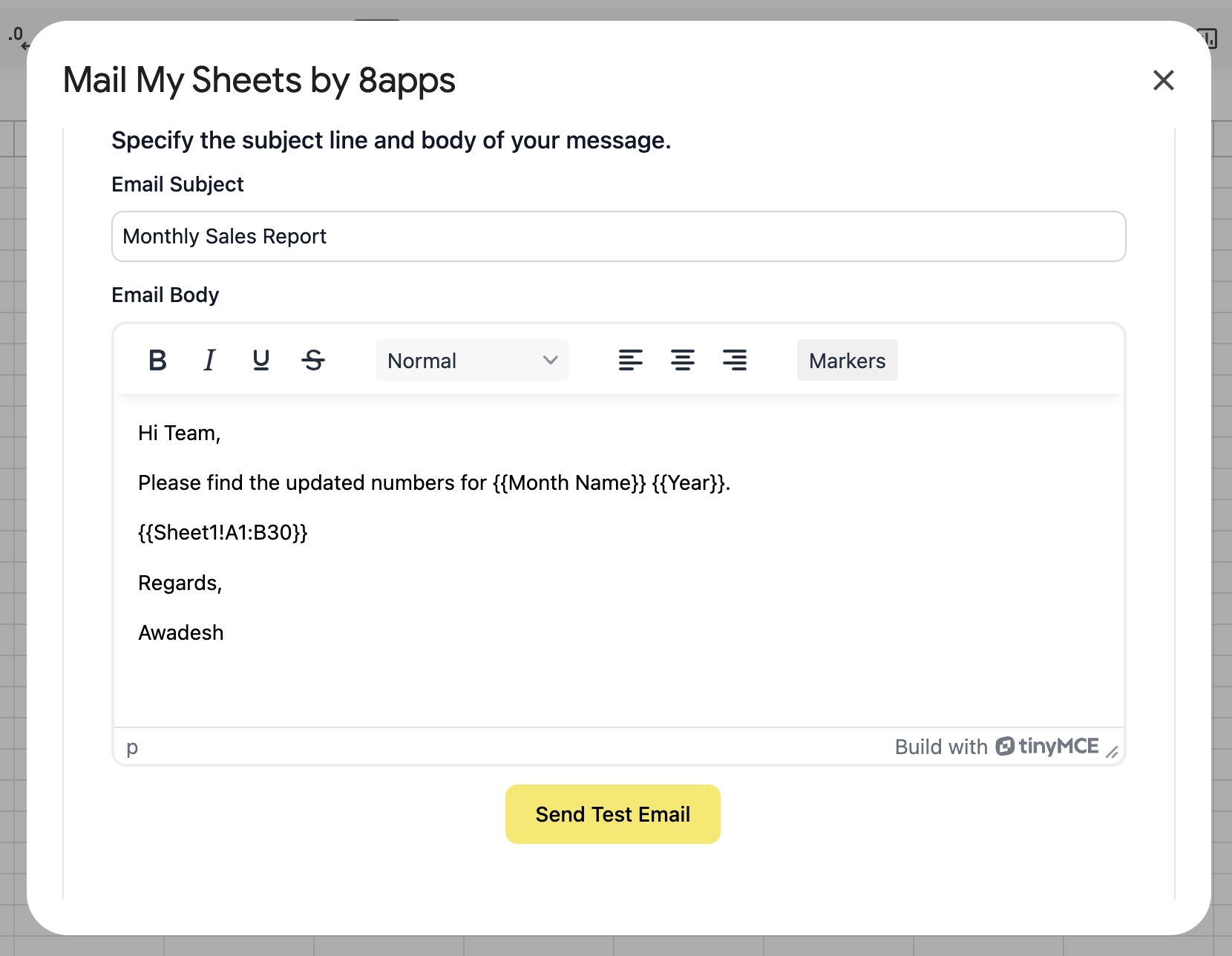
:::tip
Testing your email helps avoid errors and ensures everything looks exactly as intended.
:::
---
# Mail My Sheets Premium: Limits and Features
Product: Mail My Sheets
URL: https://www.8apps.co/docs/mail-my-sheets/power-user-tip/upgrade-to-premium
Summary: Premium lifts the 3-task limit, sends unlimited emails daily, removes the watermark from outgoing messages, and adds priority email support.
# Why Go Premium with Mail My Sheets
Premium unlocks higher usage limits, advanced scheduling options, and priority support, making it ideal for professionals and teams that rely on automated reporting and email delivery at scale.
## Send Unlimited Emails Daily
With Premium, you can send unlimited emails each day, making it perfect for recurring reports, team-wide updates, and automated communications at any scale. Whether it’s a few recipients or hundreds, your scheduled tasks will run without interruption.
## Priority Email Support
Get faster responses, early fixes, and personalised help whenever you need it. Premium support means less downtime and more peace of mind.
## Create unlimited Tasks
The free version allows up to 3 active tasks. With Premium, you can create unlimited tasks, perfect for managing multiple reports, teams, or workflows without restrictions.
## Clean, Watermark-free Emails
Premium ensures your emails are sent without any branding or watermark, giving you full control over the look and professionalism of every message. Perfect for client-facing reports, team updates, or external communication.
## Who is Premium for?
- Professionals sending recurring reports or dashboards
- Teams managing multiple automated email tasks
- Businesses needing reliable, scalable spreadsheet communication
- Anyone who values customisation, consistency, and control in email delivery
## Upgrade Now
Upgrade today to explore Premium benefits instantly!
---
# Create a Scheduled Email Task in Sheets
Product: Mail My Sheets
URL: https://www.8apps.co/docs/mail-my-sheets/using-mail-my-sheets/create-a-task
Summary: A Mail My Sheets task defines which sheets to send, how to format them, who receives them, and on what schedule. Learn how to set one up.
# Create a Task
In Mail My Sheets, a ‘Task’ is a set of instructions or rules that define which sheet(s) from Google Sheets to send, how to format it, who to send it to, and on what schedule. These tasks run automatically based on your configuration.
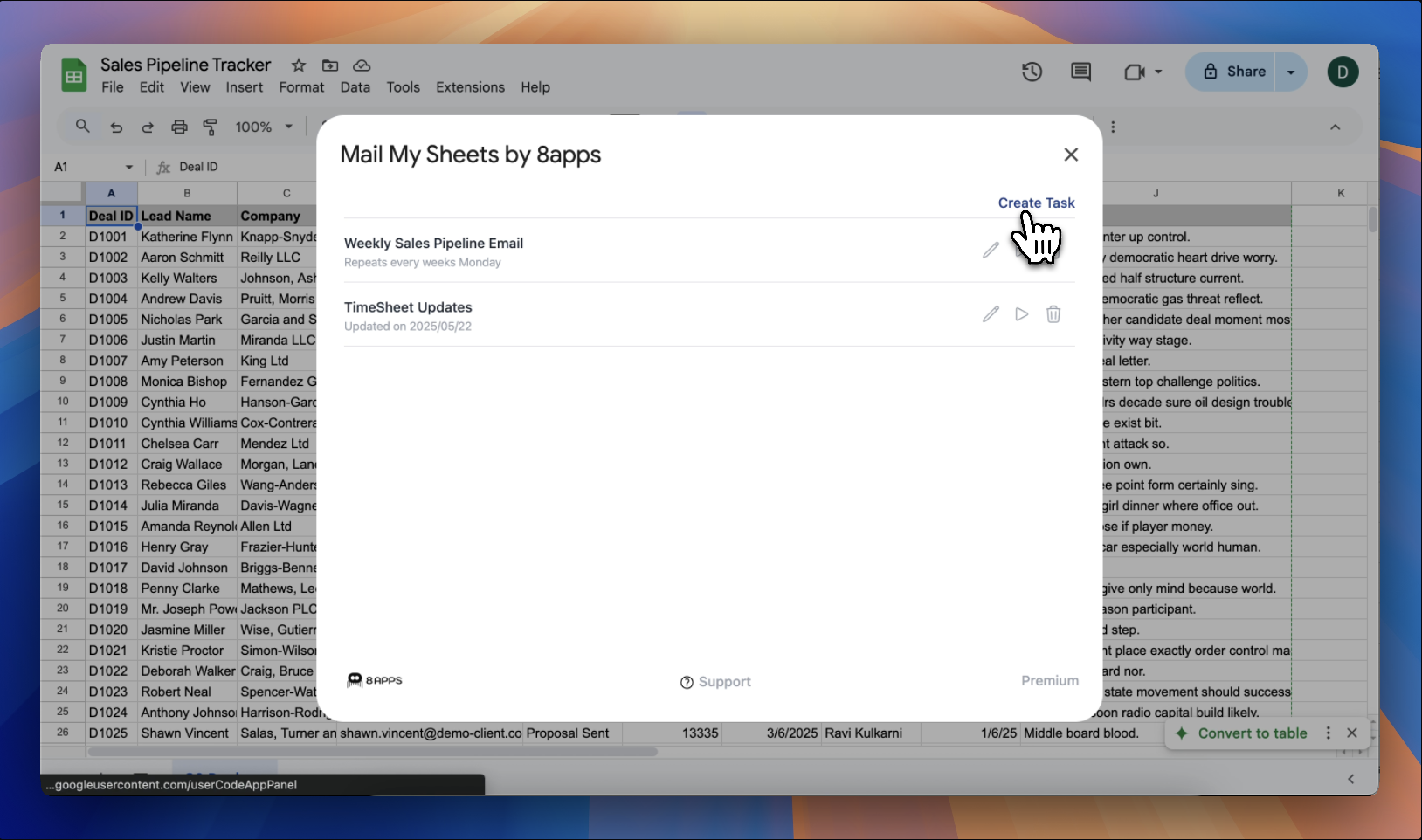
:::note
You can create multiple schedules for the same sheet with different tasks.
:::
---
# Customise Email Content in Mail My Sheets
Product: Mail My Sheets
URL: https://www.8apps.co/docs/mail-my-sheets/using-mail-my-sheets/customise-email
Summary: Control how scheduled Mail My Sheets emails look, from the subject line to a rich message body, with the configuration options available per task.
# Customise Emails
Mail My Sheets gives you full control over how your emails look. Users have the following configuration options available:
| Configuration | Description |
| --------------- | ------------------------------------------------------------------------------------------------------------------------------------------------------------------------------------------------------------------------------------------------------------------ |
| Task Name | Enter a descriptive name for easy identification |
| Select Sheets | Select all sheets to export or any specific sheets |
| Select Sheets | Send as a PDF, Excel or CSV attachment |
| Attachment Name | Select a name for your attachment |
| PDF Formatting | Customise PDF formatting- Size, orientation, scaling, alignment, margins, etc. |
| Email Details | Customise the following details while sending the mail: - Specify one or more email addresses - Subject Line: Add dynamic tags like `{{TODAY}}, {{WEEK_RANGE}}, or {{MONTH}}`. - Email Body: Add text, instructions, or reminders for your recipients. |
| Schedule | Configure this setting if you want to send the mail on a set schedule. |
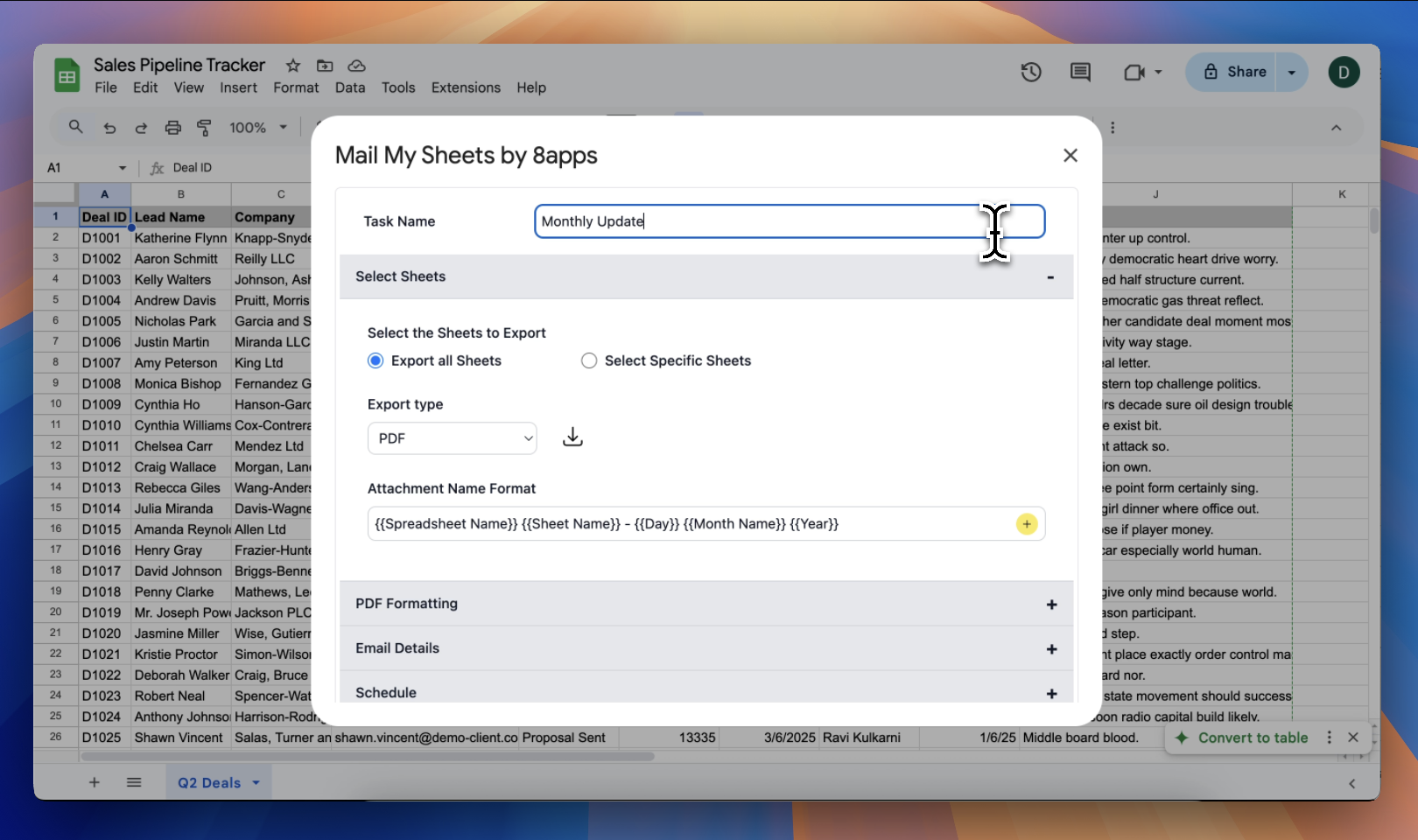
:::tip
Use emojis and bullet points in your email body to make reports more engaging.
:::
---
# Manage Email Recipients in Mail My Sheets
Product: Mail My Sheets
URL: https://www.8apps.co/docs/mail-my-sheets/using-mail-my-sheets/email-details
Summary: Add recipients to the To, Cc, and Bcc fields of a Mail My Sheets task, enter several addresses at once, and check your Workspace external sending rules.
# Email Details
You can easily add and manage email details while sending emails:
## Manage Recipients:
- Add emails to the To, CC, or BCC fields.
- To enter multiple email addresses:
- Write an email address, and press Enter
- Separate multiple addresses with commas.
:::caution
Ensure you have permission to email external addresses if your Google Workspace admin restricts external communications.
:::
## Email Subject:
A well-written subject improves open rates and adds professionalism to your communication. Set a clear and relevant subject line for your outgoing emails.
:::tip
This appears in the recipient’s inbox and helps them quickly identify the report or update.
:::
## Email Body:
You can customise and save the email body within each task, so you don’t have to rewrite it every time you send an email.
Make your emails dynamic and up to date using dynamic markers. These markers automatically insert real-time values like dates and months into the message body, so you never have to update them manually.
| Markers | Description |
| ---------------- | -------------------------- |
| Spreadsheet Name | Name of the Spreadsheet |
| Sheet Name | Name of the specific sheet |
| Filename | Name of the file |
| Day | Day |
| Month Name | Current Month |
| Year | Current Year |
## Example:
- Here’s the monthly report for June 2025
- Please find attached the invoice for 12th June 2025.
:::note
Smart markers make your email content stay fresh automatically without manual updates.
:::
---
# Edit, Pause and Delete Mail My Sheets Tasks
Product: Mail My Sheets
URL: https://www.8apps.co/docs/mail-my-sheets/using-mail-my-sheets/manage-tasks
Summary: Update a scheduled email task as needs change. How to edit its configuration, pause a schedule without losing setup, and delete tasks you no longer run.
# Manage Task
As your requirements change, you can update tasks to ensure the automation works as per your requirements.
- When you open the app, it shows you all the tasks you have.
- The Task Name helps you easily identify the automation.
## Edit Task
- Click on the Edit option if you want to edit any task
- The details in the Edit Task are identical to those in your Create New Task.
- Proceed to modify and save the details.
## Pause Task
If you need to temporarily stop a task from running on its scheduled time, you can easily pause it without deleting or losing its configuration.
- Open the task and click Edit
- Disable the schedule toggle
- Click ‘Save’ to confirm the change
## Delete Task
- If you no longer need a task, you may delete the task.
- Click on the delete icon next to the task, and delete it.
:::warning
Once you delete a task, you cannot retrieve it.
:::
## Run Task
- There is an option to run a task as required.
- If you wish to manually initiate a run, click on the ‘Send Now’ button at the bottom of the dialog box.
- Based on the defined rules, it will run the task
:::info
Your automation, if enabled by ‘Schedule’, will continue to run as is.
:::
---
# PDF Export Formatting for Emailed Sheets
Product: Mail My Sheets
URL: https://www.8apps.co/docs/mail-my-sheets/using-mail-my-sheets/pdf-formatting
Summary: Control paper size, orientation, margins, gridlines, page numbers, and workbook titles when Mail My Sheets exports your spreadsheet as a PDF.
# PDF Formatting
Mail My Sheets gives you full control over how your spreadsheets are formatted when exported as PDFs.
These options help you tailor the layout for readability, professionalism, and presentation, especially when sharing reports with clients or stakeholders.
## PDF Format Options
When creating or editing a task, you can customise the PDF output using the following settings:
## Layout Options (select from dropdowns):
| Options | Description |
| -------------------- | ------------------------------------------------------------- |
| Paper size | Choose standard sizes like A4, Letter, Legal, etc. |
| Page Orientation | Portrait or Landscape |
| Paper Scaling | Fit to width, height, page or normal size |
| Horizontal Alignment | Left, centre, or right alignment of content |
| Vertical Alignment | Top, middle, or bottom alignment on the page |
| Page Margins | Set margins for all sides- normal, narrow, wide or no margins |
## Formatting Options (enable/disable checkboxes):
- Show page numbers
- Show gridlines
- Show workbook title
- Show sheet names
- Repeat frozen rows
- Repeat frozen columns
- Show cell notes
:::tip
Use precise settings to ensure your exported PDFs look clean, well-structured, and ready for distribution.
:::
---
# Run or Schedule a Mail My Sheets Task
Product: Mail My Sheets
URL: https://www.8apps.co/docs/mail-my-sheets/using-mail-my-sheets/run-tasks
Summary: Send a spreadsheet report immediately with Send Now, or schedule it hourly, daily, weekly, or monthly so it goes out without manual intervention.
# Run tasks
The final step in setting up a task is deciding how it should run. Mail My Sheets supports two execution modes- manual and scheduled, to suit both one-time and recurring needs.
- **For One-time Run:** Click Send Now to trigger the task immediately. This runs the configuration once and sends the selected sheet content to the specified recipients.
- **For Scheduled Run:** Click Schedule to automate the task at regular intervals. You can choose to repeat the task hourly, daily, weekly or monthly. Once scheduled, matching sheets are processed and sent automatically, with no manual intervention required.
Congratulations! Your Mail My Sheets is now fully active!
---
# Schedule Recurring Emails from Google Sheets
Product: Mail My Sheets
URL: https://www.8apps.co/docs/mail-my-sheets/using-mail-my-sheets/scheduling-options
Summary: Set Mail My Sheets to send hourly, daily, weekly, or monthly, and pause or resume any schedule whenever your reporting cadence changes.
# Scheduling Options
Mail My Sheets offers flexible and highly customisable scheduling options to automate email delivery exactly when you need it.
## Available Schedules:
With Mail My Sheets, you’re in full control! Set the timing that works best for your schedule!
Select from different schedules that work the best for you: Hourly, daily, weekly, or monthly.
| **Schedules** | **Examples** |
| ------------- | -------------------------------------------------------------------------------------------------------------------------------------------------------------------------------------------------- |
| Hour | - Send a report at an interval of every 2 hours - Send a report every 8 hours |
| Day | - Every day at 6\:00 AM - Every 3 days at 12\:00 PM - Every 10 days at 11\:00 AM |
| Week | - Every week on Monday at 8\:00 AM - Every week on Monday, Wednesday and Saturday at 9\:00 AM - Every 2 weeks on Tuesday and Friday at 10\:00 AM - Every 4 weeks on Sunday at 12\:00 AM |
| Month | - Every month on Day 1 at 8\:00 AM - Every 2 months on Day 15 at 9\:00 AM - Every 6 months on Day 12 at 12\:00 AM |
:::info
You can pause or resume schedules anytime!
:::
---
# Choose Which Sheets and Ranges to Email
Product: Mail My Sheets
URL: https://www.8apps.co/docs/mail-my-sheets/using-mail-my-sheets/sheet-selection
Summary: Send an entire workbook, specific sheets, or a named range with Mail My Sheets, and pick the export format that suits your recipients.
# Sheet Selection
You can control exactly what gets emailed. Only send what’s needed! Avoid sending entire workbooks unnecessarily.
## Select the Sheets to Export
- Export all sheets
- Select specific sheets
- Specific range in sheets
## Select Export Type
When setting up a task in Mail My Sheets, you can choose how your Google Sheet content is exported and sent via email. The available export formats include:
- **PDF:** Ideal for polished, read-only reports
- **Excel(.xlsx)**: Best for editable spreadsheets and team collaboration
- **CSV:** Suitable for raw data transfers or system imports
:::info
If you're sending specific sheets or a defined range, you can choose a unique export format for each sheet.
:::
:::tip
Select the export type that aligns with your recipient’s needs and the purpose of the report.
:::
## Naming Attachment
Mail My Sheets allows you to customise the names of your exported file attachments for better organisation and easy identification.
By default, attachment names follow this format:
`{{Spreadsheet Name}} {{Sheet Name}} - {{Day}} {{Month Name}} {{Year}}`
**Example:** Sales Report Q1 - 05 May 2024
You can also customise the attachment name using dynamic markers. [See dynamic markers](/docs/mail-my-sheets/power-user-tip/customise-attachment-name).
---
# Install Mail to Drive for Gmail and Drive
Product: Mail to Drive
URL: https://www.8apps.co/docs/mail-to-drive/getting-started/install-and-authorize
Summary: Install and authorise Mail to Drive by 8apps from the Google Workspace Marketplace, then approve the permissions it needs for Gmail and Google Drive.
# Install and Authorise Mail to Drive™
The Mail to Drive add-on for Gmail works with Google Sheets, and installing and authorising Mail to Drive takes just a few simple steps.
- Open the marketplace listing [Mail to Drive™ on Google Workspace Marketplace](https://workspace.google.com/marketplace/app/mail_to_drive_by_8apps/137353905897).
- You can also open Google Sheet, Go To **Extensions > Add-ons > Get add-ons –> Search for "Mail to Drive by 8apps”**.
- Click Install and choose your Google Account.
- Review and approve the requested permissions.
:::info
Mail to Drive strictly uses permissions only for processing rules and saving files within your own Google Drive. Our app is CASA 2 certified!
:::
---
# Launch Mail to Drive in Google Sheets
Product: Mail to Drive
URL: https://www.8apps.co/docs/mail-to-drive/getting-started/launch
Summary: Open Mail to Drive from Extensions > Mail to Drive > Open App to start saving Gmail messages and attachments into Google Drive automatically.
# Launch Mail to Drive
After installation and authorisation, you can start using Mail to Drive
## How to Launch the App
- Open an existing **Google Sheet** (or) type [sheets.new ](https://sheets.new) to create a new file
- Go to **Extensions > Mail to Drive > Open App.**.
The Mail to Drive dialog box will open inside Sheets, allowing you to:
- Create new tasks and workflows.
- Manage existing tasks and workflows.
- Access logs and saved automation settings.
---
:::warning
Use the same Google account for installation and access. Avoid multiple accounts in the same browser session.
:::
---
# Mail to Drive: Save Gmail Attachments to Drive
Product: Mail to Drive
URL: https://www.8apps.co/docs/mail-to-drive/getting-started/overview
Summary: Mail to Drive automatically files Gmail messages and attachments into organised Google Drive folders. See its key capabilities and security model.
# Mail to Drive Overview
Mail to Drive automates the process of saving Gmail emails and attachments into organised folders inside Google Drive.
## Key Capabilities
- Automatically save entire emails or just attachments.
- Save in Google Drive or the Shared Drive Folder of your choice.
- Reduce inbox clutter, delete old emails.
- Auto-organised, no need to monitor!
- Flexibility in naming of files and attachments.
- Fully secure! Works entirely within your Google account.
- Data is processed securely with no third-party access.
Ideal for teams and professionals who need to archive, sort, or access documents without manually downloading them.
---
# Dynamic Markers for Drive File and Folder Names
Product: Mail to Drive
URL: https://www.8apps.co/docs/mail-to-drive/power-user-tip/dynamic-markers
Summary: Name saved emails, attachments, and subfolders from email data using Mail to Drive dynamic markers for sender, subject, date, and task name.
# Dynamic Markers
Mail to Drive includes a set of built-in **dynamic markers** that automatically personalise how your files and folders are named. These markers can be used in:
- Subfolder names for the Drive organisation
- Renaming saved email files (PDFs)
- Renaming attachments
Dynamic markers pull details directly from each email like sender name, subject, or date and insert them into the file or folder name.
You can combine multiple markers to build structured, descriptive filenames that reflect sender details, dates, tasks, and more.
## 📘 Complete List of Dynamic Markers
- **Attachment Name**: The original name of the attachment (e.g., `invoice13.pdf`)
- **Task Name**: The name you assigned to the task (e.g., `Clients_Contracts`)
- **Subject**: Subject of the email (e.g., `Monthly Report - Q1`)
- **Sender Name**: Name of the sender (if available) (e.g., `Rahul Sahni`)
- **Sender Email**: Email address of the sender (e.g., `rahul.sahini@example.com`)
- **Date (YYYY-MM-DD)**: Full date in `YYYY-MM-DD` format (e.g., `2025-05-09`)
- **Year (YYYY)**: Four-digit year (e.g., `2025`)
- **Month (Mmmm)**: Full month name (e.g., `January`)
- **Month (Mmm)**: Three-letter month abbreviation (e.g., `Jan`)
- **Month (Mm)**: Numeric month (`01–12`) (e.g., `05`)
- **Day (DD)**: Two-digit day of the month (e.g., `09`)
- **Week Number**: Week number of the year (`01–52`) (e.g., `19`)
### Detailed Examples
### Subfolders
- **Pattern**: `{Sender Name}/{Month(Mmmm)}/{Year}`
- **Result**: `Rahul Sahni/May/2025`
### Saved Email PDF
- **Pattern**: `{Task Name}/{Subject}/{Month (Mmm)}`
- **Result**: `Client_Contracts/Monthly Report/May`
### Attachment
- **Pattern**: `{Task Name}/{Attachment Name}/{Month (Mmm)}`
- **Result**: `Client_Contracts/Invoice13/May`
:::info
You need to click on the **( + )** on the right to see the dynamic markers.
:::
---
# Gmail Search Operators for Mail to Drive
Product: Mail to Drive
URL: https://www.8apps.co/docs/mail-to-drive/power-user-tip/finding-emails
Summary: Target exactly the right messages with Gmail search syntax in Mail to Drive, using from, subject, has:attachment, filename, label, and date operators.
# Advanced Gmail Search
Mail to Drive supports advanced Gmail search syntax for filtering emails.
## Common Search Operators
- `from:support@example.com`
- `subject:Invoice has:attachment`
- `after:2024/01/01 before:2024/04/01`
- `label:Finance`
- `filename:pdf`
## Tips
- Combine multiple filters for precise targeting.
- Use Gmail's native search box first to test queries before setting inside Mail to Drive.
Using advanced search queries increases the accuracy of your automated downloads.
---
# Mail to Drive Premium: Limits and Features
Product: Mail to Drive
URL: https://www.8apps.co/docs/mail-to-drive/power-user-tip/licence-billing
Summary: Premium adds unlimited task rules, processes up to 4000 emails daily, saves to Shared Drives, and removes the watermark from saved PDFs.
# Why Go Premium with Mail To Drive
Take your email to drive automation to the next level. The Premium plan is built for power users, professionals, and teams who need more speed, flexibility, and control.
## Unlimited Task Automation
Create as many task rules as you need filter by sender, subject, date, or labels, and save files exactly where you want. Automate more, worry less.
## Process Up to 4000 Emails Daily
Whether you're handling invoices, reports, or leads premium handles **bulk processing** effortlessly, so no email is left behind.
## Save to Shared Drives
Collaborate more efficiently by saving directly to **Google Shared Drives**. Perfect for teams, departments, and client facing workflows.
## Clean, Watermark-Free PDFs
Generate professional documents by removing the **8apps watermark** from every saved PDF ideal for presentations, official use, and client sharing.
## Remove PDF Passwords Automatically
No more manual unlocking. Strip password protection from PDFs as they are saved giving you immediate access and usability.
## Reliable Hourly Sync
Stay current with **hourly scans** and automatic downloads; your files are always up-to-date in Drive without lifting a finger.
## Smart File Naming
Customise file names using dynamic tags like **sender, subject, or date** making your Drive neatly organised and searchable.
## Priority Email Support
Get faster responses, early fixes, and personalised help whenever you need it. Premium support means less downtime and more peace of mind.
## Who is Premium for?
- Professionals managing high email volumes
- Teams needing collaborative access in Shared Drives
- Businesses creating client-ready, clean documents
- Anyone who wants more control, reliability, and support
## Upgrade Now
Start unlocking Premium benefits instantly.
---
# Save Gmail Attachments to a Shared Drive
Product: Mail to Drive
URL: https://www.8apps.co/docs/mail-to-drive/power-user-tip/save-to-shared-drives
Summary: Point a Mail to Drive task at a Google Shared Drive instead of My Drive, including the Editor access the add-on needs and how to pick the folder.
# Save to Shared Drives
Mail to Drive supports saving files into Google Shared Drives, not just personal My Drive.
## Requirements
- You must have **Editor** or higher access to the Shared Drive.
- The Shared Drive must be available under your Google Account.
## How to Save to Shared Drives
- During Task creation, open the **Folder Picker**.
- Navigate to the desired Shared Drive folder.
- Confirm selection to save attachments or emails there.
Shared Drives are ideal for collaborative teams managing centralised documents.
---
# Create a Mail to Drive Task in Google Sheets
Product: Mail to Drive
URL: https://www.8apps.co/docs/mail-to-drive/using-mailtodrive/create-and-manage-tasks
Summary: A task defines which Gmail messages and attachments get saved and where they land in Drive. Create one and configure its filters and naming rules.
# Create and Manage Tasks
In Mail to Drive, a **Task** defines a set of rules that control what emails or attachments are downloaded and where they are saved inside Google Drive.
You can create multiple tasks to handle different use cases, each with its own filters, naming rules and target folders. For e.g. For saving invoices from different vendors, you can configure different sets of rules and destination folders. So each set of invoices can be its own rule.
---
## Creating a New Task
1. Open **Google Sheets**.
2. Go to **Extensions > Mail to Drive > Open App**.
3. The Mail to Drive dialog box will open.
4. Click **Create New Task**.
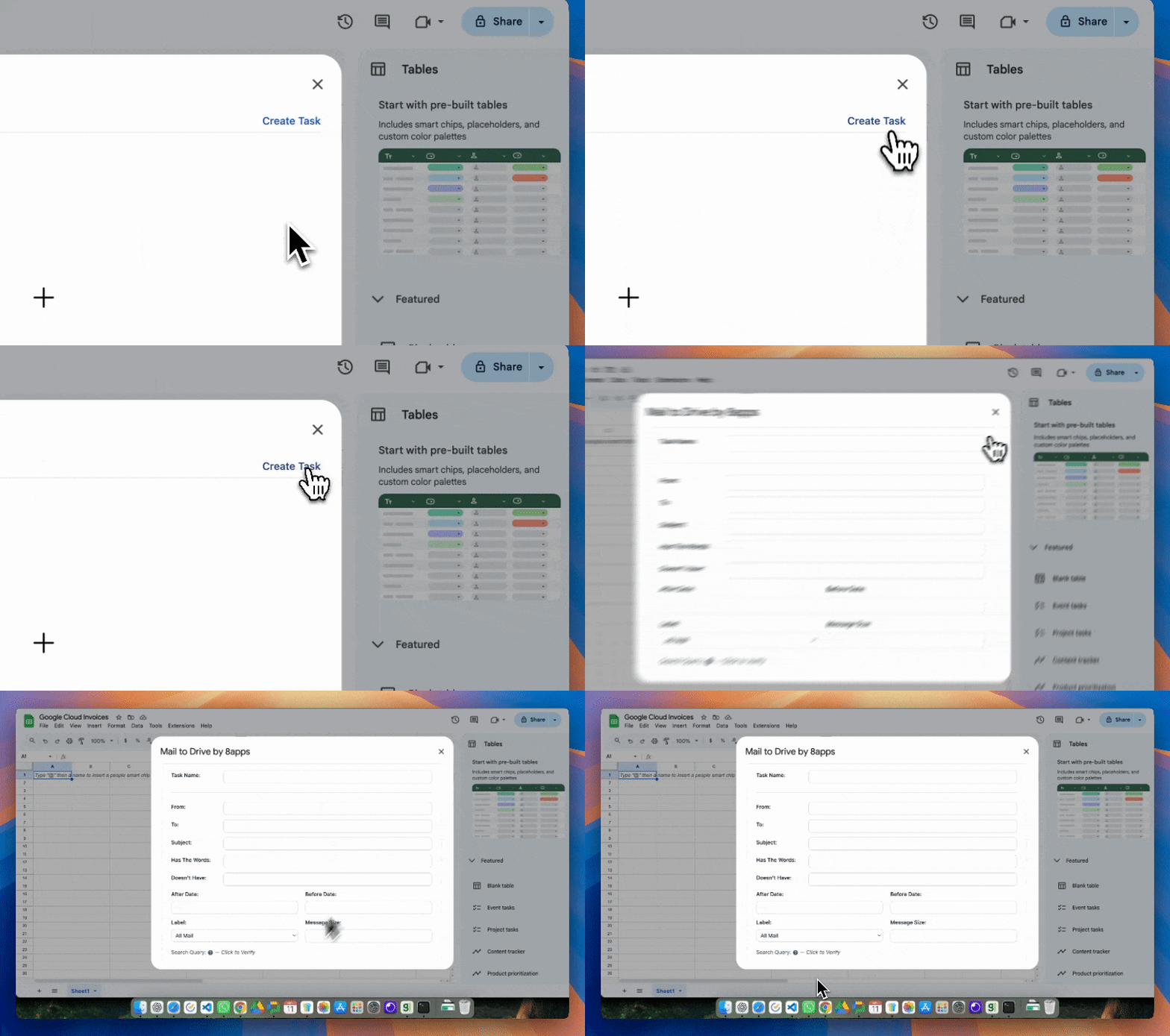
---
## Task Configuration Options
- **Task Name:** Enter a descriptive label for easy identification.
- **Filter Criteria:** Define which emails will be processed (see [Filter Criteria](/docs/mail-to-drive/using-mailtodrive/filter-criteria)).
- **Download Email & Attachments:** Choose whether you want to save the emails or attachments, or both.
- **Drive Location:** Select the target folder inside your Google Drive (see [Drive Location](/docs/mail-to-drive/using-mailtodrive/drive-location)).
---
## Managing Existing Tasks
- View all saved tasks from the main dashboard.
- Edit a task to update filters or Drive location.
- Delete tasks that are no longer needed.
---
# Save Gmail Attachments to Google Drive
Product: Mail to Drive
URL: https://www.8apps.co/docs/mail-to-drive/using-mailtodrive/download-attachments
Summary: Configure which attachments Mail to Drive saves by file type and size, choose whether to save the email too, and control how attachments are named.
# Download Attachments
You can configure Tasks to **download file attachments** from matching Gmail messages. You can also turn off the download emails, if you intend to download only the attachments.
---
## Select the file type(s)
- File Type Allowed: Create a list of files that you want Mail to Drive to download. Other files will be excluded. You may also use the default option ‘any’.
- File Type Not Allowed: Create a list of files that you want Mail to Drive to skip downloading. Other files will be included.
- We recommend using only one of the two settings - file type allowed and file type not allowed.
- Download Files of specific file size - You can choose to download only files less than or greater than a specific size.
## Naming attachment file(s)
- If you are downloading Emails also, then all attachment files will be preceded with by the Email File Name, followed by the attachment name. This allows the email and attachment files to be organised and tracked properly.
- If you want to save the attachments with the default file name, you can use **AttachmentName** marker.
- You can further customize the file name with dynamic markers. See [Dynamic Markers](/docs/mail-to-drive/power-user-tip/dynamic-markers).
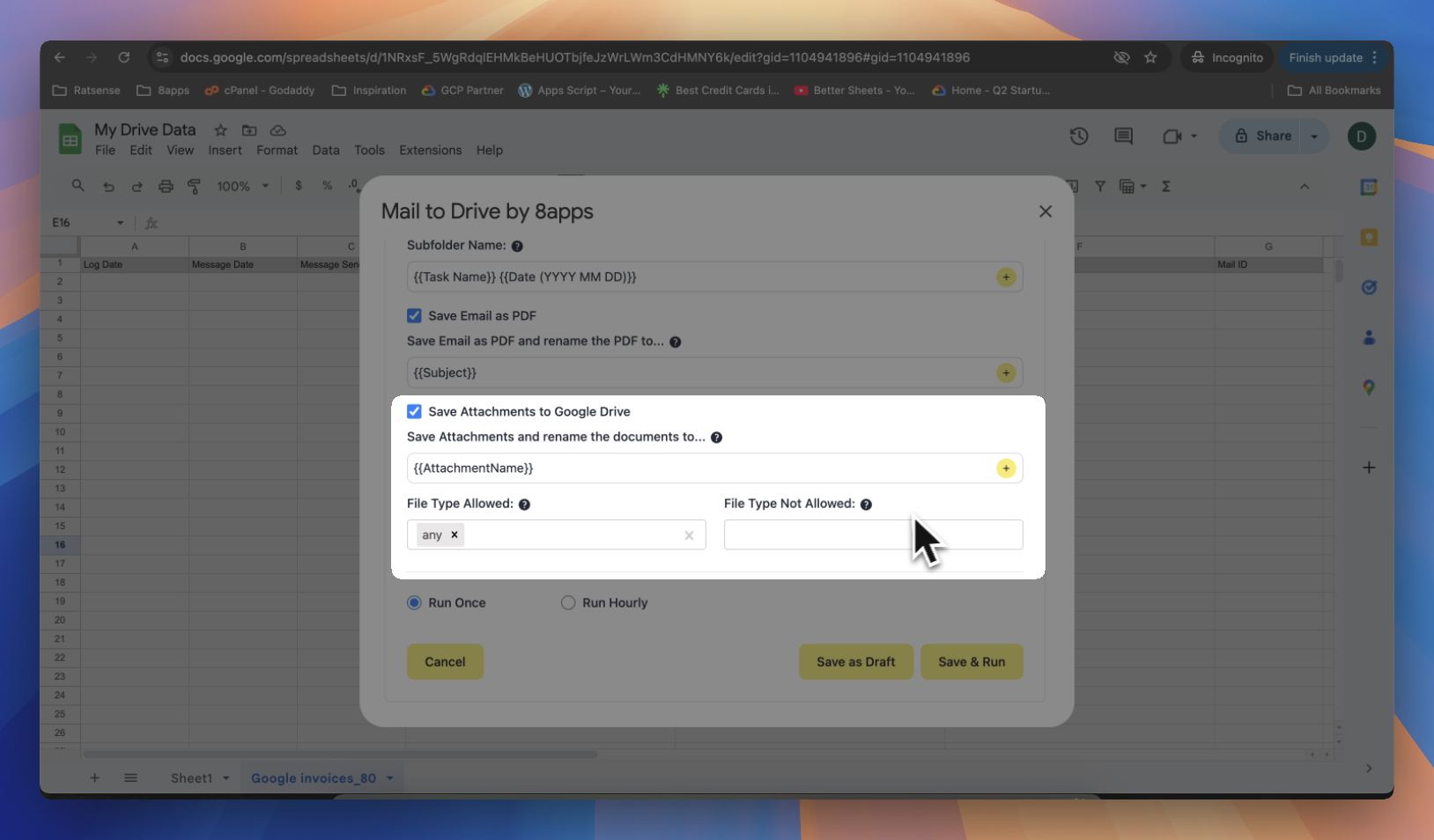
## How It Works
- Attachments are saved individually into the selected Drive folder.
- File names remain the same unless configured otherwise via advanced options.
:::tip
We recommend using the default name settings for downloading emails and attachments for better identification and easy retrieval.
:::
---
# Save Gmail Messages to Drive as PDF
Product: Mail to Drive
URL: https://www.8apps.co/docs/mail-to-drive/using-mailtodrive/download-emails
Summary: Save whole Gmail messages into Google Drive as PDFs, with .eml, .html, and .txt formats coming soon, plus the naming conventions Mail to Drive applies.
# Download Emails
While creating a task you can choose to Download Emails, Attachments or both.
Please note that the ‘save email’ option is the default option. If you do not want to download it you can turn it off.
---
## File Formats
Mail to Drive can save entire Gmail messages, either as:
- `.pdf` format (printable view)
- `.eml` format (raw email) [Coming Soon!]
- `.html` format (raw email) [Coming Soon!]
- `.txt` format (raw email) [Coming Soon!]
## Naming Convention for Emails
- The default name for the files will be in the following format:`{{Subject}}`
- You have the option to change the name based on your preference.
- Use a combination of static and dynamic markers to define the file names. See [Dynamic Markers](/docs/mail-to-drive/power-user-tip/dynamic-markers).
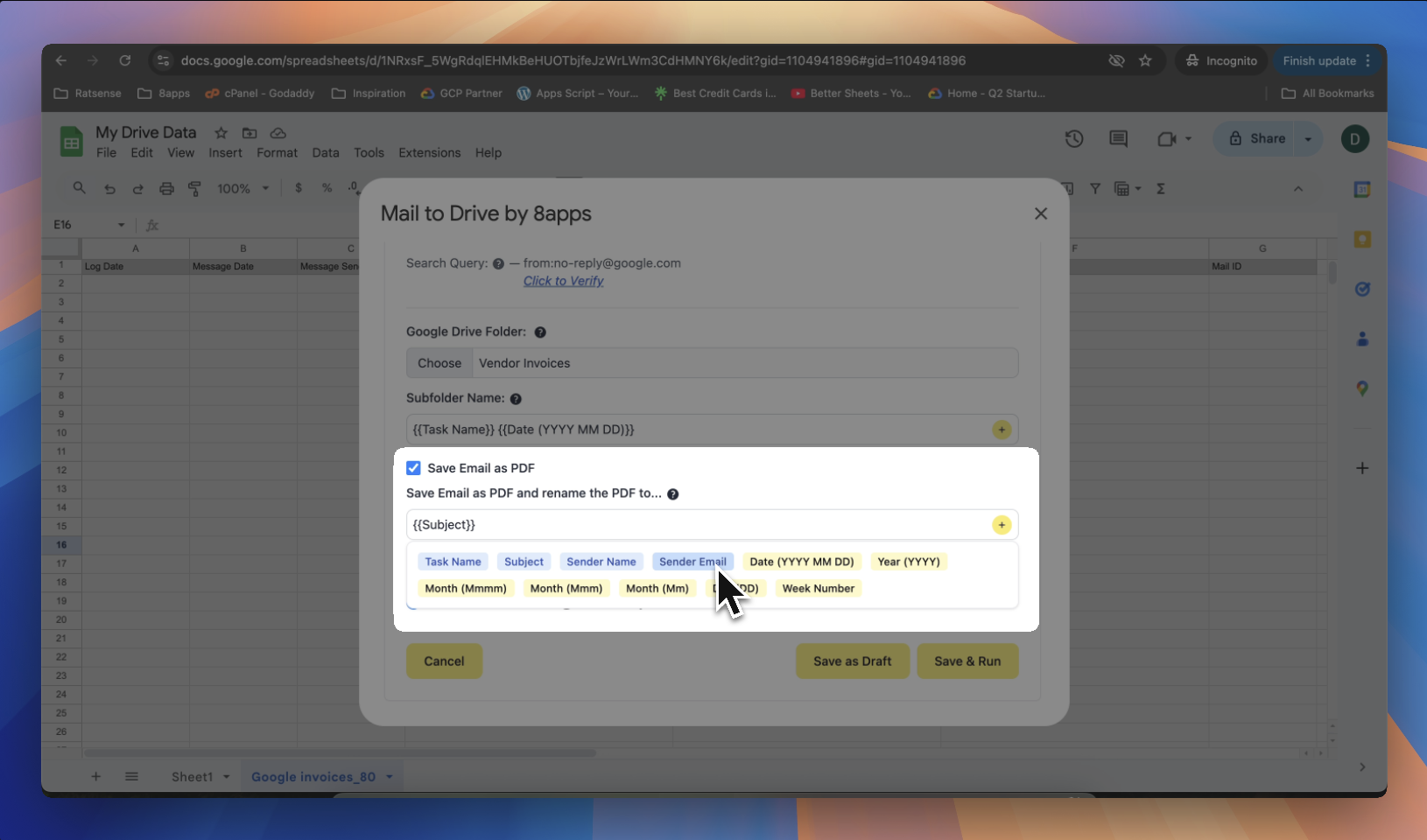
## Common Use Cases
- Archiving approvals or contracts.
- Saving important customer communications.
- Legal or compliance email storage.
---
# Choose the Drive Folder for Saved Emails
Product: Mail to Drive
URL: https://www.8apps.co/docs/mail-to-drive/using-mailtodrive/drive-location
Summary: Set the Google Drive folder each Mail to Drive task saves into, and add optional subfolders so archived emails and attachments stay easy to retrieve.
# Drive Location
Each Task in Mail to Drive requires a **folder** in Google Drive where the downloaded emails or attachments will be stored. You can also create subfolders (optional) for better organisation and easier future retrieval.
---
## Selecting Drive Folder
- When creating or editing a Task, open the **Folder Picker**.
- Choose an existing folder or create a new one inside Drive.
- Confirm the folder selection to save it against the Task.
## Use subfolder (Optional)
- Set name of the subfolder to use the subfolder.
- Any custom names (e.g., Invoice Q1).
- You can also create dynamic markers. See [Dynamic Markers](/docs/mail-to-drive/power-user-tip/dynamic-markers).
- Organise saved files into daily, monthly, or yearly folders automatically and much more.
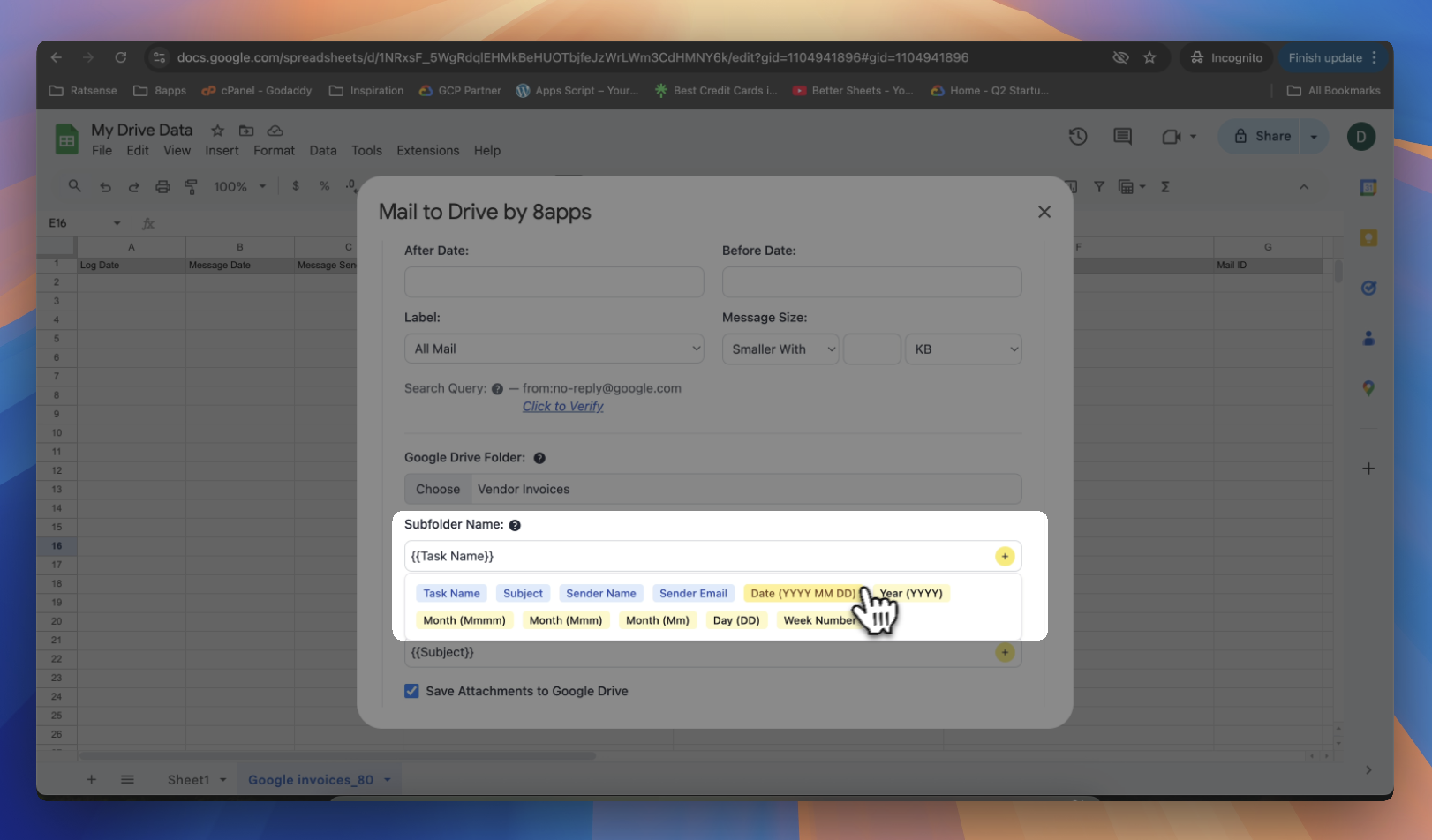
:::tip
- Oragnise related downloads into separate folders (e.g., "Receipts 2024", "Client Approvals Q1").
- Use folder naming conventions for easier future retrieval.
- Use subfolders for large volume Tasks to avoid clutter.
- We recommend using dynamic marketer `{{Tasks}}` as a subfolder to segregate files downloaded based on Tasks.
:::
:::info
**Premium customers** can also use Shared Drive folders.
:::
---
# Filter Criteria for Mail to Drive Tasks
Product: Mail to Drive
URL: https://www.8apps.co/docs/mail-to-drive/using-mailtodrive/filter-criteria
Summary: Pick exactly which Gmail messages a Mail to Drive task processes using sender, recipient, subject, keyword, date range, and label filters.
# Filter Criteria
Mail to Drive uses filter settings similar to **Gmail's Advanced Search** to precisely identify which emails to process.
---
## Available Filter Options
- **From:** Define one or more sender email addresses.
- **To:** Filter by recipient email addresses.
- **Subject Contains:** Search based on subject line keywords.
- **Has The Words:** Filter emails that include specific keywords or phrases in the email body.
- **Doesn’t Have:** Exclude emails that contain certain words in the subject or body.
- **Date Range:** Limit downloads to emails within a specific timeframe. Use ‘After Date’ and ‘Before Date’ options for precise selection.
- **Labels:** Filter emails under specific Gmail labels.
- **Message Size:** Set limits based on email size (in MB or KB).
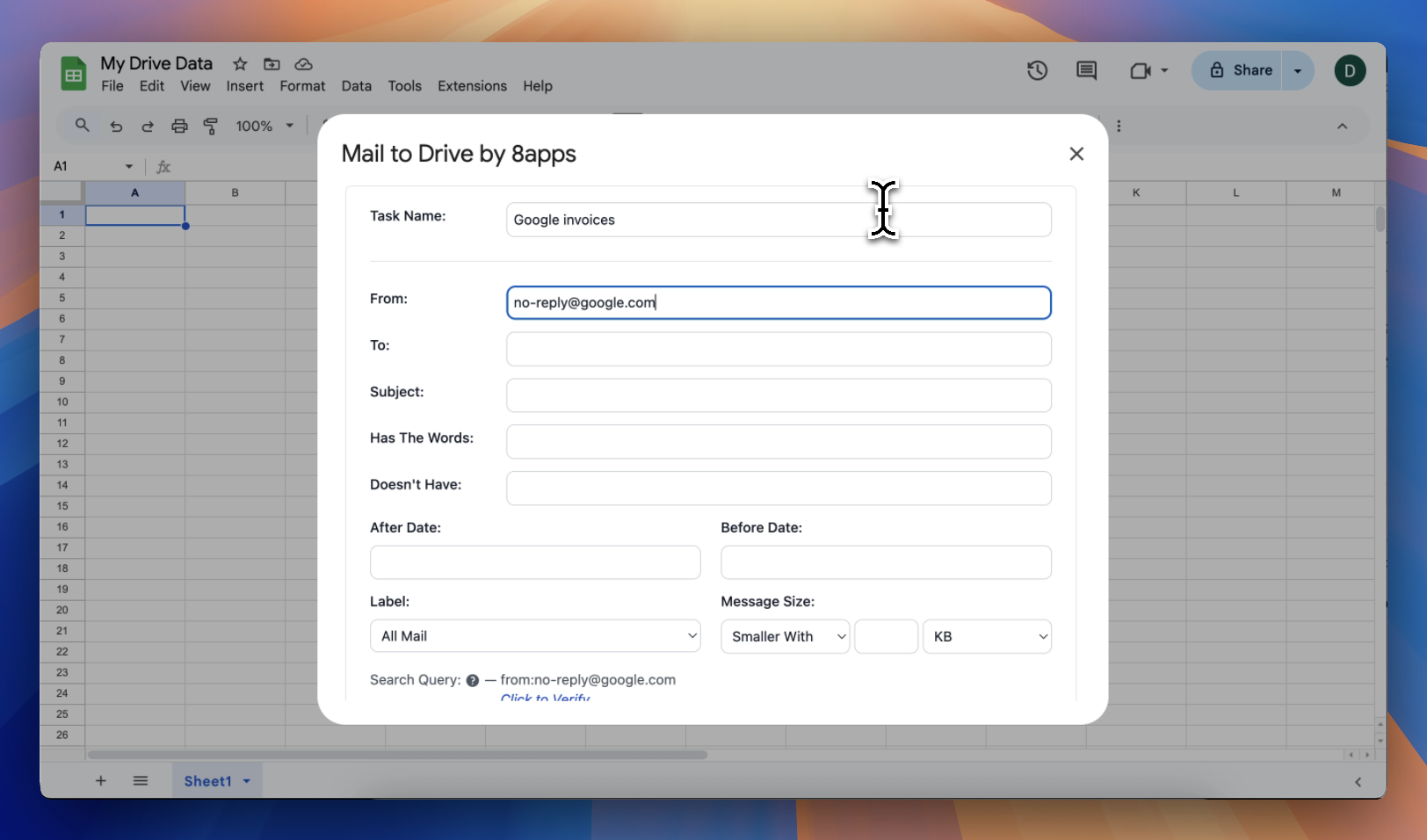
---
## Example Filters
- Save all invoices from `billing@example.com`.
- Download all attachments from emails with subject containing "Monthly Report".
- Only save emails received after January 1st, 2024.
---
Using precise filters helps avoid downloading unnecessary emails and keeps your Drive organised.
:::tip
Use precise filters to avoid downloading unnecessary emails and keep your Drive organised. You can verify the search query using the ‘Click to Verify’ button. It uses Gmail's advanced search syntax for more precise control.
:::
---
# Edit, Pause and Delete Mail to Drive Tasks
Product: Mail to Drive
URL: https://www.8apps.co/docs/mail-to-drive/using-mailtodrive/manage-tasks
Summary: Update a Mail to Drive task as your filing rules change. How to edit its configuration, pause an hourly schedule, and remove tasks you no longer need.
# Manage Mail to Drive Tasks
As your requirements change, you can update tasks to ensure the automation works as per your requirements.
- When you Open the app, it shows you all the tasks you have.
- The task Name helps you easily identify the automation.
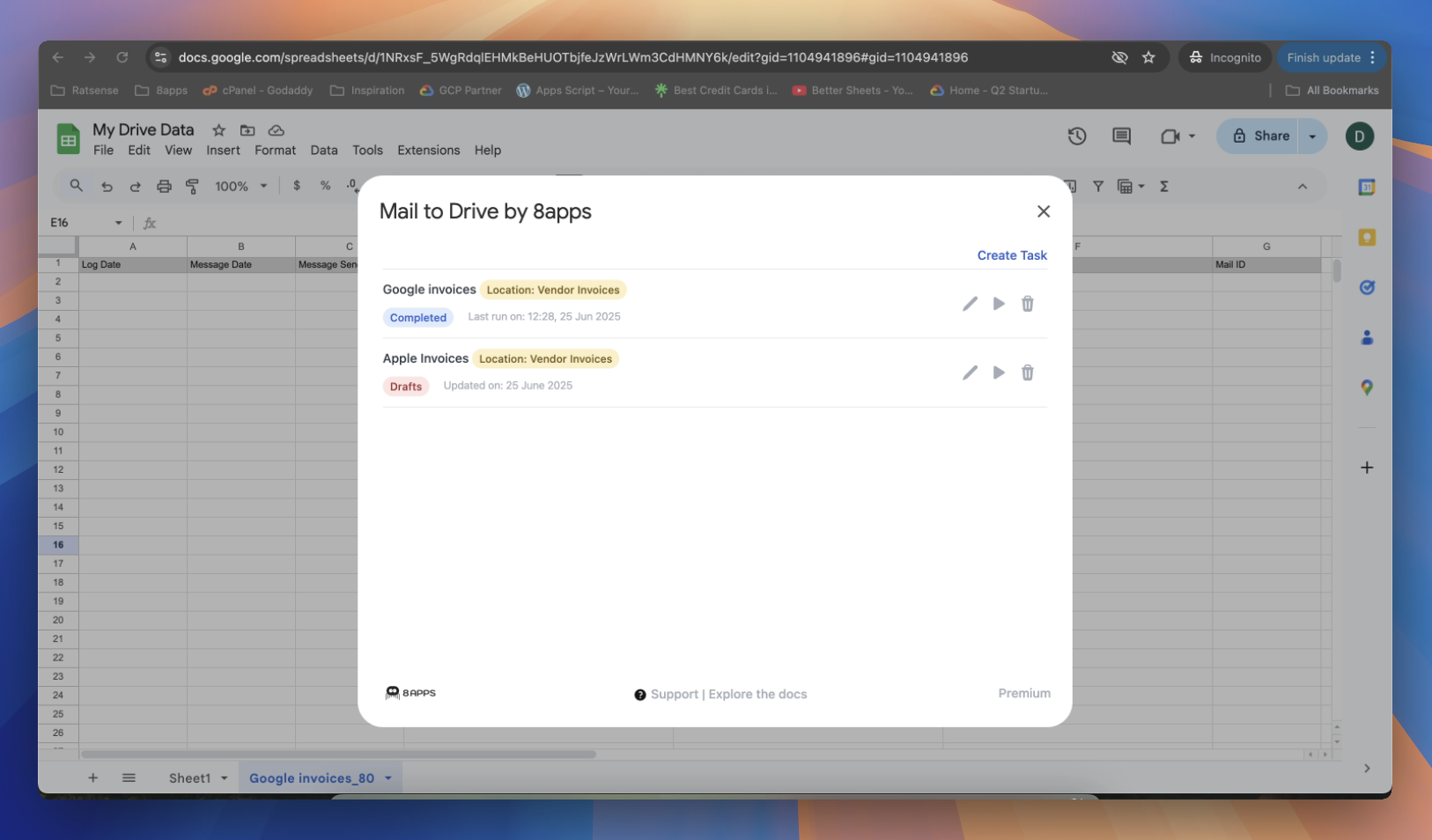
---
## Edit Task
- Click on Edit option if you want to edit any task
- The details in the Edit Task is identical to your Create New Task.
- Proceed to modify and save the details.
## Pause Task
- Open a task and click on Edit.
- Click on ‘Save as Draft’
- The task will now be saved but will no longer run on its hourly schedule.
## Delete Task
- If you no longer need a task, you may delete a task.
- Click on the delete icon next to the task, and delete it.
:::warning
Once you delete a task you cannot retrieve it.
:::
## Run Task
- There is an option to run a task as required.
- If you wish to manually initiate a run, click on the run button next to the task.
- Based on the defined rules, it will download the task.
:::info
Your automation if enabled by (Run in background), will continue to run as is.
:::
---
# Run a Mail to Drive Task on a Schedule
Product: Mail to Drive
URL: https://www.8apps.co/docs/mail-to-drive/using-mailtodrive/run-task
Summary: Run a Mail to Drive task once, or set it to run hourly so matching Gmail messages are saved automatically. Plus how to monitor saved files in the logs.
# Start Downloading
The last step in the task is to ‘Save and Download’, and the Mail to Drive add-on will automatically download the matching emails and attachments from Gmail to Google Drive.
There are two options for running the tasks- manual or automatic.
**For One time Run:** Click on ‘Run Once’ and then on ‘Save & Run’ option, and the add-on will run once.
**For Scheduled Run:** Click on ‘Run Hourly’ and then on ‘Save & Run’, and the add-on will function like a scheduled task at hourly intervals. Matching emails are processed and saved automatically without any manual triggers.
---
## Monitoring Downloads
- View the logs inside the app dashboard.
- Check last scanned time and number of files saved. You can also open the files directly from the Google Sheet.
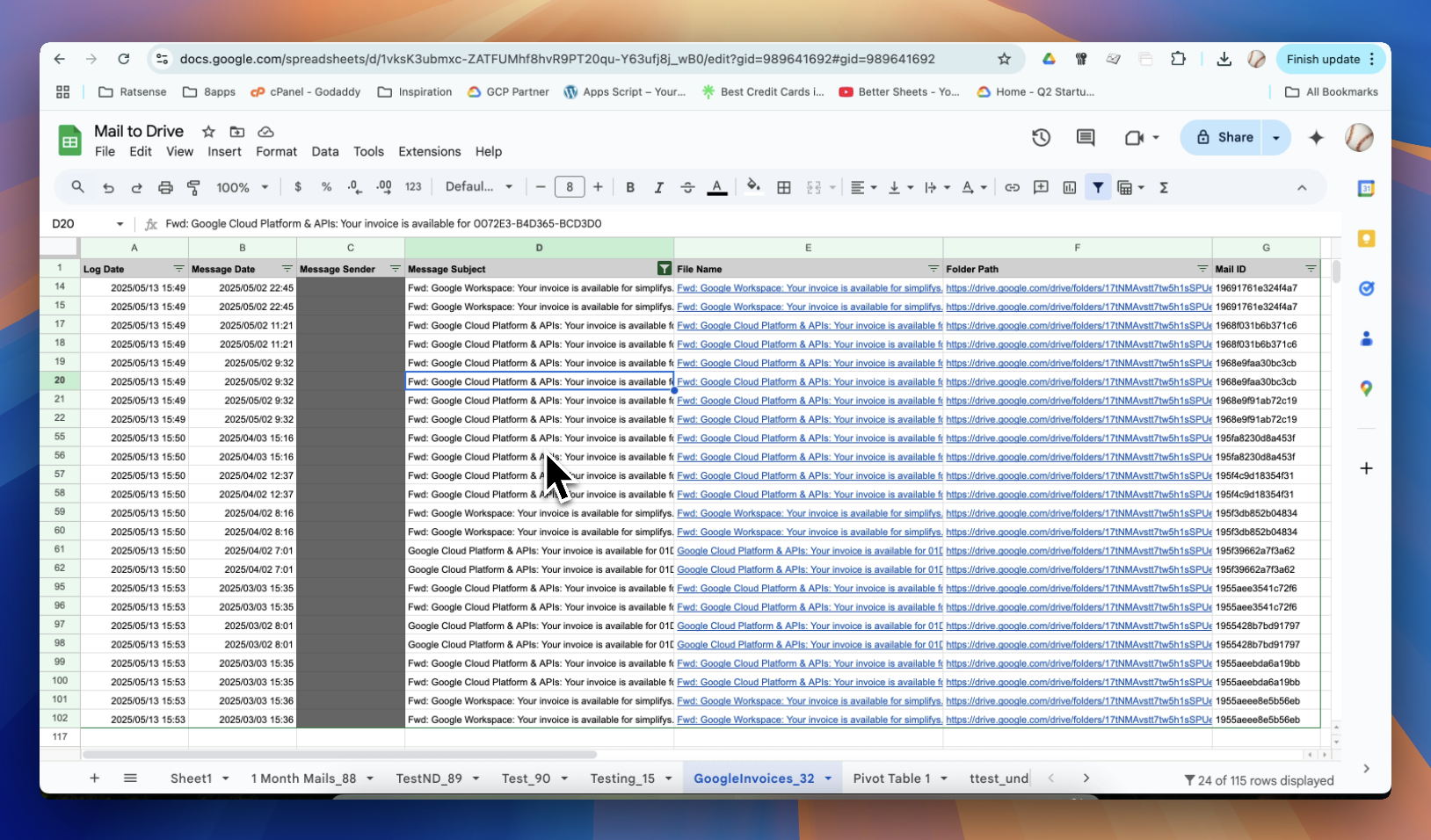
Congratulations! Your Mail to Drive automation is now fully active.
:::tip
- You can pause or resume Tasks anytime.
- Modify Filters or Drive Locations if your workflow changes.
:::
---
# Convert Currency Without Leaving Gmail
URL: https://www.8apps.co/blog/convert-currency-in-gmail
Published: 2026-09-16
Summary: Quotes, invoices and prices arrive by email – and Gmail has no conversion anything. The tab-switching workflow everyone runs, and the sidebar that replaces it.
## Money arrives in the inbox first
The supplier's quote in euros. The contractor's invoice in dollars. The venue's price list in yen. Foreign-currency numbers reach you by email before they reach any spreadsheet – and the very first question ("what is that in our currency, roughly?") gets asked right there, in Gmail, where there is nothing to answer it.
## What people actually do, step by step
Copy the amount. Open a new tab. Type the conversion into a search engine. Read the number. Switch back. Forget it by the third line item, repeat. Or, for the diligent: open Sheets, write `=GOOGLEFINANCE("CURRENCY:EURUSD")`, multiply – a real answer, in a different app, for a question that lives in this one. Neither is a scandal; both are friction on a task you do more often than you think, and the friction has a quiet cost: the check gets skipped, and a mis-remembered rate rides into a reply.
## Why Gmail specifically has no native answer
Sheets at least has GOOGLEFINANCE. Gmail – like Docs, Slides and Calendar – has no formula engine at all, so there is nothing to type a conversion into and no add-in surface Google fills itself. The inbox is the one place in Workspace where currency questions are most frequent and least answerable natively. [When a formula is enough](/blog/googlefinance-vs-currency-addon) draws the line between the two.
## The sidebar answer
[Currency Converter](/google-workspace/currency-converter) puts conversion in a Workspace sidebar that opens inside Gmail: read the amount in the message, convert it in the sidebar – live rates for 180+ currencies, no tab, no copy-paste. And because it is one add-on across Gmail, Docs, Calendar, Slides *and* Sheets, the same tool follows the number from the email where it arrived to the quote where it ends up. Sidebar conversions are unlimited and free, no sign-up.
Two moments where it earns its place: sanity-checking a price before you reply "that works for us" to a number you converted in your head, and getting a rough figure for a quote in the minute before you forward it. For the rate on an invoice's *own* date rather than today's, the add-on's historical lookup lives in its Sheets formula (a Premium feature) – see [historical exchange rates in Google Sheets](/blog/historical-exchange-rates-google-sheets).
## Sources
- [GOOGLEFINANCE – Google Docs Editors Help](https://support.google.com/docs/answer/3093281) – read 2026-09-16 (for the Sheets contrast)
- [Currency Converter by 8apps](/google-workspace/currency-converter) and its [documentation](/docs/currency-converter/getting-started/overview) – 180+ currencies, five apps, unlimited free sidebar, historical rates via the Sheets formula – read 2026-09-16
---
# Expense Reports Across Currencies, Without the Arguments
URL: https://www.8apps.co/blog/expense-reports-multiple-currencies
Published: 2026-09-16
Summary: A remote team's receipts arrive in five currencies; reimbursement goes out in one. The rate-date policy that prevents disputes, and the sheet that implements it.
## The dispute is never about the receipt
A team spread across five countries produces receipts in five currencies, and the awkward conversation is never whether the taxi ride happened – it is which exchange rate turns it into the payout currency. Convert at the wrong moment and someone quietly loses a few percent; leave it to each person's judgement and every report becomes a small negotiation. The fix is a policy, chosen once, written where everyone can see it.
## The three defensible rate dates
- **Transaction date** – the rate on the day the money was spent. Fairest to the spender, matches the receipt, and is the convention most finance teams default to. Its cost: a rate lookup per line.
- **Submission date** – one rate for the whole report. Simplest to run; drifts from reality when reports are filed late.
- **Card-statement rate** – what the person's bank actually charged, read from their statement. Most accurate to real cost, but unverifiable at scale and different per bank.
Any of the three works. What doesn't work is not choosing.
**A policy snippet to copy:**
> Expenses in foreign currencies are reimbursed in [BASE] at the exchange rate of the transaction date, using [SOURCE]. Attach the receipt; the sheet computes the rest.
For [SOURCE], name something checkable: the ECB publishes free daily reference rates (noting they are *"published for information purposes only"*), or your accounting system's rate table.
## The sheet that implements it
Same skeleton as the [multi-currency invoice tracker](/blog/multi-currency-invoice-tracker-google-sheets): date, description, amount, currency code, rate, base amount. With a transaction-date policy, the rate column fills itself in Sheets:
```
=INDEX(GOOGLEFINANCE("CURRENCY:"&D2&"SGD","price",A2),2,2)
```
– swap `SGD` for your base, then freeze the column (paste special → values) once the report is approved, so approved reports never recompute. Google's standing caveats apply and are fine at reimbursement precision: the live quote is *"delayed by up to 20 minutes"*, and Google *"cannot guarantee the accuracy of the exchange rates displayed"*. The [historical exchange rates guide](/blog/historical-exchange-rates-google-sheets) covers the formula's quirks.
The reviewer's check becomes mechanical: does the rate column match the policy source for those dates? No negotiation, because there is nothing to negotiate.
## The everyday version of the problem
Most currency questions on a remote team never reach a report – they happen mid-conversation: is this conference ticket within budget, what does the contractor's day rate come to, can we expense this tool at that price. [Currency Converter](/google-workspace/currency-converter) answers those where they happen – a sidebar inside Gmail, Docs, Calendar, Slides and Sheets, live rates for 180+ currencies, unlimited and free in the sidebar, no sign-up – so the policy sheet stays for reports, and the sidebar handles the sixty-second questions. For the transaction-date lookups themselves, its Premium Sheets formula offers historical rates back to 2000 as an alternative to GOOGLEFINANCE.
## Sources
- [GOOGLEFINANCE – Google Docs Editors Help](https://support.google.com/docs/answer/3093281) – read 2026-09-16
- [Google Finance disclaimer](https://www.google.com/googlefinance/disclaimer/) – read 2026-09-16
- [ECB euro foreign exchange reference rates](https://www.ecb.europa.eu/stats/policy_and_exchange_rates/euro_reference_exchange_rates/html/index.en.html) – read 2026-09-16
- [Currency Converter by 8apps](/google-workspace/currency-converter) – product claims, read 2026-09-16
---
# Freelancers: Billing in USD When Your Bank Isn't
URL: https://www.8apps.co/blog/freelance-billing-foreign-currency
Published: 2026-09-16
Summary: Bill in the client's currency, get paid into yours, and stop being surprised by the difference. The invoice clause, the tracking sheet, and the rate habits that protect your margin.
## The gap between what you billed and what arrived
Every freelancer with foreign clients learns it the same way: the invoice said $2,000, the bank shows something else in your currency, and the difference – rate movement plus conversion spread – came out of you. You cannot control FX, but you can stop being surprised by it, price it in, and keep the record straight. Three habits do it.
## Habit 1 – quote with a rate date in mind
When you set a day rate or project price in a client's currency, convert it back at today's rate *and* look at where the pair has been over recent months – a price that only works at this month's rate is a price with a leak in it. Rule of thumb, stated honestly as one: leave margin for movement, or agree the price in your own currency and let the client carry the conversion.
**An invoice clause worth adapting:**
> Amounts are stated in USD. Payment is due in USD; any conversion charges are borne by the payer.
Plain, fair, and it moves the spread conversation to before the work instead of after the payment.
## Habit 2 – track billed vs received as two columns
The tracking sheet needs one honesty feature most invoice templates lack – the difference made visible:
| Date | Client | Billed (USD) | Rate @ invoice | Expected (local) | Received (local) | Gap |
|---|---|---|---|---|---|---|
`Expected` uses the invoice-date rate – in Sheets, `=INDEX(GOOGLEFINANCE("CURRENCY:USDSGD","price",A2),2,2)` filled down (swap `SGD` for your currency), then frozen as values once checked. `Received` comes from your bank. The **Gap** column, summed over a quarter, is your real FX cost – the number that tells you whether habit 1's margin is set right. Google's caveats apply comfortably at this precision: the live quote is *"delayed by up to 20 minutes"*, and Google *"cannot guarantee the accuracy of the exchange rates displayed"*. The [multi-currency invoice tracker](/blog/multi-currency-invoice-tracker-google-sheets) is the fuller version of this sheet.
## Habit 3 – convert at the moment of decision, not after
The costly conversions are the ones you didn't do: agreeing to a "small" scope change priced in the client's currency, quoting a rush fee by gut feel, reading a counter-offer in a currency you think in badly. The habit is mechanical – convert every number before you say yes to it.
That is the moment [Currency Converter](/google-workspace/currency-converter) is built for: the client's email is open in Gmail, the proposal is open in Docs, and the sidebar converts on the spot – live rates for 180+ currencies inside Gmail, Docs, Calendar, Slides and Sheets, unlimited and free in the sidebar, no sign-up. The tracking sheet keeps the record; the sidebar keeps you from agreeing to numbers you haven't understood yet. (For the invoice-date rates in habit 2, its Premium tier adds a Sheets formula with history back to 2000.)
## Sources
- [GOOGLEFINANCE – Google Docs Editors Help](https://support.google.com/docs/answer/3093281) – read 2026-09-16
- [Google Finance disclaimer](https://www.google.com/googlefinance/disclaimer/) – read 2026-09-16
- [Currency Converter by 8apps](/google-workspace/currency-converter) – product claims, read 2026-09-16
---
# GOOGLEFINANCE Exchange Rates Not Working? The Full Fix List
URL: https://www.8apps.co/blog/googlefinance-exchange-rate-not-working
Published: 2026-09-16
Summary: #N/A on a currency pair, rates that seem stale, historical dates that error out – every documented GOOGLEFINANCE failure mode, what causes it, and what actually fixes it.
## Start with the two formulas that should work
```
=GOOGLEFINANCE("CURRENCY:USDEUR")
=INDEX(GOOGLEFINANCE("CURRENCY:USDEUR","price",DATE(2026,8,1)),2,2)
```
Live rate; historical rate. If yours looks different, compare against these first – most breakage is syntax. Now the failure modes, in the order people hit them.
## "#N/A" or "invalid symbol"
- **The pair goes in as one string, no slash, no space:** `CURRENCY:USDEUR`, not `CURRENCY:USD/EUR` or `CURRENCY:USD EUR`.
- **Both codes must be ISO 4217** – three letters, real currencies. A typo'd code fails as an unknown symbol.
- **Worth knowing while you debug:** the `CURRENCY:` prefix appears nowhere on Google's GOOGLEFINANCE help page (re-read 16 September 2026). The most-used currency feature in Sheets is undocumented – it works, but when it errors, no official reference exists to check against. That is not your mistake; it is the terrain. [Where Google's currency data actually comes from](/blog/where-google-currency-data-comes-from) goes through what Google does and does not say.
## "The rate is wrong" (it's usually just old)
Google documents the delay in two places, and the two numbers differ. The GOOGLEFINANCE help page describes the `price` attribute as *"Real-time price quote, delayed by up to 20 minutes."* The Google Finance disclaimer page lists currency data separately, at a 3-minute delay, and adds: *"Google cannot guarantee the accuracy of the exchange rates displayed. You should confirm current rates before making any transactions that could be affected by changes in the exchange rates."* If you are comparing against a live trading screen, a mismatch inside those windows is expected behaviour, not an error. One more documented boundary people mistake for a bug: GOOGLEFINANCE *"is only available in English and does not support most international exchanges."*
## Historical requests that error or return a grid
The historical form returns a small **table** (headers plus a date row), not a single value – which is why a bare historical call inside another formula breaks. Wrap it: `INDEX(..., 2, 2)` extracts the number. Google's own list of historical attributes names `close`; `price` with a date is the form most examples use, and both return the same date-and-close table.
Two more documented traps: Google *"treats dates passed into GOOGLEFINANCE as noon UTC time"*, so results can sit a day off what a local-market close would suggest; and *"Currencies don't have trading windows, so open, low, high, and volume won't return"* for a pair – the closing price is what exists. [Historical exchange rates in Google Sheets](/blog/historical-exchange-rates-google-sheets) covers the rate-on-a-date workflow end to end.
## "It works for EUR but not for this currency"
Not every pair has data on every day. Google's own help forum and issue tracker carry threads where a specific currency – BRL and ILS are the ones reported in 2025 – returned `#N/A` for weeks because Google Finance itself had no data for it, and Sheets users report gaps for some currencies on weekend dates. There is no fix inside the formula and no status page to check; if a pair that used to work returns *"the query for the symbol ... returned no data"*, the data is missing upstream, not in your sheet. A wrapper such as `IFERROR(..., "no data")` keeps the rest of the sheet computing while it is.
## "It errors when my script touches it"
This one is a wall, not a bug, and Google states it: *"Historical data cannot be downloaded or accessed via the Sheets API or Apps Script. If you attempt to do so, you'll see a #N/A error in place of the values in the corresponding cells of your spreadsheet."* There is no fix inside the formula – automated pipelines need a real rate source instead. [When a formula is enough](/blog/googlefinance-vs-currency-addon) lays out the alternatives.
## "When does it refresh?"
Google documents no refresh interval for GOOGLEFINANCE, and its recalculation settings list only `NOW`, `TODAY`, `RAND` and `RANDBETWEEN` as the functions you can put on a timer. Anyone quoting you a refresh rate is inferring it. Design accordingly: treat the value as approximately current, and paste-as-values anything you need frozen.
## If you're here because a document needs a number
A lot of GOOGLEFINANCE debugging is happening in service of one converted figure for an invoice, a quote or an email – in which case the spreadsheet was only ever a detour. [Currency Converter](/google-workspace/currency-converter) puts live conversion for 180+ currencies in a sidebar inside Gmail, Docs, Calendar, Slides and Sheets. Sidebar conversions are unlimited and free, with no sign-up. If the number you need is a rate on a past date, that lives in its Sheets formula, which is part of the Premium tier.
## Sources
- [GOOGLEFINANCE – Google Docs Editors Help](https://support.google.com/docs/answer/3093281) – read 2026-09-16
- [Google Issue Tracker 357214897 – Currency exchange using google finance does not work](https://issuetracker.google.com/issues/357214897), plus Google Docs Editors Community threads on BRL (January 2025) and ILS (October 2025) returning no data – read 2026-09-16
- [Google Finance disclaimer](https://www.google.com/googlefinance/disclaimer/) – read 2026-09-16 (currency delay table, exchange-rate accuracy notice)
- [Currency Converter by 8apps](/google-workspace/currency-converter) – product claims, read 2026-09-16
---
# GOOGLEFINANCE vs a Currency Add-On: When a Formula Is Enough
URL: https://www.8apps.co/blog/googlefinance-vs-currency-addon
Published: 2026-09-16
Summary: Three ways to convert currency in Google Workspace – the free formula, your own script, an add-on – and an honest decision table for which fits which job.
## The honest opening: the formula is often enough
If your whole need is a live rate in a spreadsheet cell, stop reading and type `=GOOGLEFINANCE("CURRENCY:USDEUR")`. Free, instant, no install. This page exists for the jobs where that stops being true – and it is specific about where the line sits.
## Route 1 – GOOGLEFINANCE: free, capable, bounded
What it does well: live rates (*"delayed by up to 20 minutes"*, per Google's help page), historical rate-on-a-date via the `INDEX(...)` unwrap, all inside the sheet with zero setup.
Its documented boundaries, which are the actual decision inputs: it exists **only in Sheets** – Docs, Gmail, Slides and Calendar have no formula engine, so it cannot follow you there; historical data *"cannot be downloaded or accessed via the Sheets API or Apps Script"* – no automation may read it; Google *"cannot guarantee the accuracy of the exchange rates displayed"* and tells you to confirm current rates before any transaction they could affect; and the `CURRENCY:` syntax it all rests on is absent from Google's own documentation – working but unpromised. The [troubleshooting guide](/blog/googlefinance-exchange-rate-not-working) has every documented failure mode.
## Route 2 – your own script: control, for a price
Apps Script calling a real rate API (the ECB's free daily reference feed, or a commercial provider) gets you what GOOGLEFINANCE refuses: automatable rates, your choice of source, your refresh schedule. The price is the build and the care: API keys, a custom function that *"must return within 30 seconds"* or the cell shows `#ERROR!`, a daily URL Fetch quota (20,000 calls a day on a consumer account, 100,000 on Workspace), and maintenance forever. Right when rates feed a *system*; overkill when they feed a human.
## Route 3 – an add-on: for the jobs that aren't in a cell
The case for an add-on is mostly about *where* conversion needs to happen and *who* is doing it: a quote being written in Docs, an invoice being checked in Gmail, a colleague who should not need formula syntax to answer "what's that in euros". A sidebar that converts on the spot, across the apps where the work already is, is a different tool from a formula – not a better formula.
## The decision table
| Job | Use |
|---|---|
| Live rate in a sheet cell | **GOOGLEFINANCE** |
| Rate-on-a-date for an invoice column | **GOOGLEFINANCE**, then paste-values |
| Rates feeding a script or pipeline | **Your own script + a rate API** (GOOGLEFINANCE is blocked here) |
| Converting while writing a Doc, email or slide | **Add-on** – no formula engine exists there |
| Colleagues converting ad hoc, no syntax | **Add-on** |
| Audit-grade or trading-grade rates | **None of these** – Google says to confirm rates before transactions; use an official source such as a central bank |
## Where Currency Converter fits
[Currency Converter](/google-workspace/currency-converter) is route three: a sidebar converting 180+ currencies at live rates inside Gmail, Docs, Calendar, Slides and Sheets. Sidebar conversions are unlimited and free with no sign-up; a Premium tier adds a Sheets formula with historical rates back to 2000. So the honest advice stands: use the formula where the formula works, and the sidebar where it can't follow.
## Sources
- [GOOGLEFINANCE – Google Docs Editors Help](https://support.google.com/docs/answer/3093281) – read 2026-09-16
- [Google Finance disclaimer](https://www.google.com/googlefinance/disclaimer/) – read 2026-09-16
- [ECB euro foreign exchange reference rates](https://www.ecb.europa.eu/stats/policy_and_exchange_rates/euro_reference_exchange_rates/html/index.en.html) – read 2026-09-16
- [Apps Script – Custom functions](https://developers.google.com/apps-script/guides/sheets/functions) and [Quotas for Google Services](https://developers.google.com/apps-script/guides/services/quotas) – read 2026-09-16
- [Currency Converter by 8apps](/google-workspace/currency-converter) – product claims, read 2026-09-16
---
# Historical Exchange Rates in Google Sheets: What's Actually Possible
URL: https://www.8apps.co/blog/historical-exchange-rates-google-sheets
Published: 2026-09-16
Summary: Rate-on-a-date is what invoices, expenses and audits actually need. What GOOGLEFINANCE can do historically, the formula that unwraps it, and the wall Google wrote into the docs.
## "What was the rate on the 14th?"
Live rates are for dashboards. The questions money documents ask are historical: what was USD/EUR on the invoice date, what rate applies to a receipt from March, what did the quarter average. Sheets can answer these – with real syntax, two quirks and one hard wall, all documented below.
## The formula, unwrapped
A historical GOOGLEFINANCE call returns a small table, not a number – headers plus the value row. `INDEX` extracts the figure:
```
=INDEX(GOOGLEFINANCE("CURRENCY:USDEUR","price",DATE(2026,3,14)),2,2)
```
For a whole invoice column, point the date argument at the cell: `DATE()` becomes `A2`, filled down. Each cell fetches its own dated rate. (Google's documented historical attribute is `close`; `price` with a date is the form most examples use, and both return the same date-and-close table. If one errors for you, try the other – the [troubleshooting guide](/blog/googlefinance-exchange-rate-not-working) covers the rest.)
## The two quirks to price in
- **Dates are treated as noon UTC.** Google documents this – it *"treats dates passed into GOOGLEFINANCE as noon UTC time"* – and it means a "rate on the 14th" can reflect a different market moment than your local close. For bookkeeping at normal precision this rarely matters, but know it before reconciling against a bank statement to four decimals.
- **Only the closing price exists for currencies.** Google's note: *"Currencies don't have trading windows, so open, low, high, and volume won't return."* Averages you build yourself from a date range of close rows.
And the standing caveats on the whole feature: the live quote is *"delayed by up to 20 minutes"* per the help page, Google *"cannot guarantee the accuracy of the exchange rates displayed"* per its disclaimer – and the `CURRENCY:` prefix itself appears nowhere in the GOOGLEFINANCE documentation. It works; it is not promised.
## The wall: no automation allowed
Here is the sentence almost nobody quotes, from Google's own help: *"Historical data cannot be downloaded or accessed via the Sheets API or Apps Script."*
That means every scripted pipeline – nightly rate pulls, automated reconciliation, anything a script reads – is out, by policy, not by bug. In-sheet formulas are the ceiling of what GOOGLEFINANCE offers historically. If you need rates in code, the practical sources are the free reference feeds (the ECB publishes daily euro reference rates with full history, free, no key – with its own caveat that *"using the rates for transaction purposes is strongly discouraged"*) or a commercial rate API. [When a formula is enough](/blog/googlefinance-vs-currency-addon) compares the routes.
## A practical pattern: the rate column that freezes itself
For invoice or expense sheets, fetch then freeze: fill the historical formula down, check the values, then copy the rate column and **paste special → values only**. Rates on money documents should not silently recompute months later if Google's data shifts or the formula errors – a frozen number with a date beside it is the audit-friendly shape. The [multi-currency invoice tracker](/blog/multi-currency-invoice-tracker-google-sheets) builds this in as a column.
## When the spreadsheet is the detour
If the actual job is one conversion for a quote or an invoice line while you are writing the email or the document, [Currency Converter](/google-workspace/currency-converter) answers it in a sidebar – live rates for 180+ currencies inside Gmail, Docs, Calendar, Slides and Sheets, where no formula can follow. Sidebar conversions are unlimited and free, no sign-up. Its rate-on-a-date lookup is a Sheets formula in the Premium tier, with history back to 2000.
## Sources
- [GOOGLEFINANCE – Google Docs Editors Help](https://support.google.com/docs/answer/3093281) – read 2026-09-16
- [Google Finance disclaimer](https://www.google.com/googlefinance/disclaimer/) – read 2026-09-16
- [ECB euro foreign exchange reference rates](https://www.ecb.europa.eu/stats/policy_and_exchange_rates/euro_reference_exchange_rates/html/index.en.html) – read 2026-09-16
- [Currency Converter by 8apps](/google-workspace/currency-converter) – product claims, read 2026-09-16
---
# Multi-Currency Invoice Tracker in Google Sheets
URL: https://www.8apps.co/blog/multi-currency-invoice-tracker-google-sheets
Published: 2026-09-16
Summary: Bill in three currencies, report in one. The column layout, the rate-date policy, and the formulas – a multi-currency invoice tracker you can build in ten minutes.
## The problem is one total, three currencies
Invoice clients in USD, EUR and GBP and one question becomes surprisingly slippery: *how much did we invoice this quarter?* Answering needs every row in one base currency – which means a rate per invoice, and a decision about *which day's* rate. Most trackers dodge the decision and drift; this one makes it a column.
## The columns
| Col | Field | Notes |
|---|---|---|
| A | Date | invoice date, ISO format |
| B | Client | |
| C | Amount | as billed |
| D | Currency | 3-letter code, e.g. `EUR` |
| E | Rate | to base currency – see policy below |
| F | Base amount | `=C2*E2` |
| G | Status | sent / paid / overdue |
The tracker's whole intelligence is columns D–F: original amount preserved, rate explicit, base total computable. `=SUM(F:F)` and a pivot by client or month answer everything the flat version couldn't.
## The rate-date policy (decide once, write it down)
Pick one and note it in the sheet header:
- **Invoice-date rate** – each row uses the rate from its own date. The common bookkeeping convention, and what makes quarter totals meaningful.
- **Payment-date rate** – matches what actually landed, at the cost of rates arriving late.
For invoice-date rates, GOOGLEFINANCE fills column E:
```
=IF(D2="USD", 1, INDEX(GOOGLEFINANCE("CURRENCY:"&D2&"USD","price",A2),2,2))
```
(Base USD shown; swap the code for yours. The [historical exchange rates guide](/blog/historical-exchange-rates-google-sheets) explains why the `INDEX` wrapper is there.) Then **freeze the rates**: once checked, copy column E and paste special → values only. Money documents should not recompute themselves months later – Google's live quote is *"delayed by up to 20 minutes"*, Google *"cannot guarantee the accuracy of the exchange rates displayed"*, and a frozen rate with its date beside it is the defensible shape. For serious books, your accountant may prefer an official source – the ECB publishes free daily reference rates, with its own caveat against transaction use.
## The two failure modes to design out
- **Mixed-currency sums.** Never `SUM` column C. The base column exists so no one ever adds euros to dollars; consider hiding C from report views.
- **Backfilled rates.** A row added late with today's rate against March's invoice quietly corrupts the quarter. The formula above pulls the rate from the *row's date* – keep it that way, and paste-values only after checking.
The same skeleton runs [expense reports across currencies](/blog/expense-reports-multiple-currencies) and a freelancer's [billed-versus-received sheet](/blog/freelance-billing-foreign-currency).
## Where Currency Converter fits
Building the tracker is a Sheets job. Running it day to day is mostly small conversions in odd places – checking a client's figure while reading their email, converting a number while drafting the invoice in Docs. [Currency Converter](/google-workspace/currency-converter) handles those in a sidebar inside Gmail, Docs, Calendar, Slides and Sheets – live rates for 180+ currencies, unlimited and free in the sidebar, no sign-up – so the tracker stays the record while the sidebar does the arithmetic. Its Premium tier adds a Sheets formula with historical rates back to 2000, if you would rather not lean on GOOGLEFINANCE for column E.
## Sources
- [GOOGLEFINANCE – Google Docs Editors Help](https://support.google.com/docs/answer/3093281) – read 2026-09-16
- [Google Finance disclaimer](https://www.google.com/googlefinance/disclaimer/) – read 2026-09-16
- [ECB euro foreign exchange reference rates](https://www.ecb.europa.eu/stats/policy_and_exchange_rates/euro_reference_exchange_rates/html/index.en.html) – read 2026-09-16
- [Currency Converter by 8apps](/google-workspace/currency-converter) – product claims, read 2026-09-16
---
# Where Google's Currency Data Actually Comes From
URL: https://www.8apps.co/blog/where-google-currency-data-comes-from
Published: 2026-09-16
Summary: Millions of people trust the rate Google shows them. Here's what Google actually promises about that number – who supplies it, how delayed it is, and what it is not for – documented line by line.
## The most-trusted number nobody has read the label on
Type "100 usd to eur" into Google, or `=GOOGLEFINANCE("CURRENCY:USDEUR")` into Sheets, and you get a number you will probably treat as *the* exchange rate. This page is just the label – what Google actually says about that number, quoted from Google, because almost nobody has read it. Everything below was re-read on 16 September 2026.
## Who supplies it
The answer is on Google's Finance disclaimer page, in the data-listing table most people never scroll to. Under *"Currencies and gold spot rates"* it states: *"Currency and cryptocurrency prices provided by Morningstar."* The same table gives the delay for currency data as **3 minutes**, globally. So the rate in a Google search box is a Morningstar feed, a few minutes old – not an interbank quote, not a central-bank fixing.
## What Google promises (quoted)
- On accuracy, under a heading of its own, *Currency Conversion*: *"Google cannot guarantee the accuracy of the exchange rates displayed. You should confirm current rates before making any transactions that could be affected by changes in the exchange rates."*
- On the whole service: *"Content is provided 'as is' for informational purposes only and does not constitute financial, legal, tax, or investment advice."* And: *"Data is provided by financial exchanges and other content providers and may be delayed as specified by financial exchanges or other data providers. Google does not verify any data and disclaims any obligation to do so."*
- In Sheets specifically, the GOOGLEFINANCE help page describes the live `price` attribute as *"Real-time price quote, delayed by up to 20 minutes"* – a wider window than the disclaimer's 3 minutes, and the two pages do not reconcile it. It also says GOOGLEFINANCE *"is only available in English and does not support most international exchanges,"* that Google *"treats dates passed into GOOGLEFINANCE as noon UTC time"*, and – the line that surprises developers – *"Historical data cannot be downloaded or accessed via the Sheets API or Apps Script."*
There is no public FX API and no refresh-interval commitment anywhere in that set.
## The undocumented workhorse
Odder still: the `CURRENCY:` prefix that all Sheets currency work rests on **appears nowhere on Google's GOOGLEFINANCE help page** – no example, no note. The only Google-hosted places it shows up are community threads. The most-used currency feature in Google Sheets is, formally, folklore that happens to work. It has worked for years and likely will keep working – but "widely used" and "documented" are different promises, and Google has only made one of them. When it breaks, the [troubleshooting guide](/blog/googlefinance-exchange-rate-not-working) is the reference Google didn't write.
## So which rate should you use for what?
- **Getting a sense of a price** – Google's number is fine; a few minutes of delay and a third-party feed don't matter at gut-check precision.
- **Bookkeeping and invoices** – fine with the rate *frozen and dated* in your records (paste-values, note the date); auditors dislike self-recomputing numbers more than they dislike any particular source. [Historical exchange rates in Google Sheets](/blog/historical-exchange-rates-google-sheets) shows the pattern.
- **A documented, citable reference** – the ECB publishes daily euro reference rates, free, with full history and its own honest label: *"The reference rates are published for information purposes only. Using the rates for transaction purposes is strongly discouraged."* Central banks generally are the citable tier.
- **Trading or anything transactional** – Google has told you in writing to confirm the rate somewhere else first.
## The everyday tier is where most of us live
For the daily gut-check tier – a price in an email, a figure in a doc – the practical question is reach, not provenance: Sheets has GOOGLEFINANCE, and nothing else in Workspace has anything. [Currency Converter](/google-workspace/currency-converter) covers that gap with a sidebar inside Gmail, Docs, Calendar, Slides and Sheets – live rates for 180+ currencies, unlimited and free in the sidebar, no sign-up – with a Premium Sheets formula for historical rates back to 2000.
## Sources
- [Google Finance disclaimer](https://www.google.com/googlefinance/disclaimer/) – read 2026-09-16 (provider table, currency delay, *Currency Conversion* notice)
- [GOOGLEFINANCE – Google Docs Editors Help](https://support.google.com/docs/answer/3093281) – read 2026-09-16
- [ECB euro foreign exchange reference rates](https://www.ecb.europa.eu/stats/policy_and_exchange_rates/euro_reference_exchange_rates/html/index.en.html) – read 2026-09-16
- [Currency Converter by 8apps](/google-workspace/currency-converter) – product claims, read 2026-09-16
---
# Audit Google Drive Access Across Your Organisation – Admin Guide
URL: https://www.8apps.co/blog/audit-google-drive-access-across-organisation
Published: 2026-09-09
Summary: What the Google Admin console shows you about Drive access, where it stops on your edition, and how to see every user's shares – public, external and stale – in one audit.
## The question every Workspace admin eventually gets
Someone senior asks it in one sentence: "Can you tell me what's shared outside the company?" And the honest answer, on most Google Workspace editions, is: partly.
Google gives admins real tools here, and this guide starts with them – what they answer, and exactly where they stop on your edition. Then it covers how to get the rest of the way to a complete answer.
## What the Admin console gives every admin: the Drive log
Open the Admin console and go to **Menu → Reporting → Audit and investigation → Drive log events**. This is Google's record of Drive *activity*: views, edits, downloads, uploads, deletions, and – the part that matters for access auditing – sharing and permission changes.
It is genuinely useful, and it answers questions shaped like *"what happened?"*: who changed the sharing on this file, when a document was downloaded, which user made a file public last Tuesday.
What it does not answer is the question you were actually asked, which is shaped like *"what is the state right now?"* A log of sharing events is not a list of what is currently shared. A file made public in 2023 by someone who has since left generates no new events at all – it just sits there, public.
## Where the deeper tools are gated by edition
Google's answer to the state question exists, but read the small print on your edition:
- The **security investigation tool** – the version of the log that lets you pivot, group and act in bulk – is limited to Frontline Standard and Plus, Enterprise Standard and Plus, Education Standard and Plus, Enterprise Essentials Plus and Cloud Identity Premium. **Business Starter, Business Standard and Business Plus are not on the list.**
- The **[file exposure report](/blog/google-drive-reports-your-workspace-edition-doesnt-include)** is narrower still: Frontline Plus, Enterprise Plus, Education Standard and Plus, and Enterprise Essentials Plus only.
If your organisation runs on a Business edition – which is most small and mid-sized companies – the built-in path to "show me everything that is exposed" is not part of your plan.
## The free per-user trick, and why it does not scale
Google Drive's search box documents a `sharedwith:` operator with two special values: `sharedwith:public owner:me` and `sharedwith:external owner:me`. Any user can run those on their own Drive, and it is a genuinely good five-minute self-audit – we cover it in detail in [our single-user audit guide](/blog/drive-guard-audit-google-drive-access).
But note the phrase *their own Drive*. As an admin you cannot type that search on behalf of your 200 users. The operator scales exactly as far as your patience for asking 200 people to run a search and screenshot the results.
## The org-wide audit
This is the job [Drive Guard for Admins](/google-workspace/drive-guard-for-admins) was built for. One admin install from the Google Workspace Marketplace deploys it to every user in the organisation – nobody has to install anything themselves – and the admin space scans across all users' My Drives and Shared Drives and puts the results on one dashboard: external access, public links and legacy access, exportable when someone asks for the report.
It is US$4.80 per user per year – launch pricing against a US$8.80 list price – with a 7-day trial (credit card required) so you can run a real audit on your own organisation before paying. Education institutes use it free, and organisations with more than 100 users get a discount.
## A sensible audit cadence
1. Run the org-wide scan and export the baseline.
2. Fix the worst first: public links on anything sensitive, then external shares nobody can explain.
3. Re-run after offboardings and at a regular interval, and compare against the baseline.
The first audit is the eye-opener. The second one is the security posture.
## Sources
- [Drive log events](https://knowledge.workspace.google.com/admin/reports/drive-log-events) – menu path, event names, Visibility change attribute. Re-read 2026-09-09.
- [File exposure report](https://knowledge.workspace.google.com/admin/security/file-exposure-report) and the security investigation tool edition list on the Drive log events page – both re-read 2026-09-09.
- [Google Drive search operators](https://support.google.com/drive/answer/2375114) – `sharedwith:external` documented as "Find items explicitly shared with users or groups outside your Google Workspace organization"; `sharedwith:public` and `owner:` also documented. Re-read 2026-09-09.
---
# Audit Shared Drive Permissions Across Your Org
URL: https://www.8apps.co/blog/audit-shared-drive-permissions-org-wide
Published: 2026-09-09
Summary: Manage shared drives, access levels, external members, the no-manager filter – and the file-level shares inside drives the Admin console page does not list.
## "Who owns the Finance shared drive?"
The ticket is short. Finance needs a new starter added to their shared drive and cannot do it, because nobody left in the team is a Manager. The person who created the drive resigned last spring. It is one drive; you suspect there are twenty like it.
Shared Drives solved the ownership problem of My Drive – files belong to the team, not the person – and introduced a membership problem, an external-guest problem and a manager problem instead. Here is how to audit all three from the Admin console, where the console stops, and what covers the rest.
## Start at Manage shared drives
Menu → Apps → Google Workspace → Drive and Docs → Manage shared drives. As an admin you see every shared drive in the organisation, member or not. You can add and remove members, change access levels, adjust a drive's sharing settings, set defaults by organisational unit, and delete or restore drives. Google lists it as supported on Business Standard and Plus, Enterprise, Education, Essentials and Nonprofits, with Business Starter "except as noted" – check the page for your edition.
The filters are the audit. Run two the first time you open the page:
– No members – drives with nobody in them, usually left behind by a departed user or a finished project.
– No managers – drives with members but nobody who can add members, change settings or delete the drive. This is the Finance ticket, twenty times over.
Work through each list and either assign a Manager or delete the drive. Record which you did and why.
## Access levels, and why the manager problem exists
A shared drive has five access levels. Manager does everything, including managing members and sharing settings and deleting the drive. Content manager can view, comment, edit, create and add files, and can share folders unless the drive's settings prevent it, but cannot manage members. Contributor can view, comment, edit, create and share files. Commenter and Viewer are what they sound like.
The line that matters: only Managers – and Workspace admins, from the Admin console – add members. A drive whose only Manager leaves is frozen – nobody can bring anyone in, and nobody notices until a ticket arrives. The opposite failure is as common: everyone made Manager on day one, so anyone can add an external guest or delete the whole thing.
For each important drive, ask two questions. Are there at least two Managers, still employed here? Does anyone hold Manager who only needs Content manager?
## External members are not the same as external sharing
Two controls decide whether outsiders can get into a shared drive, set in different places.
The first is organisation-wide: Menu → Apps → Google Workspace → Drive and Docs → Sharing settings → Sharing options, where external sharing is Off, limited to allowlisted domains, or On. External users with a Google Account can be shared-drive members; people without one need visitor sharing enabled.
The second is per drive. Each drive has its own settings, including "Allow users outside [your organisation] to access files in shared drives". Google's note is precise: "When unchecked, external users can't have access, even if you allow users to share files outside of your organisation." A drive can be tighter than the domain, never looser.
So a guest on a member list has passed two gates. Go through every drive's member list and pull out any address not on your domain: which drive, what access level, is the engagement still live. Ex-agency staff holding Contributor on a marketing drive is the classic finding, and the subject of [the legacy access guide](/blog/legacy-access-files-shared-with-old-domains).
## The per-drive settings worth checking
Beyond the external-access box, three more per-drive restrictions are worth checking: "Allow people who aren't shared drive members to be added to files", "Allow content managers to share folders", and "Allow viewers and commenters to download, print, and copy files". The first is the one people miss. Left on, a single file inside the drive can be shared with someone who is not a member of it, and that person never appears on the member list.
## What the Manage shared drives page does not show
This is where the Admin console stops, stated carefully. The Manage shared drives page lists drives and their members. It does not list the file-level shares inside those drives – individual documents shared with a non-member, an external address or a public link. Those are permissions on files, not memberships of the drive, and the member list has no column for them.
Google's native route to them is the Drive log: Menu → Reporting → Audit and investigation → Drive log events, filtered on the **Visibility change** attribute – it sits among the search attributes, not under Event name. Each row carries a Shared drive ID when the file lives in a shared drive, so you can narrow to one drive. But the log holds events, not current state, defaults to seven days and is retained for six months. A file shared out of a drive last year is not in it. The file exposure report and Drive inventory export do give a current picture – on Frontline Plus, Enterprise Plus (Enterprise Standard for the inventory export), Education Standard and Plus and Enterprise Essentials Plus, not Business. That gap is covered in [the reports your Workspace edition doesn't include](/blog/google-drive-reports-your-workspace-edition-doesnt-include).
## The org-wide scan, including every Shared Drive
[Drive Guard for Admins](/google-workspace/drive-guard-for-admins) is installed once by a Workspace admin from the Google Workspace Marketplace and deploys to every user. It scans every user's My Drive and every Shared Drive in the organisation, and shows public links, external shares and legacy access on one dashboard with exports. For shared drives, that is the file-level layer the member list cannot show – every file inside every drive shared with an outsider or a link – alongside the same view for My Drive, so one export covers the whole estate.
It reports; it does not yet change anything. Revoking a share from inside the tool is on the roadmap, not live. The fix is still yours, in the drive's settings or on the file, and the export tells you where to go.
## A routine that holds
Quarterly, and after any leaver who was a Manager anywhere: run No managers and No members, review external members drive by drive, spot-check the per-drive restrictions on anything holding finance, HR or client data, then take the file-level pass from the log or the scan. Write down the counts and the date. The wider method, covering My Drive and offboarding, is in [how to audit Google Drive access across the organisation](/blog/audit-google-drive-access-across-organisation).
## Sources
- [Manage shared drives as an admin](https://knowledge.workspace.google.com/admin/drive/manage-shared-drives-as-an-admin) – Admin console path; admin sees all drives; "No members" and "No managers" filters; add/remove members, change access, per-drive sharing settings, defaults by OU, delete/restore; the four per-drive restriction labels; "When unchecked, external users can't have access, even if you allow users to share files outside of your organization"; edition list.
- [Shared drive access levels](https://support.google.com/a/users/answer/12380484) – Manager, Content manager, Contributor, Commenter, Viewer; only Managers add members.
- [Manage external sharing for your organization](https://knowledge.workspace.google.com/admin/drive/manage-external-sharing-for-your-organization) – Sharing options path; Off / Allowlisted domains / On; external users with Google Accounts can be shared-drive members; visitor sharing for those without.
- [Drive log events](https://knowledge.workspace.google.com/admin/reports/drive-log-events) – path; Visibility change and Shared drive ID attributes ("If the file isn't in a shared drive, this field isn't populated"); default 7 days.
- [Data retention and lag times](https://knowledge.workspace.google.com/admin/reports/data-retention-and-lag-times) – Drive log events retained 6 months.
- [File exposure report](https://knowledge.workspace.google.com/admin/security/file-exposure-report) – edition list.
- [Export your organization's Drive inventory](https://knowledge.workspace.google.com/admin/reports/export-your-organizations-drive-inventory) – edition list; exports shared drive metadata.
---
# Drive Inventory Sharing Insights: Business Standard
URL: https://www.8apps.co/blog/drive-inventory-external-sharing-insights-business-editions
Published: 2026-09-09
Summary: Google's new external sharing fields in Drive Inventory Reporting need Enterprise Standard or above plus BigQuery. What a Business Standard admin can do now.
## The announcement that landed in the wrong inbox
Google's Workspace Updates blog posted "Enhanced external sharing insights now available in Drive Inventory Reporting" in August 2026, rolling out from 14 August. If you run a Business Standard domain, someone has probably forwarded it with "can we get this?" The honest answer is no, not on your edition – but the question it answers is one you can still answer with the tools you have. Here is what the new fields do, who gets them, and what the rest of us do instead.
## What the new fields actually do
Drive Inventory Reporting is Google's export of Drive file metadata – size, labels, who each file is shared with, not content – into a BigQuery project you own. Weekly by default, daily if you turn that on, each export overwriting the previous one.
The August change adds what Google calls "granular external sharing fields", which work by "automatically consolidating direct permissions, group memberships, and public links into clear signals" that a file is exposed outside the organisation. Three things are new in practice:
- One field to say a file is externally exposed, whatever the route – a direct share to an outside address, membership of a Google Group that has an outside member, or an anyone-with-the-link setting.
- A distinction between human users, service accounts, and files published to the web, so a share to an integration's robot account is not counted the same as a share to a person.
- Cross-referencing with Data Loss Prevention metadata, so you can ask "which externally exposed files also match a DLP rule" in one query.
That is genuinely useful. The group consolidation in particular closes a hole every manual audit has: a file shared with an internal group looks internal until you check who is in the group. Google notes that large Google Groups can extend processing time, which tells you how much work that step is doing.
## The three conditions – all of them apply
First, the edition. Availability is Enterprise Standard and Plus, Education Standard and Plus, Frontline Plus, Enterprise Essentials Plus, and Cloud Identity Premium. Business Starter, Standard and Plus are not on the list, because Drive Inventory Reporting itself is not on those editions.
Second, a BigQuery project with billing enabled. Google's sizing guidance is roughly 1.5 GB per million files, and the queries you run against it are BigQuery queries, billed as such. Google also says the export may miss some files.
Third, it is off. Google's getting-started line: the feature "will be OFF by default and can be enabled via the 'External sharing calculations' setting under Drive inventory report settings in the Google Admin console." Rollout is gradual, up to 15 days, on both Rapid and Scheduled Release tracks. Even an Enterprise Standard admin has to find the setting, switch it on and wait for the next export before there is anything to query.
On Business Standard, that is three doors and the first one is locked. Our [edition-by-edition table of Drive reporting tools](/blog/google-drive-reports-your-workspace-edition-doesnt-include) covers the rest of what sits behind it.
## What a Business Standard admin can do today
The question the new fields answer is "which files are exposed outside the organisation, by any route, right now". Here is how far Business Standard takes you.
Sharing policy. Menu → Apps → Google Workspace → Drive and Docs → Sharing settings → Sharing options. Off, allowlisted domains only, or on with optional warnings, per organisational unit. It does not find existing exposure, but it stops the number growing while you audit.
Sharing history. Menu → Reporting → Audit and investigation → Drive log events. Filter on the Visibility change attribute, widen the date range from the seven-day default to the six months Google retains, and export to Sheets. It is a history, not a current map, and public-link viewers appear as anonymous – but it tells you which files and users to look at first.
Shared Drives. Menu → Apps → Google Workspace → Drive and Docs → Manage shared drives. The admin view lists every shared drive, filters for drives with no members or no managers, and lets you change membership, access levels and per-drive sharing settings. Outside members with Google Accounts show up in the member list.
My Drive, one user at a time. There is no admin-side search across other users' Drives from the Drive UI. Each user can run `sharedwith:external owner:me` and `sharedwith:public owner:me`, or use the People filter chip and pick "Anyone with the link", on their own Drive. That is a request to every user, with a deadline. [The external sharing report guide](/blog/google-drive-external-sharing-report) has a template for that ask.
Groups. The one thing the new fields do that the steps above do not is unfold Google Groups. By hand: list your groups with external members, then treat any file shared with those groups as external.
## Where native tools stop on Business Standard
That gets you policy, history, shared-drive membership and a stack of per-user search results. It does not give you one current-state list of every externally exposed file across every My Drive and every Shared Drive – which is precisely what the new BigQuery fields produce, and what your edition does not include.
## The org-wide answer without the BigQuery bill
[Drive Guard for Admins](/google-workspace/drive-guard-for-admins) is built for that gap. A Workspace admin installs it once from the Marketplace and it deploys to every user; nobody installs anything. It scans every user's My Drive and every Shared Drive and shows public links, external shares and legacy access on one dashboard, with exports. No BigQuery project, no per-query cost.
It reports; you fix, in the sharing dialog or Manage shared drives – revoking from inside the tool is on the roadmap, not live today. It does not do the DLP cross-reference Google's new fields do; if you need that, Enterprise Standard plus BigQuery is the route. For the full manual method, start with [how to audit Google Drive access across the organisation](/blog/audit-google-drive-access-across-organisation).
## Sources
- [Enhanced external sharing insights now available in Drive Inventory Reporting](https://workspaceupdates.googleblog.com/2026/08/enhanced-external-sharing-insights-now-available-in-Drive-Inventory-Reporting.html) – quotes ("granular external sharing fields", "automatically consolidating direct permissions, group memberships, and public links into clear signals", the OFF-by-default line and 'External sharing calculations' setting name), rollout pace (gradual, up to 15 days, from 14 August 2026), availability list, large-groups note. Post is dated 17 August 2026 on the page; rollout start is 14 August 2026.
- [Export your organization's Drive inventory](https://knowledge.workspace.google.com/admin/reports/export-your-organizations-drive-inventory) – what is exported, weekly/daily, overwrite, BigQuery billing, ~1.5 GB per 1M files, may miss files, edition list
- [Drive log events](https://knowledge.workspace.google.com/admin/reports/drive-log-events) – path, 7-day default, Visibility change attribute, anonymous external users, export to Sheets/CSV
- [Data retention and lag times](https://knowledge.workspace.google.com/admin/reports/data-retention-and-lag-times) – 6-month retention
- [Manage external sharing for your organization](https://knowledge.workspace.google.com/admin/drive/manage-external-sharing-for-your-organization) – sharing options path and choices, per-OU
- [Manage shared drives as an admin](https://knowledge.workspace.google.com/admin/drive/manage-shared-drives-as-an-admin) – path, filters, member management
- [Find files shared with "anyone with a link" (Stanford UIT)](https://uit.stanford.edu/service/gsuite/drive/find-files-shared-with-anyone-with-a-link) – People filter chip method
- [Google Drive search operators](https://support.google.com/drive/answer/2375114) – `sharedwith:public owner:me`, `sharedwith:external owner:me`. Re-read 2026-09-09.
---
# Find All "Anyone With the Link" Files in Your Domain
URL: https://www.8apps.co/blog/find-anyone-with-the-link-files-google-workspace-domain
Published: 2026-09-09
Summary: Per-user search, the Drive log, sharing settings and the file exposure report – what each finds, where each stops on Business editions, and how to see it all.
## The question you cannot answer from the Admin console
"Is anything of ours public?" It arrives as a one-line email from the CEO, usually after a client mentions they found a document by accident. The honest answer for most Google Workspace admins is: I can check my own Drive in ten seconds, and for the other 140 people I have no button.
Here is every native method, exactly where each stops, and the one way to get a single list across the domain.
## What "anyone with the link" actually means
Every Drive file has a General access setting. Google's own wording matters, because the three options are not the same risk:
– Restricted: "Only people with access can open the file."
– Anyone with the link: "Anyone who has the link can use your file, without signing in to their Google Account."
– Public: "Anyone can search on Google and get access to your file, without signing in to their Google Account."
"Anyone with the link" is not indexed by search engines, but the link is all that protects it. Forwarded once, pasted into a chat, left in a departed contractor's inbox – it still works. "Public" is discoverable. Publishing to the web is a separate action again, and depends on your organisation's settings.
None of these is tied to a person. There is no external email address to search for, which is what makes public links harder to find than ordinary external shares – those are covered in [the external sharing report guide](/blog/google-drive-external-sharing-report).
## Method 1 – each user searches their own Drive
Drive search understands `sharedwith:public owner:me`. It lists the files the signed-in user owns that are shared with anyone with the link or public. Drive's filters do the same without the syntax: open the People filter chip and choose "Anyone with the link" (Stanford University IT documents this route for its users).
It works, and only for the person typing it. There is no domain-wide version an admin can run across other users' Drives. You can email the instructions to everyone and ask for replies. Some people will do it; you will not know what the others missed, and you will have no record.
## Method 2 – the Drive log's Visibility change filter
Menu → Reporting → Audit and investigation → Drive log events. Add a search condition on the **Visibility change** attribute – Google defines it as "visibility of the Drive item before the activity". It is an attribute, not an event name: Google's Event name list is View, Rename, Create, Edit, Print, Delete, Upload and Download, with no discrete sharing event, so look for Visibility change in the attribute list. Rows also carry Prior visibility, Owner and Target ("user whose access is changed"), so a change to "anyone with the link" is visible.
Google documents a second, more direct recipe for the external half of the question: Add a filter → **Visibility** → select **Shared externally** → Search. One caveat comes with it, in Google's own words: if you turn off external sharing and a user shares with a group that allows external users, the data is still marked Shared externally in the log – "you'll see this even if the group doesn't have any external users". Expect some false positives on that filter.
Three limits, all documented by Google. The default view is the last seven days, so widen the date range deliberately. Drive log events are retained for six months, so anything made public earlier is gone. And the log records changes inside the window, not what is public now: a file shared with a link in 2024 and untouched since never appears; a file made public last week and restricted yesterday appears twice. You can export to Sheets or CSV (capped at 100,000 rows) as evidence, but it is still a list of events. People opening a public link show as "anonymous" unless the file was explicitly shared with them, so the log can tell you an outsider viewed something without telling you who.
## Method 3 – sharing settings are a control, not a list
Menu → Apps → Google Workspace → Drive and Docs → Sharing settings → Sharing options. External sharing is Off, Allowlisted domains only, or On, and can differ per organisational unit. With sharing on, Google says you have "options to limit sharing, such as warning users before they share or blocking link sharing".
Two things this page will not do. It will not tell you which files are public now – it is a policy, not an inventory. And its effect on existing links is not uniform: Google states that when external sharing is turned Off, "external users also lose access to any items previously shared with them", but for the other options the help page does not say what happens to links already in circulation, so check before relying on it. Changes can take up to 24 hours. Most organisations cannot turn external sharing Off anyway; clients need their access.
## Method 4 – the file exposure report, if your edition has it
The file exposure report shows sharing methods over time, frequently viewed shared files and the outside domains files are most often shared to, with up to an 80-minute delay. It is on Frontline Plus, Enterprise Plus, Education Standard and Plus, and Enterprise Essentials Plus. Drive inventory export goes further – file metadata including who each file is shared with, exported to BigQuery – on Frontline Plus, Enterprise Standard and Plus, Education Standard and Plus, Enterprise Essentials Plus and Cloud Identity Premium, once you have a BigQuery project with billing.
On Business Starter, Standard or Plus, neither exists. One thing you do get on Business Standard and Plus is the quarterly **data protection insights report** (Menu → Security → Access and data control → Data protection), which counts Drive files with sensitive content shared externally and breaks them down by sharing method, public links included – a trend line rather than the list of files, and only for content matching Google's default detectors. That is where Google stops; the whole gap is in [the reports your Workspace edition doesn't include](/blog/google-drive-reports-your-workspace-edition-doesnt-include).
## Method 5 – scan the whole domain once
[Drive Guard for Admins](/google-workspace/drive-guard-for-admins) is installed once by a Workspace admin from the Google Workspace Marketplace and deploys to every user; nobody installs anything themselves. It scans every user's My Drive and every Shared Drive in the organisation and puts public links, external shares and legacy access on one dashboard, with exports. The public-links view is the answer to the CEO's email: every public link across the organisation in one list you can hand over.
Be clear about what it does today. It reports; revoking a link from inside the tool is on the roadmap, not live. You fix each file in Drive, yourself or by sending owners their rows from the export. The cadence is yours – it runs when you run it.
## What to do with the list
Sort by owner, then last modified. Files nobody has touched in a year with a live public link are the easy restricts. Anything in a Shared Drive gets its own pass, because the file belongs to the drive rather than a person, and its managers have to decide. Record what you restricted and what you kept with a reason, and put the next audit date in the calendar. The full method, including the Shared Drive and leaver checks, is in [how to audit Google Drive access across the organisation](/blog/audit-google-drive-access-across-organisation).
## Sources
- [Share files from Google Drive](https://support.google.com/drive/answer/2494822) – General access options and the verbatim definitions of Restricted, Anyone with the link and Public; publishing depends on account settings.
- [Drive log events](https://knowledge.workspace.google.com/admin/reports/drive-log-events) – Admin console path; default view last 7 days; Visibility change, Prior visibility, Owner and Target attributes (Visibility change is an attribute, not an event name); the documented "View files shared outside of a domain" recipe (Add a filter → Visibility → Shared externally) and its group false-positive caveat; external users shown as anonymous; export to Sheets/CSV capped at 100,000 rows; security investigation tool edition list.
- [Data retention and lag times](https://knowledge.workspace.google.com/admin/reports/data-retention-and-lag-times) – Drive log events retained 6 months.
- [Manage external sharing for your organization](https://knowledge.workspace.google.com/admin/drive/manage-external-sharing-for-your-organization) – Sharing options path; Off / Allowlisted domains / On; per-OU; "options to limit sharing, such as warning users before they share or blocking link sharing"; "External users also lose access to any items previously shared with them" (Off); up to 24 hours to apply.
- [File exposure report](https://knowledge.workspace.google.com/admin/security/file-exposure-report) – edition list, what it shows, up to 80-minute delay.
- [Export your organization's Drive inventory](https://knowledge.workspace.google.com/admin/reports/export-your-organizations-drive-inventory) – edition list, BigQuery, metadata incl. who files are shared with.
- [Find files shared with "anyone with a link" (Stanford University IT)](https://uit.stanford.edu/service/gsuite/drive/find-files-shared-with-anyone-with-a-link) – the People filter chip → Anyone with the link route.
- [Google Drive search operators](https://support.google.com/drive/answer/2375114) – `sharedwith:public` and `sharedwith:external` documented values; `owner:` documented as an operator. Re-read 2026-09-09.
---
# GAT Labs Alternative for Drive-Only Auditing
URL: https://www.8apps.co/blog/gat-labs-alternative-drive-only-auditing
Published: 2026-09-09
Summary: GAT Labs audits all of Workspace from €16 per user per year with an €800 domain minimum. Drive Guard for Admins audits Drive only at $4.80. Which do you need?
*We make [Drive Guard for Admins](/google-workspace/drive-guard-for-admins). Every price here was read from the vendor's public page on 9 September 2026; where a vendor publishes no price, we say so.*
## The question that sent you to the pricing page
Someone asked you a narrow question. "Which of our files are public?" or "Who outside the company can still open the finance folder?" You went looking for a tool, landed on GAT Labs, and found a platform that does that and a great deal more – Gmail, Calendar, Chrome, offboarding, alerts – with a price to match.
This page is for the admin working out whether they need the whole platform or just the Drive answer. Both are legitimate choices. The honest comparison depends on what you were actually asked.
## What GAT Labs is
GAT Labs sells a suite, licensed in tiers. Read from gatlabs.com/pricing on 9 September 2026:
- **GAT+** – auditing, management and security across Google Workspace: Gmail, Drive, Calendar, apps, with alerting. This is the audit engine.
- **Unlock** – a multi-party approval system for admin actions such as file access, permission changes and bulk security tasks. This is where remediation lives, and it requires GAT+.
- **Flow** – onboarding, offboarding and user-change automation. Requires Unlock.
- **Shield** and **Shield+** – Chrome browser DLP and continuous identity verification.
The tiers stack these: Essential €16 per user per year (GAT+ only), Essential+ €20 (adds Unlock), Admin €24 (adds Flow), Secure €34 (adds Shield), Sentinel €48 (adds Shield+). GAT states it bills in US dollars for US and Canada residents and in euros for everyone else. Yearly billing is the cheaper route – the page advertises up to 17% off against monthly.
Two commercial terms matter for a small domain. There is a **€800 minimum annual charge per domain for small domains**, and the subscription **must cover all active users** – it cannot be bought for admins only. The trial is 15 days and covers GAT+ and Shield; Unlock and Flow are not available during the trial.
## Choose GAT Labs if…
- You want **one platform for the whole Workspace**. If the same audit has to cover Gmail forwarding rules, Calendar sharing and third-party apps as well as Drive, GAT+ does that in one place and one login.
- You want **alerts**. GAT+ is built around ongoing alerting. Drive Guard for Admins does not send alerts; you open the dashboard when you want to look.
- You want to **fix things from inside the tool today**. Unlock lets an admin change permissions and run bulk security tasks, with approval workflows. Our remediation is on the roadmap, not live.
- You want **offboarding automation**. Flow exists for exactly that. We do not do lifecycle work at all.
- You have the **budget and the headcount**. On a domain of a few hundred users the €800 minimum is irrelevant and the per-user price buys a lot of tooling.
If three or more of those describe you, GAT Labs is the right answer and this page has done its job.
## What Drive Guard for Admins is
Drive Guard for Admins is one Google Workspace Marketplace add-on, installed **once by a Workspace admin** and deployed to every user in the organisation. Nobody installs anything themselves.
It scans **every user's My Drive and every Shared Drive** and puts **public links, external shares and legacy access** on **one dashboard, with exports**. You can control which users it is deployed to and manage org-wide settings.
That is the whole product. It does not touch Gmail or Calendar. It does not alert. Today it reports and the admin fixes; revoking public links and external access from inside the tool is **coming soon**. The audit cadence is yours, and the quarterly rhythm we suggest in the [access audit checklist](/blog/quarterly-google-drive-access-audit-checklist) is a good default.
The price is **US$4.80 per user per year** – launch pricing against a US$8.80 list price. Organisations with more than 100 users get a discount. Education institutes get it free by writing to support@8apps.co. The trial is 7 days, credit card required, and everything is unlocked during the trial except downloading the raw data – so you see the real dashboard against your real domain before you pay.
## Side by side
| | GAT Labs (Essential tier) | Drive Guard for Admins |
|---|---|---|
| **What it is** | Workspace audit platform (GAT+); Unlock, Flow, Shield at higher tiers | Drive sharing audit add-on |
| **Scope** | Gmail, Drive, Calendar, apps, alerts | Drive only – public links, external shares, legacy access |
| **Org-wide?** | Yes – must license all active users | Yes – one admin install, every My Drive and Shared Drive |
| **Reports vs fixes** | Reports and alerts; fixes via Unlock (Essential+ and above) | Reports today; in-tool remediation coming soon |
| **Price** | €16/user/yr, €800 minimum per domain for small domains (read 9 September 2026) | US$4.80/user/yr launch price; discount over 100 users; free for education (read 9 September 2026) |
| **Trial** | 15 days, GAT+ and Shield only | 7 days, card required, everything unlocked except raw-data download |
| **Who it fits** | Admins who want one platform for everything | Admins who need the Drive exposure question answered |
## Choose Drive Guard for Admins if…
- The question you were asked is **about Drive**, and only Drive. Public links, files shared outside the domain, access left behind by people and partners who have moved on.
- You want **one number** on the invoice. For a 60-user domain that is 60 × $4.80 = $288 a year. For 20 users it is $96. GAT Essential for the same 60 users is 60 × €16 = €960; for 20 users the €800 domain minimum applies.
- You want to **see the dashboard before you buy**. The 7-day trial runs against your real domain.
- You are happy to **do the fixing yourself** in Drive or the Admin console for now, working from the exported list.
- You run a **school or college**. Free, on request.
## What neither tool replaces
Both sit on top of Google's own controls, not instead of them. External sharing settings live under Apps → Google Workspace → Drive and Docs → Sharing settings, and the Admin console can list shared drives with no members or no managers. Drive log events show visibility changes for the last six months. The flagship guide, [how to audit Google Drive access across the organisation](/blog/audit-google-drive-access-across-organisation), walks through all of that with native tools first, and [the reports your Workspace edition doesn't include](/blog/google-drive-reports-your-workspace-edition-doesnt-include) explains why Business-edition admins end up here at all.
For the wider field of options, see [tools for monitoring Google Drive access](/blog/tools-for-monitoring-google-drive-access).
## Sources
- [GAT Labs Pricing](https://gatlabs.com/pricing/) – tier names and yearly prices (Essential €16, Essential+ €20, Admin €24, Secure €34, Sentinel €48); "There is a minimum charge of €800 per domain per year for small domains"; "Your subscription must cover all active users on your domain, it cannot be purchased for admins only"; billing in USD for US and Canada residents and in euros for all other countries; 15-day trial for GAT+ and Shield, Unlock and Flow not available during trial; product descriptions for GAT+, Unlock, Flow, Shield, Shield+. Read 9 September 2026.
- [Manage external sharing for your organization](https://knowledge.workspace.google.com/admin/drive/manage-external-sharing-for-your-organization) – Admin console path for sharing settings.
- [Manage shared drives as an admin](https://knowledge.workspace.google.com/admin/drive/manage-shared-drives-as-an-admin) – filter for drives with no members / no managers.
- [Data retention and lag times](https://knowledge.workspace.google.com/admin/reports/data-retention-and-lag-times) – Drive log events retained 6 months.
- PRODUCT.md / BRAND-FACTS.md (Sanchit, 2026-09-01) – all Drive Guard for Admins claims and price.
---
# Drive Access Review for ISO 27001 and SOC 2
URL: https://www.8apps.co/blog/google-drive-access-review-iso-27001-soc-2
Published: 2026-09-09
Summary: What an ISO 27001 or SOC 2 auditor expects from a Google Drive access review: scope, reviewer, findings, decisions, next date – not a Drive log screenshot.
## The line on the evidence request list
The auditor's request list arrives and one line reads something like "evidence of periodic review of access to file-sharing platforms (Google Drive)". You have a Drive log, a vague memory of looking at it in March, and nothing that says what you found or did.
The reassuring part: the auditor is not asking whether Google is certified, or whether any tool you use is. They are asking whether your organisation looked, decided, and will look again – and whether you can prove it. That is a paperwork problem with a repeatable answer.
Three working files carry that answer: a [quarterly checklist](/blog/quarterly-google-drive-access-audit-checklist), an [external-sharing report](/blog/google-drive-external-sharing-report-template) – one row per exposed file, with a decision and a name against each – and an evidence log, one row per review. This post is about the evidence log.
## What an access review has to show
ISO/IEC 27001 is the standard for information security management systems; it defines requirements a management system must meet. A SOC 2 report is an AICPA examination of a service organisation's controls relevant to security, availability, processing integrity, confidentiality or privacy. Neither prescribes a Google-specific format for a review of Drive sharing. The auditor tests whether the control you described – "we review external access to Drive periodically" – actually operates, and whether the evidence shows it.
In practice, auditors typically ask an access review to show five things:
1. **Scope** – which systems, data and window. "All Google Drive files shared outside the domain, 1 April to 30 June" is scope. "Drive" is not.
2. **Who reviewed** – a named person, plus whoever signed off on decisions if that is someone else.
3. **What was found** – counts and a list: public links, external shares, shares to domains you no longer work with.
4. **What was decided** – kept with a justification, restricted, or transferred, and by whom.
5. **When it happens next** – a date and an owner.
Produce those five for each quarter of the audit period and you have a review. Produce only the first and third and you have a report. Produce none and you have a log.
## Why a screenshot of the Drive log is not a review
The instinct is to open Menu → Reporting → Audit and investigation → Drive log events, filter on the Visibility change attribute, screenshot the result and attach it. That is evidence something exists, not evidence of a review, for four reasons.
The log is activity history, not a permissions map. It shows that a file's visibility changed inside the window; a file already public or external before the window generates no event, so the log cannot describe the current state of exposure.
The log is time-limited. The default view is the last 7 days and Drive log events are retained for 6 months. An auditor looking at twelve months cannot be shown Q1 from the log in Q4 – see the [retention post](/blog/google-drive-audit-log-retention-6-months).
The log has blind spots by design: external users appear as anonymous unless the item was shared with them individually or through a specific group.
And a screenshot contains no decisions. Nobody's name is on it; nothing says "kept, client needs it" or "restricted 3 July". Missing decisions are what an auditor notices first.
## The three artefacts that make a review reproducible
Reproducible means a second person, given the same inputs, would reach the same findings and could check the same decisions. Three files do that.
**The evidence log** is the index. One row per review: audit date, window, owner, edition, files reviewed, public, external and legacy found, restricted, justified, incidents, next audit date, next owner. Four rows cover a year; hand it over first.
**The report export** is the findings and decisions behind each row: every exposed file, its owner, location, exposure type, who it is shared with, the decision, who decided and when it was done. The [report template post](/blog/google-drive-external-sharing-report-template) walks the columns. Export it on the day, dated, and keep it with the log.
**A point-in-time state artefact** is what the log cannot give you: what was exposed on the day of the review, whenever it became exposed. Where it comes from depends on your edition. On Enterprise Standard and Plus, Education Standard and Plus, Frontline Plus, Enterprise Essentials Plus and Cloud Identity Premium, the Drive inventory export writes file metadata, including who each file is shared with, to BigQuery – each export overwrites the previous one, so save a dated copy. On Business editions the native route is shared-drive member lists from Manage shared drives plus per-user `sharedwith:external owner:me` searches, which the admin cannot run for anyone else. An org-wide scan export – every user's My Drive and every Shared Drive, dated – fills that slot for Business-edition admins, and is what the report template's Found by = `scan` value points to.
The [quarterly checklist](/blog/quarterly-google-drive-access-audit-checklist) puts the three artefacts in order; the [flagship guide to auditing Drive access across the organisation](/blog/audit-google-drive-access-across-organisation) is the long-form version.
## Cadence, ownership and the leaver rule
Auditors typically ask how often, and whether that held. Quarterly by default; monthly if you are regulated or a customer contract says so; always after a leaver, because suspension does not touch the shares that person created – collaborators who were granted access to shared documents keep it. [Suspended is not gone](/blog/suspended-is-not-gone-drive-shares-after-offboarding) explains that gap.
Write the cadence down next to the evidence log, so reviewer and schedule are one document. The name in "next owner" is the control operating; an empty cell is the control not operating.
## What to hand over
One folder per quarter: the evidence log row, the dated report export, the dated state artefact, and one screenshot that is legitimately state rather than history – Sharing settings under Menu → Apps → Google Workspace → Drive and Docs, showing the domain default and any per-organisational-unit differences. That folder is the review. Nothing in it needs a certification of any tool; it needs your name, your date and your decisions.
## Sources
- [ISO/IEC 27001:2022 – Information security management systems](https://www.iso.org/standard/27001) – "ISO/IEC 27001 is the world's best-known standard for information security management systems (ISMS). It defines requirements an ISMS must meet." Used only for the one-line description.
- [System and Organization Controls: SOC Suite of Services (AICPA & CIMA)](https://www.aicpa-cima.com/topic/audit-assurance/audit-and-assurance-greater-than-soc-2) – SOC 2 publication title "Reporting on an Examination of Controls at a Service Organization Relevant to Security, Availability, Processing Integrity, Confidentiality, or Privacy". Used only for the one-line description.
- [Drive log events](https://knowledge.workspace.google.com/admin/reports/drive-log-events) – path, 7-day default view, Visibility change attribute, external users appearing as anonymous.
- [Data retention and lag times](https://knowledge.workspace.google.com/admin/reports/data-retention-and-lag-times) – Drive log events retained 6 months.
- [Export your organization's Drive inventory](https://knowledge.workspace.google.com/admin/reports/export-your-organizations-drive-inventory) – edition list, metadata incl. who files are shared with, BigQuery, each export overwrites the previous.
- [Manage shared drives as an admin](https://knowledge.workspace.google.com/admin/drive/manage-shared-drives-as-an-admin) – member lists available to admins.
- [Manage external sharing for your organization](https://knowledge.workspace.google.com/admin/drive/manage-external-sharing-for-your-organization) – Sharing settings path, per-OU differences.
- [Suspend a user temporarily](https://knowledge.workspace.google.com/admin/users/suspend-a-user-temporarily) – "Collaborators who have been granted access to shared documents will retain their ability to view, edit, and collaborate on those documents."
- [Google Drive search operators](https://support.google.com/drive/answer/2375114) – `sharedwith:external owner:me`, own Drive only. Re-read 2026-09-09.
---
# Drive Audit Log Retention: 6 Months and Then Gone
URL: https://www.8apps.co/blog/google-drive-audit-log-retention-6-months
Published: 2026-09-09
Summary: Google keeps Drive log events for 6 months. What that means for sharing history, why old public links leave no trace, and what to export before it ages out.
## The question that arrives at month eight
A document turns up somewhere it should not be. Legal, or a customer, asks the reasonable question: when was this shared, and by whom? You open Drive log events, set the date range as wide as it goes, filter on the file, and get nothing. Not "no external shares" – nothing. The share happened eight months ago, and Google's log stopped remembering it two months back.
This is not a bug and it is not your edition. It is the retention window, and it shapes what a Drive audit can and cannot prove.
## The window: 6 months, near real time
Google's data retention page lists Drive log events at six months of retention, with a lag of a couple of minutes – "near real time". The aggregate Drive highlight reports lag one to three days; the event-level log you use for forensics is current almost immediately.
Six months is a rolling window. Every day, the oldest day of events falls off the back. Google's page documents no way to extend it or to retrieve an event once it has aged out. If it matters, it has to leave the log before that happens.
## What the log is – and what it is not
Drive log events live at Menu → Reporting → Audit and investigation → Drive log events, on every Workspace edition. Each row is an action on an item – View, Rename, Create, Edit, Print, Delete, Upload, Download, Source Copy – with a timestamp and an actor. The thing sharing audits depend on is an attribute rather than an event: **Visibility change**, which Google defines as the visibility of the Drive item before the activity. There is no discrete sharing event in the Event name list, so you filter on the attribute.
What the log is not is a permissions map. It records changes, not state. If a file was made public in January and nothing has touched its sharing since, then by August there is no Visibility change row for it anywhere in the window – and the file is still public. Sharing does not expire when its log entry does. An empty result proves nothing about the current state of the file.
A rolling log answers "what changed recently" very well, and "what is exposed right now" only for the slice of files someone touched in the last half year.
## The 7-day default view
The page opens on the last seven days. It is easy to run a query, see nothing and conclude the file was never shared, when the honest conclusion is that it was not shared this week. Widen the date range to the full six months before reading anything into an empty result – and remember that the full six months is still only six months. Our piece on [who accessed a shared Drive document](/blog/who-accessed-shared-google-drive-document) walks through the filters.
## External users show as anonymous
The other forensic limit is who the log names. Google's page is explicit: users outside the domain appear as anonymous, except when they view or edit a document explicitly shared with them – as an individual or as a member of a specific group. Their views, edits and downloads are still logged, so you can see that someone anonymous opened a public-link file. You cannot see who.
For a file shared to a named external address, the log gives a name. For a file on anyone-with-the-link, it gives a timestamp and nothing else. That is the second reason a public link is worse than a direct external share: not just wider, but unattributable after the fact.
## What to export, and when
If you may ever have to answer a question more than six months after the event, take a copy before it ages out. Google lets you export search results from Drive log events to Sheets or to a CSV file. A workable habit for a small admin team:
1. Once a quarter, open Drive log events, set the date range to the previous quarter, and filter on the Visibility change attribute. Export to Sheets. That is your sharing-change record for the period, and it will still exist in year three.
2. In the same sitting, filter on Download and Source Copy for anything you consider sensitive, and export that too. These are the events that show data leaving.
3. Name each export by quarter and keep it where the next admin will find it – a Shared Drive with Manager access limited to the admin group is the obvious place.
4. Note in the file what you exported and when. Six months later the log cannot confirm it for you.
Quarterly overlaps the retention window comfortably. Annually does not – you would lose half the year. The [quarterly access audit checklist](/blog/quarterly-google-drive-access-audit-checklist) builds this into a full cadence.
## Where the log stops
An exported log tells you what changed and, for named users, who changed it. It cannot tell you what is shared right now across the organisation, because the events that created most of that sharing are older than the log. On a Business edition there is no native report of current sharing state across every My Drive and every Shared Drive – the Drive inventory export that comes closest is an Enterprise and Education Standard-and-up feature that lands in BigQuery.
## The complement: a current-state scan
The log is the history. Pair it with a snapshot of the present: every file, every permission, as of now, regardless of when the share was made. Side by side, the month-eight question has an answer – the scan shows the file is public, and the exported log from that quarter shows when it became public and who did it.
[Drive Guard for Admins](/google-workspace/drive-guard-for-admins) is the snapshot half. One admin install from the Marketplace, deployed to every user; nobody installs anything themselves. It scans every user's My Drive and every Shared Drive and shows public links, external shares and legacy access on one dashboard, with exports – including the January public link no log remembers. It reports; you fix, in the sharing dialog or Manage shared drives – revoking from inside the tool is on the roadmap. The full manual method, log and all, is in [how to audit Google Drive access across the organisation](/blog/audit-google-drive-access-across-organisation).
## Sources
- [Data retention and lag times](https://knowledge.workspace.google.com/admin/reports/data-retention-and-lag-times) – Drive log events retained 6 months; lag near real time (couple of minutes); Drive highlight reports lag 1–3 days
- [Drive log events](https://knowledge.workspace.google.com/admin/reports/drive-log-events) – path, 7-day default view, event list, Visibility change description ("Visibility of the Drive item before the activity"), anonymous external users, export of search results to Sheets or CSV
- [Export your organization's Drive inventory](https://knowledge.workspace.google.com/admin/reports/export-your-organizations-drive-inventory) – edition list and BigQuery destination, cited for the "where the log stops" paragraph
- [Manage shared drives as an admin](https://knowledge.workspace.google.com/admin/drive/manage-shared-drives-as-an-admin) – referenced as the fix location
---
# Google Drive External Sharing Report Template
URL: https://www.8apps.co/blog/google-drive-external-sharing-report-template
Published: 2026-09-09
Summary: The external-sharing report template for Google Workspace admins: twelve columns, four exposure types, three ways to fill it, top-ten triage, sign-off.
## Three people, one file
An auditor asks for "a list of Drive files shared externally, with owners". A prospective client's security questionnaire asks the same with a tick box. Your managing director, after a document went astray, asks "how many of these are there?" All three want the same file, and on Business Starter, Standard and Plus Google does not build it – the file exposure report is on Frontline Plus, Enterprise Plus, Education Standard and Plus and Enterprise Essentials Plus.
So you build it. This post is the template: the columns, why each exists, what to do once it is full. The [external sharing report post](/blog/google-drive-external-sharing-report) covers the three routes to producing the rows; this one is the file itself. It sits alongside the [quarterly checklist](/blog/quarterly-google-drive-access-audit-checklist) and the evidence log described in the [access review post](/blog/google-drive-access-review-iso-27001-soc-2).
## The twelve columns and why each exists
**File name.** For the humans reading it; never the key, because names duplicate.
**File ID / link.** The key. Two rows with the same ID are one file with two exposures, which you want side by side.
**Owner.** The person who can change the sharing, and the first thing to check against the leavers list. A suspended owner means nobody will fix the row unless the admin does.
**Location – My Drive or the Shared Drive name.** Responsibility and the fix path differ. A My Drive file is its owner's to restrict; a shared-drive file is governed by the drive's members and settings, under Menu → Apps → Google Workspace → Drive and Docs → Manage shared drives.
**Exposure type.** Four values; the whole report sorts on this column:
- `public` – anyone with the link, or published on the web. No sign-in needed.
- `external` – shared with a specific address or group outside your domain.
- `legacy` – external, to a domain or person you no longer work with: a former agency, a finished client, last year's contractor.
- `internal-wide` – shared with everyone in the organisation. Not external, but a row an HR or finance file should never have.
**Shared with.** The domain or address. Sorting this column surfaces personal addresses (gmail.com, outlook.com and the like); those need a justification or a restriction every time.
**Role.** Viewer, commenter or editor. An external editor on a contract is a different conversation from a viewer on a brochure.
**Last modified.** A public file untouched for eighteen months is an easy restrict. A file edited yesterday and shared externally is live work; restricting it without asking breaks something.
**Found by – log, search or scan.** Which source produced the row. It tells you, and later an auditor, how complete the population is: if every row says `log`, the report only covers changes inside the window, because the log records events, not current state.
**Decision – keep, restrict or transfer.** The column that turns a list into a review; empty means undecided.
**Decided by.** A name, often not the admin's – see below.
**Done on.** When the change was made. A decision with no Done on date is an open finding, and next quarter's first stop.
## Filling it from three sources
Each source has a Found by value; the [three routes post](/blog/google-drive-external-sharing-report) has the detail, so briefly:
**The Drive log** – Menu → Reporting → Audit and investigation → Drive log events, date range widened from the 7-day default, filtered on the Visibility change attribute. Every change to public or external in the window becomes a row marked `log`. Complete for the window, silent about everything exposed before it; Drive log events are retained for 6 months.
**Per-user search.** A user can search their own Drive with `sharedwith:external owner:me` and `sharedwith:public owner:me`, or use the People filter chip → "Anyone with the link". Their results become rows marked `search`. There is no domain-wide version an admin can run from the Drive UI, so it scales badly. Shared drives are the exception: Manage shared drives shows the admin every drive and its members.
**An org-wide scan export.** Every user's My Drive and every Shared Drive in one pass, with the same columns as the template; rows marked `scan`. This is where the Admin console stops on Business editions and a tool starts – the [flagship guide](/blog/audit-google-drive-access-across-organisation) sets out the boundary.
## What to do with the top ten owners
Once the sheet has rows, sort by Owner and count. In most domains a few people account for most external sharing: the sales lead who shares proposals, whoever runs the agency relationship, the founder, and someone who left in February. That concentration is useful: ten ten-minute conversations usually clear most rows, most ending with "restrict everything older than six months".
Take the owners in order of row count. For each, filter to their rows, `public` first, then oldest Last modified first. Agree the decisions in one sitting, put the owner's name in Decided by, move on. Rows owned by suspended or deleted users go to whoever inherited their work – or to the admin, if nobody did.
## The decision column and who signs it
The admin usually should not be deciding whether a client still needs a proposal. The person who owns the relationship decides; the admin records and, where needed, executes. So Decided by is often a line manager or the file's owner, and the admin goes in Done on.
Two rules keep the column honest. A `keep` needs a reason in the row, even one line – "client project, ends December". And an `external` row to a personal address never gets `keep` without a reason that survives being read aloud to the auditor.
## The file they asked for
The same sheet answers all three requests. For the auditor: export it, dated, and copy the totals per exposure type into the evidence log – the [access review post](/blog/google-drive-access-review-iso-27001-soc-2) explains why the pair gets accepted. For the client questionnaire: totals and cadence, not the file. For the managing director: the top ten owners and the `public` count, one screen.
## Sources
- [File exposure report](https://knowledge.workspace.google.com/admin/security/file-exposure-report) – edition list (Frontline Plus; Enterprise Plus; Education Standard and Plus; Enterprise Essentials Plus).
- [Drive log events](https://knowledge.workspace.google.com/admin/reports/drive-log-events) – path, 7-day default view, Visibility change attribute.
- [Data retention and lag times](https://knowledge.workspace.google.com/admin/reports/data-retention-and-lag-times) – Drive log events retained 6 months.
- [Manage shared drives as an admin](https://knowledge.workspace.google.com/admin/drive/manage-shared-drives-as-an-admin) – path; admin sees all shared drives and members.
- [Find files shared with "Anyone with the link" (Stanford University IT)](https://uit.stanford.edu/service/gsuite/drive/find-files-shared-with-anyone-with-a-link) – People filter chip → Anyone with the link.
- [Google Drive search operators](https://support.google.com/drive/answer/2375114) – `sharedwith:external owner:me`, `sharedwith:public owner:me`, own Drive only. Re-read 2026-09-09.
---
# Google Drive External Sharing Report: How to Build One
URL: https://www.8apps.co/blog/google-drive-external-sharing-report
Published: 2026-09-09
Summary: Auditors, clients and your own leadership all ask for the same thing: a list of every file shared outside the org. Here are the three ways to produce it, honestly compared.
## "Send me the external sharing report"
Sooner or later the request lands – from an auditor, a prospective client's security questionnaire, or your own leadership after a near-miss. They do not want a feeling. They want a file: every document shared outside the organisation, who owns it, and how it is exposed.
There are three ways to produce that file. Which ones are available to you depends on your Google Workspace edition.
## Route 1 – Google's file exposure report (if your edition has it)
Google builds exactly this report, but only into the top plans: Frontline Plus, Enterprise Plus, Education Standard and Plus, and Enterprise Essentials Plus. On those editions, start there – it is Google's own view of exposure.
On Business Starter, Standard or Plus, this report is simply not part of your plan, and no setting turns it on – see [the reports your Workspace edition doesn't include](/blog/google-drive-reports-your-workspace-edition-doesnt-include) for the full edition table.
## Route 2 – the Drive log, filtered to sharing events
Every admin can open **Reporting → Audit and investigation → Drive log events** and filter to sharing and permission changes. Google documents the exact recipe: Add a filter → **Visibility** → **Shared externally** → Search. Read the result with Google's own caveat in mind – a share to a group that permits external users is marked Shared externally "even if the group doesn't have any external users". This produces something report-shaped, and it is worth doing – but understand what it is: a history of sharing *changes* in the window you filtered, not a statement of what is shared *now*.
The gap matters in both directions. A file shared externally two years ago and never touched since will not appear in a recent window. And a file shared then unshared last week appears in the log twice while being exposed zero times today. Handing this to an auditor as "the external sharing report" over-promises what it is.
## Route 3 – scan the state, org-wide
The state answer – what is shared right now, across every user – is what [Drive Guard for Admins](/google-workspace/drive-guard-for-admins) produces. One admin install covers every user in the organisation; the scan walks all users' My Drives and Shared Drives; and the dashboard splits the results into the categories the report needs: external access, public links, and legacy access that has outlived its reason. Then you export it.
Pricing is US$4.80 per user per year, launch pricing against a US$8.80 list price, with a 7-day trial – credit card required, and one honest limitation worth knowing: during the trial everything is unlocked *except* downloading the raw data, so you can see your full results on the dashboard and export once you subscribe. Education institutes: free. More than 100 users: write to support@8apps.co for a discount.
## What a good external sharing report contains
Whichever route produces it, the report that satisfies the person asking has these columns – [the full template is here](/blog/google-drive-external-sharing-report-template): file name and owner; what makes it external (named outside collaborator, or a link); link scope if any (public vs anyone-with-link inside a domain); last modified; and a status column your team fills in – *keep, restrict, investigate*. The status column is what turns a scan into an audit.
## Keep the report honest
Date it. State the scope ("all My Drives and Shared Drives, N users, scanned on this date"). And state the method. An external sharing report that does not say how it was produced invites exactly the follow-up question you were trying to close.
## Sources
- [File exposure report](https://knowledge.workspace.google.com/admin/security/file-exposure-report) – edition list (Frontline Plus; Enterprise Plus; Education Standard and Plus; Enterprise Essentials Plus). Re-read 2026-09-09.
- [Drive log events](https://knowledge.workspace.google.com/admin/reports/drive-log-events) – menu path; the "View files shared outside of a domain" recipe (Add a filter → Visibility → Shared externally) and its group false-positive caveat. Re-read 2026-09-09.
---
# Drive Reports Your Workspace Edition Doesn't Have
URL: https://www.8apps.co/blog/google-drive-reports-your-workspace-edition-doesnt-include
Published: 2026-09-09
Summary: Which Google Drive reporting tools come with Business Starter, Standard and Plus versus Enterprise and Education – and how to get the same answers by hand.
## The report that isn't in your Admin console
The ticket says "can you send me a list of everything shared outside the company?" You open the Admin console, go to Reporting, and find Drive log events. What you do not find is a file exposure report or a Drive inventory. Those exist – on someone else's invoice.
Google spreads its Drive reporting across six tools, and only one of them ships on every edition. Here they are edition by edition, and for each one a Business-edition admin lacks, how to get the same answer with what you have.
## The table
| Tool | Business Starter / Standard / Plus | Enterprise Standard | Enterprise Plus | Education Standard / Plus | Frontline Plus |
|---|---|---|---|---|---|
| Drive log events | Yes | Yes | Yes | Yes | Yes |
| Security investigation tool | No | Yes | Yes | Yes | Yes |
| File exposure report | No | No | Yes | Yes | Yes |
| Drive inventory export (to BigQuery) | No | Yes | Yes | Yes | Yes |
| Trust rules for Drive sharing | No | Yes | Yes | Yes | Yes |
| Manage shared drives (admin view) | Yes (Starter with limits noted on Google's page) | Yes | Yes | Yes | Yes |
| DLP data protection insights (Drive) | Yes (Standard and Plus) | Yes | Yes | Yes | Yes |
Edition lists as on Google's Help pages, re-read 9 September 2026. Off the table: Frontline Standard gets the investigation tool only; Enterprise Essentials Plus gets all four gated tools; Cloud Identity Premium gets the investigation tool and inventory export; Education Fundamentals gets nothing beyond Drive log events.
## Drive log events – what everyone gets
Menu → Reporting → Audit and investigation → Drive log events. By default it shows the last seven days; widen the range and you can go back six months, which is how long Google retains it. Its event names are View, Rename, Create, Edit, Print, Delete, Upload and Download, with Source Copy and the item-content events alongside. Sharing is not one of them: Google exposes it as searchable attributes instead – Visibility change ("visibility of the Drive item before the activity"), Prior visibility and Target. Add a condition on Visibility change and you have every moment a file's audience changed.
Two caveats. External users show as anonymous unless the file was explicitly shared with them, individually or via a specific group, so a public-link viewer is a row with no name. And a log is activity history, not a current permissions map – more in our piece on [Drive audit log retention](/blog/google-drive-audit-log-retention-6-months).
## Security investigation tool – what it answers and the manual route
Google's page describes it as where super admins "identify, triage, and take action on security and privacy issues". On a Business edition you have the query half already: Drive log events filters on event, actor, document, visibility and date, and exports results to Sheets or CSV. What you lose is the action. Export the filtered Visibility change rows, sort by document, and open each file's sharing dialog by hand. Slow, but the same rows.
## File exposure report – what it answers and the manual route
The one most Business admins are actually asking for. It shows sharing trends over time, including internal sharing, the most-viewed shared files, and the outside domains your users share to most. Enterprise Plus, Education Standard and Plus, Frontline Plus, Enterprise Essentials Plus.
By hand it has two parts. The trend comes from Drive log events: filter Visibility change by month and count. The "who are we sharing with" list comes from the users. Each can search their own Drive with `sharedwith:external owner:me` and `sharedwith:public owner:me`, or use the People filter chip and pick "Anyone with the link". No domain-wide version exists in the Drive UI, so the manual route is a request to each user with a deadline. Our [external sharing report guide](/blog/google-drive-external-sharing-report) has a template for the ask.
## Drive inventory export – what it answers and the manual route
The inventory export sends metadata for every file – size, labels, who it is shared with, not content – plus shared drive metadata to a BigQuery project with billing enabled (roughly 1.5 GB per million files, per Google). Weekly by default, daily as an option, each export overwriting the last, and it may miss some files. Enterprise Standard and Plus, Education Standard and Plus, Frontline Plus, Enterprise Essentials Plus, Cloud Identity Premium.
It answers the flagship question: what is the current sharing state of every file in the organisation? There is no manual equivalent at that scope. Per-user searches cover My Drive one person at a time. Shared Drives you inspect from Menu → Apps → Google Workspace → Drive and Docs → Manage shared drives: every drive listed, filters for no members or no managers, membership and per-drive sharing settings editable – but no view of which files inside carry external or public permissions.
## Trust rules – what they answer and the manual route
Trust rules are preventative: who may share with whom, before the share happens. Business editions have the coarser lever at Menu → Apps → Google Workspace → Drive and Docs → Sharing settings → Sharing options: off, allowlisted domains only, or on with warnings, settable per organisational unit.
## The one exposure report Business editions do get
Before the workarounds, the report most Business-edition admins do not know they have. Under Menu → Security → Access and data control → Data protection, Google publishes a **data protection insights report** for Drive, updated quarterly. It is generated proactively – DLP "regularly and proactively scans all Drive files based on a set of default detectors for sensitive data" – so no DLP rules are needed and nothing has to be switched on. It is supported on Business Standard and Business Plus (and Frontline, Enterprise, Enterprise Essentials and every Education tier including Fundamentals).
For external sharing it gives the number of Drive files with sensitive content shared externally, the percentage of sensitive files shared externally overall and per data type, and a breakdown of how – external invites, public links, individual accounts, groups – across My Drive and shared drives.
Read the limits with it. It covers only files matching Google's default sensitive-data detectors, not everything you share; Google says "reports don't include details about every file or message in the reports"; and it is quarterly, so it is a trend, not a working list. It is a genuinely useful signal that your exposure is getting worse or better. It is not the file-by-file inventory this article's other four tools produce.
## Where the native tools stop on a Business edition
A Business-edition admin can see six months of sharing history, inspect shared drive membership, set sharing policy per OU, read a quarterly sensitive-content exposure trend, and ask each user to search their own Drive. What they cannot do is answer "what is shared outside the organisation right now, across every My Drive and every Shared Drive" from one screen. That sits behind the inventory export and a BigQuery bill.
## Where an org-wide scan starts
That gap – current state, whole organisation, no BigQuery – is what [Drive Guard for Admins](/google-workspace/drive-guard-for-admins) is for. One admin install from the Marketplace deploys it to every user; nobody installs anything themselves. It scans every user's My Drive and every Shared Drive and puts public links, external shares and legacy access on one dashboard, with exports. It reports; you fix, in the sharing dialog or Manage shared drives – revoking from inside the tool is on the roadmap. For the full manual method, start with [how to audit Google Drive access across the organisation](/blog/audit-google-drive-access-across-organisation).
## Sources
- [Drive log events](https://knowledge.workspace.google.com/admin/reports/drive-log-events) – event list, 7-day default view, anonymous external users, export to Sheets/CSV, investigation tool quote and edition list; Visibility change is an attribute, not an event name
- [Data retention and lag times](https://knowledge.workspace.google.com/admin/reports/data-retention-and-lag-times) – 6-month retention for Drive log events
- [File exposure report](https://knowledge.workspace.google.com/admin/security/file-exposure-report) – edition list, what the report shows
- [Export your organization's Drive inventory](https://knowledge.workspace.google.com/admin/reports/export-your-organizations-drive-inventory) – edition list, BigQuery requirement, weekly/daily cadence, ~1.5 GB per 1M files, may miss files
- [Create and manage trust rules for Drive sharing](https://knowledge.workspace.google.com/admin/security/create-and-manage-trust-rules-for-drive-sharing) – edition list
- [Manage external sharing for your organization](https://knowledge.workspace.google.com/admin/drive/manage-external-sharing-for-your-organization) – sharing options path, per-OU setting, all editions
- [Manage shared drives as an admin](https://knowledge.workspace.google.com/admin/drive/manage-shared-drives-as-an-admin) – path, no-members/no-managers filters, edition support
- [Find files shared with "anyone with a link" (Stanford UIT)](https://uit.stanford.edu/service/gsuite/drive/find-files-shared-with-anyone-with-a-link) – People filter chip method
- [DLP data protection insights reports](https://knowledge.workspace.google.com/admin/security/dlp-data-protection-insights-reports) – Menu → Security → Access and data control → Data protection; edition list including Business Standard and Plus; Drive reports updated quarterly; "DLP regularly and proactively scans all Drive files based on a set of default detectors for sensitive data"; externally shared counts and percentages by data type and sharing method; "Reports don't include details about every file or message in the reports". Read 2026-09-09.
- [Google Drive search operators](https://support.google.com/drive/answer/2375114) – `sharedwith:public owner:me`, `sharedwith:external owner:me`. Re-read 2026-09-09.
---
# Auditing Google Drive Sharing in a School Domain
URL: https://www.8apps.co/blog/google-drive-sharing-audit-school-domain
Published: 2026-09-09
Summary: A Drive sharing audit for schools on Google Workspace for Education: student public links, alumni accounts, orphaned class drives, staff sharing to Gmail.
## The email from the Year 11 teacher
First week of term. A teacher forwards you a message from a parent: a link to a class Doc, with every pupil's name and their marks in it, has been doing the rounds in a parents' group chat. Anyone with the link can open it. The student who set it that way did it in June, to hand it in from a phone, and nobody has thought about it since.
You are the IT lead. You are also, in most schools, the network, the printers, the MIS and the keeper of the projector remote. This is the Drive sharing audit for that job: what Google Workspace for Education gives you natively, where it stops on the Fundamentals edition, and the org-wide scan that fills the gap – which, for schools, is free.
## What your edition actually includes
Google Workspace for Education Fundamentals is available at no cost to qualifying institutions, and the edition you are on decides what you can see.
On Education Standard and Education Plus you have the security investigation tool, the file exposure report and Drive inventory export.
On Fundamentals you have none of the three. You are in the same position as a company on a Business edition: the Drive log, the shared drive management screen, the sharing settings, and no domain-wide view of what is exposed.
## Set the sharing rules by organisational unit first
Get the rules straight first, because in a school one rule cannot fit everyone.
Go to Menu → Apps → Google Workspace → Drive and Docs → Sharing settings → Sharing options. External sharing can be Off, limited to allowlisted domains, or On with optional warnings, and the setting can differ per organisational unit. With students in their own OU and staff in theirs, you can turn external sharing off for students while letting staff share with allowlisted partner domains, or with warnings.
Two honest caveats. The setting is a control, not a report – it does not tell you what is already shared. And it only works if your OU structure is real. A school where every account sits in the root OU has one rule for a Year 7 pupil and the head of finance.
## Four things that go wrong in a school domain
Student accounts that graduate. Whatever you do with the accounts – suspend for a year, delete after results – the sharing those students set up does not change when their sign-in stops. Suspension blocks sign-in and is reversible; deletion offers to transfer ownership of their files, and anything not transferred is kept for 20 days and recoverable only by restoring the user. None of those steps looks at what the leaver shared, or with whom. We argue this in full in [suspended is not the same as gone](/blog/suspended-is-not-gone-drive-shares-after-offboarding). The school version: a student shares their whole portfolio to a personal Gmail in June so they can keep it. The account goes; the share stays.
Class shared drives with a departed teacher as the only Manager. Only Managers add members, and the teacher who built a drive in 2022 and left in 2024 may have been the only one. Go to Menu → Apps → Google Workspace → Drive and Docs → Manage shared drives and filter for drives with no managers. As an admin you can add a Manager from that screen. The longer treatment is in [auditing shared drive permissions org-wide](/blog/audit-shared-drive-permissions-org-wide).
Public links on student work. Students set "anyone with the link" for the same reason adults do: it always works. A student can find their own by searching `sharedwith:public owner:me` in Drive. What you cannot do is run that search across other people's Drives from the admin side; there is no domain-wide search in the Drive UI.
Staff sharing with personal Gmail. Teachers mark at home, and the fastest route is a share to their own Gmail. It is an external share that outlives the staff member, and the staff OU's sharing setting is the only native control on it.
## What the Drive log shows, and for how long
The Drive log is the native evidence for all four. Menu → Reporting → Audit and investigation → Drive log events. The default view is the last seven days, so widen it. Filter on the Visibility change attribute to see every change to who can see a file. External users appear as anonymous unless the file was shared with them individually or through a specific group – so a public-link viewer is "anonymous", while a teacher's personal Gmail, if shared to directly, shows as the address.
Drive log events are retained for six months. A public link set on a Year 10 project two years ago is not in the log. The log is activity history, not a current permissions map.
On Education Fundamentals, this is where Google stops.
## The org-wide scan, and why it is free for schools
Behind all four problems is one question: across every student's Drive, every teacher's Drive and every class shared drive, what is public, what is external, and what is still shared with people we no longer work with?
[Drive Guard for Admins](/google-workspace/drive-guard-for-admins) is a Google Workspace Marketplace add-on that an admin installs once; it deploys to every user, so nobody in a classroom installs anything. It scans every user's My Drive and every Shared Drive in the domain and shows public links, external shares and legacy access on one dashboard, with exports. It reports; you fix in Drive. Revoking from inside the dashboard is on the roadmap, not live today.
Drive Guard for Admins is free for education institutes. Write to support@8apps.co from your school address and we will set it up. Scan at the end of each term and again after results day, when the leaving cohort's accounts are dealt with – the cadence is yours to set.
For the general procedure the scan sits inside, start with [auditing Google Drive access across the whole organisation](/blog/audit-google-drive-access-across-organisation).
## Sources
- [Compare Google Workspace for Education editions](https://edu.google.com/workspace-for-education/editions/compare-editions/) – "Google Workspace for Education Fundamentals is available for no charge for all qualifying institutions."
- [Drive log events](https://knowledge.workspace.google.com/admin/reports/drive-log-events) – Admin console path; default 7-day view; Visibility change attribute; external users appear as anonymous unless shared with individually or via a specific group; security investigation tool edition list (Education Standard and Plus, not Fundamentals).
- [Data retention and lag times](https://knowledge.workspace.google.com/admin/reports/data-retention-and-lag-times) – Drive log events retained 6 months.
- [File exposure report](https://knowledge.workspace.google.com/admin/security/file-exposure-report) – edition list (Education Standard and Plus; not Fundamentals).
- [Export your organization's Drive inventory](https://knowledge.workspace.google.com/admin/reports/export-your-organizations-drive-inventory) – edition list (Education Standard and Plus; not Fundamentals).
- [Manage external sharing for your organization](https://knowledge.workspace.google.com/admin/drive/manage-external-sharing-for-your-organization) – Admin console path; Off / allowlisted domains / On with warnings; can differ per organisational unit; supported on all editions.
- [Manage shared drives as an admin](https://knowledge.workspace.google.com/admin/drive/manage-shared-drives-as-an-admin) – Admin console path; filter for drives with no managers; admin can add members and change access levels; supported on Education.
- [Shared drive access levels](https://support.google.com/a/users/answer/12380484) – only Managers add members.
- [Delete or remove a user from your organization](https://knowledge.workspace.google.com/admin/users/delete-or-remove-a-user-from-your-organization) – read 2026-09-01 (for DGA-B4, re-cited): suspension blocks sign-in, reversible; deletion offers ownership transfer; untransferred files kept 20 days, recoverable only by restoring the user.
- [Google Drive search operators](https://support.google.com/drive/answer/2375114) – `sharedwith:public owner:me` works on the user's own Drive only. Re-read 2026-09-09.
---
# Legacy Access: Drive Files Shared With Old Domains
URL: https://www.8apps.co/blog/legacy-access-files-shared-with-old-domains
Published: 2026-09-09
Summary: Former agencies, ex-clients and old vendors still hold Drive shares long after the work ended. How to find them by hand, triage them and see them org-wide.
## The agency you stopped paying in 2024
The contract with the design agency ended two years ago. Their account manager has since moved to a competitor. She still has Editor on the brand folder, the pricing sheet you shared "just for the deck", and about forty other files, because nobody's last task on that project was to remove her.
This is legacy access: Drive permissions that were correct once and nobody revoked. It is not a breach and it rarely shows up in a log. It is the sum of every collaboration your organisation ever had, still live.
## What legacy access looks like
Four kinds turn up in nearly every audit:
- **Former agencies and consultancies**: Whole domains that had a reason to be in your Drive and no longer do.
- **Ex-clients**: Deliverables, proposals and working folders never closed out when the engagement ended.
- **Old vendors and contractors**: Often on personal Gmail addresses rather than a company domain, which makes them harder to spot.
- **Ex-staff's personal addresses**: The file someone shared to their own Gmail to "work on it at the weekend", which survives suspension and, unless it is transferred, deletion. That case is in [suspended is not gone](/blog/suspended-is-not-gone-drive-shares-after-offboarding) and the wider [offboarding checklist](/blog/offboarding-google-drive-access-checklist-admins).
## Why it accumulates
Shares outlive projects because nothing ends them. A project has a kick-off and rarely a close-out, and a share on a file is a per-file decision nobody revisits. The person who made it leaves; the drive is reorganised; the domain on the other end changes hands.
Google's tools do not surface it either, for documented reasons.
The Drive log (Menu → Reporting → Audit and investigation → Drive log events) records changes. A share created in 2023 and never touched generates no event this year, and Drive log events are retained for six months in any case. The log is activity history, not a current permissions map.
The sharing settings (Menu → Apps → Google Workspace → Drive and Docs → Sharing settings → Sharing options) govern what users may do from now on. Google documents one retroactive effect: when external sharing is turned Off, "external users also lose access to any items previously shared with them". For the Allowlisted domains option – the one most organisations actually use, adding a client domain when work starts – the help page does not say what happens to existing shares with a domain you later remove from the list. Do not assume; check whether existing shares are affected on a test file before treating the allowlist as a clean-up tool. Changes can take up to 24 hours to apply.
And the file exposure report, which shows the outside domains files are most often shared to, exists only on Frontline Plus, Enterprise Plus, Education Standard and Plus, and Enterprise Essentials Plus. On a Business edition you do not have it.
## Hunting it by hand
Three native routes. None gives the whole picture; together they find most of it.
The Drive log, filtered. Add a search condition on the **Visibility change** attribute – it is one of Google's searchable attributes, not an event name – set the date range as wide as the six-month retention allows, and use the Target attribute (Google's definition: "user whose access is changed") to narrow to the address or domain you are hunting. Export to Sheets or CSV – capped at 100,000 rows. This finds shares made or changed in the last six months, and nothing older, which for legacy access is most of it.
Per-user search. Each user can type `sharedwith:external owner:me` into their own Drive search and see the files they own that are shared outside the organisation, then scan for domains that should not be there. It only works on the user's own Drive; there is no admin version across other people's. Send the instruction to the people who worked with the old agency and ask for their lists.
Manage shared drives. Menu → Apps → Google Workspace → Drive and Docs → Manage shared drives lists every drive with its members. Open the member list of each drive the project touched and look for any address outside your domain. This catches external members, not the individual files inside a drive shared to an outsider – those are file permissions, and the member list has no column for them. [The shared drive audit](/blog/audit-shared-drive-permissions-org-wide) goes deeper on that distinction.
## A triage rule that scales
Whatever you find, put it in one sheet and sort by domain first, then by owner.
Domain first, because legacy access is decided at the domain level. You do not need to judge forty files individually; you need one decision per counterparty: still active, or ended. An ended domain gets every share removed in one pass.
Owner second, because the owner does the removing. Group the rows and send each person their list with a date. Personal Gmail addresses need a different question – whose is it – and go to the line manager rather than the file owner.
Record three numbers when you are done: rows found, rows removed, rows kept with a written reason. That line is what an auditor asks for.
## Where the native tools stop
On Business Starter, Standard and Plus there is no report of every external share across the organisation and no way to search another user's Drive. The log shows six months of changes, the per-user search shows one person, and the shared drive page shows members but not files. Legacy access is, by definition, older than six months and spread across many owners – precisely the shape none of the three can see.
## The org-wide scan
[Drive Guard for Admins](/google-workspace/drive-guard-for-admins) is installed once by a Workspace admin from the Google Workspace Marketplace and deploys to every user, with nothing for anyone else to install. It scans every user's My Drive and every Shared Drive across the organisation, and its dashboard shows public links, external shares and legacy access, with exports. Because the export covers every owner and every drive in one sheet, the domain-first sort above takes a minute instead of a round of emails, and nothing depends on who remembered to reply.
It reports; you decide and you remove. Revoking access from inside the tool is on the roadmap, not live today. Run it before the audit, hand each owner their rows, run it again after, and keep both exports as the before and after.
## Sources
- [Drive log events](https://knowledge.workspace.google.com/admin/reports/drive-log-events) – path; default 7 days; Visibility change attribute; Target attribute defined as "user whose access is changed"; export to Sheets/CSV capped at 100,000 rows.
- [Data retention and lag times](https://knowledge.workspace.google.com/admin/reports/data-retention-and-lag-times) – Drive log events retained 6 months.
- [Manage external sharing for your organization](https://knowledge.workspace.google.com/admin/drive/manage-external-sharing-for-your-organization) – Sharing options path; Off / Allowlisted domains / On; "External users also lose access to any items previously shared with them" (Off case only); up to 24 hours to apply.
- [Manage shared drives as an admin](https://knowledge.workspace.google.com/admin/drive/manage-shared-drives-as-an-admin) – path; admin sees all drives and members.
- [File exposure report](https://knowledge.workspace.google.com/admin/security/file-exposure-report) – edition list; frequently shared-to outside domains.
- Delete or remove a user from your organization – https://knowledge.workspace.google.com/admin/users/delete-or-remove-a-user-from-your-organization (read 2026-09-01 for DGA-B4) – suspension is reversible; untransferred files of a deleted user kept 20 days.
- [Google Drive search operators](https://support.google.com/drive/answer/2375114) – `sharedwith:external` documented as "Find items explicitly shared with users or groups outside your Google Workspace organization". Re-read 2026-09-09.
---
# Offboarding in Google Workspace: The Drive Access Checklist
URL: https://www.8apps.co/blog/offboarding-google-drive-access-checklist-admins
Published: 2026-09-09
Summary: Suspend, transfer, verify – in that order. The admin checklist for a leaver's Google Drive: what Google's deletion flow handles, the 20-day trap, and the shares everyone forgets.
## Offboarding is a Drive problem wearing an HR badge
The account gets suspended on time. The laptop comes back. And six months later somebody notices the ex-employee's spreadsheet is still shared with a personal Gmail address, or a client folder they set up still has an outside agency in it.
Google's own offboarding flow handles the ownership problem well. What it does not do is tell you what the leaver had shared, with whom, before they left. Here is the checklist that covers both.
## Step 1 – suspend first, delete later
Google's guidance distinguishes the two: suspension blocks access immediately and reversibly; deletion is for when the person has actually left and you have dealt with their data. Suspend on day one. Delete when the checklist below is finished – not before.
## Step 2 – transfer Drive ownership during deletion
When you do delete the account, the Admin console's deletion flow offers to transfer the user's Drive and Docs files to another account – typically the manager or a team archive account. Take the offer every time.
The trap is documented and unforgiving: Drive files the leaver owned that you do *not* transfer are saved for 20 days, and even then only if you restore the user. After that window, they are gone. If a leaver owned anything that mattered – and you rarely know that they didn't – the transfer step is not optional.
## Step 3 – the part the deletion flow never mentions: their shares
Transferring ownership moves the files. It does not answer the sharing question: what did this person share externally, which links did they open up, and which of their old shares should have died with their employment?
This is the part that resurfaces months later – [suspending an account does not touch it](/blog/suspended-is-not-gone-drive-shares-after-offboarding). And it is a state question – what is shared right now – which the deletion flow, and the activity log, are not built to answer.
Run an [org-wide sharing audit](/blog/audit-google-drive-access-across-organisation) as a standard offboarding step: scan the transferred files and the team's Drives for external access, public links and legacy access, and clear what the leaver leaves behind while the context is still fresh. [Drive Guard for Admins](/google-workspace/drive-guard-for-admins) does this from one dashboard – one admin install covers every user, scans span all users' My Drives and Shared Drives, and the results export cleanly for the offboarding record. US$4.80 per user per year launch price, 7-day trial, free for education institutes.
## Step 3b – remove them from shared drives and groups
While the account is suspended, take the leaver out of the places that grant access by membership rather than by file. In Menu → Apps → Google Workspace → Drive and Docs → Manage shared drives, check every drive they belonged to – and run the **No managers** filter, because if they were the only Manager on a drive nobody left can add members to it. Remove them from Google Groups too: a group that still lists them is a standing grant on everything shared with that group.
## Step 4 – verify, and file the proof
Close the ticket with evidence, not memory: the transfer confirmation, and an export showing the leaver's externally shared items were reviewed and dispositioned – kept deliberately, or restricted. The export is what turns "we offboarded them" into something you can show an auditor a year later.
## The checklist, compressed
1. **Day one:** suspend the account.
2. **Before deletion:** transfer Drive/Docs ownership in the deletion flow – untransferred owned files survive only 20 days, and only via restore.
3. **Same week:** remove them from shared drives and groups, and run the **No managers** filter; then run the sharing audit – external shares, public links, legacy access tied to the leaver's work.
4. **Close:** export the results into the offboarding record.
Print it, or steal it into your runbook. The order is the point: suspend before you audit, audit before you delete.
## Sources
- [Delete or remove a user from your organization](https://knowledge.workspace.google.com/admin/users/delete-or-remove-a-user-from-your-organization) – suspend-vs-delete guidance; "During the deletion process, super admins can transfer the user's Drive and Docs files"; "Drive files the user owns—These files are saved for 20 days but are only accessible if you restore the user". Re-read 2026-09-09.
- [Manage shared drives as an admin](https://knowledge.workspace.google.com/admin/drive/manage-shared-drives-as-an-admin) – Admin console path; the No managers filter; only Managers add members. Re-read 2026-09-09.
---
# Overdrive for Workspace vs Drive Guard for Admins
URL: https://www.8apps.co/blog/overdrive-for-workspace-vs-drive-guard-for-admins
Published: 2026-09-09
Summary: Overdrive for Workspace is read-only, covers app access too, and is free during early access. Drive Guard for Admins is Drive-only at $4.80 per user per year.
*We make [Drive Guard for Admins](/google-workspace/drive-guard-for-admins). Every price here was read from the vendor's public page on 9 September 2026; where a vendor publishes no price, we say so.*
## Same question, two young tools
"What is exposed in our Workspace?" is the question both of these products exist to answer. Overdrive for Workspace puts almost those words on its home page. Drive Guard for Admins answers a narrower version – what is exposed in Drive – across every user in the domain.
Both are recent. Overdrive for Workspace is in early access; Drive Guard for Admins has a published price and a trial. That difference, more than any feature, is what an admin is choosing between today.
## What Overdrive for Workspace is
Read from workspace.overdrive.tools on 9 September 2026.
The headline is "Know what's exposed in your Google Workspace." The product watches three things: **Drive sharing** (public links and external shares), **third-party app access** (risky apps), and **account risks** (departed and suspended users still sharing). It is **read-only** – the page states it requests no write access and cannot change, delete, move or share anything. Setup is described as "two-minute connect, no per-user setup."
On price, the page says: "Free during early access" and "Pricing arrives as we open up." No pricing beyond that is published. The call to action is "Request early access."
Overdrive also sells an **individual** Drive tool at overdrive.tools, priced per account: Free, Plus at $4 per month or $48 per year, and Unlimited at $8.25 per month or $99 per year, with a public link audit, external access tracking and a Drive map. That product is for one person's Drive and is not the subject of this page. Auditing just your own Drive? [Drive Guard](/google-workspace/drive-guard) is our equivalent.
## Choose Overdrive for Workspace if…
- You want **app access and account risk in the same view as Drive sharing**. Third-party OAuth grants are a real exposure that Drive Guard for Admins does not look at. If that is on your list, Overdrive covers more ground.
- **Cost is the constraint right now.** It is free during early access, and that is a genuine advantage for a domain with no budget line this quarter.
- You want a **read-only guarantee in writing**. Overdrive's page commits to requesting no write access. Drive Guard for Admins reports today too, but our remediation is on the roadmap, so we do not make that promise.
- You are comfortable **evaluating a product in early access** and waiting for its pricing to be announced.
If the third-party-app question matters as much as the Drive question, or if free is the requirement, Overdrive for Workspace is the right place to start.
## What Drive Guard for Admins is
Drive Guard for Admins is a Google Workspace Marketplace add-on, installed **once by a Workspace admin** and deployed to every user. Nobody installs anything themselves.
It scans **every user's My Drive and every Shared Drive** and shows **public links, external shares and legacy access** on **one dashboard, with exports**. Legacy access is the sharing left behind by people and partners who have moved on – close to what Overdrive calls departed and suspended users still sharing, and the subject of [suspended is not gone](/blog/suspended-is-not-gone-drive-shares-after-offboarding). You control which users it is deployed to and the org-wide settings.
It covers Drive only. It does not look at OAuth apps or account posture. Today it reports and the admin fixes; revoking public links and external access from inside the tool is **coming soon**. The audit cadence is yours.
The price is **US$4.80 per user per year**, published – launch pricing against a US$8.80 list price. Organisations with more than 100 users get a discount. **Education institutes get it free** by writing to support@8apps.co. The 7-day trial needs a credit card and unlocks everything except downloading the raw data, so what you evaluate is the real dashboard on your real domain.
## Side by side
| | Overdrive for Workspace | Drive Guard for Admins |
|---|---|---|
| **What it is** | Read-only Workspace exposure monitor, in early access | Drive sharing audit add-on |
| **Scope** | Drive sharing, third-party app access, account risks | Drive only – public links, external shares, legacy access |
| **Org-wide?** | Yes – workspace connect, "no per-user setup" | Yes – one admin install, every My Drive and Shared Drive |
| **Reports vs fixes** | Reports only; no write access by design | Reports today; in-tool remediation coming soon |
| **Price** | No price published – free during early access (read 9 September 2026) | US$4.80/user/yr launch price; discount over 100 users; free for education (read 9 September 2026) |
| **Trial** | Not applicable – request early access | 7 days, card required, everything unlocked except raw-data download |
| **Who it fits** | Admins who want app and account risk alongside Drive, and can work with early-access terms | Admins who need the Drive exposure question answered at a known price |
## Choose Drive Guard for Admins if…
- You need **a price you can put in a budget request today**. 60 users is 60 × $4.80 = $288 a year; 20 users is $96. That number is on our page today.
- **Drive is the job.** You were asked which files are public, which are shared outside the domain and which access should have been closed months ago – and you want all three on one dashboard, per user and per Shared Drive, with an export to hand to whoever asked.
- You want **depth on Drive** rather than breadth across Workspace: every user's My Drive and every Shared Drive.
- You run a **school, college or university**. Free, on request.
- You want a **fixed-length trial** of the real product rather than an early-access request.
## What both sit on top of
Neither tool replaces Google's own controls. External sharing is set under Apps → Google Workspace → Drive and Docs → Sharing settings. The Admin console lists every shared drive and can filter for ones with no managers. Drive log events show visibility changes, kept for six months. Read [how to audit Google Drive access across the organisation](/blog/audit-google-drive-access-across-organisation) first – it does the whole audit with native tools before it mentions a product.
Both tools begin where those native tools stop on a Business edition: there is no domain-wide "show me what is public" view without the file exposure report or Drive inventory export, which are Enterprise and Education Standard/Plus features. For the wider field, see [tools for monitoring Google Drive access](/blog/tools-for-monitoring-google-drive-access).
## Sources
- [Overdrive for Workspace](https://workspace.overdrive.tools/) – headline "Know what's exposed in your Google Workspace."; monitors Drive sharing (public links & external shares), risky third-party apps, departed & suspended users still sharing; "requests no write access"; "Set up in two minutes" / "Two-minute connect, no per-user setup"; "Free during early access"; "Pricing arrives as we open up"; CTA "Request early access".
- [Overdrive Pricing (individual product)](https://www.overdrive.tools/pricing) – Free / Plus $4/month or $48/year / Unlimited $8.25/month or $99/year; per-account; public link audit, external access tracking, Drive map.
- [Manage external sharing for your organization](https://knowledge.workspace.google.com/admin/drive/manage-external-sharing-for-your-organization) – Admin console path for sharing settings.
- [Manage shared drives as an admin](https://knowledge.workspace.google.com/admin/drive/manage-shared-drives-as-an-admin) – filter for drives with no managers.
- [Data retention and lag times](https://knowledge.workspace.google.com/admin/reports/data-retention-and-lag-times) – Drive log events retained 6 months.
- [File exposure report](https://knowledge.workspace.google.com/admin/security/file-exposure-report) – edition list (not Business editions).
- [Export your organization's Drive inventory](https://knowledge.workspace.google.com/admin/reports/export-your-organizations-drive-inventory) – edition list (not Business editions).
- PRODUCT.md / BRAND-FACTS.md (Sanchit, 2026-09-01) – all Drive Guard for Admins claims and price.
---
# Patronum vs Drive Guard for Admins
URL: https://www.8apps.co/blog/patronum-vs-drive-guard-for-admins
Published: 2026-09-09
Summary: Patronum manages users, signatures, offboarding and Drive from $8 per user per year. Drive Guard for Admins audits Drive sharing only, at $4.80. Compared.
*We make [Drive Guard for Admins](/google-workspace/drive-guard-for-admins). Every price here was read from the vendor's public page on 9 September 2026; where a vendor publishes no price, we say so.*
## Two tools, one word in common
Search for "Google Drive sharing audit" and both Patronum and Drive Guard for Admins turn up. They overlap on one job – finding what is shared where across the domain – and on almost nothing else. Patronum is a Workspace management suite in which Drive is one module. Drive Guard for Admins is the Drive audit and nothing beyond it.
That makes this an easy comparison to get right, as long as you start from the job on your desk rather than the feature lists.
## What Patronum is
Read from patronum.io/pricing and patronum.io/pricing-for-business on 9 September 2026.
The base **Patronum** plan is **$8 per user per year** and includes onboarding and offboarding, email signature management, Google Drive management, contact sharing and an organisation chart. **Patronum+** is **$16 per user per year** and adds automated file-sharing governance, end-user file compliance, automated file expiry and customisable file governance policies.
There is an **Education and Non-profit** price of **$2 per user per year**. A Backup add-on is $3 per user per month. The trial is **30 days** with all features.
The Drive side, then, is in two layers: the base plan manages Drive, and the Plus plan automates governance – policies that act on sharing, expire files and put compliance prompts in front of end users.
## Choose Patronum if…
- You want **signatures, contacts and org charts handled in the same tool** as Drive. If your ticket queue is half "update my signature" and half "who can see this folder", one suite that does both is worth paying for.
- You want **offboarding workflows**. Patronum includes automated onboarding and offboarding in the base plan. Drive Guard for Admins does not do lifecycle work; our [offboarding checklist](/blog/offboarding-google-drive-access-checklist-admins) is a manual process.
- You want **automation rather than a report**. Patronum+ is built to apply governance policies and expire files without an admin working through a list. We report; you act.
- You are a **non-profit**. Patronum's $2 tier covers non-profits as well as education. Our free offer is for education institutes only – a non-profit pays our standard price.
- You want a **30-day trial**. Ours is 7 days.
If the Drive question is one item on a longer list of admin chores, Patronum is the better fit and there is no need to read further.
## What Drive Guard for Admins is
Drive Guard for Admins is a Google Workspace Marketplace add-on, installed **once by a Workspace admin** and deployed to everyone. No user installs anything.
It scans **every user's My Drive and every Shared Drive** in the organisation and shows **public links, external shares and legacy access** on **one dashboard, with exports**. You choose which users it is deployed to and manage the org-wide settings.
It does not manage users, signatures or contacts, and it does not run policies. Today it reports and the admin fixes; revoking public links and external access from inside the tool is **coming soon**. You decide when to look, and the [quarterly audit checklist](/blog/quarterly-google-drive-access-audit-checklist) is the cadence we suggest.
The price is **US$4.80 per user per year** – launch pricing against a US$8.80 list price. Organisations with more than 100 users get a discount. **Education institutes get it free** – write to support@8apps.co. The 7-day trial needs a credit card and unlocks everything except downloading the raw data, so the dashboard you evaluate is the real one, on your real domain.
## Side by side
| | Patronum | Drive Guard for Admins |
|---|---|---|
| **What it is** | Workspace management suite – users, signatures, contacts, offboarding, Drive | Drive sharing audit add-on |
| **Scope** | All of the above; Patronum+ adds automated file governance, compliance prompts, file expiry | Drive only – public links, external shares, legacy access |
| **Org-wide?** | Yes – per-user licence across the domain | Yes – one admin install, every My Drive and Shared Drive |
| **Reports vs fixes** | Manages and automates; Plus tier applies policies | Reports today; in-tool remediation coming soon |
| **Price** | $8/user/yr; Patronum+ $16/user/yr; education and non-profit $2/user/yr (read 9 September 2026) | US$4.80/user/yr launch price; discount over 100 users; free for education (read 9 September 2026) |
| **Trial** | 30 days | 7 days, card required, everything unlocked except raw-data download |
| **Who it fits** | Admins who want one suite for daily Workspace administration | Admins who need the Drive exposure question answered |
## Choose Drive Guard for Admins if…
- The job is **the Drive sharing audit and only that** – someone asked what is public, what is shared outside the domain and what old access is still open, and you need a dashboard and an export you can hand over.
- You are **paying for one job**. On a 50-user domain that is 50 × $4.80 = $240 a year, against $400 for Patronum or $800 for Patronum+.
- You run a **school, college or university**. Free, on request, rather than $2 per user. The [school-domain audit guide](/blog/google-drive-sharing-audit-school-domain) covers what that audit looks like on an Education domain.
- You **prefer a report you act on** to a policy engine you configure. Some admins want automation; others want to see the list and decide file by file. If you are the second kind, the simpler tool is the right one.
- You want the **7-day trial to show you the real dashboard** against your own domain before you commit.
## What both sit on top of
Neither tool replaces Google's own controls. External sharing is set under Apps → Google Workspace → Drive and Docs → Sharing settings, per organisational unit if you need it. The Admin console lists every shared drive and can filter for ones with no managers. Drive log events show visibility changes for the last six months – activity history, not a current permissions map. The flagship guide, [how to audit Google Drive access across the organisation](/blog/audit-google-drive-access-across-organisation), does all of that natively first, and only then reaches for a tool.
Both products start at the point where the native tools stop on a Business edition: there is no domain-wide "show me everything that is public" view without the file exposure report or Drive inventory export, and those are Enterprise and Education Standard/Plus features. Patronum gets you past that point as part of a suite. Drive Guard for Admins gets you past it on its own.
## Sources
- [Patronum Pricing](https://www.patronum.io/pricing) – Business $8/user/yr; Education & Non-profit $2/user/yr; 30-day free trial; Backup add-on $3/user/month; base features (signatures, Drive management, contact sharing, org chart).
- [Patronum Pricing for Business](https://www.patronum.io/pricing-for-business) – Patronum $8/user/yr, Patronum+ $16/user/yr; base plan includes onboarding & offboarding; Plus adds automated file sharing governance, end-user file compliance, automated file expiry, customisable file governance policies.
- [Manage external sharing for your organization](https://knowledge.workspace.google.com/admin/drive/manage-external-sharing-for-your-organization) – Admin console path for sharing settings; per-OU configuration.
- [Manage shared drives as an admin](https://knowledge.workspace.google.com/admin/drive/manage-shared-drives-as-an-admin) – filter for drives with no managers.
- [Data retention and lag times](https://knowledge.workspace.google.com/admin/reports/data-retention-and-lag-times) – Drive log events retained 6 months.
- [File exposure report](https://knowledge.workspace.google.com/admin/security/file-exposure-report) – edition list (not Business editions).
- [Export your organization's Drive inventory](https://knowledge.workspace.google.com/admin/reports/export-your-organizations-drive-inventory) – edition list (not Business editions).
- PRODUCT.md / BRAND-FACTS.md (Sanchit, 2026-09-01) – all Drive Guard for Admins claims and price.
---
# Quarterly Google Drive Access Audit Checklist
URL: https://www.8apps.co/blog/quarterly-google-drive-access-audit-checklist
Published: 2026-09-09
Summary: A 30-minute quarterly Google Drive access audit checklist for Workspace admins: Drive log, current exposure, leavers, decisions, evidence log, console paths.
## The audit that only happens after something goes wrong
Most Google Drive access reviews are triggered, not scheduled. Someone leaves, a client's questionnaire asks "how often do you review external sharing?", or a document turns up where it should not be – and then you look.
This checklist makes it a calendar item. Thirty minutes is the budget for the review on a Business edition, using the Admin console alone. Fixing what you find is on top.
It pairs with two working files you build once and reuse: an external-sharing report, one row per exposed file, and an evidence log, one row per audit. The [report template post](/blog/google-drive-external-sharing-report-template) sets out the report's columns; the [access review post](/blog/google-drive-access-review-iso-27001-soc-2) sets out what the evidence log has to carry.
## 0. Before you start – 3 minutes
1. Confirm your edition: Menu → Billing → Subscriptions. Business Starter, Standard and Plus do not have the file exposure report or the security investigation tool, so parts 1 and 2 use the Drive log and manual search. If you have the file exposure report (Frontline Plus, Enterprise Plus, Education Standard and Plus, Enterprise Essentials Plus), start there and use this checklist for the gaps.
2. Open the report template and the evidence log; put today's date and your name in the header.
3. Decide the window: since the last audit, or 90 days if this is the first. Drive log events are kept for 6 months, so a first audit cannot look back further – see [the retention post](/blog/google-drive-audit-log-retention-6-months).
## 1. What changed – the Drive log – 10 minutes
4. Go to Menu → Reporting → Audit and investigation → Drive log events – you need the Audit & Investigation administrator privilege. The default view is the last 7 days; change the date range to your window.
5. For the external half, use Google's documented recipe: Add a filter → **Visibility** → **Shared externally** → Search. (Google's caveat: a share to a group that allows external users is marked Shared externally "even if the group doesn't have any external users", so expect false positives.) For visibility changes generally, filter on the **Visibility change** attribute – it is one of Google's search attributes, not an event name. Any change to "Public on the web" or "Anyone with the link" goes into the report as `public`; any change that shares an item outside the domain goes in as `external`.
6. Check Download and Source Copy events by external or anonymous users – external users appear as anonymous unless the item was shared with them individually or via a specific group. Note anything sensitive in the evidence log as an incident, not an exposure.
7. Write down what the log cannot tell you: a file already public or external before the window generates no events. The log is activity history, not a current permissions map. Part 2 exists for that gap.
## 2. What is exposed now – 8 minutes, and the honest caveat
8. Shared drives: Menu → Apps → Google Workspace → Drive and Docs → Manage shared drives. Filter for drives with no members and no managers, then open the member lists of the drives that matter and flag external members. Only Managers can add members, so a drive with no manager is one nobody can tidy. The [shared-drive permissions post](/blog/audit-shared-drive-permissions-org-wide) goes deeper.
9. My Drives: there is no domain-wide search an admin can run from the Drive UI. A user can search their own Drive with `sharedwith:public owner:me` and `sharedwith:external owner:me`, or use the People filter chip → "Anyone with the link". In 8 minutes, ask the users who appeared most in part 1 to run those searches and send you the results; log each hit with Found by = `search`.
10. A full per-user pass is where 30 minutes becomes a day, and where the Admin console stops on Business editions. An org-wide scan does this step for every user's My Drive and every Shared Drive in one pass, with the same columns as the report template. The manual route is in [finding every "anyone with the link" file across the domain](/blog/find-anyone-with-the-link-files-google-workspace-domain).
## 3. Leavers and legacy access – 4 minutes
11. Menu → Directory → Users. List everyone suspended or deleted in the window. Suspension blocks sign-in, but collaborators who were granted access to shared documents keep it – the leaver's shares still work.
12. For each deleted user: were their files transferred at deletion? Untransferred files owned by a deleted user are kept for 20 days and are only recoverable by restoring the user. The [offboarding checklist](/blog/offboarding-google-drive-access-checklist-admins) has the full sequence; [suspended is not gone](/blog/suspended-is-not-gone-drive-shares-after-offboarding) explains why.
13. Search the report for domains you no longer work with – former agencies, clients, vendors – and mark those rows `legacy`.
## 4. Decide – 3 minutes to decide, fixing on top
14. For every `public` row: does it need to be public? If not, restrict it and record who decided.
15. For every `external` row shared with a personal address (gmail.com, outlook.com and the like): restrict or write a justification.
16. Sharing settings: Menu → Apps → Google Workspace → Drive and Docs → Sharing settings → Sharing options. Confirm the setting (Off, Allowlisted domains only, or On), the external-sharing warning, and whether it differs by organisational unit.
17. Third-party apps, every other quarter: Menu → Security → Access and data control → API controls. Block any app with Drive access that nobody uses.
## 5. Record and schedule – 2 minutes
18. Fill one row in the evidence log: date, window, owner, edition, files reviewed, public, external and legacy found, restricted, justified, incidents.
19. Name the owner of the next audit and put the date in the calendar. Quarterly by default; monthly if you are regulated; always after a leaver.
20. Export the report as the "external sharing report" whoever asked for it wanted. The [access review post](/blog/google-drive-access-review-iso-27001-soc-2) explains why log row plus export is what an auditor accepts.
## Where the 30 minutes goes, and where it does not
Steps 4–7 and 11–19 fit the budget on any Business edition. Step 9 does not, once you have more than a handful of users: one search per person, per quarter, and the admin cannot run it for them. That is why the report template has a Found by column – so you can see, a year later, how much of the population you covered.
The [flagship guide to auditing Drive access across the organisation](/blog/audit-google-drive-access-across-organisation) is the long-form version of this page.
## Sources
- [Drive log events](https://knowledge.workspace.google.com/admin/reports/drive-log-events) – Admin console path, 7-day default view, Visibility change attribute; the "View files shared outside of a domain" recipe (Add a filter → Visibility → Shared externally) and its group false-positive caveat; Audit & Investigation administrator privilege required; Download and Source Copy event names, external users appearing as anonymous, security investigation tool edition list.
- [Data retention and lag times](https://knowledge.workspace.google.com/admin/reports/data-retention-and-lag-times) – Drive log events retained 6 months.
- [File exposure report](https://knowledge.workspace.google.com/admin/security/file-exposure-report) – edition list (Frontline Plus; Enterprise Plus; Education Standard and Plus; Enterprise Essentials Plus).
- [Manage shared drives as an admin](https://knowledge.workspace.google.com/admin/drive/manage-shared-drives-as-an-admin) – path, filters for no members / no managers, member management.
- [Shared drive access levels](https://support.google.com/a/users/answer/12380484) – only Managers add members.
- [Manage external sharing for your organization](https://knowledge.workspace.google.com/admin/drive/manage-external-sharing-for-your-organization) – Sharing options path, Off / Allowlisted domains only / On, per-OU differences.
- [Suspend a user temporarily](https://knowledge.workspace.google.com/admin/users/suspend-a-user-temporarily) – Menu → Directory → Users; "Collaborators who have been granted access to shared documents will retain their ability to view, edit, and collaborate on those documents."
- [Delete or remove a user from your organization](https://knowledge.workspace.google.com/admin/users/delete-or-remove-a-user-from-your-organization) – transfer offered at deletion; untransferred files kept 20 days, recoverable only by restoring the user. Re-read 2026-09-09.
- [Which edition and payment plan do I have?](https://knowledge.workspace.google.com/admin/billing/which-edition-and-payment-plan-do-i-have) – Menu → Billing → Subscriptions.
- [Control which third-party & internal apps access Google Workspace data](https://knowledge.workspace.google.com/admin/apps/control-which-third-party-and-internal-apps-access-google-workspace-data) – Menu → Security → Access and data control → API controls; apps listed with requested services incl. Drive; Trusted / Limited / Blocked.
- [Find files shared with "Anyone with the link" (Stanford University IT)](https://uit.stanford.edu/service/gsuite/drive/find-files-shared-with-anyone-with-a-link) – People filter chip → Anyone with the link method.
- [Google Drive search operators](https://support.google.com/drive/answer/2375114) – `sharedwith:public owner:me`, `sharedwith:external owner:me`, own Drive only. Re-read 2026-09-09.
---
# Suspended Isn't Gone: Drive Shares After Offboarding
URL: https://www.8apps.co/blog/suspended-is-not-gone-drive-shares-after-offboarding
Published: 2026-09-09
Summary: Suspending a leaver blocks sign-in, not the files they shared. What survives offboarding in Google Drive, what the Drive log shows, and what to do this week.
## The ticket says "suspend", and you do
Friday, 4:55pm. HR's ticket says Priya's last day is today, please suspend the account. You open the Admin console, find the user, click Suspend. The ticket closes. Priya cannot sign in any more.
Here is the claim this article argues: that click changed exactly one thing. It did not touch a single file she shared, and neither will the ownership transfer you run when the account is deleted next month. If part of your offboarding is "make sure nothing of ours is still open to outsiders", suspension is not the step that does it, and nothing in the standard Google flow is.
This is the narrow companion to our full [offboarding checklist for Google Drive](/blog/offboarding-google-drive-access-checklist-admins). That article is the whole procedure; this one is a single point, made properly.
## What suspension actually does
Google describes suspending a user as blocking their sign-in, and it is reversible – unsuspend and the account comes back as it was. That is the entire documented effect. Nothing in it mentions permissions, because sharing is not a property of the account. It is a property of the file.
Over four years Priya built up a client folder shared with an outside agency's domain. A pricing sheet set to "anyone with the link" to get it into a supplier's inbox without the sign-in dance. A handful of Docs shared to her personal Gmail so she could work from the sofa. Each of those is a permission attached to a file, granted at the time, and it does not consult whether the person who granted it can still log in.
Suspending Priya removes Priya from the picture. It leaves everyone she let in exactly where they were.
## The timeline of a typical leaver
Day 0: suspend. The account sits there for a few weeks while people ask whether they can "just get that one file from her Drive".
Weeks later: delete. Google's deletion flow offers to transfer ownership of the user's Drive and Docs to someone else. Files not transferred are kept for 20 days after deletion and are recoverable only by restoring the user. Miss the window and they are gone.
Look at what each step answers. Suspension answers "can she still get in?" Transfer answers "who owns her files now?" Not one of them answers the question that matters for exposure: what did she share, and with whom?
One thing we will be precise about. Google does not document what happens to the sharing settings on transferred files, and we are not going to guess. Treat every transferred file as sharing-unknown until someone has looked at it.
## Where the Drive log helps – and where it stops
The one native place that records sharing changes is the Drive log. In the Admin console go to Menu → Reporting → Audit and investigation → Drive log events. The default view is the last seven days, so widen the date range first. Add a search condition on the **Visibility change** attribute – it is an attribute in the search conditions, not an event name – then filter on Priya as the actor. What comes back is every time she changed who could see a file.
Run it the week someone leaves, with two limits in mind.
The first is time. Drive log events are retained for six months. A share Priya set up in her first year is not there, and if the question comes up eight months after she left, the log has nothing to say about her at all.
The second is what a log is. It is activity history, not a current permissions map. It tells you what changed and when, not what is open right now. And external viewers who came in through a public link show up as anonymous, so the log will tell you an anonymous user downloaded something, not who.
On Business Starter, Standard and Plus this is where Google stops. The security investigation tool and the file exposure report – the pieces that let you ask "show me everything shared outside the domain" – sit on Enterprise, Frontline and Education Standard and Plus editions. On a Business edition you have the log, your own eyes, and whatever the leaver's manager remembers.
## What to do the same week
Do the log pull first, for the full six-month window, and save the export with the ticket.
Then ask the leaver's manager one specific question: which outside organisations and which personal addresses did this person work with? Clients, agencies, contractors, a spouse who helped with a deck. That list is your map of where the shares probably point.
Check whether the leaver was the only Manager on any shared drive. Menu → Apps → Google Workspace → Drive and Docs → Manage shared drives, filter for drives with no managers, and add one – only Managers can add members. We cover this in [auditing shared drive permissions org-wide](/blog/audit-shared-drive-permissions-org-wide).
Decide the ownership transfer target before deletion, not during it, and write down the date so the 20-day clock is not a surprise.
Then accept that you have answered "what changed recently" and not "what is open now".
## The org-wide scan as the offboarding step
[Drive Guard for Admins](/google-workspace/drive-guard-for-admins) is a Workspace Marketplace add-on installed once by an admin. It scans every user's My Drive and every Shared Drive across the organisation and puts public links, external shares and legacy access on one dashboard, with exports. Run the scan as the last step of offboarding and work through the export for the files that belonged to the leaver. Because the scan is org-wide, you will also see what the people who left before Priya left behind – the subject of our piece on [legacy access: files still shared with domains you stopped working with](/blog/legacy-access-files-shared-with-old-domains).
Today the tool reports and you fix in Drive. Revoking access from inside the dashboard is on the roadmap, not live. For the wider procedure this sits inside, start with [auditing Google Drive access across the whole organisation](/blog/audit-google-drive-access-across-organisation).
## Sources
- [Delete or remove a user from your organization](https://knowledge.workspace.google.com/admin/users/delete-or-remove-a-user-from-your-organization) – read 2026-09-01 (for DGA-B4, re-cited): suspension blocks sign-in and is reversible; deletion flow offers Drive/Docs ownership transfer; untransferred files of a deleted user kept 20 days, recoverable only by restoring the user.
- [Drive log events](https://knowledge.workspace.google.com/admin/reports/drive-log-events) – Admin console path; default 7-day view; Visibility change attribute; external users appear as anonymous unless shared with individually or via a specific group; security investigation tool edition list (not Business editions).
- [Data retention and lag times](https://knowledge.workspace.google.com/admin/reports/data-retention-and-lag-times) – Drive log events retained 6 months.
- [File exposure report](https://knowledge.workspace.google.com/admin/security/file-exposure-report) – edition list (Frontline Plus; Enterprise Plus; Education Standard and Plus; Enterprise Essentials Plus).
- [Manage shared drives as an admin](https://knowledge.workspace.google.com/admin/drive/manage-shared-drives-as-an-admin) – Admin console path; filter for drives with no managers; admin can add members.
- [Shared drive access levels](https://support.google.com/a/users/answer/12380484) – only Managers add members.
---
# Tools for Monitoring Google Drive Access, Honestly Compared
URL: https://www.8apps.co/blog/tools-for-monitoring-google-drive-access
Published: 2026-09-09
Summary: Google's built-in options, GAT Labs, DoControl, Drive Permissions Auditor and Drive Guard for Admins – what each actually covers, what each costs, and who each one fits.
## First, the disclosure
We make one of the tools on this list ([Drive Guard for Admins](/google-workspace/drive-guard-for-admins)). This comparison exists because when we searched the category ourselves, every result was a vendor talking their own book without saying so. We say so. Every price below was read from the vendor's public page on 9 September 2026, and where a vendor publishes no price, the table says that instead of guessing.
## Start with what you already pay for
Before buying anything, check what your Google Workspace edition includes. Every admin gets the **Drive log** (Reporting → Audit and investigation → Drive log events) – the event history of views, downloads and sharing changes. The **security investigation tool** and the **file exposure report** – the state-of-exposure views – are gated to the top editions (Frontline, Enterprise, Education tiers and Enterprise Essentials Plus); Business Starter, Standard and Plus don't have them – [the full edition table is here](/blog/google-drive-reports-your-workspace-edition-doesnt-include). If you are on an edition that includes them, exhaust them first. If not, that gap is precisely what the rest of this list sells.
## The tools
| Tool | What it is | Org-wide? | Fixes problems, or reports them? | Price (read 2026-09-09) |
|---|---|---|---|---|
| **[GAT Labs (GAT+)](/blog/gat-labs-alternative-drive-only-auditing)** | Full Workspace audit platform – Drive, Gmail, Calendar and more, with alerting | Yes – domain-wide | Platform includes actions at higher tiers | From €16/user/yr (Essential) – billed in USD for US and Canada, euros elsewhere; €800 minimum annual charge per domain for small domains; must cover all active users |
| **DoControl** | Enterprise SaaS-security platform; Drive is one of many integrations | Yes | Yes – bulk remediation is the pitch | No public pricing – demo/sales route |
| **Drive Permissions Auditor** (Digital Inspiration) | Sheets-based auditor of who has access to your files | Per account (admin can deploy to users) | Reports | Free up to 200 files; paid upgrade for full Drive |
| **Drive Guard for Admins** (us) | Drive-focused org audit: one admin install covers every user; scans all My Drives + Shared Drives; one dashboard of public links, external and legacy access, with exports | Yes | Reports today; in-tool revoking is on the roadmap ("coming soon") | US$4.80/user/yr launch price; 7-day trial (card required); free for education institutes; 100+ user discounts |
## Who each one fits
**GAT Labs** is the heavyweight generalist. If you want one platform auditing Drive *and* Gmail *and* Calendar with alerting on user behaviour, and your budget clears the €800/domain floor, it is the established choice – you are buying a suite, priced like one.
**DoControl** is for the enterprise buyer with a security team and more SaaS apps than just Workspace. It leads with automated bulk remediation at serious scale. If you need to ask what it costs from a public page, you are probably not its customer – and that is a targeting choice on their part, not a criticism.
**Drive Permissions Auditor** is the honest small option for an individual auditing their own Drive; the free 200-file tier is a fine taste test. As an *org* monitoring tool it is a stretch – the model is per-account reports, not one org dashboard.
**Drive Guard for Admins** – ours – is the Drive-only specialist for the org-wide question on a per-seat price an SMB can approve without a procurement cycle: every user covered by one admin install, one dashboard, exportable reports. Two honest limits so you are not surprised: today it reports rather than revokes (in-tool remediation is coming), and the 7-day trial unlocks everything except downloading the raw data.
## The fair bottom line
If you are on Enterprise Plus, start with what Google already gave you. If you want one platform for all of Workspace, price out GAT. If you are an enterprise security team, talk to DoControl. If the job is "show me Drive exposure across everyone, this week, without a budget meeting" – that is the job we built ours for.
## Sources
- [gatlabs.com/pricing](https://gatlabs.com/pricing/) – tier prices in euros (USD for US and Canada residents only), €800 minimum annual charge per domain for small domains, all-active-users requirement, domain-wide Drive audit claims. Re-read 2026-09-09.
- [docontrol.io Google Drive integration](https://www.docontrol.io/saas-integrations/googledrive) – org-wide/bulk-remediation positioning, no public pricing. Re-checked 2026-09-09.
- [labnol.org Drive Permissions Auditor](https://www.labnol.org/internet/google-drive-access/28237) – 200-file free tier, paid upgrade for the full Drive, per-account model. Re-checked 2026-09-09.
- Google edition gating – [file exposure report](https://knowledge.workspace.google.com/admin/security/file-exposure-report) and the security investigation tool edition list on the [Drive log events](https://knowledge.workspace.google.com/admin/reports/drive-log-events) page. Re-read 2026-09-09.
---
# Who Accessed a Shared Google Drive Document? The Audit Log, Explained
URL: https://www.8apps.co/blog/who-accessed-shared-google-drive-document
Published: 2026-09-09
Summary: A sensitive doc was shared and now you need to know who opened it. Where the Drive log lives, what it records, what your edition hides, and the question the log can't answer.
## The 4:55pm question
A contract, a salary sheet, a board deck – something sensitive turns out to have been shared more widely than intended, and now someone needs to know: *who actually opened it?*
Google keeps a log that can answer this. Here is where it lives, what it records, and – just as important – the two things it will not tell you.
## Where the log lives
Admin console → **Menu → Reporting → Audit and investigation → Drive log events**. This is available to Workspace admins generally; you do not need a top-tier edition to read it.
Filter by the document (or the user) and a time window, and you get the event stream: views, edits, downloads, prints, uploads, deletions, and sharing or permission changes, each with the account and timestamp. For the 4:55pm question, the view and download rows are usually the whole story – *these accounts opened it, this one downloaded it, here is when the sharing changed.*
## What the log records that people forget
Two event families are worth knowing about beyond plain views. Content access via APIs and sync clients is logged too ("item content accessed", "item content synced"), so a file pulled down by a connected app shows up, not just browser opens. And sharing changes are recorded too, through the Visibility change and Prior visibility attributes rather than a dedicated event name – you can reconstruct *when* a document became shared and by whom, which is often the real question behind the question.
## What your edition gates
Reading the log is broadly available. Investigating at scale is not. The **security investigation tool** – pivoting from one event to everything that account touched, querying in bulk, acting on results – is limited to Frontline Standard and Plus, Enterprise Standard and Plus, Education Standard and Plus, Enterprise Essentials Plus and Cloud Identity Premium. Business Starter, Standard and Plus are excluded. For what each plan's built-in security tooling does and does not include, see [our plan-by-plan breakdown](/blog/google-drive-reports-your-workspace-edition-doesnt-include).
## The two things the log cannot tell you
**First: anonymous link visitors are not neatly named.** If a file is open to anyone with the link, an outside visitor is not a named account in your directory. You may see that access happened without ever being able to say *who* in the human sense. The honest phrasing for your incident note is "opened by an account we can identify" versus "accessible via link during this window".
**Second – and this is the bigger one: the log answers *this document*. It does not answer *how many other documents are sitting in the same condition*.** The 4:55pm question is really two questions, and the second one – "is this the only one?" – is a permissions-state question, not an event question. That is [an org-wide audit](/blog/audit-google-drive-access-across-organisation): scanning every user's My Drive and Shared Drives for public links, external access and stale shares, on one dashboard. [Drive Guard for Admins](/google-workspace/drive-guard-for-admins) does exactly that, deploys to every user with one admin install, and costs US$4.80 per user per year – launch pricing against a US$8.80 list price – with a 7-day trial. Free for education institutes.
## A clean incident-note structure
When you write it up: what the document is and who owns it; the sharing state and when it changed (from the sharing events); who accessed it in the window (from view/download events, with the link-visitor caveat above); and what you checked to confirm the blast radius beyond this one file. The last line is the difference between closing an incident and closing your eyes.
## Sources
- [Drive log events](https://knowledge.workspace.google.com/admin/reports/drive-log-events) – menu path; event names; the "item content accessed" and "item content synced" events; the Visibility change and Prior visibility attributes; external users shown as anonymous; the security investigation tool edition list on the same page. Re-read 2026-09-09.
---
# Clean a Messy Contact Column in Google Sheets
URL: https://www.8apps.co/blog/clean-messy-contact-list-google-sheets
Published: 2026-09-02
Summary: A pasted contact column arrives fused, mis-cased and duplicated. Here are the Google Sheets formulas that turn it into clean name and email columns.
## Every pasted contact list looks like this
```
Jane Doe
SMITH, BOB
jane.doe@example.com
info@example.com; Priya K
```
Names and addresses fused, casing random, separators inconsistent, duplicates in disguise. Here is the cleanup, formula by formula – and at the end, how to avoid creating the mess at all.
## 1. One entry per row first
If cells hold several contacts separated by `;` or `,`, split before anything else:
```
=SPLIT(A2, ";")
```
Then stack the results into one column (`TOCOL` in current Sheets, or paste-special the ranges under each other).
## 2. Pull the email address out
```
=REGEXEXTRACT(A2, "[A-Za-z0-9._%+-]+@[A-Za-z0-9.-]+\.[A-Za-z]{2,}")
```
This extracts the first address from any string – fused name-and-email, angle brackets, surrounding text. Wrap in `IFERROR(..., "")` for rows with no address.
## 3. Pull the name out
For the common `Name ` shape:
```
=TRIM(REGEXREPLACE(A2, "<[^>]*>", ""))
```
– strip the bracketed address, trim what remains. Fix SHOUTING with `=PROPER()`, and split into first/last with `=SPLIT(B2, " ")`. `"SMITH, BOB"` needs its own pass: split on the comma and swap the halves.
## 4. Normalise the email column
```
=LOWER(TRIM(C2))
```
Lowercase because `Jane@` and `jane@` are the same mailbox but different strings to every tool downstream. One warning from hard experience: `TRIM()` does not remove a non-breaking space – the invisible character CSV exports love. If a "clean" cell still misbehaves, `=SUBSTITUTE(C2, CHAR(160), "")` first.
## 5. Dedupe – visibly, then destructively
See the duplicates before deleting them:
```
=COUNTIF(C:C, C2) > 1
```
Then Data → Data cleanup → Remove duplicates on the email column only – names differ ("Bob" vs "Robert") on rows that are the same person. Keep the row with the fuller name.
## 6. The last pass is human
Formulas cannot tell you that `info@example.com` is a mailbox, not a person, or that a CC bystander does not belong on your outreach list. Sort by domain, scan once, delete what a human would delete.
## Or: skip making the mess
If the messy column came out of your own mailbox – pasted from threads, forwarded intros, half-remembered exports – the cleanup is optional. [Contact Extractor](/google-workspace/contact-extractor) pulls addresses and names from Gmail already separated, deduplicated and consistently cased, scoped by any search or label. Steps 1–5 are what it does on the way out; step 6 stays yours.
## Sources
- [Google Sheets function list](https://support.google.com/docs/table/25273) – read 2026-09-03
- [Remove duplicate data – Google Docs Editors Help](https://support.google.com/docs/answer/9146868) – read 2026-09-03
---
# Build a CRM-Ready Contact List from One Gmail Label
URL: https://www.8apps.co/blog/crm-ready-contact-list-from-gmail-label
Published: 2026-09-02
Summary: Your inbox already knows who your contacts are. Here's how to turn one Gmail label into a clean, deduplicated sheet your CRM can import – columns, cleanup and all.
## Your CRM's best import file is sitting in Gmail
Every CRM onboarding guide starts with "import your contacts" – and every new CRM sits half-empty, because the people you actually talk to are not in a CSV anywhere. They are in your mail.
The good news: if you have been labelling conversations – `clients`, `leads`, `suppliers` – you have already done the hard part. A label is a hand-curated contact segment. What is missing is the export.
## Step 1 – define the scope with a search, not a scroll
Gmail's search operators do the filtering before anything is extracted, and the same string works in the Gmail search box, in Apps Script and in the Gmail API:
```
label:clients newer_than:6m
```
Useful additions, all current: `newer_than:` / `older_than:` to bound the window, `has:attachment` for correspondence with substance, and `-list:news@example.com` to drop a newsletter that keeps appearing under the label.
Run the search in Gmail first and eyeball the results. If the search is wrong, everything downstream is wrong.
## Step 2 – get the addresses out
Gmail has no "export these results" button – the four workable routes (Other contacts, Contacts export, Takeout, Apps Script) are compared honestly in our guide to extracting email addresses from Gmail. For a *label-scoped* list, the realistic options are Apps Script or an add-on, because Other contacts and Contacts export cannot see labels at all, and Takeout returns a mail archive, not a list.
## Step 3 – shape the columns your CRM expects
Whatever route you use, land the data in this shape – nearly every CRM's CSV import maps onto it:
| Column | Why |
|---|---|
| First name / Last name | Split, not combined – imports match on separate fields |
| Email | One address per row |
| Source | The label name – so you know which segment this row came from |
| Last contacted | The most recent message date – your follow-up ordering |
## Step 4 – dedupe and drop the noise
Three cleanup passes before import:
1. **Deduplicate on the email column** – `=UNIQUE()` or Data → Data cleanup → Remove duplicates.
2. **Drop machine senders** – `no-reply@`, `notifications@`, anything that only ever appeared on a mailing list.
3. **Decide about bystanders** – addresses that only ever appeared in CC may not belong in an outreach list. Google's sender guidelines are blunt: *"Don't send messages to people who didn't sign up to get messages from you."* People you genuinely corresponded with pass that test; a CC bystander may not.
## Step 5 – import, and keep the source column
Import the CSV, map the columns, and keep `Source` as a tag or custom field. Six months from now, "which of these came from the clients label" is a question you will want answered.
## Where Contact Extractor fits
[Contact Extractor](/google-workspace/contact-extractor) collapses steps 2–4 into one pass: point it at `label:clients newer_than:6m` and it writes email addresses and the names attached to them into a Google Sheet, deduplicated, drawing from all seven places an address can appear in a message – From, To, CC, BCC, Reply-To, subject and body. It runs as an Apps Script add-on in your own Google account.
## Sources
- [Search operators you can use with Gmail](https://support.google.com/mail/answer/7190) – read 2026-08-20
- [Email sender guidelines – Gmail Help](https://support.google.com/mail/answer/81126) – read 2026-08-20
- [Export contacts – Google Contacts Help](https://support.google.com/contacts/answer/7199294) – read 2026-08-20
---
# Why Your Ad-Platform Match Rate Is Low
URL: https://www.8apps.co/blog/customer-list-match-rate-low
Published: 2026-09-02
Summary: The upload worked, the audience is tiny. Work through these causes in order – most low match rates are one formatting mistake, found in under ten minutes.
## The platform will not tell you what went wrong
Google's API documentation states the failure mode outright: incorrectly formatted data is still accepted – *"but it can't be matched with a customer."* Accepted and unmatched looks exactly like uploaded and ignored. So diagnosis is on you, and the causes below are ordered by how cheap they are to check.
## 1. You reused one hashed column across platforms (30 seconds)
Google Ads documents E.164 phones with the `+`; Meta documents digits-only with country code – its example is `16505551212`. The same number, hashed both ways, gives two unrelated digests, and only one platform can match each. If one platform matches fine and the other barely at all, this is almost certainly it.
## 2. You hashed the display value (1 minute)
`(650) 555-1212` is not `16505551212`, and `John@Example.com ` – capital letters, trailing space – is not `john@example.com`. Both platforms document lowercase and trimmed; check one cell's *actual* content against what you think you hashed. Watch for the non-breaking space: `TRIM()` does not remove it, and CSV exports plant it invisibly.
## 3. Double-hashing or truncation (1 minute)
A SHA-256 hex digest is exactly 64 characters. `=LEN(B2)=64` down the column catches a formula run over already-hashed values (128 characters of nonsense in, digest of a digest out) and truncated cells in one pass.
## 4. Wrong encoding (5 minutes)
Base64 output, or uppercase hex where lowercase is specified – Meta documents lowercase hex explicitly. The clean test: hash Meta's published test value `john_smith@gmail.com` and compare against its published digest (`62a14e44…f62f`). Wrong shape or wrong case out of that test means the tool, not the list.
## 5. The spreadsheet destroyed the data first (10 minutes)
Leading zeros dropped, long numbers in scientific notation, `+44` cells parsed as formulas – all silent, all before hashing. Scroll the raw column looking for `E+` and suspiciously short numbers. This one is not fixable in place: re-import into a plain-text column and rebuild.
## 6. Platform-specific rules skipped (10 minutes)
Google documents Gmail-specific email cleanup – dots and `+` suffixes stripped for `gmail.com`/`googlemail.com` addresses only. A list heavy in Gmail addresses, normalised generically, underperforms on exactly those rows.
## 7. It was never a formatting problem
Honest last section: matching happens against the platform's signed-in users. A stale list, a small list, or a list of role addresses (`info@`, `accounts@`) matches poorly no matter how perfect the hashing. If steps 1–6 all pass, the fix is list quality – recency and real personal addresses – not another formatting pass.
## Where Hash Data fits
Most of the failures above happen in the gap between "normalise correctly" and "hash correctly". [Hash Data](/google-workspace/hash-data) closes that gap inside the sheet – `=HASHPHONE()` normalises a number to E.164 and hashes it in one step, and the algorithm functions output the standard hex form the platforms expect.
## Sources
- [Google Ads API – Get started with Customer Match](https://developers.google.com/google-ads/api/docs/remarketing/audience-segments/customer-match/get-started) – read 2026-08-20
- [Google Ads Help – Format your customer data file](https://support.google.com/google-ads/answer/7659867) – read 2026-08-20
- [Meta – Conversions API customer information parameters](https://developers.facebook.com/docs/marketing-api/conversions-api/parameters/customer-information-parameters/) – read 2026-08-20
---
# Event Follow-Up: Every Email About X, in One Sheet
URL: https://www.8apps.co/blog/event-followup-email-list-from-gmail
Published: 2026-09-02
Summary: After a webinar or launch, the follow-up window is days, not weeks. Here's how to pull everyone who emailed you about it into one deduplicated sheet while it still matters.
## Follow-up decays by the day
After a webinar, a conference, a launch: the people who emailed you about it are the warmest list you will have all quarter – and the value decays daily. The job is not "build a database". The job is "get every one of them into a sheet today, so follow-up goes out this week".
## Step 1 – scope the event mail
Two operators do most of it:
```
subject:(webinar OR "product launch") after:2026/08/20
newer_than:14d "saw your talk"
```
Date-bound everything – `after:` with an explicit date, or `newer_than:14d`. An event list without a date bound quietly becomes an everything list. Search in Gmail first; when the result set looks like the event and nothing else, extract.
## Step 2 – extract while it's warm
The four export routes are compared in our extraction guide; for a search-scoped, needed-today list the answer is script or add-on. Include more than From: someone forwarding your invite ("looping in my colleague – jane@…") put the most valuable address of the week into a message *body*, and a From-only export will never see it.
## Step 3 – reconcile against registrations
If the event had a sign-up sheet, reconcile the two lists in Sheets:
```
=XLOOKUP(A2, Registrants!B:B, Registrants!B:B, "not registered")
```
Three segments fall out, each with its own follow-up: **registered and emailed** (hottest – reply personally), **emailed but never registered** (send the recording and the sign-up), **registered but silent** (the standard follow-up sequence).
## Step 4 – the consent check, in one pass
Before anything goes out, apply Google's own sender guideline – *"Don't send messages to people who didn't sign up to get messages from you"* – to each row. People who emailed you about the event clear it comfortably. Addresses that only appeared in CC, or scraped-looking strangers, do not belong on the send.
## Where Contact Extractor fits
[Contact Extractor](/google-workspace/contact-extractor) runs your event search – same syntax – and writes every address and name it finds into a deduplicated Google Sheet, reading all seven fields including bodies, where forwarded intros hide. Scope, extract, reconcile, send: an afternoon becomes twenty minutes, inside the window where following up still works.
## Sources
- [Search operators you can use with Gmail](https://support.google.com/mail/answer/7190) – read 2026-08-20
- [Email sender guidelines – Gmail Help](https://support.google.com/mail/answer/81126) – read 2026-08-20
---
# Format Phone Numbers to E.164 in Google Sheets
URL: https://www.8apps.co/blog/format-phone-numbers-e164-google-sheets
Published: 2026-09-02
Summary: E.164 is the format ad platforms and APIs expect – and the one spreadsheets quietly destroy. Here's how to get +6591234567 out of whatever your column holds now.
## What E.164 is, in ten seconds
E.164 is the international phone format: a `+`, the country code, then the number, no spaces or punctuation – `+6591234567`, `+14155552671`. It is what Google Ads asks for on customer lists (*"Format phone numbers using the E.164 format"*, including *"the country code and '+' sign"*), and what most APIs mean when they say "international format".
## First: stop the spreadsheet destroying the data
Phone columns die before any formula runs:
- A long number becomes **scientific notation** the moment Sheets reads it as a number.
- `07700 900461` **loses its leading zero** – and once lost, it is gone; reformatting later is data loss, not formatting.
- `+44…` can be read as a **formula** and error out.
The fix is one habit: format the column as **plain text before data lands in it** (Format → Number → Plain text). Fixing afterwards does not recover what the import already destroyed.
## The cleanup formulas
Strip everything that is not a digit:
```
=REGEXREPLACE(TO_TEXT(A2), "\D", "")
```
`(650) 555-1212` becomes `6505551212`; `+44 7700 900461` becomes `447700900461`. Then the judgement call formulas cannot make for you – the country code:
- **Number already carries it** (11+ digits starting with your country code): prepend `+` and done.
- **Domestic format with a leading zero** (UK, much of Europe): drop the zero, prepend code – `07700 900461` → `+447700900461`.
- **Bare local number** (US `6505551212`): prepend `+1`.
For a single-country list:
```
="+65" & REGEXREPLACE(TO_TEXT(A2), "^0*|\D", "")
```
For mixed-country lists there is no formula that guesses correctly – you need the country as its own column, and a lookup from country to dialling code. That is not pedantry; a wrong guess produces a valid-looking number for the wrong person.
## The reason this matters more than it used to
If the list is heading to an ad platform as hashed identifiers, formatting stops being cosmetic. Hashing is exact: `+6591234567` and `6591234567` produce completely different digests, and only one of them can match. Google Ads documents the E.164-with-plus form; Meta documents digits-with-country-code and its own example is `16505551212` – no plus. **The same phone number needs two differently formatted inputs for the two platforms.** Format first, per destination, then hash.
## Where Hash Data fits
[Hash Data](/google-workspace/hash-data) works inside the sheet you are already in. Its `=HASHPHONE()` function normalises a number to E.164 and hashes it in one step – the whole pipeline above, without chaining `REGEXREPLACE` into a digest formula and maintaining it.
## Sources
- [Google Ads Help – Format your customer data file](https://support.google.com/google-ads/answer/7659867) – read 2026-08-20
- [Meta – Conversions API customer information parameters](https://developers.facebook.com/docs/marketing-api/conversions-api/parameters/customer-information-parameters/) – read 2026-08-20
- [Microsoft – Keeping leading zeros and large numbers](https://support.microsoft.com/en-US/Excel/keeping-leading-zeros-and-large-numbers) – read 2026-08-20
---
# Gmail Add-On Permissions, Explained Honestly
URL: https://www.8apps.co/blog/gmail-addon-permissions-explained
Published: 2026-09-02
Summary: That consent screen is asking a real question. Here's what Workspace add-on permissions actually mean, what to check about any vendor, and how to revoke access in one minute.
## The consent screen is asking a fair question
Install any Gmail add-on and Google shows you a consent screen listing exactly what the add-on wants to do. Most people either click through without reading or close the tab in alarm. Both reactions skip the useful middle: the screen is answerable, and the answer takes about two minutes.
## What the scopes actually mean
Workspace add-ons request named permissions – scopes – and Google lists them on the consent screen before anything is granted. The distinctions that matter:
- **Read vs modify.** Reading your mail and changing your mail are different scopes. An extraction tool needs to read messages in the searches you run; it does not need to send mail as you or delete anything. If the consent screen asks for more action than the product's job requires, that mismatch is your signal.
- **Scoped to the job vs scoped to everything.** Some scopes cover only the message the add-on is currently open on; others cover the mailbox. A tool that works across a whole label genuinely needs the broader read scope – the question is not "is the scope broad" but "does the job explain the scope".
- **Where the code runs.** An Apps Script add-on runs on Google's infrastructure under your own account's authorisation – a materially different setup from a service that copies your mailbox to its own servers. The consent screen will not tell you this; the vendor's documentation should.
## Four questions to ask any vendor before granting access
1. **Does each requested scope map to a visible feature?** If you cannot name the feature a scope serves, ask the vendor – a good one has the answer written down.
2. **Where does the data go?** In-account processing, or copied out? If the privacy page does not say, that silence is the answer.
3. **What does Google know about them?** Marketplace listings show the developer identity; add-ons using sensitive Gmail scopes go through Google's app verification. Absence of verification is visible as an "unverified app" warning at consent time.
4. **Can you leave cleanly?** Uninstalling from the Marketplace plus revoking access (next section) should be the whole exit.
## Revoking access takes one minute
Go to your Google Account → Security → Third-party apps & services → See all connections ([myaccount.google.com/connections](https://myaccount.google.com/connections)), open the add-on, and remove its access. The grant dies immediately; the add-on keeps nothing it was going to read next. Do this ruthlessly for anything you no longer use – old grants are risk with no benefit.
## Where Contact Extractor stands
[Contact Extractor](/google-workspace/contact-extractor) is an Apps Script add-on that runs in your own Google account. It reads mail only within the search or label you point it at, and writes to a Google Sheet you own. The scopes it requests are the ones that job requires – and the two-minute check above is exactly the check we would want you to run on us.
## Sources
- [Google – Choose Gmail API scopes](https://developers.google.com/workspace/gmail/api/auth/scopes) – read 2026-09-02
- [Google Cloud – Verification requirements for sensitive and restricted scopes](https://support.google.com/cloud/answer/7454865) – read 2026-09-02
- [Google Account Help – Manage links between your Google Account & apps from other developers](https://support.google.com/accounts/answer/13533235) – read 2026-09-02
---
# Prepare a Google Ads Customer Match List in Sheets
URL: https://www.8apps.co/blog/google-ads-customer-match-list-google-sheets
Published: 2026-09-02
Summary: The upload succeeds either way – the match rate is what fails. Here's the Sheets-to-Customer-Match workflow with Google's own formatting rules at each step.
## The API tells you the stakes
Google's own developer documentation says it plainly: *"If the contact information is not correctly formatted before hashing, the API still accepts the hashed information, but it can't be matched with a customer."* No error, no warning – just a list that silently matches nobody. So the workflow below is mostly formatting, and the hash is one step near the end.
## Step 1 – one identifier per column, plain text first
Lay the sheet out with each identifier in its own column – email, phone, name fields, country and postal code as applicable – and set phone and postal columns to **plain text before pasting** (Format → Number → Plain text), or leading zeros and long numbers are silently destroyed on arrival.
## Step 2 – normalise to Google's documented rules
For hashed fields, Google's file-format documentation is specific:
- **Lowercase everything, strip surrounding whitespace.**
- **Email, Gmail-only rule:** for `gmail.com` and `googlemail.com` addresses, remove periods in the username and anything from a `+` onwards – `Jane.Doe+Shopping@googlemail.com` becomes `janedoe@googlemail.com`. Documented for those two domains only; do not apply it to other domains.
- **Phone:** E.164 – *"Include the country code and '+' sign."* The full formatting pass is our E.164 guide; the short version is digits only, country code, leading `+`.
## Step 3 – hash, or let Google hash
Two documented paths:
- **Upload plaintext** and Google hashes the data on its side before matching.
- **Hash yourself** – SHA-256, hex output (Google's wording: *"Use hex SHA256"*) – so raw customer data never leaves your sheet in readable form. This is the route compliance-minded teams take, and the reason this workflow exists in Sheets at all: Sheets has no built-in hash function, so the hashing step needs Apps Script or an add-on.
## Step 4 – verify before uploading
Two ten-second checks that catch most silent failures:
- **Length check:** a SHA-256 hex digest is exactly 64 characters – `=LEN(B2)=64` flags truncation and double-hashing at once.
- **Spot check:** hash one value whose input you normalised by hand and confirm the digest changes when the input casing changes. If `John@` and `john@` give the same digest, something upstream is pre-processing your data.
## Step 5 – upload and set expectations
Upload the file to your customer list in Google Ads. Processing is not instant, and the matched size will be smaller than your row count – matching happens against signed-in Google accounts, and no formatting discipline changes that. What formatting discipline changes is whether a matchable row actually matches. If the rate looks wrong, our match-rate troubleshooting guide walks the causes in diagnostic order.
## Where Hash Data fits
[Hash Data](/google-workspace/hash-data) puts the hashing step inside the sheet: several algorithms as formulas, and `=HASHPHONE()` normalising a number to E.164 and hashing it in one step – the two most error-prone steps above, collapsed into one.
## Sources
- [Google Ads Help – Format your customer data file](https://support.google.com/google-ads/answer/7659867) – read 2026-08-20
- [Google Ads API – Get started with Customer Match](https://developers.google.com/google-ads/api/docs/remarketing/audience-segments/customer-match/get-started) – read 2026-08-20
- [Google Sheets function list](https://support.google.com/docs/table/25273) – read 2026-08-20
---
# Hash Email Addresses Correctly in Google Sheets
URL: https://www.8apps.co/blog/hash-email-addresses-google-sheets
Published: 2026-09-02
Summary: Email hashing fails on casing, invisible spaces and Gmail's dot rules – not on the hash. The normalisation order that makes digests actually match, platform by platform.
## The hash is fine. The input is the problem.
`John@Example.com`, `john@example.com` and `john@example.com ` (trailing space) are one mailbox and three completely different SHA-256 digests. Every failed email match traces back to a moment like that – so this page is mostly about the three seconds before the hash.
## The universal pass: trim, then lowercase
Both major platforms agree on the baseline. Meta: *"Trim any leading and trailing spaces. Convert all characters to lowercase."* Google Ads: lowercase, whitespace stripped. In Sheets:
```
=LOWER(TRIM(A2))
```
Two traps survive that formula:
- **The non-breaking space.** `TRIM()` does not remove `CHAR(160)`, the invisible character CSV exports and copy-pastes plant. If a visually clean cell produces a wrong digest: `=SUBSTITUTE(A2, CHAR(160), "")` first.
- **Hidden characters from rich sources.** Addresses pasted from email clients occasionally carry zero-width characters. A length check against what you expect (`=LEN(A2)`) is the cheap detector.
## The platform fork: Gmail's dots and plus signs
Here the platforms genuinely differ, and copying one platform's rule to the other corrupts the data:
- **Google Ads** documents extra cleanup for `gmail.com` and `googlemail.com` addresses only: remove the dots in the username, and remove everything from a `+` onwards. `Jane.Doe+Shopping@googlemail.com` → `janedoe@googlemail.com`. Applying this to other domains is wrong – dots are significant in most mail systems, and Google's rule names those two domains alone.
- **Meta** documents no dot or plus rule at all. Trim and lowercase is the entire documented instruction.
So a Gmail-heavy list needs two email columns – one Google-normalised, one Meta-normalised – exactly as phone numbers do (that story is in our phone-hashing guide).
## Then hash – and prove it once
SHA-256, lowercase hex output – Meta's docs specify lowercase hex explicitly. Sheets has no built-in hash function (nothing cryptographic anywhere in Google's function list), so the digest comes from Apps Script or an add-on. Whichever you use, prove the pipeline once: Meta publishes the expected digest for `john_smith@gmail.com` –
```
62a14e44f765419d10fea99367361a727c12365e2520f32218d505ed9aa0f62f
```
– so hash that exact string. The right answer validates your whole chain; anything else means fix the formula before touching the list.
## The checklist
1. `SUBSTITUTE(…, CHAR(160), "")` if the source was CSV or paste
2. `LOWER(TRIM(…))` – always
3. Gmail dot/plus cleanup – Google Ads column only, those two domains only
4. SHA-256, lowercase hex
5. Test vector check – once per pipeline, not per list
## Where Hash Data fits
[Hash Data](/google-workspace/hash-data) puts the hashing functions in the sheet next to these formulas, so normalise-then-hash is a fill-down rather than a script to maintain – several algorithms, standard hex output, in the spreadsheet the list already lives in.
## Sources
- [Google Ads Help – Format your customer data file](https://support.google.com/google-ads/answer/7659867) – read 2026-08-20
- [Meta – Conversions API customer information parameters](https://developers.facebook.com/docs/marketing-api/conversions-api/parameters/customer-information-parameters/) – read 2026-08-20
- [Google Sheets function list](https://support.google.com/docs/table/25273) – read 2026-08-20
---
# Hashing Is Not Anonymisation
URL: https://www.8apps.co/blog/hashing-is-not-anonymisation
Published: 2026-09-02
Summary: A hashed customer list feels safe to share. European regulators – and arithmetic – disagree. What SHA-256 actually protects, what it doesn't, and how to handle hashed PII honestly.
## The comfortable belief
Hash the emails, hash the phones, and the list is "anonymised" – safe to email around, safe to hand to an agency, out of scope for privacy rules. That belief is doing a lot of work in a lot of marketing teams, and it is wrong on both the regulatory and the mathematical front.
## What the regulators actually say
The GDPR settles this in Recital 26: *"Personal data which have undergone pseudonymisation, which could be attributed to a natural person by the use of additional information should be considered to be information on an identifiable natural person."* The European Data Protection Board's Guidelines 01/2025 on Pseudonymisation, adopted in January 2025, build on exactly that starting point.
Hashing is pseudonymisation – a transformation that can be undone by someone holding the right additional information. Hashed customer data is still personal data in that framework. Not a grey area; the quoted sentence is the framework.
## What the arithmetic says
A cryptographic hash cannot be reversed algebraically – that much of the comfortable belief is true. But phone numbers do not need reversing; they need *guessing*. A national numbering plan is a small space by modern compute standards: hash every plausible number, compare against the list, done. This is not a theoretical attack; it is a lookup table.
Emails resist a little more – the space is larger and lumpier – but known addresses check instantly: anyone holding `jane@example.com` can hash it and test her presence in your "anonymous" file. Membership disclosure is the quiet failure: the list leaks *who is in it* to anyone who already knows the people.
## Why you cannot just add salt
The standard hardening – salting, adding a secret value before hashing – is exactly what ad-platform matching cannot tolerate. Matching works because both sides hash the same input the same way; a salt only you know produces digests only you can produce, and nothing matches. Upload hashing is unsalted *by design*, which means it carries exactly the weaknesses above, permanently. (The full salted-vs-unsalted question is its own guide.)
## So handle a hashed list like what it is
- **Access-control it like the raw list** – same folder permissions, same sharing rules.
- **Hash, then destroy the working trail:** copy the hashed column, paste as values, delete the raw column from any file that travels.
- **Share the hashed file deliberately**, under the same agreements the raw file would need – not casually because "it's hashed".
- **Keep raw and hashed files apart** – a spreadsheet holding both columns side by side is the lookup table, pre-built.
## Where Hash Data fits
None of this argues against hashing – platforms require it, and keeping raw PII out of upload files is strictly better than the alternative. It argues for doing it with eyes open. [Hash Data](/google-workspace/hash-data) does the hashing inside Google Sheets, so the transformation happens in the sheet you already control rather than in a web tool you paste customer data into.
## Sources
- [GDPR Recital 26 – Not applicable to anonymous data](https://gdpr-info.eu/recitals/no-26/) – read 2026-09-02
- [EDPB Guidelines 01/2025 on Pseudonymisation](https://www.edpb.europa.eu/our-work-tools/documents/public-consultations/2025/guidelines-012025-pseudonymisation_en) – read 2026-09-02
---
# MD5, SHA-1 or SHA-256 for Customer Data?
URL: https://www.8apps.co/blog/md5-sha1-sha256-customer-data
Published: 2026-09-02
Summary: The tool offers five algorithms; the upload needs exactly one. What Google, Meta and TikTok actually accept, how to recognise each digest on sight, and the one-line rule.
## The one-line rule
Use SHA-256, hex, lowercase, unless the destination's documentation says otherwise in writing. Everything below is the reasoning and the exceptions.
## What the platforms document
- **Google Ads:** *"Use hex SHA256"* – its customer-data formatting page names SHA-256 and hex encoding.
- **Meta:** SHA-256 digests, hex with lowercase letters – its docs specify *"HEX representations… using lowercase for A through F"*, and its published test vector is a SHA-256 digest.
- **TikTok:** the outlier that documents a choice – *"MD5 and SHA256 encryption is supported"*, with the file's content *"in all uppercase or lowercase"* before encryption. It also accepts unhashed values and hashes them for you.
Nobody documents SHA-1 for customer uploads; nobody requires anything stronger than SHA-256.
## Why SHA-256 won
MD5 (1992) and SHA-1 (1995) are cryptographically broken for collision resistance – both retired from security use across the industry years ago. For upload matching, the platforms' preference does the deciding anyway: SHA-256 is what the docs name, so SHA-256 is what matches. TikTok's MD5 support is best read as legacy accommodation – supported is not recommended, and a SHA-256 column serves TikTok while remaining reusable logic for the other two.
## Recognise a digest on sight
Hex digest length is fixed per algorithm, which makes a spreadsheet column self-identifying:
| Algorithm | Hex length | Looks like |
|---|---|---|
| MD5 | 32 chars | `9e107d9d372bb682…` |
| SHA-1 | 40 chars | `2fd4e1c67a2d28fc…` |
| SHA-256 | 64 chars | `62a14e44f765419d…` |
`=LEN(B2)` down the column tells you what a mystery file holds – 32 means someone hashed with MD5, 64 with SHA-256, 128 means a digest was hashed *again*. This is the fastest audit there is of an inherited "already hashed" list.
## The part the algorithm cannot fix
A perfect SHA-256 of a badly normalised input matches nothing. Casing, whitespace, phone formats that differ per platform – normalisation decides the match rate; the algorithm just has to be the one the destination expects. The normalisation rules live in our email and phone hashing guides; pick the algorithm here, then do the real work there.
## Where Hash Data fits
[Hash Data](/google-workspace/hash-data) offers multiple hash algorithms as Google Sheets formulas – so when one destination wants SHA-256 and a legacy system still asks for MD5, both are a fill-down in the same sheet, next to the normalisation formulas that actually decide whether anything matches.
## Sources
- [Google Ads Help – Format your customer data file](https://support.google.com/google-ads/answer/7659867) – read 2026-08-20
- [Meta – Conversions API customer information parameters](https://developers.facebook.com/docs/marketing-api/conversions-api/parameters/customer-information-parameters/) – read 2026-08-20
- [TikTok – About guidelines for customer files](https://ads.tiktok.com/help/article/customer-file-faq) – read 2026-08-20
---
# Prepare a Meta Custom Audience File from Google Sheets
URL: https://www.8apps.co/blog/meta-custom-audience-file-google-sheets
Published: 2026-09-02
Summary: Meta's phone format is not Google's – the same number needs two different hashes. Here's the Sheets workflow that follows Meta's documented rules exactly.
## The trap this whole page exists to flag
If you already prepared a hashed list for Google Ads and are about to reuse the column for Meta: stop. Google documents E.164 with a leading `+`; Meta documents digits with country code and its own worked example is `(650)555-1212` → `16505551212` – **no plus sign**. Hashing is exact, so the two formats produce two unrelated digests. **One hashed phone column cannot serve both platforms.** If your Meta match rate has been mysteriously poor while Google's was fine, this is the first thing to check.
## Meta's documented rules, field by field
From Meta's customer information parameters documentation:
- **Email:** *"Trim any leading and trailing spaces. Convert all characters to lowercase."* That is the whole rule – no Gmail dot-stripping, unlike Google.
- **Phone:** *"Remove symbols, letters, and any leading zeros"*, and *"Always include the country code as part of your customers' phone numbers."* Digits only, country code in front, per the worked example above.
- **Hash encoding:** hex, lowercase – Meta's docs specify *"HEX representations… using lowercase for A through F."* An uppercase-hex digest is a valid hash that will not match.
## The Sheets workflow
1. **Plain-text the phone column before data lands** – otherwise leading zeros and long numbers are destroyed on paste, before any formula runs.
2. **Normalise per the rules above.** For phones: strip non-digits, drop leading zeros, prepend the country code without `+`. For emails: `=LOWER(TRIM(A2))`.
3. **Hash with SHA-256, lowercase hex.** Sheets has no built-in hash function – Google's function list contains no SHA256, MD5 or DIGEST anywhere – so this step is Apps Script or an add-on.
4. **Verify against Meta's own test vector.** Meta publishes the expected digest for `john_smith@gmail.com`:
```
62a14e44f765419d10fea99367361a727c12365e2520f32218d505ed9aa0f62f
```
Hash that exact string with your setup. Anything else back means fix the formula, not the list.
5. **Export as CSV and upload.** Keep the raw and hashed columns apart, and delete the raw column from anything you share.
## One honest note before you upload
A hashed list is pseudonymised, not anonymised – the number space behind a phone hash is small enough to brute-force, and ad-platform matching requires the hash unsalted. Treat the hashed file with the same care as the raw one; our hashing-and-privacy guide covers what SHA-256 does and does not protect.
## Where Hash Data fits
[Hash Data](/google-workspace/hash-data) runs the hashing inside the sheet, with the normalisation rules the platforms document applied per column rather than by memory. `=HASHPHONE()` normalises to E.164 and hashes in one step – which serves the Google-formatted column; for Meta's plus-less format, normalise per step 2 and hash the result.
## Sources
- [Meta – Conversions API customer information parameters](https://developers.facebook.com/docs/marketing-api/conversions-api/parameters/customer-information-parameters/) – read 2026-08-20
- [Meta – Custom Audiences guide](https://developers.facebook.com/docs/marketing-api/audiences/guides/custom-audiences/) – read 2026-08-20
- [Google Ads Help – Format your customer data file](https://support.google.com/google-ads/answer/7659867) – read 2026-08-20 (for the contrast)
- [Google Sheets function list](https://support.google.com/docs/table/25273) – read 2026-08-20
---
# Recruiters: Turn Candidate Emails into a Pipeline Sheet
URL: https://www.8apps.co/blog/recruiter-candidate-list-from-gmail
Published: 2026-09-02
Summary: Every candidate you've ever spoken to is in your Gmail – and not in your ATS. Here's how to get them into one deduplicated sheet, scoped by label or search.
## The candidates you already have
Every recruiter has two candidate databases. One is the ATS. The other is Gmail – years of applications, referrals and "keeping you in mind for next time" threads that never made it into any system. When a new role opens, the second database is often the better one, and it is the one you cannot search properly.
## Step 1 – find the candidate mail with operators, not scrolling
Gmail's search operators do the heavy lifting. Useful patterns for recruiting mail:
```
subject:(CV OR resume) has:attachment
label:candidates newer_than:12m
from:me subject:(interview OR "next steps") older_than:2m
```
The third one is the underrated one: your *outbound* mail about interviews from a few months back is a list of people mid-process who may have gone quiet.
Run the search in Gmail first and check what comes back – scope before extraction, always.
## Step 2 – extract into a sheet
Gmail has no export button for search results. The routes that work, honestly compared, are in our guide to extracting email addresses from Gmail; for a search-scoped list the practical options are Apps Script (a real afternoon, with a 6-minute execution wall and parsing work) or an add-on that does the same job in your own account.
Either way you want more than the From line: candidates surface in To (your outreach), in Reply-To (application systems), and in bodies ("my colleague is looking – reach her at …"). A referral lives in the body or nowhere.
## Step 3 – shape it as a pipeline, not a list
| Column | Filled by |
|---|---|
| First / Last name | extraction |
| Email | extraction |
| Source label or search | extraction |
| Last contact date | extraction |
| Role / Stage / Next step | you – this is the pipeline part |
Deduplicate on email before anything else – candidates apply more than once, and a duplicate row becomes two conflicting stages within a week.
## Two honest limits
- **Email addresses and names only.** Phone numbers are not extracted – if you need them, they stay a manual step from the CV itself.
- **Gmail only.** Addresses inside attached CVs or Docs are out of scope; what is in the message fields and body is in scope.
## One professional note
Candidate correspondence is personal data about people trusting you with a job search. Keep the sheet internal, restrict sharing, and use it to *resume* conversations you already had – not to broadcast. That is also what keeps you on the right side of Google's sender guidelines: *"Don't send messages to people who didn't sign up to get messages from you."*
## Where Contact Extractor fits
[Contact Extractor](/google-workspace/contact-extractor) takes any of the searches above – the same syntax, unchanged – and writes the addresses and names into a deduplicated Google Sheet, reading all seven fields a contact can appear in (From, To, CC, BCC, Reply-To, subject, body). Add your Role and Stage columns and the pipeline is live.
## Sources
- [Search operators you can use with Gmail](https://support.google.com/mail/answer/7190) – read 2026-08-20
- [Email sender guidelines – Gmail Help](https://support.google.com/mail/answer/81126) – read 2026-08-20
- [Apps Script – Quotas for Google Services](https://developers.google.com/apps-script/guides/services/quotas) – read 2026-08-20
---
# Salted vs Unsalted Hashes for Audience Uploads
URL: https://www.8apps.co/blog/salted-vs-unsalted-hashes-audience-uploads
Published: 2026-09-02
Summary: Security guides say always salt your hashes. Ad platforms can't match salted data. Both are right – here's the difference, and what it means for how you handle upload files.
## Two rules that appear to contradict
Every security primer says: never store an unsalted hash. Every ad platform's upload flow implies: give us plain SHA-256 of the normalised value. A developer meeting audience uploads for the first time reasonably asks which rule is wrong. Neither is – they are solving opposite problems.
## What a salt is for
A salt is extra data mixed into the input before hashing, so that identical inputs produce different digests. That property is the whole point in credential storage: two users with the same password get different hashes, and precomputed lookup tables die. Salting is the standard because in that context, *unlinkability* is the goal.
## Why matching needs the opposite
Audience matching works precisely because identical inputs produce identical digests. You hash `john@example.com` your way; the platform hashes its own record of `john@example.com` the same way; the digests collide; that collision *is* the match. Introduce a salt only you know and your digests match nothing on Earth – a perfectly secure list of zero matched users. Deterministic, unsalted hashing is not a platform being lazy about security; it is the mechanism doing its job.
## The consequence you have to own
An unsalted digest of a small keyspace is weak by construction. Phone numbers especially: enumerate the national numbering plan, hash it all, and the "anonymised" column reads like plaintext to anyone with the table. This is not fixable – the weakness and the matching are the same property. So the handling rule follows: an upload file is *transport formatting*, not protection. Access-control it, share it deliberately, delete it when the campaign is done. (The longer argument is in our hashing-is-not-anonymisation guide.)
## Where each rule applies, in one table
| Context | Salt? | Why |
|---|---|---|
| Passwords, credentials | Always | Unlinkability; kill lookup tables |
| Ad-platform audience uploads | No | Matching requires deterministic digests |
| Internal pseudonymised analytics | Keyed/salted | You control both sides, so use a secret key |
The third row is worth the aside: when *you* are both hasher and matcher – joining datasets inside your own systems – there is no platform to match against, and a keyed hash gets you real protection. Reserve bare SHA-256 for the uploads that require it.
## Where Hash Data fits
[Hash Data](/google-workspace/hash-data) produces the standard digests audience uploads expect, inside Google Sheets – several algorithms as formulas, `=HASHPHONE()` normalising to E.164 and hashing in one step. What it cannot change is the physics above – which is why this page exists next to the product rather than pretending otherwise.
## Sources
- [EDPB Guidelines 01/2025 on Pseudonymisation](https://www.edpb.europa.eu/system/files/2025-01/edpb_guidelines_202501_pseudonymisation_en.pdf) – read 2026-08-20
---
# Share a Customer List with Your Agency – Without the PII
URL: https://www.8apps.co/blog/share-customer-list-agency-without-pii
Published: 2026-09-02
Summary: Your agency needs the audience, not the addresses. Hash the list in Sheets before it leaves your hands – matching still works, and the raw data stays home.
## The email you should stop sending
"Hi, customer list attached for the campaign" – with a raw CSV of names, emails and phone numbers, sent to an agency inbox, forwarded to whoever runs the ads, alive forever in three mail archives. The agency never needed the readable addresses. It needed a file the ad platform can match. Those are different files, and you can produce the second one without ever sharing the first.
## Why this works at all
Ad platforms match customer lists on hashed identifiers – Google Ads and Meta both document accepting SHA-256 digests of normalised emails and phones. The platform compares your digests against its own; at no point does the campaign need your list to be readable by the humans running it. So the division of labour is clean: **you normalise and hash inside your own sheet; the agency receives digests and uploads them.**
## The workflow
1. **Normalise per destination platform first** – this is where the trap lives. Google's documented phone format is E.164 with the `+`; Meta's is digits-with-country-code, no plus. One number, two formats, two different digests – so ask the agency *which platforms* before you hash, and produce one hashed column per platform. (The full rules per platform are in our Customer Match and Custom Audience guides.)
2. **Hash in the sheet** – SHA-256, hex. Sheets has no built-in hash function, so this is Apps Script or an add-on.
3. **Strip the file before it travels.** Copy the hashed columns, paste as values into a fresh sheet, and check the file holds nothing else – no raw column hiding at the far right, no second tab with the original paste, no named ranges dragging data along.
4. **Send with a one-line spec:** which platform each column is for, and that digests are SHA-256 lowercase hex of platform-normalised values. That sentence prevents the agency re-hashing or "fixing" the data – the most common way a clean handoff dies.
## What this does not do
Honesty, because it matters here: a hashed list is pseudonymised, not anonymised – regulators treat it as personal data, and small keyspaces like phone numbers can be brute-forced. The hashed file should travel under the same agreement the raw file would have needed; what changes is exposure, not obligation. If the agency's process fails, digests leak instead of addresses – a much smaller blast radius, not a non-event.
## Where Hash Data fits
[Hash Data](/google-workspace/hash-data) keeps step 2 inside Google Sheets: hashing functions in the cells, `=HASHPHONE()` normalising to E.164 and hashing in one step for the Google-formatted column. The list gets campaign-ready without a copy of it ever being pasted into a web hasher or attached raw to an email.
## Sources
- [Google Ads Help – Format your customer data file](https://support.google.com/google-ads/answer/7659867) – read 2026-08-20
- [Meta – Custom Audiences guide](https://developers.facebook.com/docs/marketing-api/audiences/guides/custom-audiences/) – read 2026-08-20
- [EDPB Guidelines 01/2025 on Pseudonymisation](https://www.edpb.europa.eu/system/files/2025-01/edpb_guidelines_202501_pseudonymisation_en.pdf) – read 2026-08-20
---
# What Is a Contact Extractor (and What It Should Never Do)
URL: https://www.8apps.co/blog/what-is-a-contact-extractor
Published: 2026-09-02
Summary: A contact extractor turns your own correspondence into a clean list. Here's what the category does, how to evaluate any tool in it – and the line none of them should cross.
## The category, in one sentence
A contact extractor reads correspondence you already have – your own mailbox – and turns the people in it into a structured, deduplicated list: names and email addresses in columns instead of scattered across threads.
That sentence carries a boundary worth noticing: **your own correspondence**. Hold that thought; it is the difference between a records tool and something you should not install.
## What a good one actually does
Four capabilities define the category. Evaluate any tool against them:
1. **Scoping.** You choose what gets read – a Gmail search, a label, a date window – rather than the tool defaulting to everything. `label:clients newer_than:6m` is a scope; "your whole mailbox" is an appetite.
2. **Field coverage.** Addresses live in seven places in a message – From, To, CC, BCC, Reply-To, subject and body – and tools differ widely on how many they read. A From-only tool misses the humans behind newsletters (Reply-To) and every emailed introduction (body).
3. **Deduplication.** The same person appears in dozens of threads; a list with them thirty times is not a list. Dedupe should happen on the way out, not as your problem afterwards.
4. **A destination you own.** Output belongs in your spreadsheet – not held inside the tool as leverage for the subscription.
## The questions that separate tools
- **Where does it run?** Some run inside your own Google account as add-ons; others copy mail to their servers and process it there. Both exist in this category, and vendors should say plainly which they are.
- **What does the consent screen ask for?** Every scope should map to a feature you can see. A read-and-extract job does not need send-mail permissions.
- **What does it cost to leave?** Export everything, uninstall, revoke access – if any of those three is hard, that is the product telling you something.
## What a contact extractor should never do
The same phrase gets used for tools that collect strangers' addresses from websites, social profiles and purchased lists. Whatever those are, they are not this category, and the difference is not cosmetic:
- **Consent.** People who corresponded with you expect you to have their address. Strangers whose addresses were gathered at scale did not. Google's sender guidelines draw the line exactly here: *"Don't send messages to people who didn't sign up to get messages from you"* and *"Don't purchase email addresses from other companies."*
- **Deliverability.** Lists of strangers bounce, get marked as spam, and burn the sending domain – the practical penalty arrives before any legal one.
- **The law doesn't exempt B2B.** The FTC states it plainly: *"The law makes no exception for business-to-business email."*
If a tool's marketing celebrates how many addresses it can find for you from the open web, it is on the wrong side of this section.
## Where Contact Extractor sits
[Contact Extractor](/google-workspace/contact-extractor) is the category's core job, kept inside the boundary: it runs as an Apps Script add-on in your own Google account, reads only the Gmail search or label you point it at, covers all seven fields, and writes a deduplicated sheet of addresses and names. Nothing outside your own correspondence, ever – that is the point, not a limitation.
## Sources
- [Email sender guidelines – Gmail Help](https://support.google.com/mail/answer/81126) – read 2026-08-20
- [CAN-SPAM Act compliance guide – FTC](https://www.ftc.gov/business-guidance/resources/can-spam-act-compliance-guide-business) – read 2026-08-20
- [Search operators you can use with Gmail](https://support.google.com/mail/answer/7190) – read 2026-08-20
---
# The 7 Places an Email Address Hides in a Gmail Message
URL: https://www.8apps.co/blog/where-email-addresses-hide-in-gmail
Published: 2026-09-02
Summary: From is only one of seven fields that carry addresses. Miss Reply-To and you lose the humans behind newsletters; miss the body and you lose every intro you were ever sent.
## "Export the senders" misses most of the addresses
Ask anyone where email addresses live in a mailbox and they will say the From line. It is one of seven places – and depending on the job, it is not even the most useful one.
## The seven fields, and when each one matters
**1. From.** The obvious one: who wrote to you. For a list of people who initiated contact, From is the field. Its trap is machine senders – `no-reply@`, `billing@` – which belong in no outreach list.
**2. To.** Your outbound network: everyone *you* wrote to. A From-only export describes who approaches you; adding To describes who you approach. For a "people I actually work with" list, To usually matters more than From.
**3. CC.** The people kept in the loop – often the colleagues, assistants and stakeholders around your main contact. Valuable for account mapping; risky for outreach, because a CC bystander never chose to correspond with you.
**4. BCC.** Only visible on mail you sent – recipients never see each other's BCC, but your own sent messages keep yours. If you have been BCC-ing your own record-keeping address or quietly including a colleague, this is where those trails live.
**5. Reply-To.** The quiet one. Newsletters and systems commonly send from an unmonitored address and put the monitored one in Reply-To – so the *human* contact for that sender is not in From at all. A From-only export files these people under `no-reply@`.
**6. Subject line.** Rarer, but real: forwarded requests and quick intros – "can you loop in jane@…" – put addresses straight into subjects.
**7. Message body.** The biggest and messiest source. Signatures, "meet Jane, cc'd, or reach her at jane@…" intros, contact details pasted into a thread. The addresses you were *given* – as opposed to corresponded with – live almost entirely in bodies. The trade-off is noise: bodies also hold every address ever quoted in a reply chain, so deduplication and a human review pass matter most here.
## Choosing fields by job
| Job | Fields to include |
|---|---|
| Who approaches me | From |
| Who I work with | From + To + CC |
| Full relationship map | All seven |
| Humans behind newsletters | Reply-To |
| People I was introduced to | Body (+ review pass) |
## Where Contact Extractor fits
[Contact Extractor](/google-workspace/contact-extractor) reads all seven fields – From, To, CC, BCC, Reply-To, subject and body – scoped by any Gmail search or label, and writes the addresses and the names attached to them into a deduplicated Google Sheet. You choose which fields feed the extraction, which is exactly the choice the table above is about.
## Sources
- [Search operators you can use with Gmail](https://support.google.com/mail/answer/7190) – read 2026-08-20
- [Contact Extractor FAQs](/google-workspace/contact-extractor/faqs) – field coverage confirmed 2026-09-01
---
# How to Extract Email Addresses from Gmail to a Spreadsheet (4 Ways)
URL: https://www.8apps.co/blog/export-email-addresses-from-gmail-to-spreadsheet
Published: 2026-09-01
Summary: Gmail has no export-these-addresses button. Here are the four routes that actually work - Other contacts, Contacts export, Takeout and Apps Script - and which one fits your situation.
Gmail can find exactly the right messages. Google can export everything you own. **Nothing connects the two.**
There is no "select these search results, export the senders to a spreadsheet" button anywhere in Gmail. That is the honest starting point, and it is why this question gets asked so often.
So the question is not *how do I press the button*. It is **which of four workarounds fits what you are actually trying to do.**
| Route | Good for | Costs you |
|---|---|---|
| **Other contacts** | Everyone you have ever emailed | Three clicks, but no filtering at all |
| **Contacts export** | A clean CSV of saved contacts | Contacts only, not correspondents |
| **Google Takeout** | A full mailbox archive | An archive file, not a list |
| **Apps Script** | Addresses from a specific search | An afternoon, and it will time out |
| **An add-on** | The same, without the afternoon | Free tiers are capped |
Work down that table in order. Most people who land on this question are looking for row one and have never heard of it.
---
## 1. Other contacts — the free answer most people never find
If you have emailed someone and never saved them, Google has probably saved them for you already. Google Contacts calls this **Other contacts**, and it is the fastest route by a distance.
1. Go to `contacts.google.com`
2. In the left sidebar, click **Other contacts**
Google's own description: *"If you email someone but you haven't added them as a contact, Google Contacts automatically saves their email address in your 'Other contacts' group."*
**Two things nobody mentions.**
It is **desktop only**. Google states plainly that on iPhone, iPad or Android you will not see Other contacts at all.
And **it can be switched off** — in two separate places. Your Google Account under **People & sharing → Contacts → Contact info saved from interactions**, and in Gmail under **Settings → Create contacts for auto-complete**, where one of the options is *"I'll add contacts myself."*
If Other contacts is empty, one of those settings is why. It is also worth checking before you conclude the feature is broken.
The catch is that Other contacts is everything, in one undifferentiated pile. There is no filtering, no date range, no "only people from this label." If you want *some* of your correspondents rather than all of them, keep reading.
---
## 2. Export your contacts to CSV
Once the people you want are actually in Contacts:
1. Go to `contacts.google.com`
2. Tick the contacts you want. For everything, tick any contact, then top-left **Selection Actions → All**
3. Top right, **More actions → Export**
4. Choose **Google CSV**
5. Click **Export**
That CSV opens straight in Google Sheets or Excel.
**The limitation is real, and it is the same one as above.** This exports *contact records*. It has no idea what is in your mail, so it cannot answer "everyone I emailed under `label:clients` in the last six months." Contacts and Gmail are separate products that happen to share an account.
---
## 3. Google Takeout — the route that sounds right and isn't
Takeout at `takeout.google.com` exports Gmail in three steps: **Select data → Customize archive → Receive archive**. What comes back is message content, headers and attachments — the whole mailbox, in a mail-archive format built for importing into another mail client.
It is a genuinely good backup. It is a poor address list:
- **No column structure.** It is not a spreadsheet and does not become one. Getting addresses out means parsing the archive yourself.
- **No deduplication.** A contact who appears in 40 threads appears 40 times.
- **No real scoping.** You can choose which labels to include, but not "only the last six months" or "only from this sender."
- **Not instant.** Google notes the export *"could take from a few minutes to a few days"* depending on account size. Encrypted messages stay encrypted.
Takeout is the right tool for backing up or migrating a mailbox. It is the wrong tool for building a list.
---
## 4. Apps Script — full control, and a six-minute wall
This is the DIY route, and the first one that actually matches the job. The Gmail service in Apps Script gives you everything you need: search your mail, walk the matching threads, read the `From`, `To` and `Cc` fields off each message, write the results to a Sheet.
The scoping happens in the search string — and **the same string works in the Gmail search box, in Apps Script and in the Gmail API**, so you only ever learn it once:
```
label:clients newer_than:6m has:attachment
```
### The operators worth knowing
| Operator | What it does | Example |
|---|---|---|
| `label:` | Restricts to one Gmail label | `label:clients` |
| `from:` | A sender, or a whole domain | `from:@acme.com` |
| `to:` | Messages sent to an address | `to:sales@yourcompany.com` |
| `cc:` | Messages where an address was copied | `cc:me` |
| `newer_than:` | Relative recency | `newer_than:6m` |
| `older_than:` | Everything before a point | `older_than:2y` |
| `after:` / `before:` | Absolute date bounds | `after:2026/01/01` |
| `has:attachment` | Only messages with files attached | `has:attachment` |
| `list:` | A mailing-list address | `-list:news@example.com` |
| `category:` | One of Gmail's inbox categories | `category:primary` |
`list:` is the underrated one. Prefixed with a minus, it is the clean way to drop a newsletter you keep accidentally collecting.
Combine freely. `label:conference-2026 newer_than:3m has:attachment` is a real, useful list. `in:anywhere` is not — it drags in Spam and Trash.
**Check the result count in Gmail before you write a line of code.** If the query returns 4,000 threads, it is too loose, and the sheet will be noise regardless of how good the script is.
### Three things will bite you
- **The address fields are strings, not arrays.** `getTo()` and `getCc()` return one comma-separated string, and each value arrives as `"Display Name" `. You are splitting, trimming and parsing before you have anything usable.
- **Six minutes.** Apps Script kills any single execution at six minutes. A large mailbox needs batching with a stored cursor and a time-driven trigger — which is most of the afternoon this route costs you.
- **Daily read quotas.** 20,000 on a personal Gmail account, 50,000 on Google Workspace.
None of these are dealbreakers. They are the reason this route takes an afternoon rather than ten minutes.
---
## Where Contact Extractor fits
[Contact Extractor](/google-workspace/contact-extractor) is route four without the afternoon. It runs as an Apps Script add-on inside your own Google account, takes the same Gmail search syntax, and writes the results into a Sheet, deduplicated.
It exists because of the specific gap this page describes: Takeout hands you an archive, and Contacts cannot see your mail. That gap is the whole product.
### Step 1: Test the query in Gmail
Build the search in Gmail first, where you can see the results before committing to anything, exactly as above.
### Step 2: Open the add-on in the destination Sheet
Create or open the Google Sheet you want the list to land in:
**Extensions → Contact Extractor by 8apps → Open App**
### Step 3: Recreate the search as filters
Enter the same scope you just tested — Gmail label, From, To, Subject, after/before dates, plus any advanced operators under **Advanced Options**.
A live Gmail-compatible query is assembled as you type, and **Verify** opens it in Gmail so you can confirm you are looking at the same message set you tested. This is the step that catches a mistake before it becomes a 4,000-row sheet.
### Step 4: Choose which fields to read
Rather than dumping whole messages, you choose which parts of each message to read. Each match returns the email address **and the name attached to it**:
| Field | Use it when |
|---|---|
| **From** | You want the people who wrote to you |
| **To** | You want the people a message was addressed to |
| **CC** | You want everyone looped into a thread — often the widest useful net |
| **BCC** | You are working through your own sent mail |
| **Reply-to** | Senders route replies to a different address than they send from |
| **Subject line** | Addresses appear in subjects, e.g. forwarded enquiries |
| **Message body** | Addresses are written in signatures or inside the message text |
Start narrow. **From** and **CC** cover most real cases. Adding **Message body** widens the catch considerably, but also pulls in every no-reply address written into a footer.
### Step 5: Exclude your own domain
Put your own domain in the **Exclude domains** field — just `yourcompany.com`, not a full address. Without this, a large share of most exports is your own colleagues.
### Step 6: Save and extract
Addresses are written into the Sheet, deduplicated as they go. Someone who appears across 40 threads appears once.
If the underlying message set keeps growing — a live label, a shared alias, an ongoing campaign — set the task to run hourly and the Sheet stays current on its own.
---
## Cleaning up the sheet
Whichever route you took, a cleanup pass is worth it:
- **Filter out no-reply addresses.** `=FILTER(A2:A, NOT(REGEXMATCH(A2:A, "(?i)no-?reply|donotreply")))`
- **Group by domain** to see which companies are actually represented: `=ARRAYFORMULA(IFERROR(REGEXEXTRACT(A2:A, "@(.*)$")))`
- **Re-check for duplicates** if you have combined several exports: `=UNIQUE(A2:A)`
---
## Before you email any of it
Extracting addresses from your own mailbox is a records exercise. **Emailing that list is a marketing act, and only the second one is regulated.**
Google's sender guidelines are blunt: *"Don't send messages to people who didn't sign up to get messages from you"*, and *"Don't purchase email addresses from other companies."*
The FTC is equally clear that there is no business-to-business carve-out — *"The law makes no exception for business-to-business email"* — and it lists automated address collection among the aggravated violations under CAN-SPAM.
The practical version: keep the people you have genuinely corresponded with. Drop `list:` matches, no-reply senders, and addresses that only ever appeared in a CC chain. A list built from real correspondence is both more defensible and considerably more likely to get a reply.
---
## A note on permissions
Any tool that reads your Gmail will ask for Gmail access through Google's own consent screen, and you should read what it asks for. Two things worth checking on anything you install:
1. **Does it process your mail inside your Google account, or send it to a third-party server?**
2. **Has it been through Google's security review?**
Contact Extractor runs as an Apps Script add-on in your own Google account, writes only to the Sheet you choose, and is CASA 2 certified. It reads the messages your filters match, and only the fields you select — pulling the email addresses and names it finds there, and nothing else.
---
## Which route should you use?
| You want to… | Use |
|---|---|
| Everyone you have ever emailed, no filtering needed | **Other contacts** |
| A CSV of contacts you have already saved | **Google Contacts → Export** |
| Back up or migrate an entire mailbox | **Google Takeout** |
| Addresses from a specific search, and you can code | **Apps Script** |
| Addresses from a specific search, and you cannot | **An add-on** |
| Three addresses from one thread | Copy and paste, honestly |
The last row matters. Not every job needs a tool.
---
## Sources
- [Export contacts – Google Contacts Help](https://support.google.com/contacts/answer/7199294)
- [Add or move contacts / Other contacts – Google Contacts Help](https://support.google.com/contacts/answer/1069522)
- [Change who's saved & suggested as contacts – Google Contacts Help](https://support.google.com/contacts/answer/7345608)
- [Download your Google data](https://support.google.com/accounts/answer/3024190) and [Download Gmail data](https://support.google.com/mail/answer/10016932)
- [Search operators you can use with Gmail](https://support.google.com/mail/answer/7190)
- [Apps Script – GmailMessage reference](https://developers.google.com/apps-script/reference/gmail/gmail-message) and [Quotas for Google Services](https://developers.google.com/apps-script/guides/services/quotas)
- [Email sender guidelines – Gmail Help](https://support.google.com/mail/answer/81126)
- [CAN-SPAM Act compliance guide – FTC](https://www.ftc.gov/business-guidance/resources/can-spam-act-compliance-guide-business)
---
## Related reading
- [Gmail Search Operators for Building a Contact List](/blog/gmail-search-operators-build-contact-list)
- [How to Build a Sales Contact List from Email Conversations](/blog/contact-extractor-build-sales-contact-list-from-email)
- [Contact Extractor documentation](/docs/contact-extractor/getting-started/overview)
---
# Gmail Search Operators for Building a Contact List
URL: https://www.8apps.co/blog/gmail-search-operators-build-contact-list
Published: 2026-09-01
Summary: A working reference for the Gmail search operators that define a contact list: labels, senders, dates, categories and attachments - plus the combinations that actually scope an export.
Most guides to Gmail search operators are written for finding *one* email. This one is written for the opposite job: defining a **set** of messages precisely enough that the addresses inside it are worth collecting.
That changes which operators matter. `is:starred` is excellent for finding a thing you starred. It is nearly useless for defining a list, because you starred those messages for unrelated reasons.
---
## The operators that define a set
These five do almost all the work.
### `label:` — the strongest signal you have
```
label:clients
label:conference-2026
```
A label is a decision you already made about which messages belong together. If you have been labelling consistently, this single operator does more than the other four combined.
Multi-word labels need quotes: `label:"Q3 pipeline"`. Nested labels use a dash: `label:clients-enterprise`.
### `from:` and `to:` — including whole domains
```
from:jane@acme.com
from:@acme.com
to:sales@yourcompany.com
```
The domain form is the useful one. `from:@acme.com` maps everyone at a company who has written to you — which is often the actual question behind "who are our contacts at Acme?"
### `newer_than:` / `older_than:` — relative windows
```
newer_than:6m
older_than:2y
```
Units are `d`, `m`, `y`. These are **relative to today**, which is what makes them the right choice for a recurring export: `newer_than:6m` still means "the last six months" a year from now.
### `after:` / `before:` — fixed windows
```
after:2026/01/01 before:2026/04/01
```
Use these when the window is a real boundary — a quarter, an event, a campaign — rather than a rolling period.
### `category:` — Gmail's own sorting
```
category:primary
category:promotions
```
Options are `primary`, `social`, `promotions`, `updates` and `forums`. `category:primary` is a blunt but surprisingly effective way to strip newsletters and automated mail out of a broad search.
---
## Supporting operators
| Operator | Matches | Note |
|---|---|---|
| `subject:` | Words in the subject line only | A bare keyword searches subject *and* body |
| `has:attachment` | Messages with any attachment | Good proxy for substantive threads |
| `filename:pdf` | Attachments by name or extension | `filename:resume` for recruiting |
| `cc:me` / `bcc:me` | Messages you were copied on | Finds threads you were looped into |
| `larger:1M` / `smaller:10k` | Message size | Large messages usually mean real documents |
| `is:unread` / `is:read` | Read state | Rarely useful for list-building |
| `in:anywhere` | Includes Spam and Trash | Almost always the wrong choice here |
---
## Combining them
Operators are ANDed by default. Space-separated terms all have to match:
```
label:clients newer_than:6m has:attachment
```
`OR` (capitals) and parentheses give you alternatives:
```
(from:@acme.com OR from:@globex.com) newer_than:1y
```
A leading `-` excludes:
```
label:inbox newer_than:3m -category:promotions -from:@yourcompany.com
```
That last one — excluding your own domain — is worth building into every query you write. Without it, a large share of any contact export is your own colleagues.
---
## Four queries that produce usable lists
**Everyone at a company you have dealt with this year**
```
from:@acme.com OR to:@acme.com newer_than:1y
```
**People who replied to a campaign or announcement**
```
to:announce@yourcompany.com newer_than:3m -from:@yourcompany.com
```
**Candidates who sent a CV**
```
has:attachment filename:resume newer_than:6m
```
**Active client threads, excluding automated mail**
```
label:clients newer_than:6m category:primary -from:noreply
```
---
## Testing before you export
Run the query in Gmail and **read the result count**.
This is the step that separates a list from a mess. If the count is in the thousands, the query is too loose — add a `newer_than:`, a `label:`, or an exclusion until the number resembles something you would actually work through. If it is zero, check for a mistyped label; Gmail fails silently on labels that do not exist.
Scroll the first page of results too. If the messages surprise you, the query is describing something other than what you meant.
---
## Turning the query into a list of addresses
Gmail will show you the messages. It will not give you the addresses inside them — there is no export button for that, and Google Takeout returns an `.mbox` archive rather than a list. ([The full comparison is here.](/blog/export-email-addresses-from-gmail-to-spreadsheet))
[Contact Extractor](/google-workspace/contact-extractor) takes the query you just tested and writes the email addresses - and the names attached to them - into a Google Sheet, deduplicated. The filters map directly onto the operators above — Gmail label, From, To, Subject, after/before dates, with the rest available under **Advanced Options** — and a **Verify** button opens the assembled query back in Gmail so you can confirm the scope matches what you tested.
You also choose which fields to read from: To, From, CC, BCC, Reply-to, subject line or message body. Operators define *which messages*; the field selection defines *which contacts within them*. Both matter.
---
## Related reading
- [How to Export Email Addresses from Gmail to a Spreadsheet](/blog/export-email-addresses-from-gmail-to-spreadsheet)
- [Advanced search options in Contact Extractor](/docs/contact-extractor/power-user-tip/advanced-search-options)
- [Filter criteria reference](/docs/contact-extractor/using-contact-extractor/filter-criteria)
---
# How to Hash Phone Numbers and Emails in Google Sheets
URL: https://www.8apps.co/blog/hash-phone-numbers-emails-google-sheets
Published: 2026-09-01
Summary: Sheets has no built-in SHA-256 function. Here is how to hash a customer list properly - and why the same phone number needs two different hashes for Google Ads and Meta.
Everyone gets this backwards. Producing a SHA-256 digest takes four lines of Apps Script. Getting a **match** out of an ad platform takes normalisation, and normalisation is where lists die.
Google says it plainly in its own API documentation: *"If the contact information is not correctly formatted before hashing, the API still accepts the hashed information, but it can't be matched with a customer."*
The upload succeeds. The match rate is what fails. Nothing tells you.
This guide covers both halves - how to actually produce a hash in Google Sheets, and the per-platform normalisation rules that decide whether it matches anything. There are four ways to do the first half. **The shortest is an add-on that normalises and hashes in one function** - Route 1 below - and the rest of this page is the detail behind why normalisation is the part worth getting right.
---
## First: Sheets has no hash function
Google's published function list runs to seventeen categories - Date, Engineering, Financial, Text, Math, and so on. **There is no SHA256, no MD5, no HASH, no DIGEST.** The Engineering category holds base conversions and complex numbers and nothing cryptographic.
So every route is a workaround. There are four, and they are not equally good:
| Route | Use it when | Verdict |
|---|---|---|
| **An add-on** that puts hash functions in the sheet | You have a real customer list to prepare and you want the normalisation handled | **Recommended** |
| **Your own Apps Script** custom function | You want to own the code, or you need an algorithm or a rule nobody's add-on implements | Fine, with care |
| **A web hasher** | You are checking a single test string | Not for a list |
| **Not hashing at all** | Your platform accepts plaintext and your policy allows it | Legitimate |
The rest of this section covers each in turn. The normalisation rules further down apply whichever one you pick - **they are the part that decides your match rate**, and no route exempts you from them.
---
## Route 1: an add-on that puts the functions in the sheet
**This is the one to reach for**, and the reason is the argument this whole page is making. Producing a digest is trivial. Normalising the input correctly is what decides whether the upload matches anybody - and that is the step an add-on can do for you, per input type, the same way on every row.
[Hash Data](/google-workspace/hash-data) splits the job accordingly:
| Function | What it does |
|---|---|
| `=HASHEMAIL(email, [algorithm])` | Trims whitespace, lowercases, then hashes |
| `=HASHPHONE(phone, [algorithm])` | Formats the number to E.164, then hashes - one step instead of chaining `REGEXREPLACE` into a digest |
| `=HASH(value, [algorithm])` | Hashes the value exactly as given - no normalisation, case-sensitive |
Four things this buys you over a hand-rolled script:
- **The normalisation is in the function**, not in a helper column you have to rebuild in every new sheet.
- **No 30-second custom-function ceiling** to design around - see Route 2 for why that matters on a real list.
- **Your list stays in the spreadsheet.** Nothing is pasted into a third-party website.
- **SHA3-256 is available**, which Apps Script's own `computeDigest()` does not offer.
**One caveat, stated plainly, because it decides which function you use.** `=HASHPHONE()` normalises to E.164 - digits with a leading `+`. That matches what Google Ads documents. Meta's documented example goes the other way: digits only, no `+`. So for a Meta upload, normalise the number yourself with `=REGEXREPLACE(A2, "[^0-9]", "")` and hash that string with `=HASH()`. One function does not serve both platforms, because the platforms do not agree - which is the same point the comparison table below makes.
The free tier covers 100 hash calls a day; the paid tier removes the cap.
→ [Install Hash Data from the Google Workspace Marketplace](https://workspace.google.com/marketplace/app/hash_data_by_8apps/476613022290)
---
## Route 2: write the custom function yourself
If you would rather own the code, this is the whole of it. Open **Extensions → Apps Script**, paste this, save, and use `=SHA256(A2)` in the sheet.
```javascript
/**
* Returns the lowercase hex SHA-256 digest of the input.
* Accepts a single cell or a range.
* @customfunction
*/
function SHA256(input) {
if (Array.isArray(input)) {
return input.map(function (row) {
return row.map(function (cell) { return SHA256(cell); });
});
}
if (input === '' || input === null || input === undefined) return '';
var bytes = Utilities.computeDigest(
Utilities.DigestAlgorithm.SHA_256,
String(input),
Utilities.Charset.UTF_8
);
return bytes
.map(function (b) { return ((b < 0 ? b + 256 : b)).toString(16).padStart(2, '0'); })
.join('');
}
```
Two things trip people up here, and both are worth understanding even if you never write the script yourself.
**`computeDigest()` returns a signed byte array, not a hex string.** Apps Script hands back Java-style signed bytes, so anything above `0x7F` comes through negative. That is what `b < 0 ? b + 256 : b` is fixing. Skip it and you get a digest full of `-` characters that no platform will accept. Skip the `padStart(2, '0')` and you silently drop leading zeros from individual bytes, producing a digest shorter than 64 characters that is wrong in a way that is very hard to see.
**A custom function must return within 30 seconds**, or the cell shows `#ERROR!`. A per-cell version - one formula in every row - breaks on a real customer list. That is why the function above tests for an array first: written that way, you can put `=SHA256(A2:A5000)` in a single cell and let it return the whole column as one array.
---
## Route 3: a web hasher
This is the route to think hardest about, because it is the easiest one to reach for and the only one with a disclosure problem.
Pasting a customer list into a website is a transfer of personal data to whoever runs that website. You generally cannot tell from the page whether the hashing happens in your browser or on their server, and the answer matters enormously. For checking a single test string, fine - there is one further down this page you should use. For a list of real customers, no.
---
## Route 4: don't hash at all
The forgotten option. Google Ads accepts plaintext customer data and hashes it before upload, and TikTok documents that it *"accepts both hashed and original values."*
So if your reason for hashing is a policy or contractual one, hashing is the answer. If you assumed it was mandatory, it often is not - and pre-hashing means you own the normalisation, and every mistake in it, instead of the platform. That is worth knowing before you build a pipeline around it.
---
## Then: normalise, and normalise per platform
This is the part most guides skip, and it is the reason match rates collapse.
### Google Ads
**Customer Match** documents, for hashed columns: lowercase everything, strip whitespace, *"Format phone numbers using the E.164 format"* and - explicitly - *"Include the country code and '+' sign."*
Google documents a Gmail-only rule in two places, and they are not identical - which is worth knowing before you copy one into a pipeline.
The **Customer Match data-file** page says only: *"Remove all periods (.) that precede the domain name in gmail.com and googlemail.com email addresses."* Periods, nothing else.
The Customer Match API page goes further, but under a heading scoped to **enhanced conversions**: strip periods from the username *and* the plus sign with everything after it. Its worked example is `Jane.Doe+Shopping@googlemail.com` → `jane.doe+shopping@googlemail.com` (lowercase) → `janedoe@googlemail.com`.
So the plus-suffix half is documented for enhanced conversions, not for a customer-list upload. If you are building an audience list, the periods rule is the one Google actually documents for that job. **What both agree on: this applies to `gmail.com` and `googlemail.com` only.** Applying it to every domain is its own bug - plenty of mail systems treat `jane.doe@` and `janedoe@` as different people.
### Meta
Meta documents something different. For email: *"Trim any leading and trailing spaces. Convert all characters to lowercase."* No Gmail dot rule at all.
For phone: *"Remove symbols, letters, and any leading zeros,"* plus *"Always include the country code as part of your customers' phone numbers."* Meta's own worked example is `(650)555-1212` → `16505551212` - country code, digits only, no plus sign.
### So the same phone number produces two different hashes
| | Google Ads | Meta |
|---|---|---|
| Phone, documented | E.164, *"include the country code and '+' sign"* | *"Remove symbols… and any leading zeros"*; example → `16505551212` |
| Gmail dots and `+` suffix | Dots stripped for `gmail.com` / `googlemail.com`; the `+` suffix rule is documented for enhanced conversions | Not documented |
| Encoding | *"Use hex SHA256"* | *"HEX representations… using lowercase for A through F"* |
One hashed column cannot serve both platforms. If you have been reusing one, that is your match rate.
### TikTok is the outlier
TikTok documents far less: *"MD5 and SHA256 encryption is supported. The content of the file before encryption needs to be in all uppercase or lowercase."* No E.164 requirement is published, and it accepts both hashed and original values. Do not assume Google's rules apply there.
---
## The formulas, in the order you apply them
Normalise in a helper column, hash the helper column, then keep only the digest.
| Step | Formula |
|---|---|
| Email, both platforms | `=LOWER(TRIM(A2))` |
| Strip a non-breaking space `TRIM()` misses | `=TRIM(SUBSTITUTE(A2, CHAR(160), " "))` |
| Gmail dots and `+` suffix, Google Ads only - see the scope caveat above (applied to `B2`, the lowercased email) | `=IF(REGEXMATCH(B2, "@(gmail\|googlemail)\.com$"), SUBSTITUTE(REGEXREPLACE(REGEXEXTRACT(B2, "^[^@]+"), "\+.*$", ""), ".", "") & REGEXEXTRACT(B2, "@.*$"), B2)` |
| Phone, digits only (Meta) | `=REGEXREPLACE(A2, "[^0-9]", "")` |
| Phone, E.164 (Google Ads) | `="+" & REGEXREPLACE(A2, "[^0-9]", "")`, once you are certain the country code is present |
That last row carries a caveat worth stating out loud: prefixing `+` to a national number does not create a valid E.164 number. `07700 900461` becomes `+7700900461`, which is wrong and will not match. The country code has to actually be there.
---
## The failure modes, in the order they happen
1. **Your spreadsheet destroys the data before you hash it.** A 16-digit number becomes scientific notation, `07700 900461` loses its leading zero, `+44…` gets read as a formula. Format the column as plain text **before** anything lands in it - fixing it afterwards is data loss, not formatting.
2. **Casing and whitespace.** `John@` and `john@` are different digests. So are `john@x.com` and `john@x.com ` with a trailing space from a CSV export. And `TRIM()` will not remove a non-breaking space, which is exactly what a copy-paste from a web page leaves behind.
3. **Hashing the display value.** `(650) 555-1212` is not `16505551212`. If the cell is formatted as a phone number, what you see and what you hash are different strings.
4. **Double-hashing.** Running the formula over a column that already holds hashes. Easy check: a SHA-256 hex digest is always exactly 64 characters of `0-9a-f`, so `=LEN(B2)=64` catches it - and catches truncation too.
5. **Wrong encoding.** A base64 digest is a valid hash of the right input and still will not match. Several popular copy-paste snippets default to MD5 *and* base64.
---
## Verify before you upload
Meta publishes the expected digest for `john_smith@gmail.com`:
```
62a14e44f765419d10fea99367361a727c12365e2520f32218d505ed9aa0f62f
```
Hash that exact string with your formula. If you do not get that exact value back, fix the formula - not the list. It takes thirty seconds and it is the only test that distinguishes "my hashing is broken" from "my list is bad", which are otherwise indistinguishable from the outside.
---
## One honest word about privacy
Hashing is pseudonymisation, not anonymisation. The GDPR settles this in Recital 26: *"Personal data which have undergone pseudonymisation, which could be attributed to a natural person by the use of additional information should be considered to be information on an identifiable natural person."* The EDPB's January 2025 guidelines on pseudonymisation build on exactly that starting point.
An unsalted phone hash is brute-forceable - the number space is small enough to exhaust. And you cannot salt it, because salting is exactly what stops the platform matching. Hashed customer data is still customer data. Treat it that way.
When you are done: copy the hashed column, paste special as values only, and delete the raw column.
---
## The whole thing, in order
Whichever route you took, the sequence is the same:
1. **Format the column as plain text** before the data lands in it.
2. **Normalise in a helper column**, using the rules for the platform you are uploading to - not the other one.
3. **Hash the helper column**, hex SHA-256 unless the platform says otherwise.
4. **Test one known string** against Meta's published digest before you trust the column.
5. **Check `=LEN(B2)=64`** across the range to catch truncation and double-hashing.
6. **Paste special as values only**, delete the raw column, and upload.
Steps 2 and 3 are the ones [Hash Data](/google-workspace/hash-data) collapses into a single function - `=HASHEMAIL()` for email, `=HASHPHONE()` for E.164 phone numbers, `=HASH()` for anything you have normalised yourself. It supports SHA256, MD5, SHA1, SHA512 and SHA3-256, and everything runs inside your spreadsheet. The free tier covers 100 hash calls a day; the paid tier removes the cap.
---
## Sources
- [Google Sheets function list](https://support.google.com/docs/table/25273)
- [Apps Script - Utilities.computeDigest](https://developers.google.com/apps-script/reference/utilities/utilities) and [DigestAlgorithm](https://developers.google.com/apps-script/reference/utilities/digest-algorithm)
- [Apps Script - Custom functions in Google Sheets](https://developers.google.com/apps-script/guides/sheets/functions)
- [Google Ads Help - Format your customer data file](https://support.google.com/google-ads/answer/7659867)
- [Google Ads API - Get started with Customer Match](https://developers.google.com/google-ads/api/docs/remarketing/audience-segments/customer-match/get-started)
- [Meta - Conversions API customer information parameters](https://developers.facebook.com/docs/marketing-api/conversions-api/parameters/customer-information-parameters/)
- [Meta - Custom Audiences guide](https://developers.facebook.com/docs/marketing-api/audiences/guides/custom-audiences/)
- [TikTok - Guidelines for customer files](https://ads.tiktok.com/help/article/customer-file-faq)
- [GDPR Recital 26 - Not applicable to anonymous data](https://gdpr-info.eu/recitals/no-26/)
- [EDPB Guidelines 01/2025 on Pseudonymisation](https://www.edpb.europa.eu/system/files/2025-01/edpb_guidelines_202501_pseudonymisation_en.pdf)
*Platform specifications verified 20 August 2026. Ad platforms revise these pages; check the source before a large upload.*
---
## Related reading
- [Hash Data documentation - `=HASHPHONE()`](/docs/hash-data/using-hash-data/hash-phone)
- [Best practices for hashing in Google Sheets](/docs/hash-data/power-user-tip/best-practices)
- [How to Audit Who Has Access to Your Google Drive](/blog/drive-guard-audit-google-drive-access)
---
# Shipping a Google Workspace Add-on with clasp and GitHub Actions
URL: https://www.8apps.co/blog/shipping-google-workspace-addon-clasp-github-actions
Published: 2026-05-07
Summary: A step-by-step guide to deploying Apps Script add-ons straight from a git push — install clasp, wire up .clasp.json, and let GitHub Actions handle the rest.
If you're building a Google Workspace Add-on, the runtime lives somewhere weird. Apps Script is a server you can't SSH into and a UI you can't `scp` files to — every change has to go through Google's editor or their API. The bridge between your repo and that environment is **clasp** (Command Line Apps Script), and once you wrap it in GitHub Actions, deploying becomes a normal `git push`.
This post walks through the whole pipeline end-to-end: installing clasp, setting up the config that links your repo to a specific Apps Script project, and finally a GitHub Actions workflow that pushes every commit to `main` straight into Apps Script.
---
## What clasp Is
`clasp` is a small Node CLI from Google that talks to the Apps Script API. The mental model is simple:
- Your Apps Script project lives at a URL like `script.google.com/.../edit` and is identified by a **`scriptId`**.
- `clasp push` uploads the `.gs`, `.html`, and `appsscript.json` files in a local directory into that script project, replacing the server-side copy.
- `clasp pull` does the reverse — handy if someone edited code in the Apps Script web editor and you want to bring those changes back to git.
- `clasp deploy` cuts a versioned, named deployment — the one the add-on store and your end users actually run. Without it, `clasp push` only updates the `@HEAD` version that nobody but the developer sees.
That's the whole tool. No build system, no opinions about your code — just a sync mechanism between a folder on disk and a script project in Google's cloud.
---
## Step 1 — Install clasp
`clasp` is a global Node package. Make sure you have Node 20+ installed, then:
```bash
npm install -g @google/clasp
clasp --version
```
Before clasp can talk to your account, you need to enable the Apps Script API for your Google user. Go to [script.google.com/home/usersettings](https://script.google.com/home/usersettings) and toggle **Google Apps Script API** to **On**. This is a one-time switch per user account — easy to miss, and `clasp` errors out cryptically if you skip it.
Now log in:
```bash
clasp login
```
A browser window opens and walks you through OAuth. When it's done, clasp drops your credentials into `~/.clasprc.json`. We'll come back to that file when we set up CI.
---
## Step 2 — Get the scriptId
Every Apps Script project has a unique `scriptId` — that's how clasp knows which project to push to. There are two ways to get one.
**If the project doesn't exist yet**, create it from the command line:
```bash
mkdir my-addon && cd my-addon
clasp create --type standalone --title "My Add-on"
```
`--type` can be `standalone`, `sheets`, `docs`, `slides`, `forms`, or `webapp`. Pick what matches your add-on. clasp creates the project on Google's side and writes a `.clasp.json` for you with the new `scriptId` already filled in.
**If the project already exists** (you created it in the Apps Script editor, or someone shared one with you), open it at `script.google.com` and look at the URL:
```
https://script.google.com/d/1AbCdEfGhIjKlMnOpQrStUvWxYz0123456789AbCdEfGhIjKlMnOp/edit
└────────────────────── scriptId ──────────────────────┘
```
The long alphanumeric segment between `/d/` and `/edit` is your `scriptId`. You can also find it inside the Apps Script editor under **Project Settings → IDs**.
---
## Step 3 — Set Up `.clasp.json`
`.clasp.json` is the file that pins your local directory to a specific Apps Script project. It lives at the root of your repo:
```json
// .clasp.json
{
"scriptId": "1AbCdEfGhIjKlMnOpQrStUvWxYz0123456789AbCdEfGhIjKlMnOp",
"rootDir": "./src"
}
```
Two fields, both important:
- **`scriptId`** — the project you want clasp to push to. Paste the one you got from Step 2.
- **`rootDir`** — the local folder clasp should treat as the project source. Everything inside this folder gets uploaded; everything outside is ignored. If you omit `rootDir`, clasp uses the current directory, which usually means it tries to upload your `node_modules` and `.git` folders. Always set it explicitly.
A couple of optional fields you may run into:
- **`scriptExtensions`** and **`htmlExtensions`** let you customize which file extensions clasp treats as server code or HTML.
- **`filePushOrder`** forces specific files to be pushed before others — only relevant if you have load-order dependencies between `.gs` files.
For most projects, the two-field version above is all you need.
---
## Step 4 — Lay Out the Files
clasp doesn't care how your files got into `rootDir`. As long as the folder contains valid Apps Script files, it'll push them. A minimal layout looks like this:
```
my-addon/
.clasp.json
.claspignore // optional — files to skip on push
src/
appsscript.json // manifest: scopes, runtime, add-on config
Code.gs // your server-side functions
Sidebar.html // any HTML you serve via HtmlService
```
Three things to know about the file types:
- **`.gs`** files are Apps Script server code. clasp converts them transparently to/from the editor's native format.
- **`.html`** files are templates served via `HtmlService.createHtmlOutputFromFile()`.
- **`appsscript.json`** is the project manifest. It declares OAuth scopes, the runtime version (`V8`), time zone, and — for add-ons — the menu entries and triggers users see. clasp will refuse to push without one.
If you have files inside `rootDir` that shouldn't be uploaded (build scripts, READMEs, anything that isn't `.gs`/`.html`/`appsscript.json`), add a `.claspignore` next to `.clasp.json`:
```
**/**
!appsscript.json
!**/*.gs
!**/*.html
```
That pattern says "ignore everything, then un-ignore the file types Apps Script actually understands."
Once the layout is in place, you can deploy locally with two commands:
```bash
clasp push -f
clasp deploy --description "first version"
```
`-f` skips the interactive "manifest changed" confirmation — fine to leave on, and required for CI later.
---
## Step 5 — Authenticate clasp in CI
Local deploys work because `clasp login` left credentials in `~/.clasprc.json`. GitHub Actions runners don't have that file, and they can't run a browser flow, so we hand them the credentials directly via a secret.
The file looks roughly like this:
```json
{
"token": {
"access_token": "ya29....",
"refresh_token": "1//0g....",
"scope": "https://www.googleapis.com/auth/script.projects ...",
"token_type": "Bearer",
"expiry_date": 1736000000000
},
"oauth2ClientSettings": {
"clientId": "xxxxxxxxxxxx.apps.googleusercontent.com",
"clientSecret": "GOCSPX-xxxxxxxxxxxx",
"redirectUri": "http://localhost"
},
"isLocalCreds": false
}
```
The `refresh_token` is the load-bearing piece — as long as nobody revokes the grant, clasp can use it to mint fresh access tokens for months.
To stash it in GitHub:
1. On a workstation, run `clasp login` (skip if you already did Step 1).
2. `cat ~/.clasprc.json` and copy the entire output.
3. In your repo on GitHub: **Settings → Secrets and variables → Actions → New repository secret**.
4. **Name:** `CLASPRC_JSON`. **Value:** the full JSON you just copied.
> 💡 **Tip:** Generate this token from a dedicated Google account that owns the Apps Script project — not your personal account. If a developer leaves the team, you don't have to rotate anything.
---
## Step 6 — The GitHub Actions Workflow
Now the payoff. Drop this into `.github/workflows/deploy.yml`:
```yaml
name: Deploy Apps Script
on:
push:
branches: [main]
workflow_dispatch:
jobs:
deploy:
runs-on: ubuntu-latest
environment: production
steps:
- uses: actions/checkout@v4
- uses: actions/setup-node@v4
with:
node-version: 20
- name: Install clasp
run: npm i -g @google/clasp
- name: Restore clasp credentials
run: echo '${{ secrets.CLASPRC_JSON }}' > ~/.clasprc.json
- name: Push to Apps Script
run: clasp push -f
- name: Create a versioned deployment
run: |
DESC="ci-${GITHUB_SHA::7}-$(date -u +%Y%m%d%H%M)"
clasp deploy --description "$DESC"
```
What each piece is doing:
- **`on: push: branches: [main]`** — every merge to `main` triggers a deploy. `workflow_dispatch` adds a "Run workflow" button in the Actions tab for manual re-runs.
- **`environment: production`** — opt-in to a GitHub Environment. If you configure required reviewers on it, every deploy waits on a human approval before proceeding. Worth doing for any add-on with real users.
- **Restore clasp credentials** — writes the secret back into `~/.clasprc.json` so clasp finds it where it expects. Don't `cat` or `echo` the secret anywhere else; GitHub masks it automatically only when used through `${{ secrets.* }}`.
- **`clasp push -f`** — uploads everything in `rootDir` to the Apps Script project. The `-f` is mandatory in CI; without it, the "manifest changed" prompt hangs the runner.
- **`clasp deploy --description`** — cuts a new versioned deployment. The description includes the short SHA and a timestamp so you can trace any deployment back to the exact commit. **This is the step most people forget** — without it, `clasp push` only updates `@HEAD`, which your installed users never see.
Commit the workflow, push, and watch the green check. From here on, deploying is just `git merge`.
---
## What We Don't Do (and Why)
**We don't commit `~/.clasprc.json` to the repo.** It contains a refresh token that's effectively a long-lived credential. It belongs in GitHub Secrets, never in source control.
**We don't share one Google account across the team.** The `CLASPRC_JSON` secret comes from a dedicated account that owns the Apps Script project. Personal accounts churn; the deploy account doesn't.
**We don't run tests in this workflow.** Apps Script's runtime is different enough from Node that meaningful unit tests are hard. We run logic tests in a separate workflow against a Node port of the shared code, and rely on a manual smoke test after each deploy.
---
## The Payoff
Before this setup, deploying meant: pull latest, hope your clasp token hadn't expired, run `clasp push`, remember to run `clasp deploy` with a sensible description, hope you didn't forget the `-f`. Five steps, five places to fumble.
Now: merge to `main`, watch the green check, open the add-on. Apps Script stops being a special snowflake — it's just another deploy target behind the same git workflow as everything else you ship.
If you're maintaining a Workspace Add-on and still pushing from your laptop, the migration is a one-afternoon job. The hardest part is finding `~/.clasprc.json`.
---
**Have a custom workflow in mind?**
We build bespoke Google Workspace add-ons tailored to your business processes. Write to us at [support@8apps.co](mailto:support@8apps.co) to get started.
---
# Google Workspace CLI: Automate Gmail, Drive & Calendar From Your Terminal
URL: https://www.8apps.co/blog/google-workspace-gws-cli
Published: 2026-03-25
Summary: Learn how to install and use the Google Workspace CLI (gws) to automate Gmail, Drive, Calendar and Sheets. Includes vibe coding templates and real workflow examples.
Every day, millions of people play the same inefficient game: open Gmail, click around, open Drive in another tab, search for a file, jump to Calendar, paste something into a Doc. It's _fine_ — but it's also thousands of tiny clicks that add up to hours you'll never get back.
Something changed in early March 2026. Google quietly shipped a tool that lets you talk to all of that — Gmail, Drive, Calendar, Sheets, Docs, Chat — from a single line in your terminal. It's called `gws`, and it hit #1 on Hacker News with over 500 points and 22,000 GitHub stars in its first week.
This isn't just for developers. If you've ever wished Google Workspace would just _do something for you_ — and you're willing to spend 20 minutes setting it up — this is your starting point.
> ⚠️ **Heads up:** `gws` is pre-v1 and not officially supported by Google. It's open source (Apache 2.0). Great for personal automation and experiments — not recommended for production without thorough testing first.
---
## What Is the Google Workspace CLI?
Think of `gws` as a universal remote for your entire Google Workspace. Instead of navigating between five different apps in your browser, you type a command and get an instant, structured result. No loading screens. No clicking. No switching tabs.
What makes it genuinely clever: rather than shipping a fixed list of commands, it reads Google's own Discovery Service at runtime and builds its command surface on the fly. That means when Google adds a new API endpoint, `gws` picks it up automatically — no package update required. Every response comes back as structured JSON, which plays beautifully with AI agents, shell scripts, and anything else that reads clean data.
| Service | What you can automate |
| ---------------- | ------------------------------------------------- |
| 📬 Gmail | List, search, send, reply, and triage emails |
| 📁 Drive | Upload, list, search, and create files |
| 📅 Calendar | Pull your agenda, create events — time-zone aware |
| 📊 Sheets & Docs | Read ranges, append rows, create documents |
| 💬 Chat | Send messages to spaces and users |
| 🤖 AI Agents | 100+ pre-built skills and a built-in MCP server |
---
## How Power Users Are Actually Using It
### The Monday morning inbox briefing
The most cited use case since launch. Instead of opening Gmail and drowning in unread emails, users are wiring up an AI agent — Claude Code, Gemini CLI, or anything that can run terminal commands — to process their inbox automatically:
> **Prompt to your AI agent:**
> Read my last 10 emails. For each one, decide if it's urgent, needs action, or is just informational. Then create a Google Slides deck called "Executive Briefing", a Google Doc called "Weekly Briefing Notes", and log all 10 to a Google Sheet with columns for sender, priority, deadline, and action item.
Before `gws`, that was a Zapier workflow, three separate APIs, and a weekend of debugging. Now it's one prompt to an agent that already has access to everything.
### Contract & document workflows
An agent reads a new contract email, extracts key terms into a shared Google Doc, files attachments in Drive, pings the legal team in Chat, and flags the review deadline in Calendar — all triggered by a single incoming email. This kind of multi-step, cross-app automation was previously only possible with custom API code or expensive no-code platforms.
### Replacing Zapier for Workspace-native flows
For workflows that live entirely within Google Workspace, `gws` can replace paid automation tools. No per-operation pricing, no workflow builder to learn, no platform lock-in. Community members report replacing $50–$100/month Zapier plans for their Workspace automations.
> ⚡ **Key limitation:** `gws` is Google-to-Google. If your workflow needs Salesforce, HubSpot, or Slack, you'll still need Zapier or n8n for those connections. But for workflows that stay inside Workspace, this covers the automation layer you've been paying monthly for.
---
## Setup in 4 Steps
### Step 1 — Install Node.js, then install gws
Check if you have Node by typing `node --version` in your terminal. If not, download it from [nodejs.org](https://nodejs.org). Then run:
```bash
npm install -g @googleworkspace/cli
# Verify it installed correctly
gws --version
```
### Step 2 — Create a Google Cloud project
Go to [console.cloud.google.com](https://console.cloud.google.com), create a new project (any name), then navigate to **APIs & Services → Credentials → Create OAuth 2.0 Client ID** and select **Desktop app**. Download the JSON file — that's your key.
If you already have `gcloud` CLI installed, skip all of this and just run `gws auth setup` — it handles the entire Cloud project setup automatically.
### Step 3 — Authenticate
```bash
gws auth login
# Browser opens → approve access → done
# Credentials are encrypted and stored in your OS keyring
```
> ⚠️ **Gmail accounts in testing mode:** Google limits unverified apps to ~25 OAuth scopes. When you see the scope picker, choose individual services (just Gmail, or just Drive) rather than "select all" to avoid hitting this limit.
### Step 4 — Enable the API & run your first command
Enable the specific API (Drive, Gmail, etc.) for your project in the Cloud Console dashboard, then try your first command:
```bash
# List your Google Drive files
gws drive files list
# Limit to top 10 results
gws drive files list --params '{"pageSize": 10}'
# Check upcoming calendar events
gws calendar events list --params '{"calendarId":"primary","maxResults":5}'
# Explore all available commands for a service
gws gmail --help
```
---
## Vibe Code Your First Automation
You don't need to write scripts from scratch. Describe what you want in plain language, paste it into Claude, ChatGPT, or Gemini, and get working code back in minutes. Here are three ready-to-use prompts.
### Template 1 — Morning email digest
```
Write a bash script that uses the Google Workspace CLI (gws) to fetch
my last 20 unread Gmail messages as JSON, summarize each one using
Claude, and save the output as morning-brief.md in my home directory.
Include sender, subject, and a one-sentence summary per email.
```
### Template 2 — Auto-file attachments to Drive
```
Write a Python script that uses gws (via subprocess) to search Gmail
for emails with PDF attachments from the last 7 days, downloads each
attachment, and uploads it to a Google Drive folder called
"Inbox Attachments" using gws drive files create with the --upload flag.
```
### Template 3 — Weekly Sheets report (cron-ready)
```
Write a bash script I can run via cron every Friday at 5pm. It should
use gws to append a row to a Google Sheet (ID: YOUR_ID_HERE) with
today's date, the number of emails I received this week (from gws gmail),
and the number of calendar events I had (from gws calendar).
```
> 💡 **Key to great results:** Always tell your AI (1) which `gws` service you're targeting, (2) that outputs are JSON, and (3) exactly what the final result should be — a file, an email, a Sheet row. The more specific about the end state, the cleaner the code you'll get back.
---
## Which Type of Power User Are You?
| Your profile | Your best starting point |
| ------------------------------------------------------------- | ---------------------------------------------------- |
| 📋 **Ops person** — manages processes, hates repetitive admin | Template 3: automate your weekly team report |
| ✉️ **Inbox Zero chaser** — lives in Gmail, drowns in email | `gws gmail +triage` + morning digest script |
| 📊 **Data wrangler** — always pulling data into spreadsheets | `gws sheets` + `--page-all` flag for bulk data pulls |
| 🤖 **AI tinkerer** — already using Claude Code or Gemini | MCP server: `gws mcp -s drive,gmail,calendar` |
---
## Honest Caveats Before You Dive In
**It's pre-v1.** Commands, flags, and output formats may change between releases. If you're building something important, pin to a specific version: `npm install -g @googleworkspace/cli@x.x.x`.
**Setup takes ~20–30 minutes.** The Google Cloud project step is the main friction point. Use `gws auth setup` if you have `gcloud` — it automates most of it.
**Scope limits affect personal Gmail accounts.** In testing mode, Google caps unverified apps at ~25 OAuth scopes. Select individual services in the scope picker, not "all".
**Not a multi-platform tool.** `gws` covers everything inside Google's ecosystem. For workflows that touch external tools like Slack or Salesforce, you'll still need a connector layer.
---
## Get Started Today
One command to install. One weekend to automate the thing that's been annoying you for months.
- 🐙 [GitHub Repo](https://github.com/googleworkspace/cli)
- 📦 [npm Package](https://www.npmjs.com/package/@googleworkspace/cli)
- 📖 [Agent Skills Docs](https://github.com/googleworkspace/cli/blob/main/docs/skills.md)
```bash
npm install -g @googleworkspace/cli
```
---
## Prefer No-Code? Try 8apps Add-ons
If terminal commands aren't your thing, you can still automate Google Workspace using our ready-made add-ons. They run natively inside Gmail, Sheets, and Drive without complex setup:
- **[Contact Extractor](https://www.8apps.co/google-workspace/contact-extractor)**: Instantly build your sales list by pulling names and email addresses from Gmail into Google Sheets.
- **[Currency Converter](https://www.8apps.co/google-workspace/currency-converter)**: Effortlessly convert live currency values directly within your Google Sheets.
- **[Drive Guard](https://www.8apps.co/google-workspace/drive-guard)**: Audit and manage file permissions securely across your Google Drive.
- **[GPT Mate](https://www.8apps.co/google-workspace/gpt-mate)**: Draft emails and content automatically by bringing ChatGPT and Gemini right into Google Docs and Sheets.
- **[Hash Data](https://www.8apps.co/google-workspace/hash-data)**: Protect sensitive Information and PII by quickly hashing data in Google Sheets.
- **[Mail My Sheets](https://www.8apps.co/google-workspace/mail-my-sheets)**: Automate your reporting by seamlessly emailing snapshots of your Sheets on a schedule.
- **[Mail to Drive](https://www.8apps.co/google-workspace/mail-to-drive)**: Keep records safe by automatically saving important emails and attachments as PDFs to Drive.
**Have a custom workflow in mind?**
We can build a bespoke Google Workspace add-on tailored precisely to your business processes. Write to us at [support@8apps.co](mailto:support@8apps.co) to get started!
---
# Stop Tabbing Around: Gmail's 'Go-To' Navigation With g then …
URL: https://www.8apps.co/blog/accelerator-keys-gmail-go-to-shortcuts
Published: 2026-03-20
Summary: Learn how to use Gmail's "g then …" shortcuts to jump instantly to Inbox, Starred, Sent, Drafts, Labels and more. A simple guide for beginners and intermediates.
Most people click their way around Gmail — inbox to starred to drafts to sent — even though Gmail has a faster built-in navigation system.
It's called **Go-To Shortcuts**.
And it works like this: press `g`, then press another key. Two keys. Zero mouse.
This is the single best upgrade for anyone who wants to move through Gmail without losing flow.
---
## 1. What are "Go-To" shortcuts?
They're Gmail's hidden navigation system.
| Shortcut | Destination |
|----------|-------------|
| `g` then `i` | Inbox |
| `g` then `s` | Starred |
| `g` then `t` | Sent |
| `g` then `d` | Drafts |
| `g` then `a` | All Mail |
| `g` then `l` | Labels |
| `g` then `c` | Contacts *(some layouts)* |
One tap to set the category. One tap to land there instantly.
[Accelerator Keys](/free-tools/accelerator-keys) can show these shortcut letters directly on your Gmail UI when you press Alt (Windows) / Option (Mac).
---
## 2. Turn shortcuts ON first
Go-To shortcuts won't work unless Gmail shortcuts are enabled.
**Steps:**
1. Gmail → **Settings**
2. **See all settings**
3. Scroll to **Keyboard shortcuts**
4. Turn **ON**
> *[Screenshot Placeholder: Gmail → Settings → Keyboard shortcuts ON]*
---
## 3. The four Go-To shortcuts you'll use every day
### `g` then `i` → Inbox
Your base of operations. Use this whenever you get lost inside a thread.
*Micro-drill:* Open any email → press `g` → `i` → back to inbox.
---
### `g` then `s` → Starred
Your high-priority, time-sensitive work. Use when:
- You star emails you'll act on later
- You triage with "star now, handle later"
*Micro-drill:* From inbox → press `g` → `s` → return with `g` → `i`
---
### `g` then `t` → Sent
Swiftly jump to your outbox. Use when:
- You want to review what you just sent
- You need to follow up or correct something
*Micro-drill:* Send a test email → press `g` → `t`
---
### `g` then `d` → Drafts
Jump straight into unfinished thoughts. Use when:
- You keep multiple drafts open
- You use drafts as notes or placeholders
*Micro-drill:* Create a draft → press `g` → `d`
---
## 4. The "power moves" for intermediate users
**`g` then `a` → All Mail**
Your full Gmail archive. Great for searching outside the inbox.
**`g` then `l` → Labels**
Deep navigation — jump directly into any label with a few keystrokes.
> *[Screenshot Placeholder: Gmail label list]*
*Bonus tip:* Once inside a label, combine with `J`/`K` to browse fast.
---
## 5. How to practice Go-To shortcuts (2 minutes)
Try this loop:
1. `g` → `i` (Inbox)
2. `g` → `s` (Starred)
3. `g` → `t` (Sent)
4. `g` → `d` (Drafts)
5. `g` → `a` (All Mail)
6. Back to `g` → `i`
Do this twice and you'll never click the sidebar again.
---
## 6. Learning this visually
Gmail won't show you where these shortcuts exist — but [Accelerator Keys](/free-tools/accelerator-keys) will.
Press **Alt** (Windows) or **Option** (Mac) and you'll see:
- Labels with shortcut letters
- Navigation items with hint bubbles
- Visual prompts for all Go-To destinations
You learn the map by seeing it, not memorizing it.
If you prefer learning visually, [add Accelerator Keys to Chrome](https://chromewebstore.google.com/detail/accelerator-keys-by-8apps/hnlmocmcbfmdmlghdlopniidkcomdbfg?utm_source=8apps&utm_medium=referral) and try pressing Alt (Windows) / Option (Mac) inside Gmail.
---
## Screenshot checklist for design
You can insert these once you have assets ready:
- Sidebar screenshot showing Inbox / Starred / Sent / Drafts
- "Keyboard shortcuts ON" settings screenshot
- Overlay screenshot with [Accelerator Keys](/free-tools/accelerator-keys) hint bubbles
- Keyboard visual for `g` then `i`
- Label list screenshot for `g` then `l`
---
## From Eddie's desk…
Most people never discover Go-To shortcuts, yet they're the fastest way to move through Gmail. Once you use them, you stop clicking the sidebar entirely.
Turn shortcuts ON once. Practice the Go-To loop for two minutes.
And if you want to learn visually, press Alt (Windows) / Option (Mac) inside Gmail with [Accelerator Keys](/free-tools/accelerator-keys) installed.
---
# Gmail's 16 One-Key Shortcuts You'll Actually Use This Week
URL: https://www.8apps.co/blog/accelerator-keys-gmail-one-key-shortcuts
Published: 2026-03-20
Summary: Learn 16 essential one-key Gmail shortcuts you'll actually use daily. Faster replies, cleaner inbox, quicker search, smoother navigation. Includes drills, tips, and a printable mini-card.
Small, single-key actions are the fastest way to build real speed in Gmail. These 16 shortcuts cover 90 percent of your daily inbox movement. Learn them once, use them all week, and you'll never go back.
**[Add Accelerator Keys to Chrome → Use Gmail faster today](https://chromewebstore.google.com/detail/accelerator-keys-by-8apps/hnlmocmcbfmdmlghdlopniidkcomdbfg?utm_source=8apps&utm_medium=referral)**
---
## Why these Gmail shortcuts matter
- These are single-key actions you don't have to memorize.
- They map to Gmail's most repeated actions: compose, reply, archive, snooze, delete, search, navigate.
- [Accelerator Keys](/free-tools/accelerator-keys) highlights the shortcut letter right on the UI, helping you form muscle memory without effort.
- These 16 shortcuts alone can save hours per month.
---
## Before you start
1. Go to **Gmail → Settings → See all settings → Keyboard shortcuts → ON**
2. Press **?** inside Gmail to open the built-in shortcut list
3. Install [Accelerator Keys](/free-tools/accelerator-keys)
4. Press **Alt** (Windows) / **Option** (Mac) to reveal on-screen hints
5. Refresh Gmail if required — look for the shortcuts that appear contextually when you need them
**[Add Accelerator Keys to Chrome → Use Gmail faster today](https://chromewebstore.google.com/detail/accelerator-keys-by-8apps/hnlmocmcbfmdmlghdlopniidkcomdbfg?utm_source=8apps&utm_medium=referral)**
---
## The 16 One-Key Wins
### ✍️ Write & Reply
**1) `C` → Compose**
Open a new email instantly.
*Why:* Writing is your root Gmail action.
*Drill:* Hit C 3 times → discard 2 → send 1 test email.
---
**2) `R` → Reply**
Reply to the sender.
*Why:* Removes the need to hunt the tiny reply icon.
*Drill:* Open any email → press R → cancel.
---
**3) `A` → Reply all**
Reply to everyone on the thread.
*Why:* Prevents the classic "forgot to reply all" mistake.
*Drill:* Open a thread with >1 recipient → press A → cancel.
---
**4) `F` → Forward**
Forward the email.
*Why:* Often faster than clicking into the three-dot menu.
*Drill:* Open any email → press F → cancel draft.
---
### 🧹 Inbox Clean-Up
**5) `E` → Archive**
Your fastest triage move.
*Why:* The most used shortcut in Gmail.
*Drill:* Archive 5 emails in a row using only E.
---
**6) `#` → Delete**
Deletes the selected email.
*Why:* Essential when clearing newsletters, promotions, or noise.
*Drill:* Select a promo email → press # → use Z to undo.
---
**7) `=` → Mark as more important**
Increases Gmail's importance ranking.
*Why:* Quickly separates signal from noise.
*Drill:* Press = on two important emails.
---
**8) `-` → Mark as less important**
Lowers priority ranking.
*Why:* Helps Gmail learn what's noise.
*Drill:* Press - on two low-value emails.
---
**9) `B` → Snooze**
Move the email out of your inbox until later.
*Why:* Perfect for "not now, later" situations.
*Drill:* Snooze one email → check that it disappears from the inbox.
---
### 🧭 Navigation & Reading
**10) `J` → Move to newer conversation**
Think "down."
*Why:* Moves through messages without the mouse.
*Drill:* Press J 5 times through your inbox.
---
**11) `K` → Move to older conversation**
Think "up."
*Why:* Combine J and K for full keyboard navigation.
*Drill:* Press K to scroll back up.
---
**12) `O` → Open message**
Opens whichever conversation is highlighted.
*Why:* Lets you browse your inbox like a feed.
*Drill:* Navigate with J/K → press O to open.
---
**13) `U` → Return to inbox**
Returns you to the thread list.
*Why:* No more clicking back.
*Drill:* Open any message → press U → repeat twice.
---
### 🔍 Search & Control
**14) `/` → Search**
Move your cursor directly into the search bar.
*Why:* Searching is constant; this keeps hands on the keyboard.
*Drill:* Press / and type "from:" → clear.
---
**15) `X` → Select**
Selects a conversation.
*Why:* Essential for bulk archive/delete.
*Drill:* Press X on 3 emails → press E (archive) or # (delete).
---
### ↩️ Recover
**16) `Z` → Undo**
Undo archive, delete, mark, or send (when available).
*Why:* Lets you work fast without fear.
*Drill:* Archive an email → immediately press Z.
---
## 60-Second Daily Flow (Recommended)
Try this sequence once each morning:
| Key | Action |
|-----|--------|
| J / K | Navigate through inbox |
| O | Open message |
| R | Reply |
| U | Return to inbox |
| X | Select conversation |
| E | Archive |
| # | Delete if it's junk |
| Z | Undo if you change your mind |
| / | Search |
| C | Compose |
**[Add Accelerator Keys to Chrome → Use Gmail faster today](https://chromewebstore.google.com/detail/accelerator-keys-by-8apps/hnlmocmcbfmdmlghdlopniidkcomdbfg?utm_source=8apps&utm_medium=referral)**
---
## Troubleshooting Quick Fixes
If something stops working:
- Make sure keyboard shortcuts are **ON** in Gmail settings
- Try **Guest Mode** (checks extension conflicts)
- Switch temporarily to **US English keyboard**
- Ensure your cursor isn't inside a text box
- **Reload Gmail** (Press "Refresh" on your browser window)
---
## FAQ
**1. Do these keys work everywhere in Gmail?**
Yes, as long as shortcuts are ON and you're not inside a text field.
**2. Why do shortcuts fail sometimes?**
You might be inside search or compose mode. Click outside and try again.
**3. Can I customize these keys?**
Gmail supports this partially. Enable "Custom keyboard shortcuts" under Settings → Advanced.
**4. What if I snooze or delete by accident?**
Use Z to undo immediately.
**5. Why use [Accelerator Keys](/free-tools/accelerator-keys)?**
It shows visual hints over Gmail's UI so you learn shortcuts without memorizing them.
---
## Bonus Shortcut
**`.` → More actions**
Open the "More actions" menu.
*Useful for:* filtering messages, muting threads, adding labels, and more.
*Drill:* Select an email → press `.` → explore the menu.
---
**[Add Accelerator Keys to Chrome → Use Gmail faster today](https://chromewebstore.google.com/detail/accelerator-keys-by-8apps/hnlmocmcbfmdmlghdlopniidkcomdbfg?utm_source=8apps&utm_medium=referral)**
---
## From Eddie's desk…
If you want to lock these shortcuts into muscle memory, don't memorize them — see them, use them. Install [Accelerator Keys](/free-tools/accelerator-keys), open Gmail, and press Alt or Option to reveal on-screen hints that guide you in real time. One small add-on. A noticeably faster inbox.
---
# Turn Gmail Shortcuts ON - Then Let Your Screen Teach You
URL: https://www.8apps.co/blog/accelerator-keys-turn-on-gmail-keyboard-shortcuts
Published: 2026-03-20
Summary: Learn how to turn on Gmail keyboard shortcuts in seconds, view the built-in list, and let on-screen hints teach you the keys as you work.
Most Gmail users have heard of shortcuts, but almost no one uses them.
Not because they're hard — but because they're off by default.
Once you turn them on, Gmail becomes dramatically faster. And with a little help from on-screen hints, you don't even need to memorize anything.
Here's the quickest way to enable shortcuts and start using them the easy way.
---
## Step 1: Turn Gmail Shortcuts ON
This takes less than 10 seconds.
**How to enable (3 steps):**
1. Open Gmail
2. Click the gear icon → **See all settings**
3. Scroll to **Keyboard shortcuts** → select **ON**
> *[Screenshot Placeholder: Gmail Settings → Keyboard Shortcuts → ON]*
That's it.
Your inbox now supports one-key actions like:
- `C` to compose
- `E` to archive
- `R` to reply
- `/` to search
- `Z` to undo
You'll use these dozens of times a day.
---
## Step 2: Press "?" to See Gmail's Built-In List
Gmail has a native keyboard help overlay — you just need to know the trigger.
Press: **? (Shift + /)**
You'll see a full list of shortcuts organized by category.
> *[Screenshot Placeholder: Gmail shortcut overlay with categories visible]*
Useful, but not the fastest way to learn.
**Why?**
Because you still need to memorize the keys before you can use them.
Which brings us to the smarter approach…
---
## Step 3: Let Your Screen Teach You (Instead of Memorizing)
When you install [Accelerator Keys](/free-tools/accelerator-keys), you learn shortcuts visually:
1. Press **Alt** (Windows) or **Option** (Mac)
2. Hints appear directly on top of Gmail's UI
3. Each action shows its shortcut letter
4. You press the key → Gmail performs it instantly
It's the difference between memorizing a cheat sheet…
…and having the instructions appear on-screen exactly when you need them.
If you want to learn shortcuts without thinking about it, [add Accelerator Keys to Chrome](https://chromewebstore.google.com/detail/accelerator-keys-by-8apps/hnlmocmcbfmdmlghdlopniidkcomdbfg?utm_source=8apps&utm_medium=referral) and press Alt/Option to try it.
---
## What Happens Once Shortcuts Are ON
Here's what improves immediately:
| What changes | How |
|---|---|
| Navigation | One-key with J/K |
| Inbox cleanup | Instant with E, #, B, -/+ |
| Search | Frictionless with / |
| Thread movement | Faster with O and U |
Shortcuts are one of those features that feel niche — until you turn them on.
Then you wonder how you ever used Gmail without them.
---
## From Eddie's desk…
Enabling Gmail shortcuts is the single fastest productivity boost inside your inbox. Turn them on once. Use them forever.
And if you want the simplest way to learn them (no memorization, no cheat sheets), press Alt / Option with [Accelerator Keys](/free-tools/accelerator-keys) installed and let the hints guide you.
---
# How to Build a Sales Contact List from Email Conversations
URL: https://www.8apps.co/blog/contact-extractor-build-sales-contact-list-from-email
Published: 2026-03-20
Summary: Learn how to extract email contacts from Gmail conversations into Google Sheets in minutes. A step-by-step guide to building a sales contact list using Contact Extractor by 8apps.
*The simplest way to rediscover leads hiding in your inbox.*
---
## 1. The Hidden Goldmine in Your Inbox
If you've worked in sales, marketing, partnerships, or run your own agency or startup — chances are, your most valuable contacts are already sitting in your inbox.
Old pitches. Warm leads that went quiet. Follow-up threads that went cold. Intros from three jobs ago. All of it's there — buried in your email conversations.
And yet, when the time comes to build a lead list or re-engage your network… most of us start from scratch. Or worse, we try to remember names manually.
It doesn't need to be that way.
---
## 2. The Problem: Why Manual Contact Collection Fails
Let's be honest — the default way most of us "build" our contact lists looks like this:
1. Scroll through Gmail
2. Open old threads
3. Copy email addresses one by one
4. Paste into Sheets or a CRM
5. Hope we didn't miss anyone important
It's tedious. It's slow. And more often than not, we give up halfway through.
There are Chrome extensions that claim to help, but they often raise red flags:
- ❌ They ask for broad permissions
- ❌ They send data to third-party servers
- ❌ They break with Google's UI updates
And if you care about data privacy — especially for leads, clients, and personal networks — that's a risk you shouldn't take.
---
## 3. The Tool: Contact Extractor by 8apps
This is why we built [Contact Extractor](/google-workspace/contact-extractor) — a tiny tool that lives inside your Google Workspace and does one job:
> Pull names and email addresses out of any Gmail conversation — instantly.
It's built for people like us:
- Sales folks juggling a million follow-ups
- Founders trying to rebuild their "black book"
- Teams that don't want to lose leads to inbox clutter
No logins. No external dashboards. No AI scraping your data.
It runs inside Google Sheets to define rules and workflows, and then it scans your Gmail inbox — and it's verified by Google.
**Try it here:**
- → [Contact Extractor on 8apps](/google-workspace/contact-extractor)
- → [Contact Extractor by 8apps on Google Workspace Marketplace](/google-workspace/contact-extractor)
Or [browse through the FAQs for Contact Extractor](/faqs).
---
## 4. How to Use Contact Extractor to Build Your Sales Contact List (Step-by-Step)
You don't need to be technical or spend hours copy-pasting from Gmail — here's how it works:
### Step 1: Open the Add-on from Google Sheets
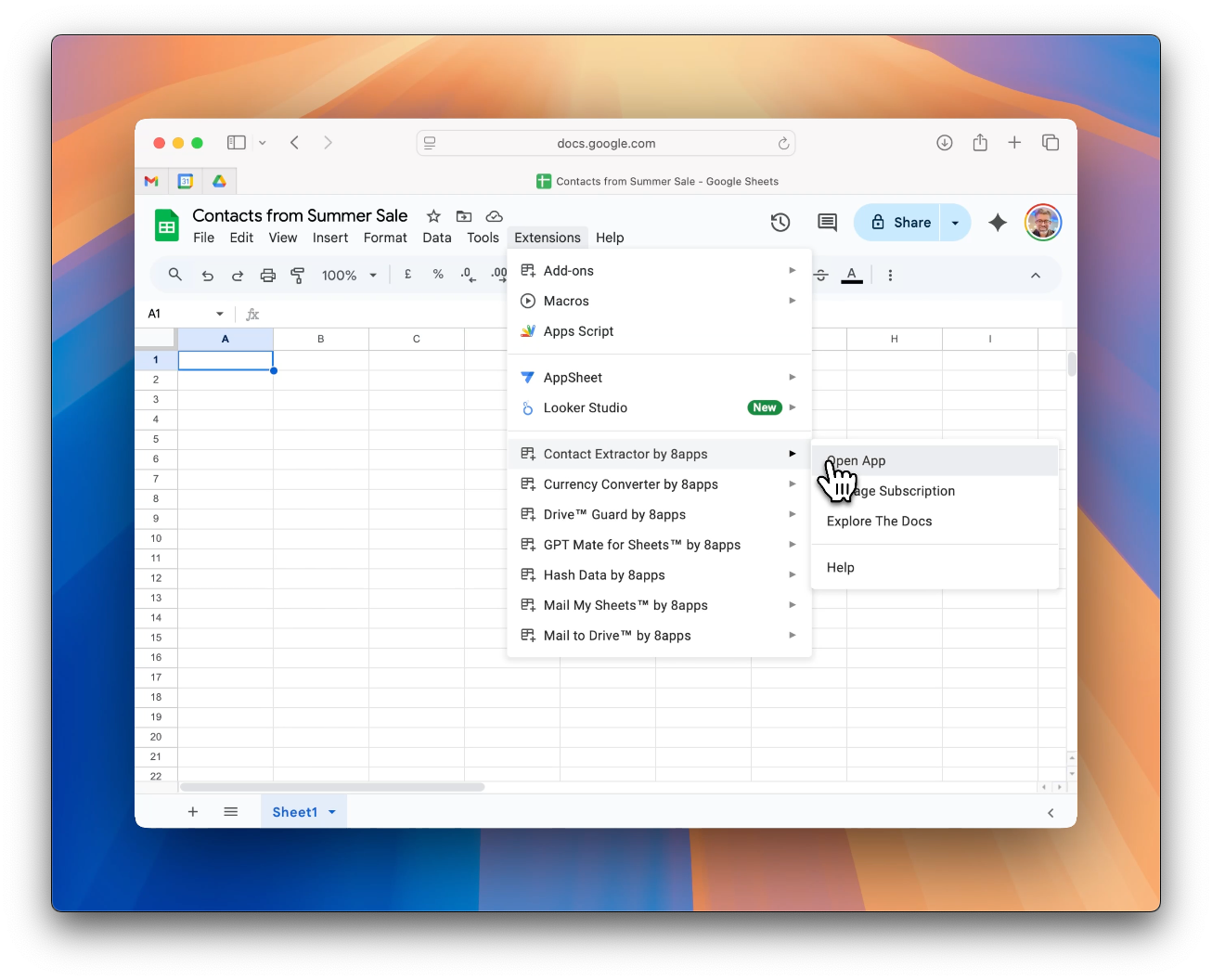
Head to **Google Sheets → Extensions → Contact Extractor by 8apps → Open App**.
This opens the Contact Extractor window — your control panel to set up tasks and workflows.
---
### Step 2: Create a New Task
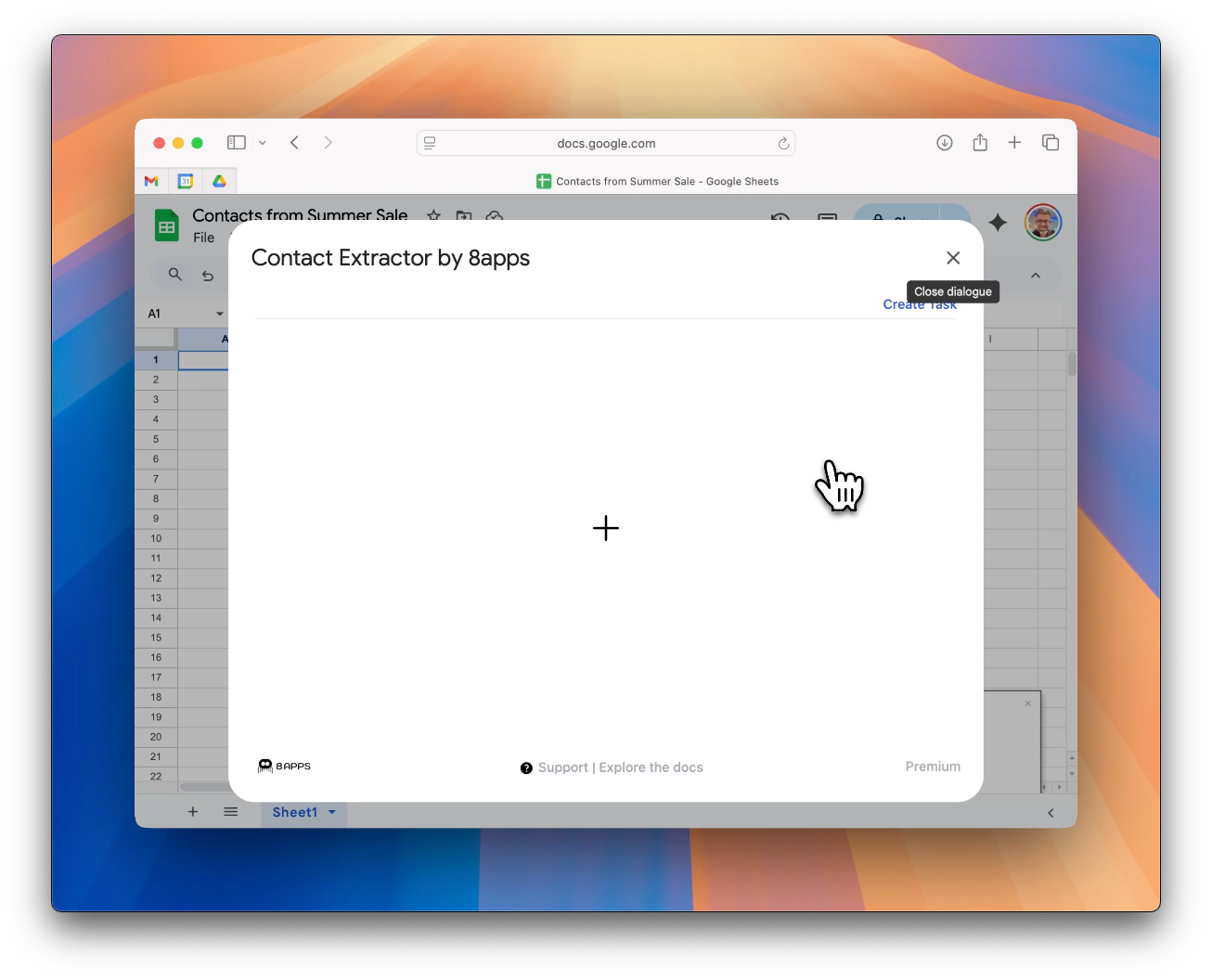
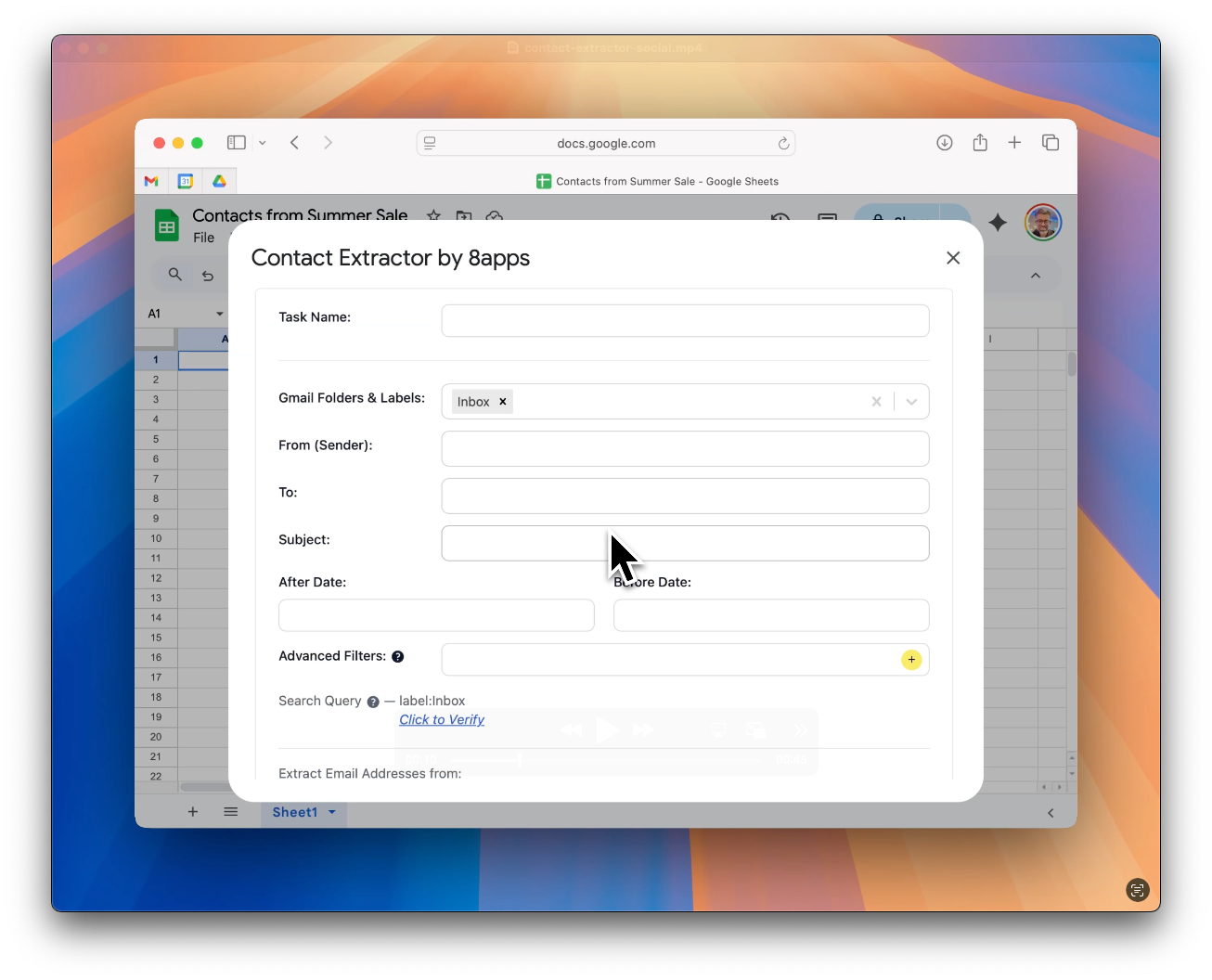
Click the **"+"** button to create a new task.
Each task is a contact extraction workflow — it can run **once** or on an **hourly basis** if you're monitoring a live label, entire inbox, or a particular set of conditions (or Gmail filters).
---
### Step 3: Set Filters — Just Like Gmail Search
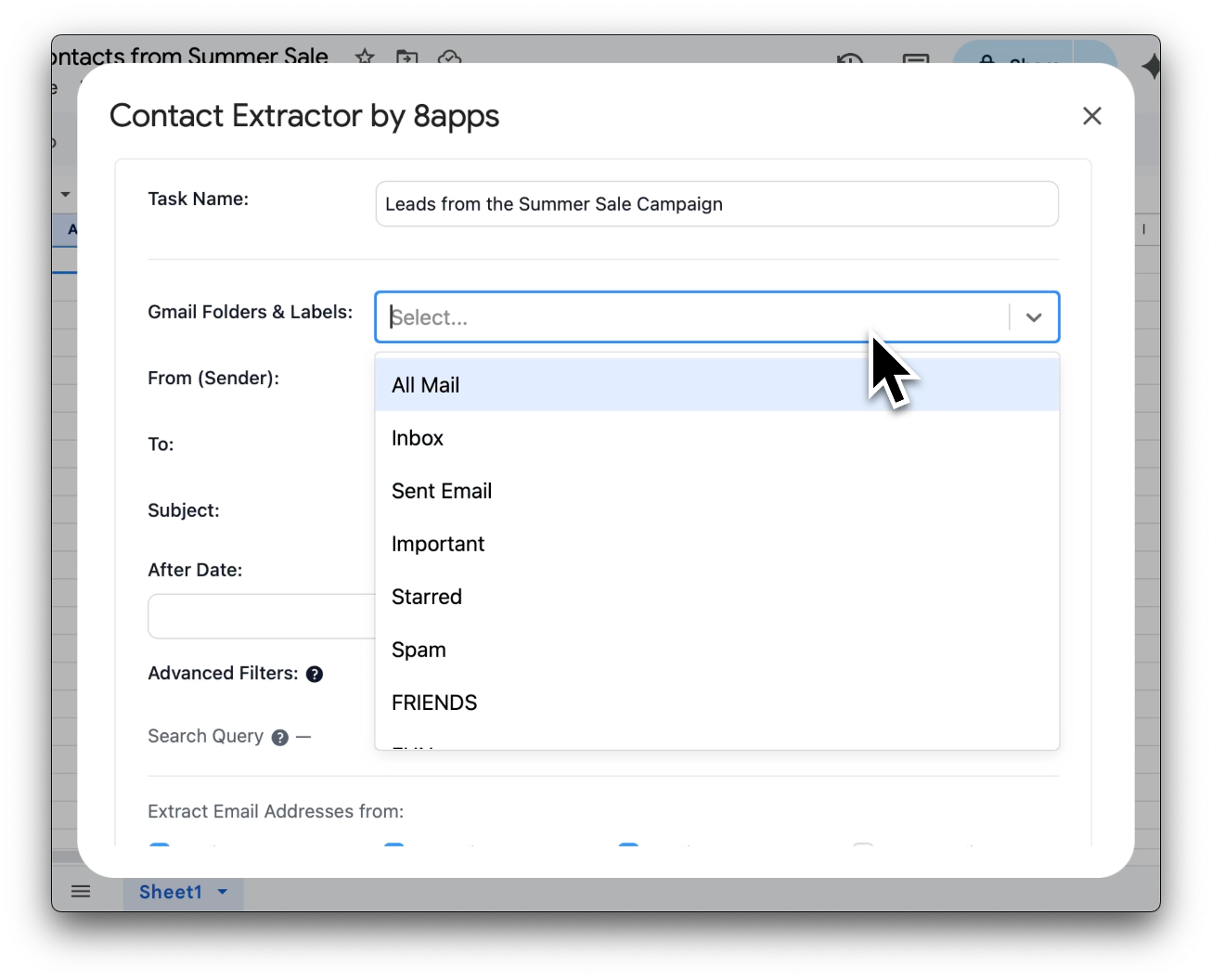
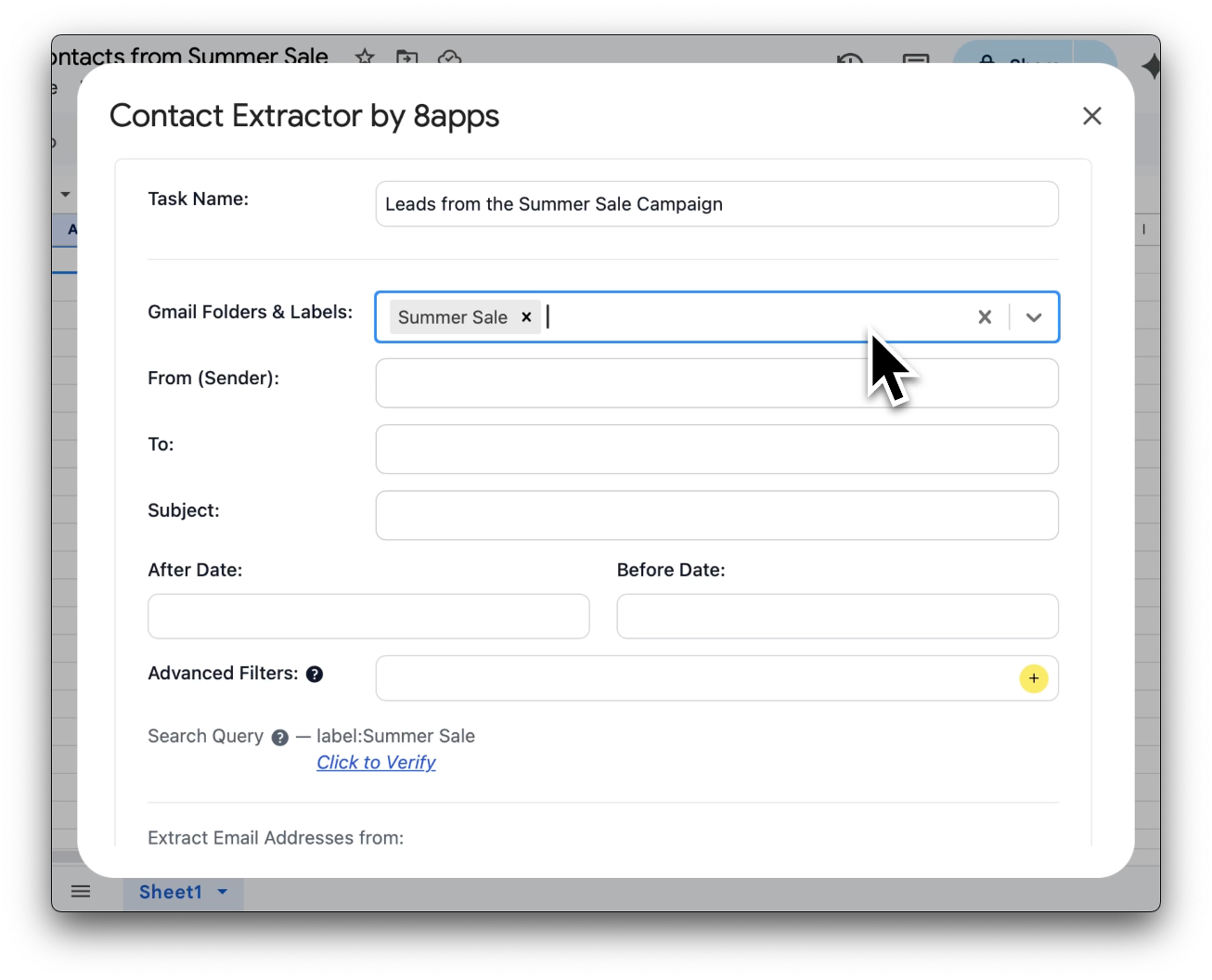
Fill in details like:
- **Gmail labels or folders** (Inbox, Sent, or any custom label)
- **From, To, Subject** keywords
- **Date filters** (e.g., after July 1, before Aug 1)
As you set these, a live Gmail-compatible search query is built automatically. Click **"Verify"** to preview matching emails directly in Gmail — no guesswork.
---
### Step 4: Choose What to Extract
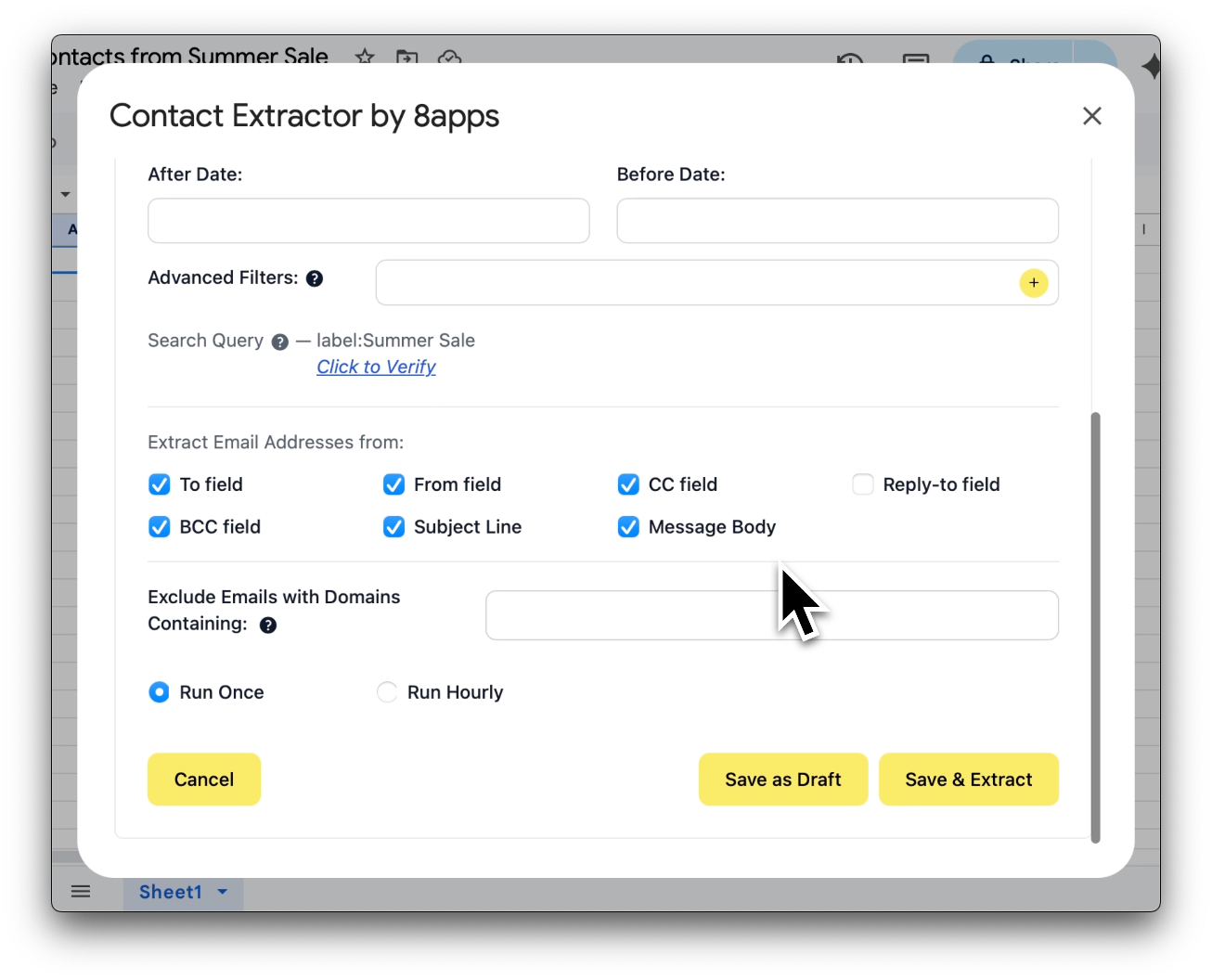
You can extract email addresses from:
- Headers like **To, From, CC, BCC, Subject Line**
- **Message Body** (if checked)
- **Exclude domains** (e.g. @yourcompany.com) to avoid internal addresses
You can also choose whether the task should:
- **Run Once** — for one-time extractions
- **Run Hourly** — for live monitoring (e.g. incoming leads in a shared inbox)
---
### Step 5: Click "Save & Extract" — That's It
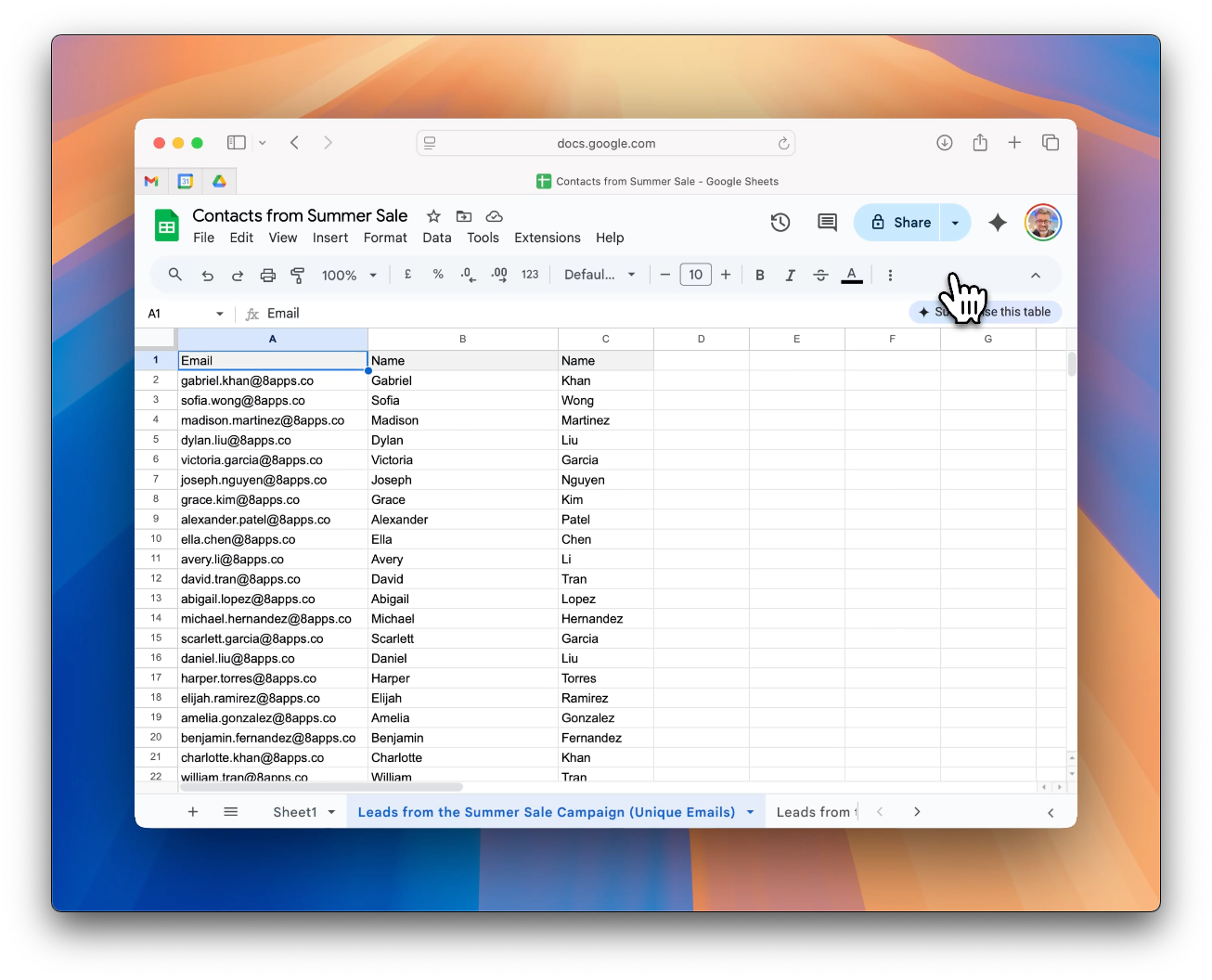
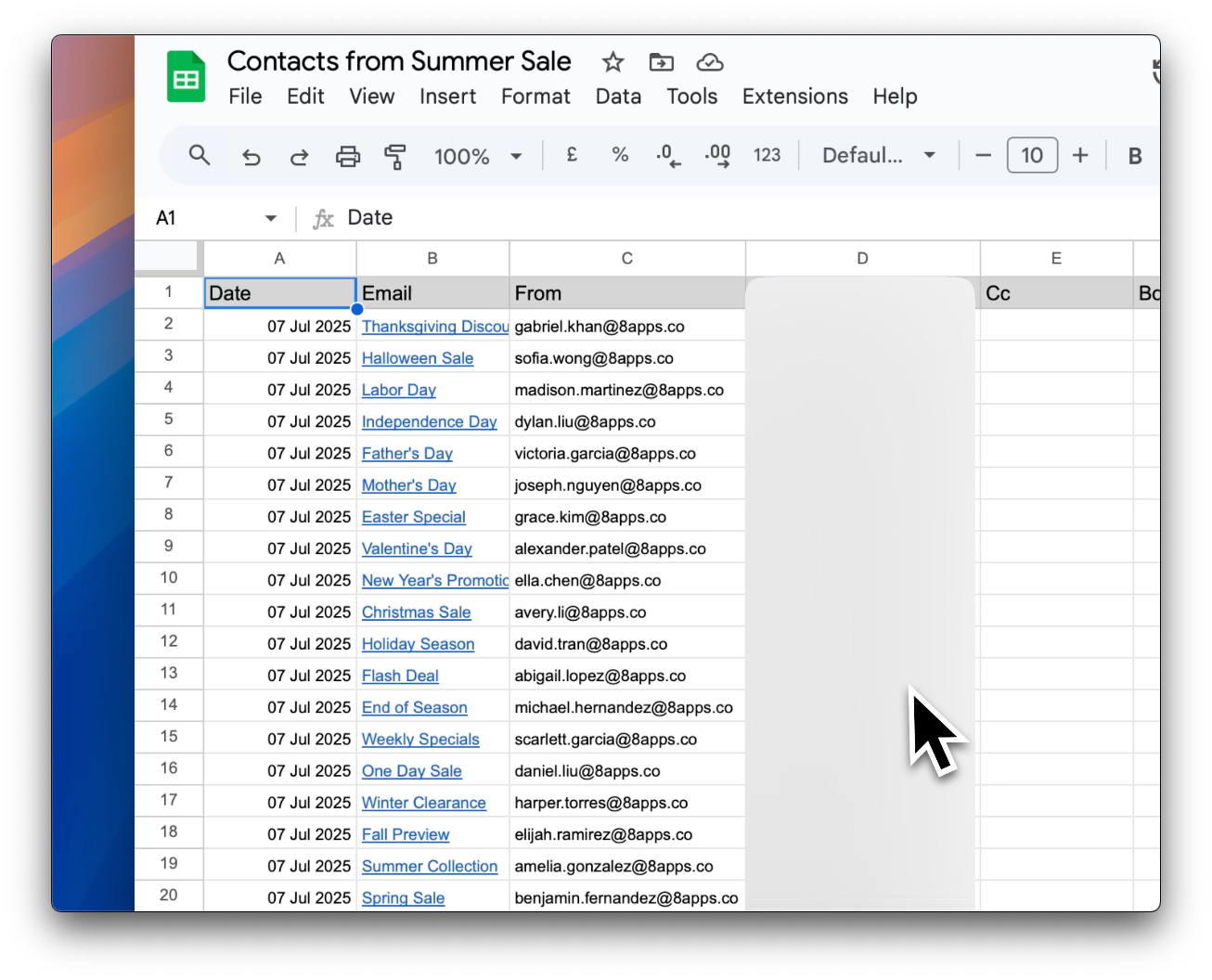
Within **15–20 seconds**, your extracted contacts appear right inside the Google Sheet — neatly formatted and de-duplicated.
You'll also see a separate sheet with raw headers like:
- Email subject
- Date received
- Sender email
This helps with internal auditing, tagging, and tracing conversations — without exposing the message body.
---
## 5. Why Salespeople Love This Workflow
If you've ever thought *"I wish I had a clean list of everyone I've spoken to at {client} over the years"* — this is for you.
A few ways people are using Contact Extractor today:
- **Reactivating old conversations** to fill the top of their pipeline
- **Compiling lead lists** from forwarded email intros
- **Scraping all the contacts** they've ever emailed at a target company
And the best part? It works inside tools you already use daily.
---
## 6. Your Data, Your Control
Every byte of your data stays where it belongs — inside your Google account.
We don't use external APIs or cloud syncs. We don't ask you to trust an unknown server.
This is a tool designed with data security in mind — and **verified by Google** to run safely inside Gmail, Docs, and Sheets.
No Chrome extensions. No tracking. No nonsense.
---
## 7. Ready to Build Your Contact List?
Your next 100 leads are probably sitting in your inbox already. You just need a faster, safer way to collect them.
👉 [Install Contact Extractor by 8apps now](/google-workspace/contact-extractor)
👀 [Or read more on 8apps.co](/google-workspace/contact-extractor)
---
## Verified by Google. Built for Trust.
Every add-on in the 8apps suite — including Contact Extractor by 8apps — goes through a rigorous security assessment and OAuth verification process conducted by Google.
This includes:
- 📜 **OAuth Consent Review** to ensure transparency in data access
- 🔒 **Independent third-party security assessment** for any app that accesses user data
- 🛡️ **Google Workspace Add-on Verification** to confirm compliance with all API and data security policies
We designed Contact Extractor to respect your privacy — no hidden syncs, no third-party logins, and no backdoors.
---
# How to Audit Google Drive Access and See Who Can View Your Files
URL: https://www.8apps.co/blog/drive-guard-audit-google-drive-access
Published: 2026-03-20
Summary: Learn how to audit Google Drive file permissions and see who has access to your files — without going through every file manually. A step-by-step guide using Drive Guard by 8apps.
*The simplest way to reduce exposure, without going through every file manually.*
---
## 1. The Problem: Google Drive Makes It Easy to Share — Sometimes Too Easy
Google Drive is one of the most convenient tools in our day-to-day work life. In just a couple of clicks, you can create, collaborate, and share almost anything — from docs and decks to strategy files and campaign assets.
But that same convenience comes with a catch. Over time, Drive becomes messy. And risky.
You forget who has access to what. You share something quickly and move on. Teams change. Vendors churn. People leave. But the access? It lingers.
Here's what we've seen time and again:
- Docs that were meant to be shared internally now accessible to anyone with the link
- Files still shared with ex-employees or external vendors who left the project months ago
- Sensitive folders shared with "Anyone at company can view" — because it's easier
- Multiple versions of the same file floating around, each with different access levels
And the worst part? **Google gives you no easy way to audit this at scale.**
Sure, you can open a file and check who it's shared with. You can scroll through the "Shared with me" tab. But if you're trying to understand access across hundreds (or thousands) of files, it's simply not practical.
You're flying blind.
---
## 2. The Tool: Drive Guard by 8apps
That's exactly why we built [Drive Guard](/google-workspace/drive-guard) — a simple, secure Google Workspace Add-on that helps you:
- **Scan** your entire Drive or shared folders to check who has access
- **See** which files are publicly accessible, externally shared, or over-shared internally
- **Export** a clean audit report you can share with your team or use for cleanup
- **Run audits on demand** or set them to recur, so you never fall behind again
It's designed for people like us — team leads, ops managers, IT folks, consultants, agency owners, and startup founders — people who want to protect their documents, without needing admin rights or separate security tools.
- 🔗 [Install from the Google Workspace Marketplace](/google-workspace/drive-guard)
- 📖 [Explore the product page](/google-workspace/drive-guard)
---
## 3. Step-by-Step: How to Audit Google Drive Access in Minutes
Here's how the process works — start to finish.
### Step 1: Open Drive Guard from Google Sheets
Once you install Drive Guard, you can access it right from inside Google Sheets.
Go to: **Extensions → Drive Guard by 8apps → Open App**
> *[Screenshot Placeholder: Google Sheets → Extensions → Drive Guard → Open App]*
This opens a sidebar — no new windows, no switching tools. Just Sheets and Drive working together.
---
### Step 2: Create a New Task (One-Time or Recurring)
Click the **"+"** icon in the Drive Guard sidebar to create a new scan task.
Here, you'll choose:
- **What you want to scan** — your entire My Drive, a specific folder, or a shared drive
- **How often the task should run** — once for a quick audit, or on a recurring basis (hourly / daily / weekly)
You can also filter by:
- File types (Docs, Sheets, Slides, PDFs, etc.)
- Shared Drives vs personal My Drive
- Specific folders
> *[Screenshot Placeholder: Drive Guard sidebar — new task creation]*
This level of control means you can audit everything… or just the stuff that matters most.
---
### Step 3: Run the Scan and Review the Access Summary
Click **"Run Task"** and within seconds, Drive Guard analyses all the files under the selected scope.
What you get is a simple, powerful access breakdown:
| Access Level | What it means |
|---|---|
| 🔓 **Public** | Shared with "Anyone with the link" |
| 🌐 **External** | Shared with emails outside your domain |
| 🧍 **Internal-Wide** | Open to "Anyone in your company" |
| 👤 **Restricted** | Locked to specific people — no risk |
> *[Screenshot Placeholder: Drive Guard access summary view]*
This summary tells you exactly where to focus. No digging through Drive. No manual checks. Just instant visibility.
---
### Step 4: Export the Report for Review or Action
Want to share your findings with your team or manager? Want to archive the access state for compliance?
Just click **"Export"** and Drive Guard pastes a structured report into your Google Sheet.
The report includes:
- File name & link
- Access level
- Who has access
- File type
- Shared date
- Owner
> *[Screenshot Placeholder: Exported Drive Guard report in Google Sheets]*
It's clean, readable, and ready for follow-up.
---
### Step 5: Take Action (Manually or via Other Tools)
For now, Drive Guard doesn't automatically revoke access — and that's intentional.
We believe you should stay in control of what's shared and what's not. Drive Guard is designed to shine a light on risk — not change permissions behind your back.
*(That said, we're working on optional power-user features like bulk revoking in the future.)*
---
## 4. Bonus: Set It and Forget It with Recurring Scans
Drive Guard isn't just a one-time audit tool — it can be your ongoing watchtower.
You can create tasks that run automatically:
- ✅ **Hourly** for high-risk shared folders
- ✅ **Daily** for dynamic shared drives
- ✅ **Weekly** for general compliance reviews
Perfect for agencies working with clients, project folders shared across teams, or HR/legal folders that require ongoing access governance.
---
## 5. Why Teams Love Using Drive Guard
Here's what our early users tell us:
> 💬 *"We were able to find 6 publicly shared pitch decks we didn't even know existed."*
> 💬 *"It helped us clean up old vendor folders before the end of quarter security review."*
> 💬 *"We now include a Drive Guard scan in every offboarding checklist."*
Drive Guard is simple, lightweight, and effective — because it doesn't try to replace your Drive. It just makes it smarter, safer, and easier to manage.
---
## 6. Security Matters: Your Data Stays With You
Drive Guard was built with privacy in mind from Day 1.
- ✅ **Verified by Google**
- 🔒 Runs inside Google Sheets with your Google Workspace permissions
- 🚫 No external logins, no syncing, no hidden exports
- 🧘 Everything stays where it belongs — inside your Drive
When you're working with sensitive docs — from contracts to creative briefs — that peace of mind matters.
---
## 7. Ready to Run Your First Audit?
Whether you're a founder, team lead, agency ops manager, or IT pro — Drive Guard gives you a clear, reliable view of who has access to what in your Google Drive.
It only takes a couple of minutes to set up — and can save you from messy surprises down the road.
🔗 [Install Drive Guard now](/google-workspace/drive-guard)
📘 [Or explore all features here](/google-workspace/drive-guard)
🌐 [See the rest of the 8apps suite](/)
---
# Complete Gmail Keyboard Shortcuts Glossary (2026 Edition)
URL: https://www.8apps.co/blog/gmail-keyboard-shortcuts-glossary-2026
Published: 2026-03-20
Summary: A complete, categorized Gmail keyboard shortcuts glossary for 2026. See every shortcut in one place, plus a recommended starter set and tips for learning them faster.
Gmail is packed with keyboard shortcuts.
Used properly, they replace most of your mouse clicks with one or two keys.
This guide is your 2026 reference:
- A recommended starter set for beginners and intermediates
- A full glossary of shortcuts, organized by category and difficulty
- Notes on what actually matters in 2026 (and what hasn't changed)
> **Note:** On Mac, most shortcuts use ⌘ (Command) instead of Ctrl.
---
## What's new in 2026?
In reality: the core Gmail shortcut set has stayed stable over the last few years.
Google has shipped a lot around AI assistance, search, security, and UI polish, but the official keyboard shortcuts list remains largely unchanged and is still documented via the same support page and in-app `?` overlay.
So for 2026, the "new" parts are less about brand-new keys and more about:
- **Consistency:** Shortcuts like `B` (Snooze), `=` / `-` (importance) and `g` then `b` (Snoozed) are now standard in almost every up-to-date Gmail UI.
- **Discoverability:** Pressing Shift + `/` (the `?` key) to open Gmail's built-in shortcut help is now the default way Google expects you to explore shortcuts.
- **Workflow thinking:** More content and tools focus on teaching small, memorable bundles of shortcuts instead of giant lists.
This glossary is therefore a 2026-ready reference rather than a list of brand-new keys.
---
## Recommended Gmail shortcuts to learn first (2026 starter set)
If you don't want to memorize 90+ shortcuts, start with these:
### Navigation & jumping
| Shortcut | Action | Level |
|----------|--------|-------|
| `g` then `i` | Go to Inbox | Beginner |
| `g` then `s` | Go to Starred | Beginner |
| `g` then `t` | Go to Sent | Beginner |
| `g` then `d` | Go to Drafts | Beginner |
| `g` then `a` | Go to All Mail | Intermediate |
| `g` then `b` | Go to Snoozed | Intermediate |
### Core actions
| Shortcut | Action | Level |
|----------|--------|-------|
| `C` | Compose | Beginner |
| `R` | Reply | Beginner |
| `A` | Reply all | Beginner |
| `F` | Forward | Beginner |
| `E` | Archive | Beginner |
| `#` | Delete | Beginner |
### Selection & clean-up
| Shortcut | Action | Level |
|----------|--------|-------|
| `X` | Select conversation | Intermediate |
| `Shift + 8`, `A` | Select all conversations | Intermediate |
| `Shift + 8`, `N` | Deselect all | Intermediate |
| `Shift + 8`, `R` | Select read | Intermediate |
| `Shift + 8`, `U` | Select unread | Intermediate |
| `Shift + 8`, `S` | Select starred | Intermediate |
| `Shift + 8`, `T` | Select unstarred | Intermediate |
### Search & safety
| Shortcut | Action | Level |
|----------|--------|-------|
| `/` | Search mail | Beginner |
| `Z` | Undo last action | Beginner |
### Label & move
| Shortcut | Action | Level |
|----------|--------|-------|
| `l` | Label as… | Intermediate |
| `v` | Move to… | Intermediate |
Practice these first. Then, if you want the full power, dig into the complete glossary below.
---
## Before you use any shortcuts
Shortcuts only work properly if you've enabled them.
1. Open Gmail
2. Click the gear icon → **See all settings**
3. In the **General** tab, find **Keyboard shortcuts**
4. Choose **Keyboard shortcuts on** and **Save changes**
At any time, press **Shift + /** (question mark) to open Gmail's built-in shortcut dialog.
---
## How to read this glossary
- **Category** groups shortcuts by function
- **Level** is a view of where they fit in a learning journey:
- *Beginner* — everyone should know
- *Intermediate* — for regular Gmail users
- *Advanced* — niche / power-user
- Shortcut uses **PC notation** (Ctrl). On Mac, swap Ctrl for ⌘ where applicable.
---
## Full Gmail Keyboard Shortcuts Glossary (2026)
### Compose & Reply
| Shortcut | Action | Level |
|----------|--------|-------|
| `C` | Compose new message | Beginner |
| `R` | Reply to sender | Beginner |
| `A` | Reply all | Beginner |
| `F` | Forward message | Beginner |
| `Ctrl + Enter` | Send message | Beginner |
| `Ctrl + Shift + C` | Add Cc recipients | Beginner |
| `Ctrl + Shift + B` | Add Bcc recipients | Intermediate |
| `Ctrl + Shift + F` | Access custom From address | Advanced |
| `Ctrl + K` | Insert link | Intermediate |
| `Ctrl + Z` | Undo in compose | Beginner |
| `Tab` then `Enter` | Send (from To/Subject field) | Intermediate |
### Formatting (in compose)
| Shortcut | Action | Level |
|----------|--------|-------|
| `Ctrl + B` | Bold | Beginner |
| `Ctrl + I` | Italic | Beginner |
| `Ctrl + U` | Underline | Beginner |
| `Ctrl + Shift + 7` | Numbered list | Intermediate |
| `Ctrl + Shift + 8` | Bulleted list | Intermediate |
| `Ctrl + Shift + 9` | Block quote | Intermediate |
| `Ctrl + [` | Decrease indent | Advanced |
| `Ctrl + ]` | Increase indent | Advanced |
| `Ctrl + \` | Remove formatting | Intermediate |
### Inbox Actions
| Shortcut | Action | Level |
|----------|--------|-------|
| `E` | Archive | Beginner |
| `#` | Delete | Beginner |
| `B` | Snooze | Beginner |
| `!` | Report as spam | Intermediate |
| `S` | Star / unstar | Beginner |
| `+` or `=` | Mark as important | Intermediate |
| `-` | Mark as less important | Intermediate |
| `M` | Mute conversation | Intermediate |
| `I` | Mark as read | Beginner |
| `U` | Mark as unread | Beginner |
| `Shift + I` | Mark as read (from list) | Intermediate |
| `Shift + U` | Mark as unread (from list) | Intermediate |
| `l` | Open label picker | Intermediate |
| `v` | Move to label | Intermediate |
### Navigation (in thread list)
| Shortcut | Action | Level |
|----------|--------|-------|
| `J` | Move to newer conversation | Beginner |
| `K` | Move to older conversation | Beginner |
| `O` | Open selected conversation | Beginner |
| `U` | Return to thread list | Beginner |
| `X` | Select conversation | Intermediate |
| `N` | Next message in thread | Intermediate |
| `P` | Previous message in thread | Intermediate |
| `[` | Archive and move to next | Advanced |
| `]` | Archive and move to previous | Advanced |
| `Z` | Undo last action | Beginner |
| `;` | Expand all messages in thread | Advanced |
| `:` | Collapse all messages | Advanced |
### Go-To Navigation
| Shortcut | Action | Level |
|----------|--------|-------|
| `g` then `i` | Go to Inbox | Beginner |
| `g` then `s` | Go to Starred | Beginner |
| `g` then `t` | Go to Sent | Beginner |
| `g` then `d` | Go to Drafts | Beginner |
| `g` then `a` | Go to All Mail | Intermediate |
| `g` then `b` | Go to Snoozed | Intermediate |
| `g` then `l` | Go to Label | Intermediate |
| `g` then `c` | Go to Contacts | Intermediate |
| `g` then `k` | Go to Tasks | Advanced |
| `g` then `n` | Go to Next page | Intermediate |
| `g` then `p` | Go to Previous page | Intermediate |
### Selection
| Shortcut | Action | Level |
|----------|--------|-------|
| `X` | Select/deselect conversation | Intermediate |
| `Shift + 8`, `A` | Select all | Intermediate |
| `Shift + 8`, `N` | Deselect all | Intermediate |
| `Shift + 8`, `R` | Select read messages | Intermediate |
| `Shift + 8`, `U` | Select unread messages | Intermediate |
| `Shift + 8`, `S` | Select starred messages | Intermediate |
| `Shift + 8`, `T` | Select unstarred messages | Intermediate |
### Search & Menus
| Shortcut | Action | Level |
|----------|--------|-------|
| `/` | Search mail | Beginner |
| `Ctrl + Alt + .` | Move focus to toolbar | Advanced |
| `?` | Open keyboard shortcut help | Beginner |
| `.` | Open "More actions" menu | Intermediate |
| `]` | Move to newer email (in More actions context) | Advanced |
### Threadless Actions
| Shortcut | Action | Level |
|----------|--------|-------|
| `Q` | Move focus to Chat | Advanced |
| `Esc` | Save draft / return to inbox | Intermediate |
| `Shift + Esc` | Move focus to main window | Advanced |
---
## Learning shortcuts visually (instead of memorizing them)
Reading a glossary is useful. Actually learning these shortcuts requires repetition in context. If you prefer learning by seeing instead of memorizing:
1. Install [Accelerator Keys](/free-tools/accelerator-keys) by 8apps
2. Open Gmail
3. Press **Alt** (Windows) or **Option** (Mac)
4. See on-screen hints showing which keys trigger which actions
It turns this glossary from a static list into a live, on-screen tutor inside your inbox. If you spend a lot of time inside Gmail, this is one small upgrade that adds up every day.
---
## From Eddie's desk…
You don't need all of these shortcuts tomorrow. Start with a handful that match how you actually work: composing, replying, archiving, searching, and jumping.
Then, when you're ready, come back to this glossary and add a few more. By the time you know 20–30 of them well, Gmail stops feeling like a website and starts feeling like an app built for speed.
**[Add Accelerator Keys to Chrome](https://chromewebstore.google.com/detail/accelerator-keys-by-8apps/hnlmocmcbfmdmlghdlopniidkcomdbfg?utm_source=8apps&utm_medium=referral)** and try pressing Alt (Windows) / Option (Mac) inside Gmail.
---
# For Gmail Power Users: Label & Move Faster with L, V, and Bulk Actions
URL: https://www.8apps.co/blog/gmail-label-move-shortcuts
Published: 2026-03-20
Summary: Learn how to label and move emails instantly in Gmail using the l and v shortcuts. Plus bulk actions, navigation tips, and micro-drills for faster inbox organization.
Gmail's labeling system is powerful — but clicking through menus slows everything down.
If you want to clear your inbox faster and stay organized without breaking flow, two shortcuts matter most:
- `l` → Label
- `v` → Move
When combined with bulk-selecting and quick navigation, your inbox becomes much easier to manage. Here's the simplest way to use them.
---
## 1. Turn Shortcuts ON First
Label and move shortcuts work only when Gmail shortcuts are enabled.
**3 steps:**
1. Gmail → **Settings**
2. **See all settings**
3. Turn **Keyboard shortcuts → ON**
> *[Screenshot Placeholder: Gmail Settings → Keyboard shortcuts ON]*
---
## 2. Shortcut #1 — `l` → Apply Label
Press `l` to open the label picker.
You can:
- Apply a label to an email
- Add multiple labels
- Use autocomplete (type 2–3 letters)
- Organize by project, client, category, or priority
*Micro-drill:* Open any email → press `l` → type a label name → Enter.
> *[Screenshot Placeholder: Label picker after pressing l]*
---
## 3. Shortcut #2 — `v` → Move Email
Press `v` to move an email out of your inbox and into a label (like a folder).
Use it for:
- Filing client emails
- Moving receipts and invoices into folders
- Cleaning newsletters
- Organizing approvals or tasks
*Micro-drill:* Select an email → press `v` → choose a label → Enter.
> *[Screenshot Placeholder: Move menu after pressing v]*
---
## 4. Bulk Sorting — `X` + `l` / `v`
Bulk actions multiply your speed immediately.
**Steps:**
1. Press `X` to select
2. Use `J`/`K` to move up/down
3. Select multiple emails
4. Press `l` to label all
5. Press `v` to move all
**Examples:**
| Selection | Action | Destination |
|-----------|--------|-------------|
| 6 newsletters | `v` | "Newsletters" |
| Receipts | `v` | "Expenses 2025" |
| Client emails | `l` | "Client A" |
| Low-value emails | `#` | Delete |
> *[Screenshot Placeholder: Bulk selection using X]*
---
## 5. Useful Labeling Habits (Beginner → Intermediate)
**A) Keep labels short**
Short labels = faster autocomplete. Examples: `Work`, `Travel`, `Tax`, `Clients`, `Finance`.
**B) Use colors sparingly**
Color only your top 5–7 labels. Too much color becomes noise.
**C) Add a weekly "Label Sweep"**
Once a week:
- Bulk select
- Press `l` or `v`
- Clear clutter in minutes
---
## 6. The 20-Second Sorting Loop
Do this once per day:
1. `J` → `X` → `l`
2. `J` → `X` → `v`
3. `J` → `X` → `#`
Repeat until your inbox feels calm again.
---
## 7. Learn This Visually
If you're tired of memorizing shortcuts, just press **Alt** (Windows) or **Option** (Mac) with [Accelerator Keys](/free-tools/accelerator-keys) installed.
You'll see on-screen hint bubbles showing:
- `l` for label
- `v` for move
- label paths
- bulk action cues
- navigation hints
It's the easiest way to build keyboard habits.
**[Add Accelerator Keys to Chrome → Open Gmail → Press Alt (Windows) / Option (Mac)](https://chromewebstore.google.com/detail/accelerator-keys-by-8apps/hnlmocmcbfmdmlghdlopniidkcomdbfg?utm_source=8apps&utm_medium=referral)**
---
## From Eddie's desk…
Labeling and moving emails shouldn't slow you down. Once you learn `l`, `v`, and the bulk-select workflow, Gmail feels lighter — almost effortless.
Turn shortcuts ON, run the 20-second loop a few times, and let these keys become second nature. And if you prefer learning by seeing rather than memorizing, [Accelerator Keys](/free-tools/accelerator-keys) shortcut hints can guide you every step of the way.